The Tools panel appears when View Tools is selected in the left portion of the toolbar:
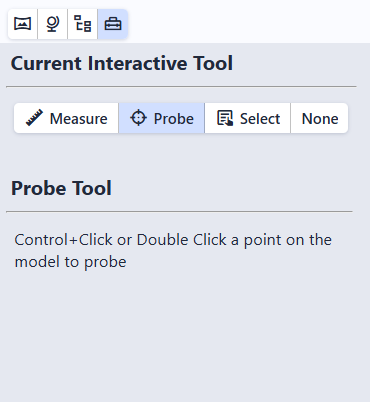
The Current Interactive Tool allows you to control what happens when you double click or use Control+Left Click on an object in the scene.
There are four options for tools:
- Measure: Double click on two points, and provide a tool to measure distance, slope, aspect, and more
- Probe: Get detailed information about an object by double clicking on it
- Select: Double click on an object to open the Model Tree and automatically select the object for editing
- None: Disable all interaction via double click or control + click
By default, double clicking on an object performs a Probe:
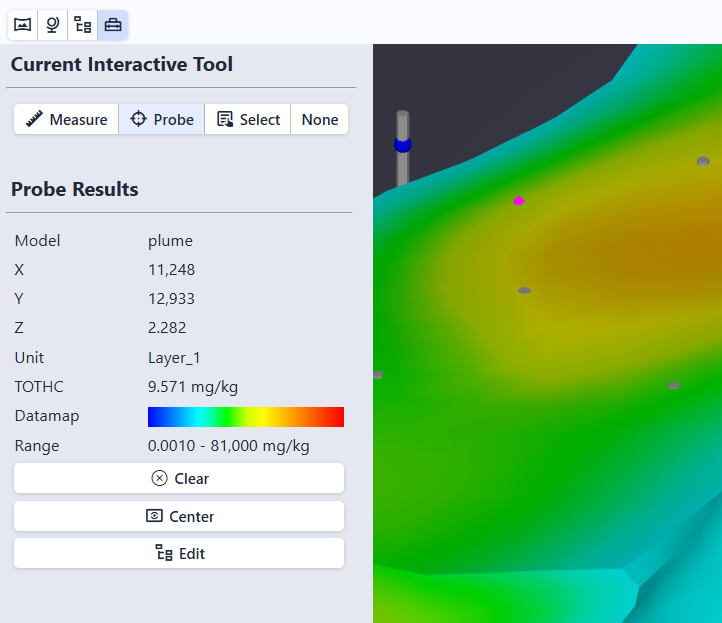
The Probe is displayed in the scene as a wireframe, fuchsia colored sphere.
Information about the model at that location is displayed in the Tools panel in the Probe Results section. This will include various information based on which model was probed, but can include the coordinate, unit, analyte and value at that location, data mapping, and data range.
In addition, three buttons are displayed:
- Clear: Clears the probe and removes the results from the Tools window
- Center: Recenters the view on the picked location. Mouse rotations will then rotate about that point instead of the center of the scene.
- Edit: Opens the Model Tree and selects the picked model in the tree and editor automatically.