The Model Tree panel shows every object in the scene and lets you control them individually. Open it by clicking the Model Tree button in the toolbar or pressing Alt+M.
The panel has two sections: the Editor at the top and the Model Tree at the bottom.
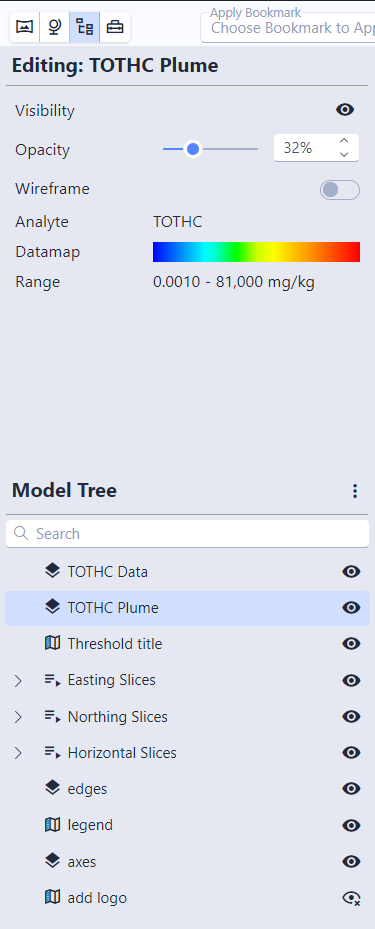
The Model Tree
The lower section lists all objects in the scene, organized in a hierarchy:
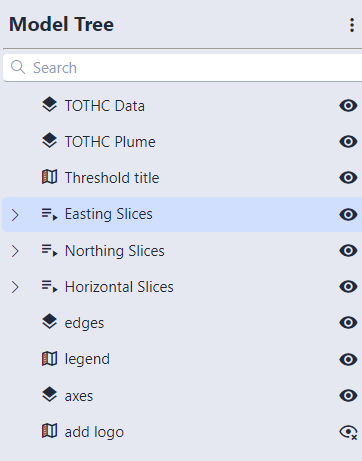
Searching the Tree: A search box above the tree filters objects as you type. Matching text is highlighted, and the parent groups of any match stay visible so you don’t lose the surrounding hierarchy. The search is typo-tolerant, so close misspellings still match. Clearing the search restores the tree to its previous expanded/collapsed state.
Visibility controls: The eye icons on the right show or hide individual objects. Clicking the eye on a group or sequence toggles visibility for everything inside it.
Info
Some objects show a lock icon instead of an eye. Locked objects have their visibility fixed by the scene author and cannot be toggled.
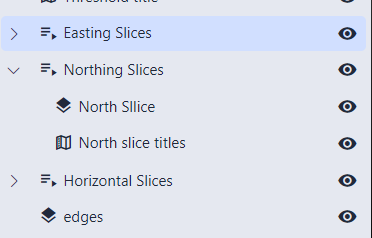
Expanding groups: Groups and sequences can be expanded to reveal their contents. Click any object to select it and edit its properties in the Editor above.
Bulk actions: The three-dot menu at the top right lets you show all, hide all, expand all, or collapse all objects.
Editing Object Properties
Select an object in the tree to open its properties in the Editor panel. The available controls depend on the object type.
Common Controls
| Control | Description |
|---|---|
| Visibility | Show or hide the object |
| Opacity | Transparency from 0% (invisible) to 100% (solid) |
| Wireframe | Toggle wireframe rendering |
| Point / Line Width | Display size of point or line objects |
Data Controls
These appear when the selected object contains analytical data (such as contamination values):
| Control | Description |
|---|---|
| Analyte | The chemical or substance being displayed |
| Datamap | The color scale mapping data values to colors |
| Data Range | Minimum and maximum values represented by the datamap |
Sequence Controls
When a sequence is selected, the editor shows its current state and lets you step through states or change them directly:
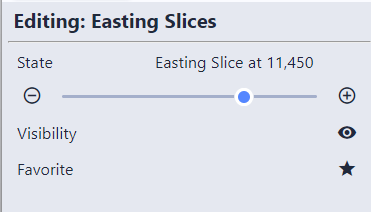
You can also favorite a sequence from here by clicking its star icon to add it to the toolbar.
Object Types
| Type | Description |
|---|---|
| Modules | 3D geometry such as surfaces, volumes, boreholes, and other model objects |
| Groups | Folders that organize related objects together |
| Sequences | Multi-state objects that change content in the scene (see Sequences) |
| Annotations | Text labels, legends, and other 2D overlays |