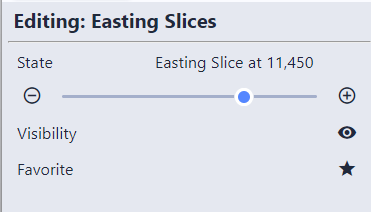
Sequences are objects that change content in the scene. Each sequence has multiple states: stepping between them updates what you see. When favorited, sequence controls appear directly in the toolbar for quick access.
Common examples include:
- Slice positions: Each state moves a slice to a new location
- Plume levels: Each state changes the threshold for a contamination plume
- Analytes: Each state switches which chemical is displayed
- Model revisions: Each state shows a different version of the model
The specific sequences available depend on what the scene author configured.
Tip
The live model below includes sequences: try using the sequence controls to step through different states and see the scene update.
Controlling Sequences
Sequences can appear with three different controls, depending on how the author set them up:
- Dropdown: Select a specific state from a drop-down menu
- List: Select a state from a visible list of all available states
- Slider: Drag to move between states
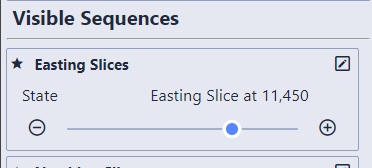
Use the step buttons next to the sequence to move one state at a time. In the toolbar these are left/right arrows, matching the keyboard shortcuts.
Info
Some sequences allow cycling: when you step past the last state, it wraps back to the first. This is configured by the scene author.
Favoriting Sequences
Sequences appear in the Scene Properties panel under Visible Sequences and can also be found in the Model Tree. The scene author can set any sequence to be a favorite by default, so some sequences may already appear in the toolbar when you open a file. Click the star icon next to a sequence to add or remove it from the toolbar.
When a sequence is favorited, you can control it with the keyboard:
- Left/Right Arrow keys: Step the active favorited sequence
- Number + Left/Right: Step a specific favorited sequence. For example, hold 1 and press Right to step the first favorited sequence forward, hold 2 and press Right for the second, and so on (up to 9). Hover over a favorited sequence’s step arrows in the toolbar to see its key hint (for example
[2+→]).
Info
When more than one sequence is favorited and visible, the number keys let you control each one independently. Hold down the number corresponding to the sequence’s position (first favorited = 1, second = 2, etc.) while pressing the arrow keys.
Sequence visibility can also be changed through bookmarks.