Step through slices, plume levels, analytes, and other multi-state content.
Subsections of Getting Started
There are two ways to view a scene file: the web viewer and the Windows desktop app. The viewer supports .ctws (single scene) and .ctmws (multi-scene bundle) files.
Web Viewer
Go to viewer.ctech.com and either drag your scene file onto the page or click Click to Open Scene to browse for it.
Tip
Your organization may have its own branded viewer or may embed C Tech Web Scenes directly into their website. Ask the person who provided your scene file for the best way to view it.
Windows Desktop App
Download and install the desktop viewer from ctech.com/downloads. Double-click any .ctws or .ctmws file to open it. The desktop app works without an internet connection and supports Windows 10 and 11.
Opening Multiple Files
You can open several scene files side by side using the Scene Management button (earth icon) on the right side of the toolbar. You can also drag and drop additional .ctws files onto an already-open viewer. See Working with Multiple Scenes for details.
Once a scene is open, use the mouse or touch gestures to navigate the 3D view.
Mouse Controls
Action
Control
Rotate
Left mouse button + drag
Pan (slide the view)
Right mouse button + drag
Zoom
Scroll wheel, or middle mouse button + drag
Tip
You can also hold Ctrl (or Cmd on Mac) and drag with the left mouse button to pan, as an alternative to the right mouse button. Try it in the live model below.
Touch Controls
On tablets and smartphones, touch gestures replace mouse controls:
Action
Gesture
Rotate
One finger drag
Zoom
Two finger pinch or spread
Pan (slide the view)
Two finger drag
Interacting with Objects
Double-click (or Ctrl+Click) on any object in the scene to interact with it. By default, this probes the object and shows information about it. You can change what double-click does in the Interactive Tools panel.
Tip
Ctrl+Click works the same as double-click for all tools. This is helpful on laptop trackpads where double-clicking precisely can be difficult.
Keyboard Navigation
The viewer supports extensive keyboard shortcuts for changing the view angle, stepping through bookmarks and sequences, and opening panels. Press ? anywhere in the viewer to see the shortcuts dialog, or see the Keyboard Shortcuts reference.
The toolbar is the horizontal bar across the top of the viewer window. It gives you quick access to panel controls, favorited bookmarks and sequences, and viewer-wide actions like scene management and settings.
The toolbar is divided into three areas: panel buttons on the left, favorited controls in the center, and viewer controls on the right.
Info
If the window becomes too narrow to fit everything, controls move into the overflow menu (three dots) in a fixed order: the Open New Scene and Options icons move in first, then the remaining right-side viewer controls as a group, then Set Views, then sequences (one at a time), and finally bookmarks. The panel buttons on the left never collapse. Any control that moves into the overflow menu remains fully usable there.
Full Viewer (landscape icon): Close the side panel and use the full window for the 3D view
Scene Properties (globe icon): Open Scene Properties (set views, Z scale, snapshots)
Model Tree (hierarchy icon): Open the Model Tree (individual object controls)
Interactive Tools (toolbox icon): Open the Interactive Tools panel (probe, measure, select)
Center: Favorites
Favorites are controls that the scene author decided were critical for interacting with the model. By placing them front and center on the toolbar, the author ensures you can use them without needing to open any side panels.
The types of controls that can be favorited are:
Set Views: Preset camera positions (Scene, Plan, Fit, SE, SW, NE, NW)
Bookmarks: Navigation controls to step through bookmarks
Sequences: Controls to step through sequence states
Tip
The live model below includes bookmarks and sequences: try using the toolbar favorites to step through them.
Info
You can customize the toolbar by favoriting or unfavoriting controls yourself. Look for the star icon next to set views, bookmarks, and sequences in the Scene Properties and Model Tree panels. A filled star means the control is favorited; click it to remove it from the toolbar, or click an empty star to add it.
Right: Viewer Controls
Scene Information (i): Display information about the scene, if provided by the author
Help (?): Show help and keyboard shortcuts
Full Screen: Make the viewer fill the entire screen. Press Escape to exit.
Language: Change the display language. Only shown while the language is set to Automatic. The viewer defaults to your browser’s language setting, falling back to English. Supported languages: English, Chinese (Simplified), and German.
Scene Management (earth icon): Open the Scene Management menu to add, replace, or close scenes and configure multi-viewport options
Open New Scene (refresh icon) and Options (gear icon): Browse for a different scene file, or open the Options dialog. When the toolbar has enough room, these appear directly on the toolbar as icons. Otherwise, they move into the overflow menu described below.
Overflow menu (three dots, “More toolbar items”): Appears only when something doesn’t fit on the toolbar. Normally holds Open New Scene and Options, plus any other controls that no longer fit. When the window is wide enough for everything to appear directly on the toolbar, this menu is hidden entirely.
Bookmarks are saved states created by the scene author. When favorited, they appear directly in the toolbar: click the arrows or dropdown to step through them without opening any panels.
Each bookmark can control any combination of:
View: Camera position, angle, and zoom level
Object visibility and opacity: Which objects are shown or hidden, and their transparency
Sequence states: The current position of any sequences in the scene
Small icons on each bookmark indicate which properties it controls. Active icons mean the bookmark changes that property; dimmed icons mean it does not.
Tip
The live model below includes several bookmarks: try stepping through them to see how the view and object visibility change.
Info
Not all scene files include bookmarks. If the scene author did not create any, the Bookmarks section will not appear.
Navigating Bookmarks
Click any bookmark to apply it. You can also:
Use the up and down arrow buttons to step through bookmarks in order
Use the dropdown to jump directly to a specific bookmark
Press the Up Arrow (previous) and Down Arrow (next) keys on your keyboard
Favoriting Bookmarks
Bookmarks appear in the Scene Properties panel. Click the star icon next to Bookmarks to add them to the toolbar for quick access.
Tip
Favoriting adds a control to the toolbar so you can use it even when the side panel is closed. Many controls in the viewer (bookmarks, sequences, and set views) can be favorited this way.
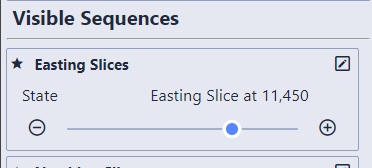
Sequences are objects that change content in the scene. Each sequence has multiple states: stepping between them updates what you see. When favorited, sequence controls appear directly in the toolbar for quick access.
Common examples include:
Slice positions: Each state moves a slice to a new location
Plume levels: Each state changes the threshold for a contamination plume
Analytes: Each state switches which chemical is displayed
Model revisions: Each state shows a different version of the model
The specific sequences available depend on what the scene author configured.
Tip
The live model below includes sequences: try using the sequence controls to step through different states and see the scene update.
Controlling Sequences
Sequences can appear with three different controls, depending on how the author set them up:
Dropdown: Select a specific state from a drop-down menu
List: Select a state from a visible list of all available states
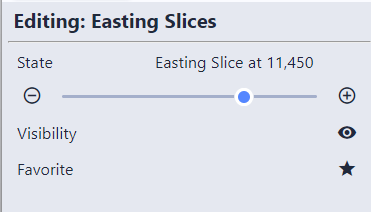
Slider: Drag to move between states
Use the step buttons next to the sequence to move one state at a time. In the toolbar these are left/right arrows, matching the keyboard shortcuts.
Info
Some sequences allow cycling: when you step past the last state, it wraps back to the first. This is configured by the scene author.
Favoriting Sequences
Sequences appear in the Scene Properties panel under Visible Sequences and can also be found in the Model Tree. The scene author can set any sequence to be a favorite by default, so some sequences may already appear in the toolbar when you open a file. Click the star icon next to a sequence to add or remove it from the toolbar.
When a sequence is favorited, you can control it with the keyboard:
Left/Right Arrow keys: Step the active favorited sequence
Number + Left/Right: Step a specific favorited sequence. For example, hold 1 and press Right to step the first favorited sequence forward, hold 2 and press Right for the second, and so on (up to 9). Hover over a favorited sequence’s step arrows in the toolbar to see its key hint (for example [2+→]).
Info
When more than one sequence is favorited and visible, the number keys let you control each one independently. Hold down the number corresponding to the sequence’s position (first favorited = 1, second = 2, etc.) while pressing the arrow keys.
Sequence visibility can also be changed through bookmarks.