Calculating the Average Thickness of Geologic Layers
How to calculate average layer thickness for continuous and discontinuous geologic layers in EVS
508 Compliant 3D PDFs
Guidelines for making EVS outputs and 3D PDF documents 508 compliant for accessibility
Subsections of 2025
Published September 2025 - Based on EVS Version 2025.6.0
Calculating the average thickness of a geologic layer is straight forward if the layer is continuous across the model domain. The first step is to calculate the volume of the layer, then divide it by the surface area of the layer to obtain the average thickness. However, if you have layers that are not continuous across the model domain due to pinch outs, angular unconformities, or nonconformities, your application will need a few extra steps to calculate the average thicknesses for affected layers.
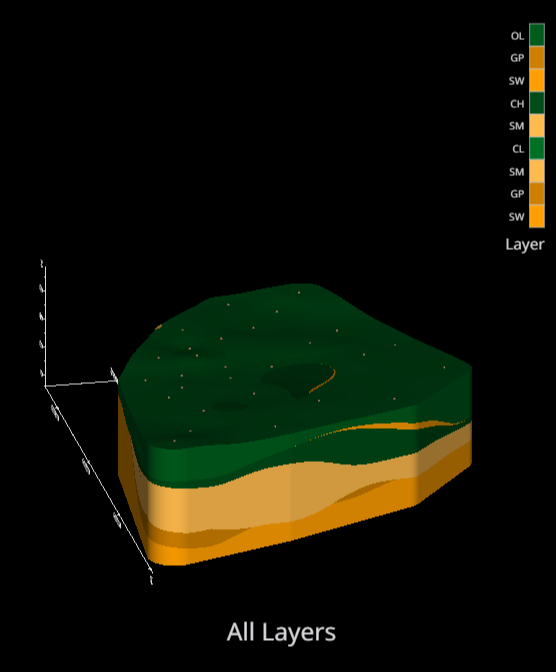
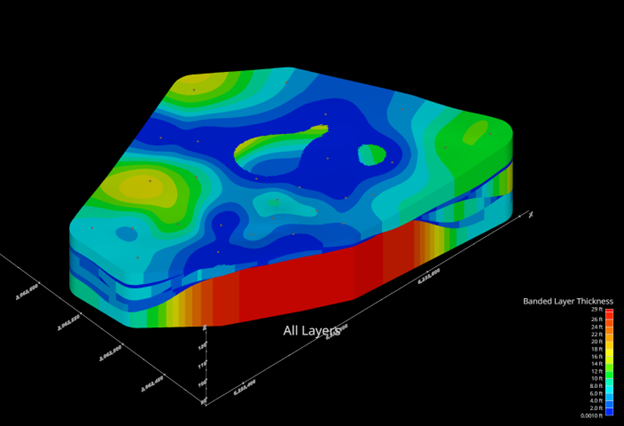
This example begins with the “resulting-stratigraphic-geologic-model.beginner.evs” application in the Earth Volumetric Studio Projects 2025.5 > Lithologic Geologic Modeling folder. This model has 9 geologic layers, and the upper 8 all have pinch outs. Here is the view of all the layers.
The following process chains were added to the model, as shown by the selected gray models in the images below: 1) a chain of modules running from explode and scale to calculate the volume:
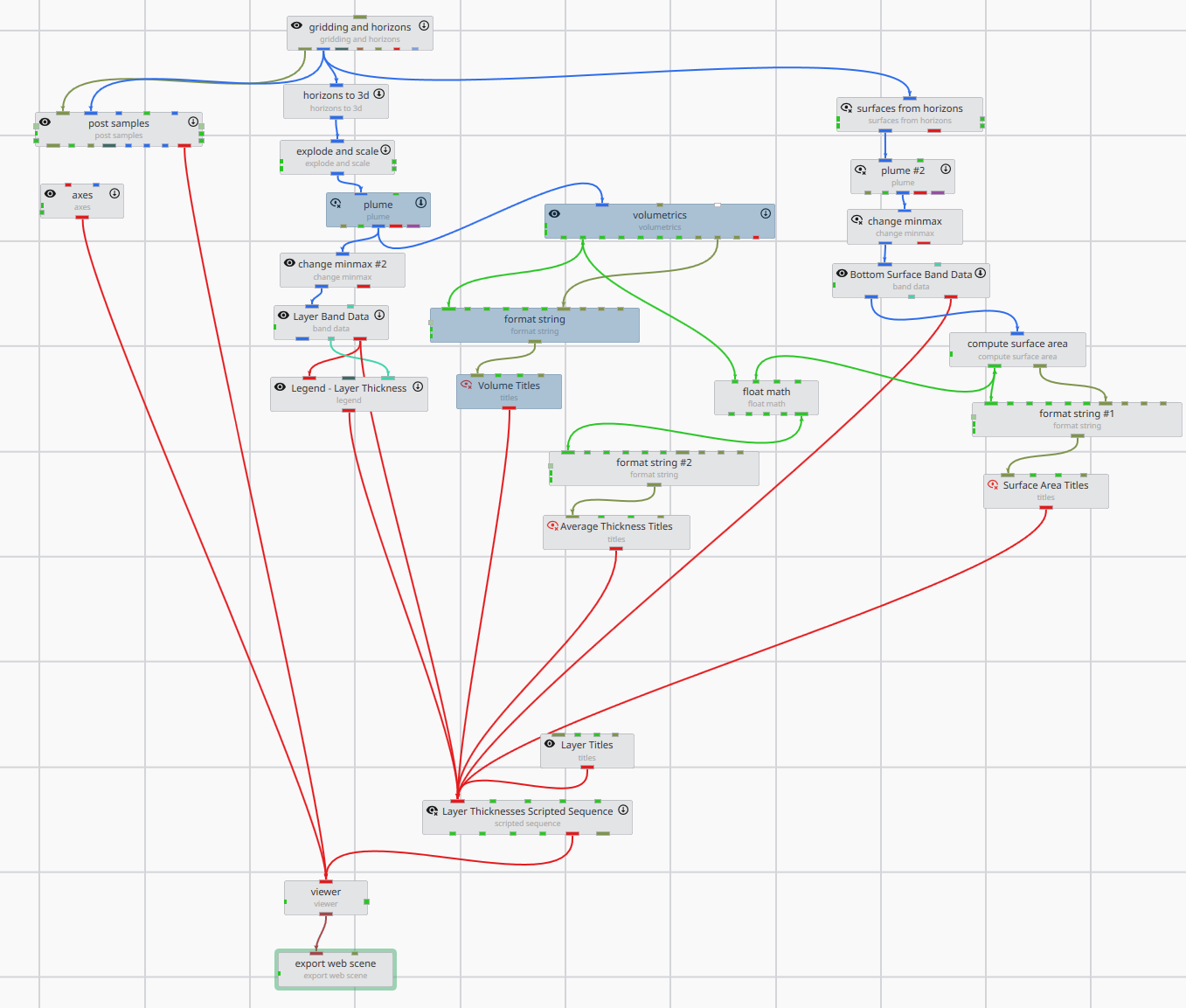
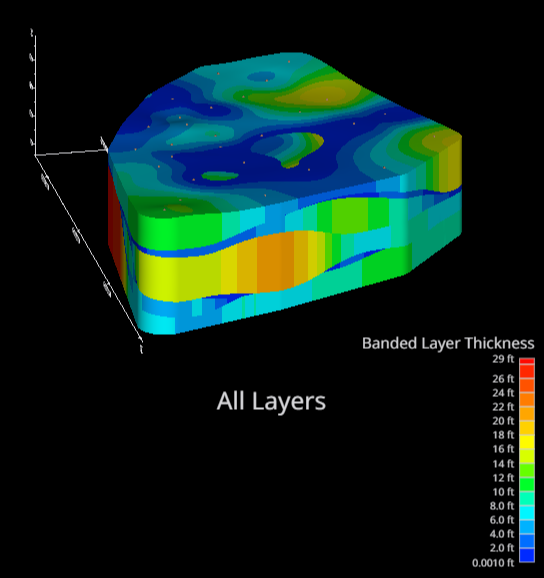
- a chain of modules to color the layers by thickness bands:
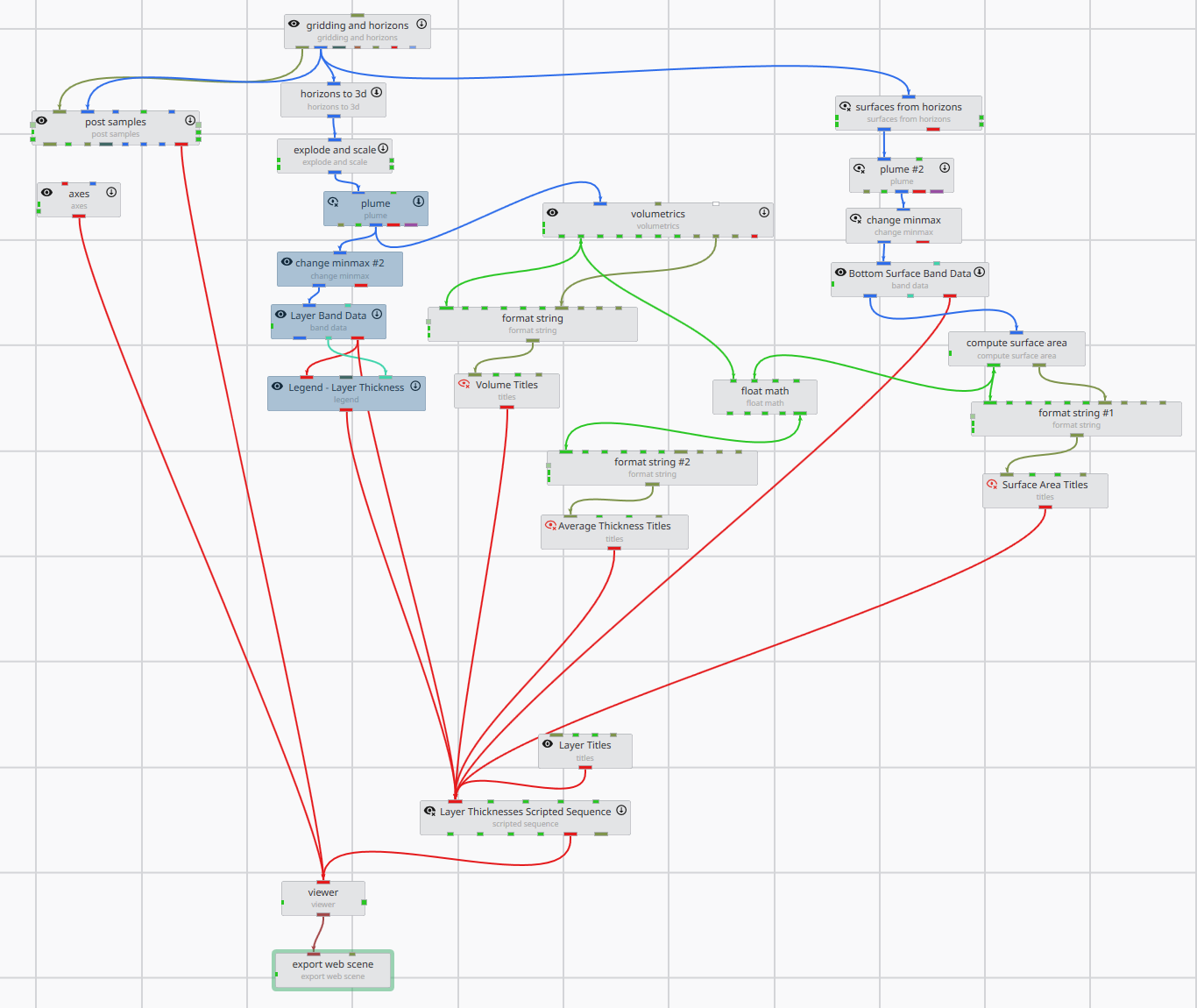
…which looks like this:
- A chain of modules to calculate the surface area of each layer:
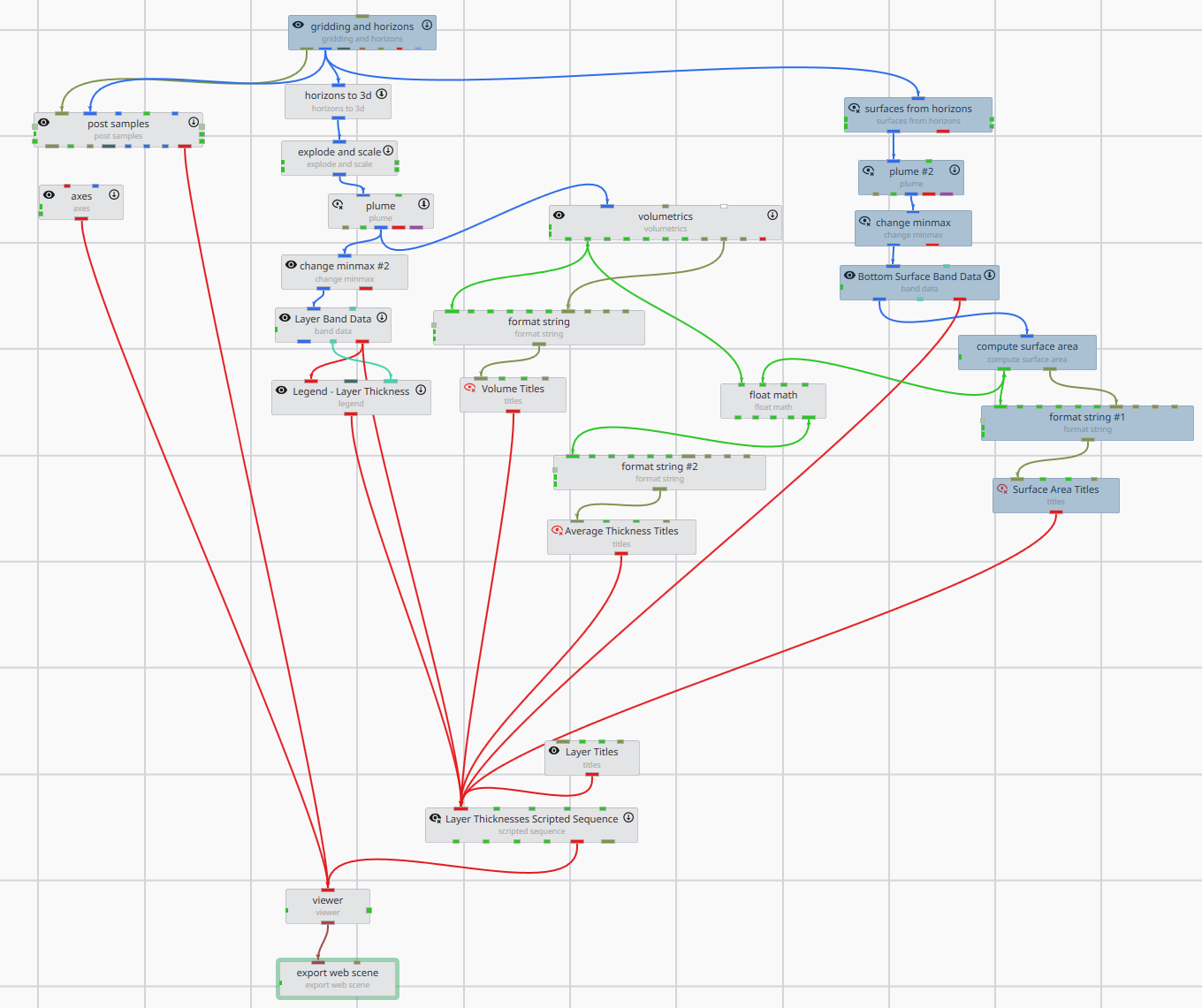
- A computation chain that divides the volume of the layer by its surface area to calculate the average thickness:
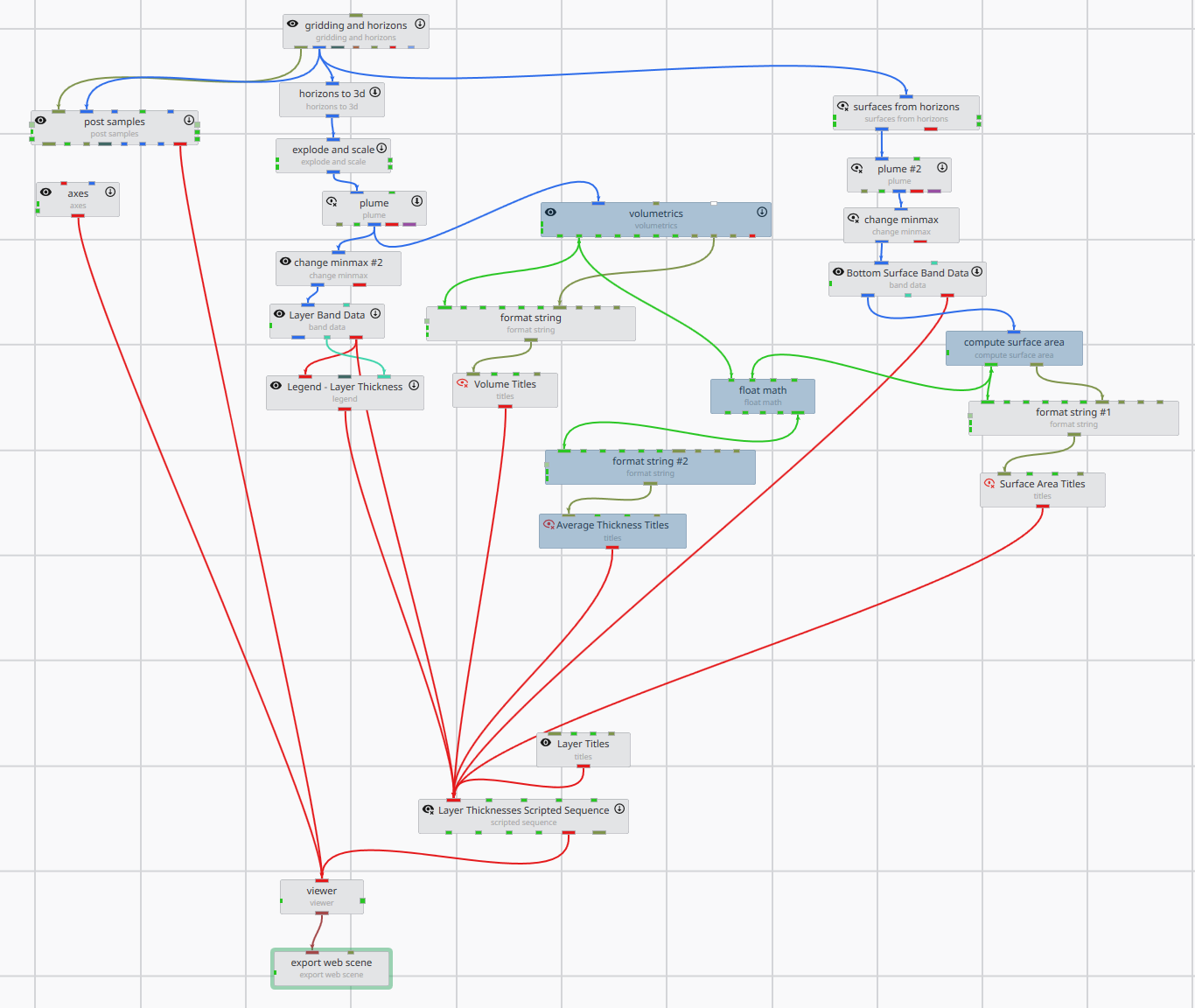
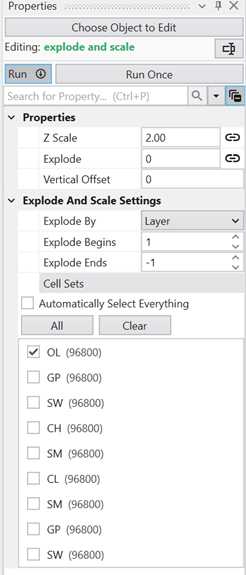
In order for the calculations for each layer to be correct, there are some key points that must be set properly to ensure the correct volume for a given layer is being divided by the correct surface area. For the volume chain, the explode and scale panel is used to select the layer. This is straightforward, as there is only one box for each layer:
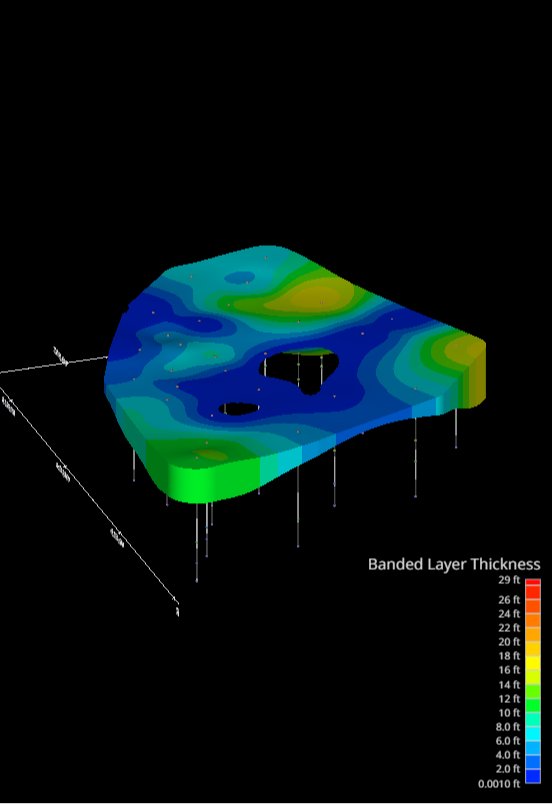
…which shows the top layer:
For the surfaces from horizons module, the selections must be chosen as follows to make sure you are getting the correct surface for your calculation. Here is what the panel looks like:
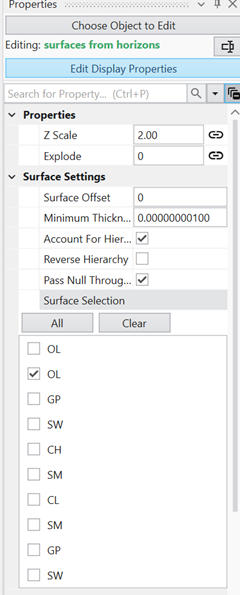
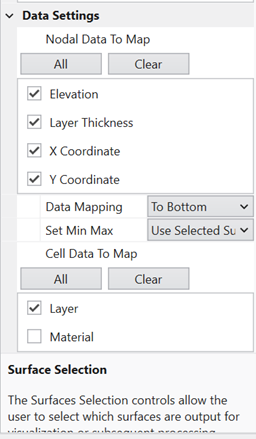
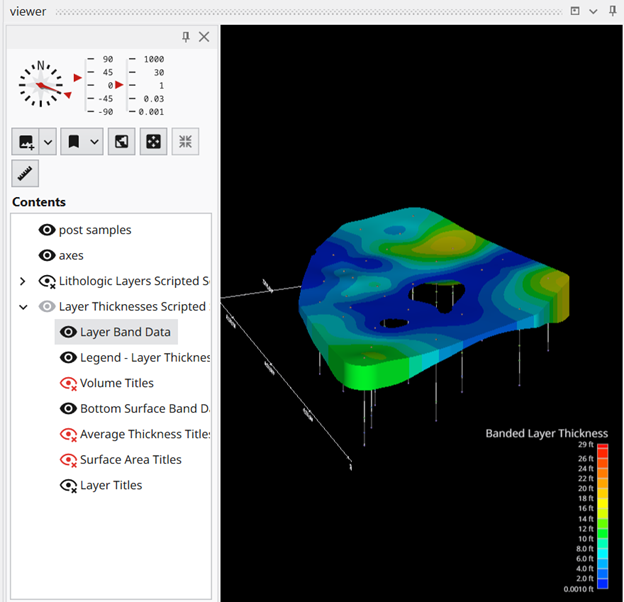
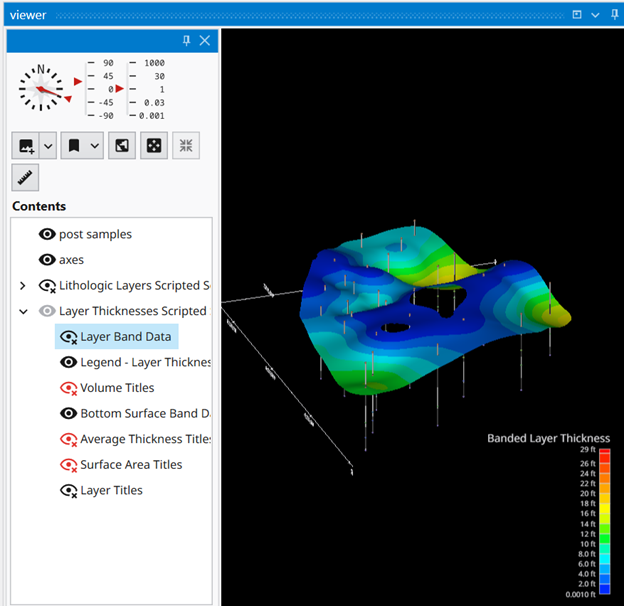
Note that there are two surfaces at the top for OL, because the top layer always has the ground surface and the bottom surface. All surface boxes below the OL layer select THE BOTTOM surface of the layer chosen. Note that Data Mapping needs to be set “To Bottom” to make sure you are getting the correct layer thickness data passed down the chain for subsequent calculations. You can check that you are selecting the correct layer bottom by toggling on/ off the volumetric “Layer Band Data” to see the surface below that is being used for the calculation:
You will also want to always set the Layer Thickness to the same value as you progress through each layer as it may change; in this case it is set to 0.001:
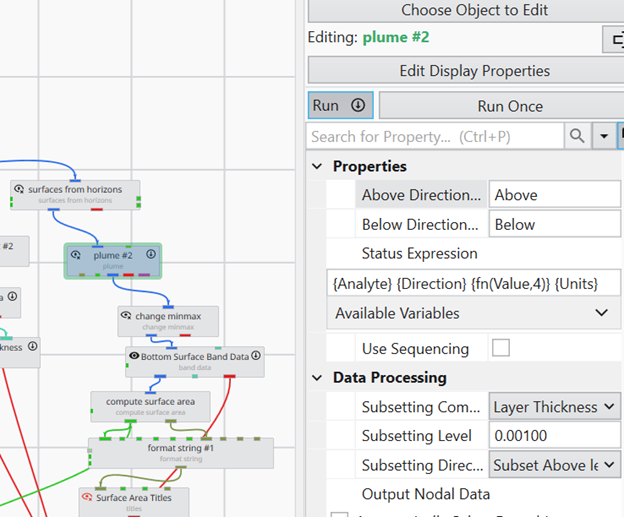
For the float math volume, the formula is simply N1 / N2, where N1 is the total volume passed from the volumetrics module, and N2 is the surface area passed from the compute surface area module.
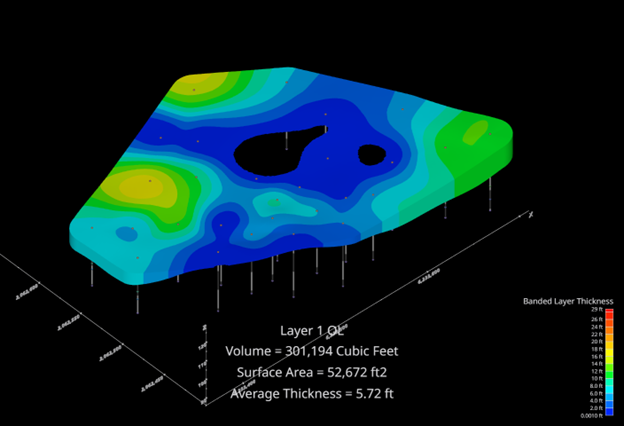
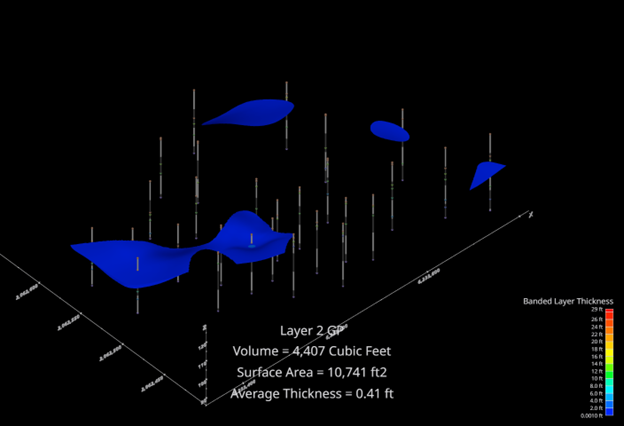
The resulting screenshots and calculation values are shown in sequence below.
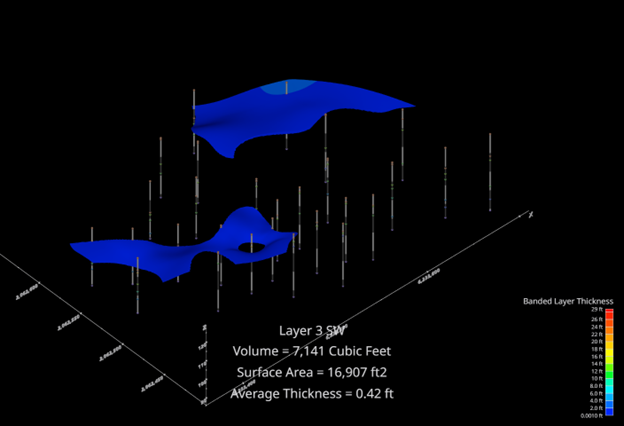
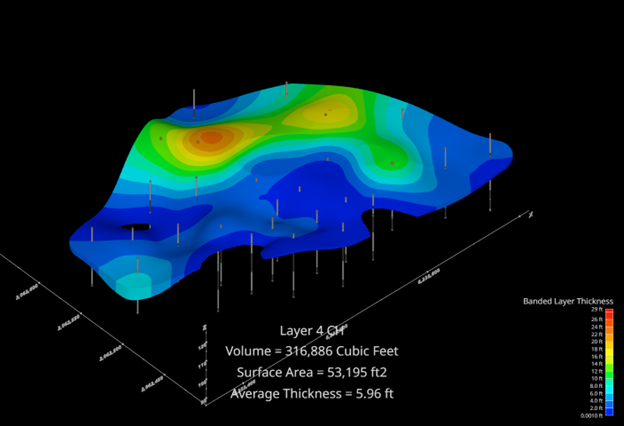
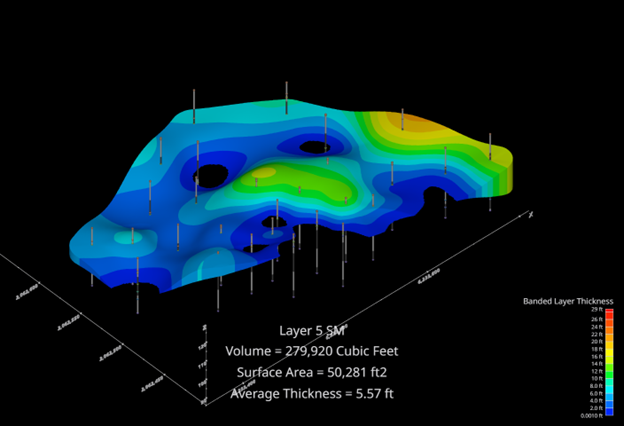
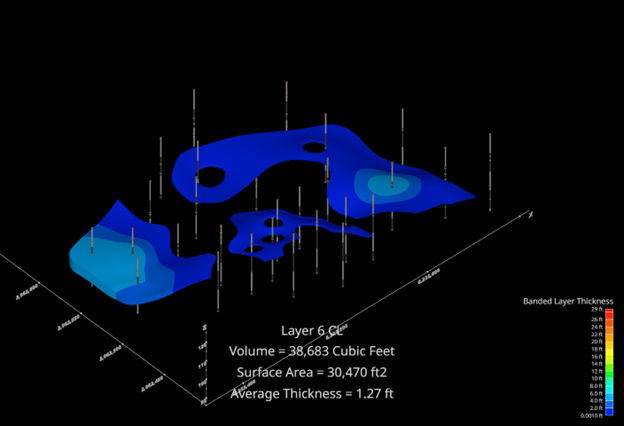
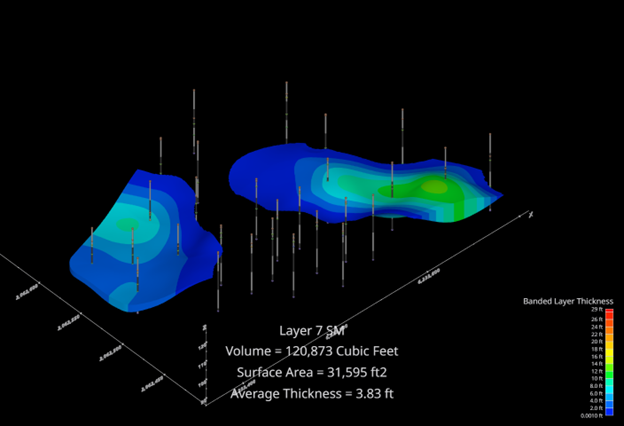
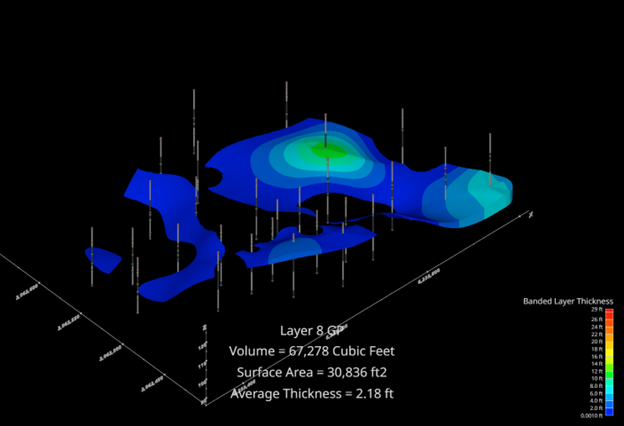
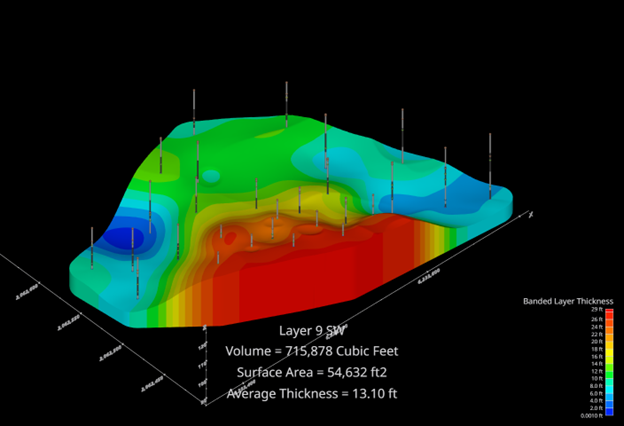
Published July 2025 - Based on EVS Version 2025.6.0
You are likely to encounter the requirement for 508 Compliance for some aspects of your work in the near future, if you haven’t already. Most U.S. Government agencies are required to make their websites and publicly accessible documents 508 compliant. For PDF files, whether or not they contain 3D Media, compliance is designated PDF/UA, for Universally Accessible.
If you are asked to make EVS outputs or a report with EVS modeling results 508 compliant this Tip will be relevant to you.
First, I need to disclose that this topic does not supplant the need for 508 accessibility expertise. Our goal is to provide guidelines which address the most fundamental accessibility requirements and suggest one path to meet them. You must appreciate that there are three levels of compliance (A through AAA) and EVS outputs, by their nature cannot fully meet them all.
These requirements attempt to address the needs of disabled persons meeting one or more of the following nine categories:
- Without Vision
- With Limited Vision
- Without Perception of Color
- Without Hearing
- With Limited Hearing
- Without Speech
- With Limited Manipulation
- With Limited Reach and Strength
- With Limited Language, Cognitive, and Learning Abilities
In the case of PDF documents, including ones containing 3D media (Adobe’s term for interactive 3D content), we enhance the accessibility of the PDF by taking the following steps
- Layout your document including images, videos, and 3D media with a logical order.
- Ensure that PDF Accessibility Tags allow for navigation of the document in its intended order.
- Though all content (headers, captions, paragraphs, links, images, videos, and 3D media, etc.) are required to be tagged, to meet PDF/UA standards, Adobe acknowledges that 3D Media cannot be tagged as of August 2024.
- Ensure that images, videos, and 3D media contain Alternate Text
- Ensure that images, videos, and 3D media have adjacent links to a detailed text description (e.g. Long Description) of what that media contains and represents.
- Ensure that a link at the end of the detailed text description returns the user back to the relevant image, video, or 3D media.