Published September 2025 - Based on EVS Version 2025.6.0
Calculating the average thickness of a geologic layer is straight forward if the layer is continuous across the model domain. The first step is to calculate the volume of the layer, then divide it by the surface area of the layer to obtain the average thickness. However, if you have layers that are not continuous across the model domain due to pinch outs, angular unconformities, or nonconformities, your application will need a few extra steps to calculate the average thicknesses for affected layers.
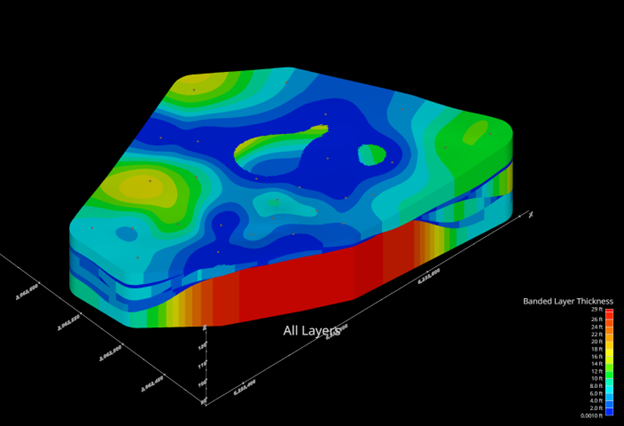
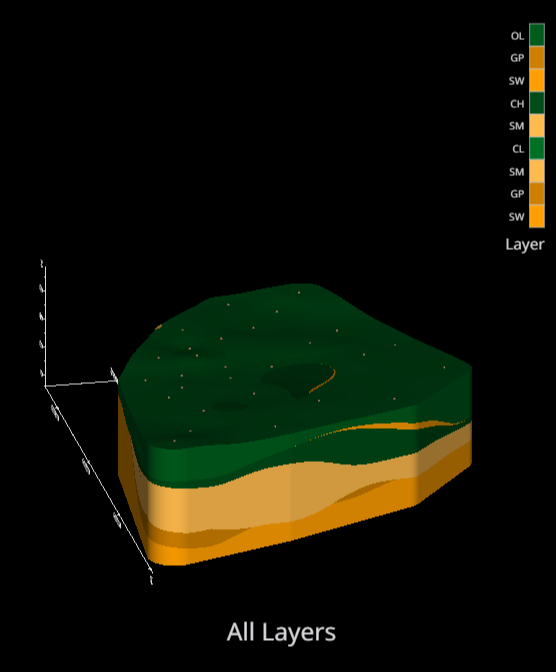
This example begins with the “resulting-stratigraphic-geologic-model.beginner.evs” application in the Earth Volumetric Studio Projects 2025.5 > Lithologic Geologic Modeling folder. This model has 9 geologic layers, and the upper 8 all have pinch outs. Here is the view of all the layers.
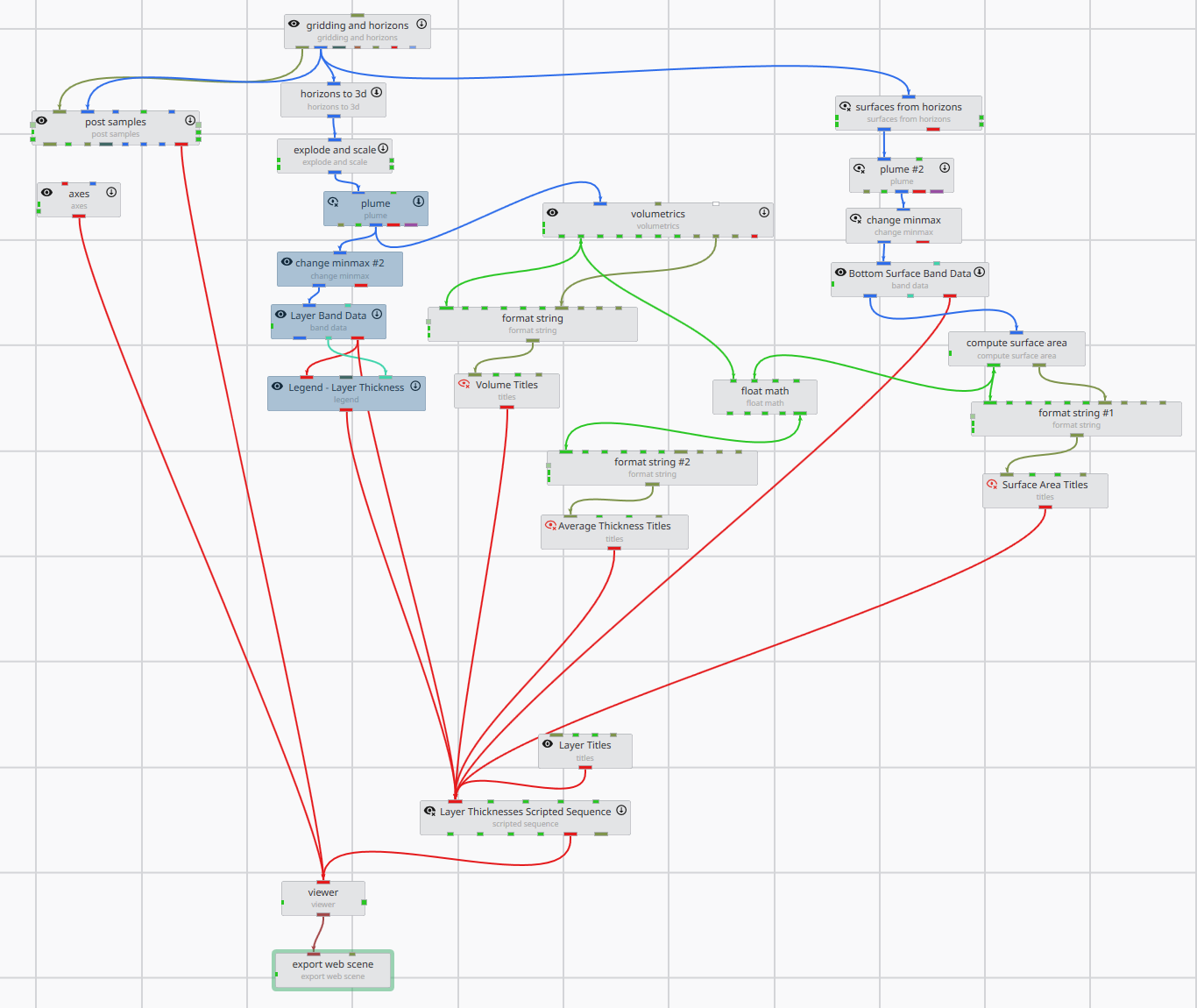
The following process chains were added to the model, as shown by the selected gray models in the images below: 1) a chain of modules running from explode and scale to calculate the volume:
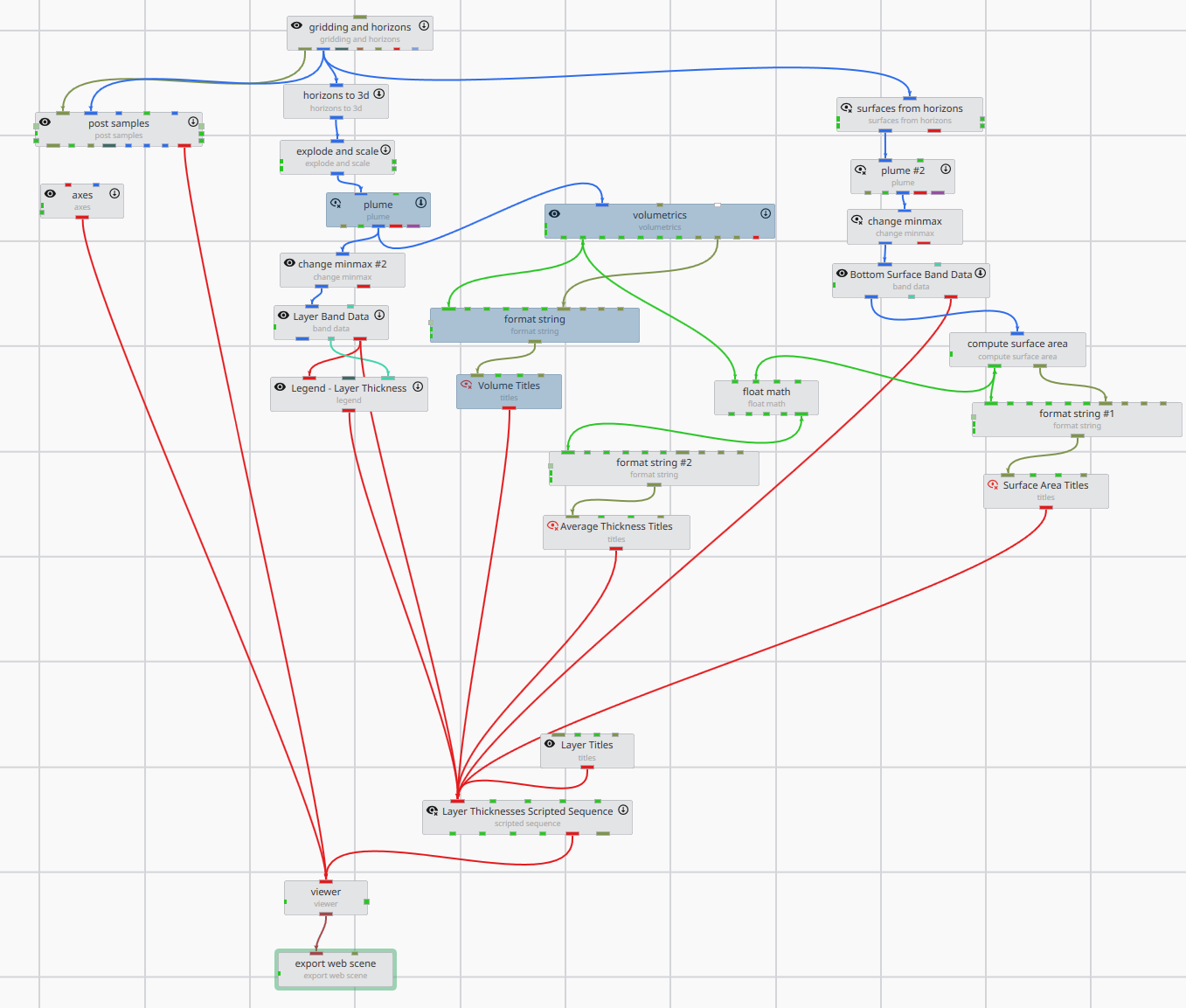
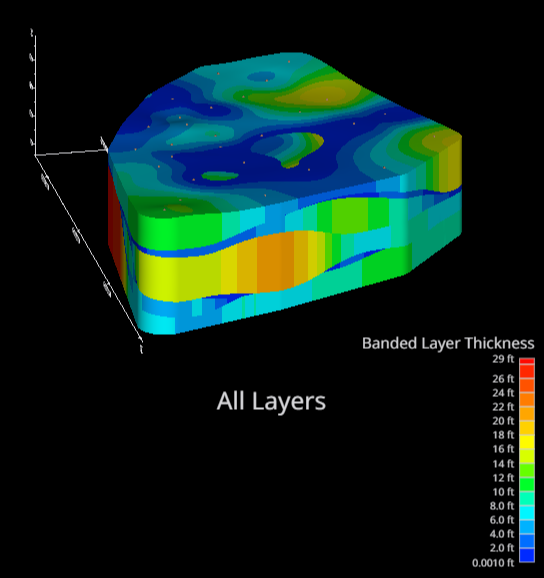
- a chain of modules to color the layers by thickness bands:
…which looks like this:
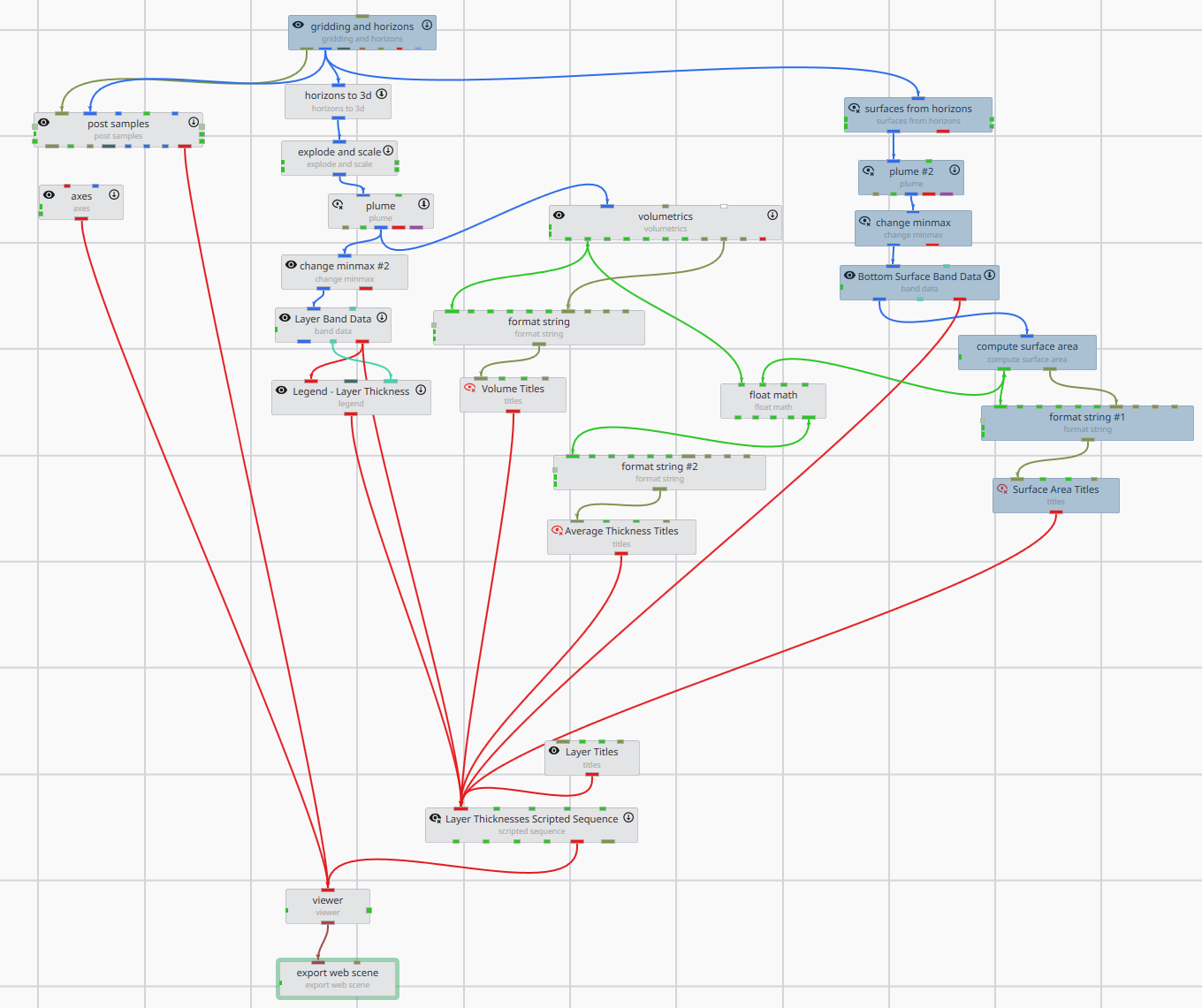
- A chain of modules to calculate the surface area of each layer:
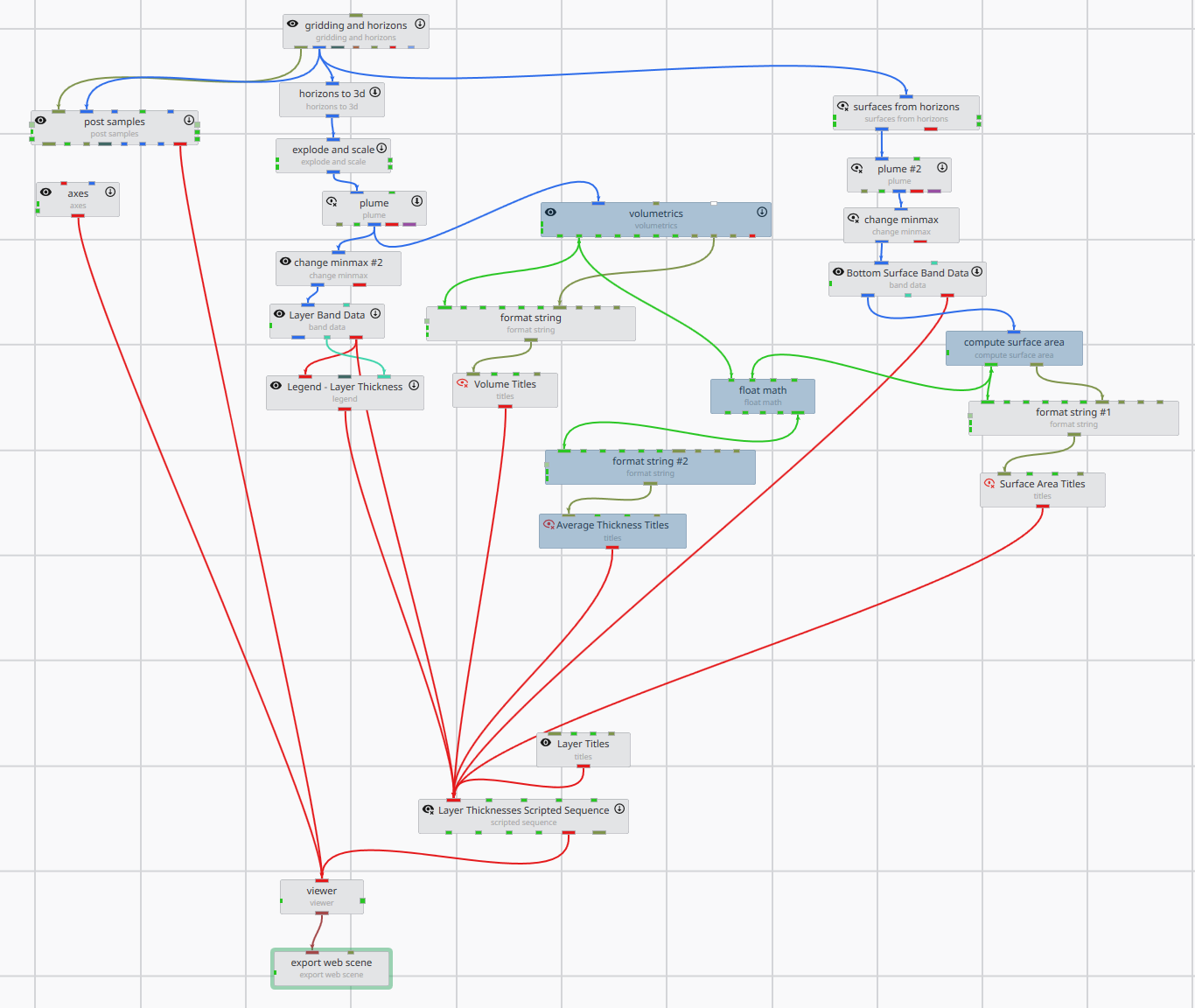
- A computation chain that divides the volume of the layer by its surface area to calculate the average thickness:
In order for the calculations for each layer to be correct, there are some key points that must be set properly to ensure the correct volume for a given layer is being divided by the correct surface area. For the volume chain, the explode and scale panel is used to select the layer. This is straightforward, as there is only one box for each layer:
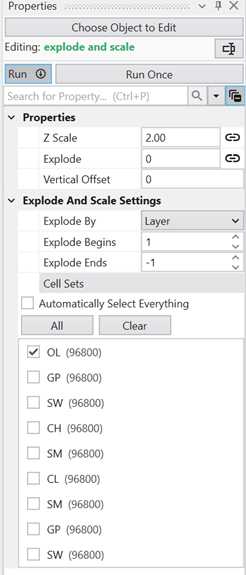
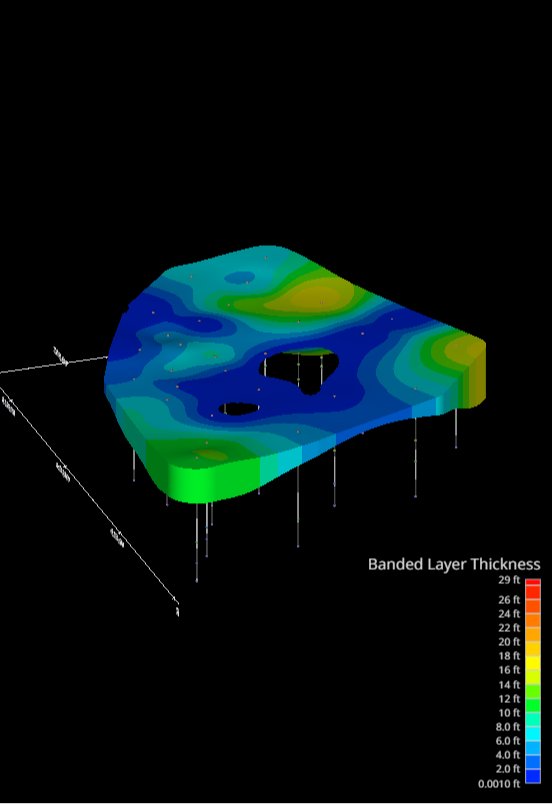
…which shows the top layer:
For the surfaces from horizons module, the selections must be chosen as follows to make sure you are getting the correct surface for your calculation. Here is what the panel looks like:
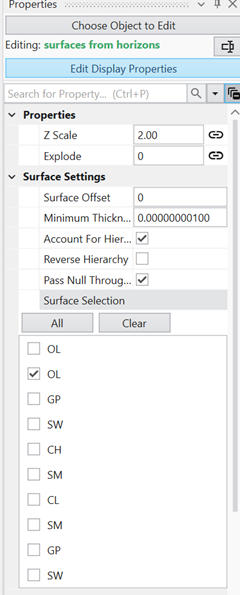
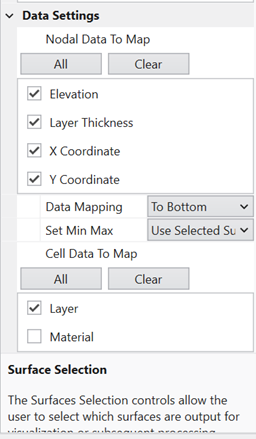
Note that there are two surfaces at the top for OL, because the top layer always has the ground surface and the bottom surface. All surface boxes below the OL layer select THE BOTTOM surface of the layer chosen. Note that Data Mapping needs to be set “To Bottom” to make sure you are getting the correct layer thickness data passed down the chain for subsequent calculations. You can check that you are selecting the correct layer bottom by toggling on/ off the volumetric “Layer Band Data” to see the surface below that is being used for the calculation:
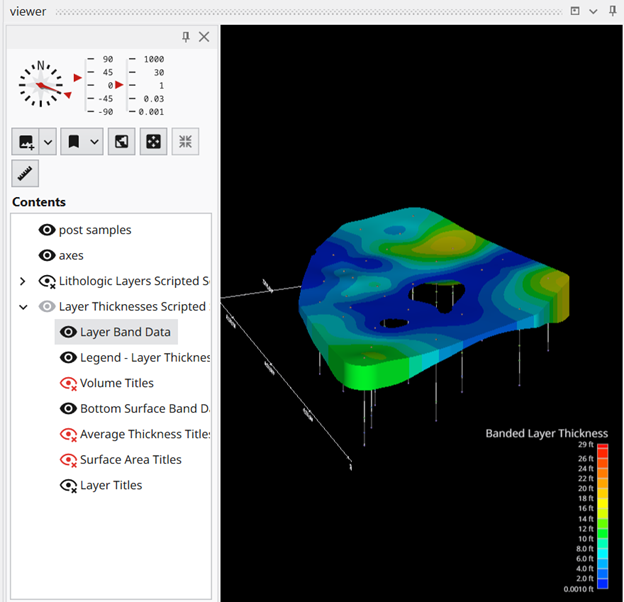
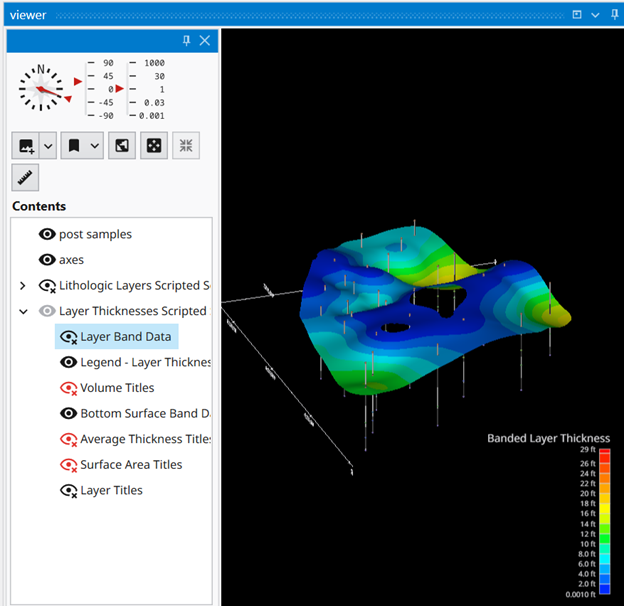
You will also want to always set the Layer Thickness to the same value as you progress through each layer as it may change; in this case it is set to 0.001:
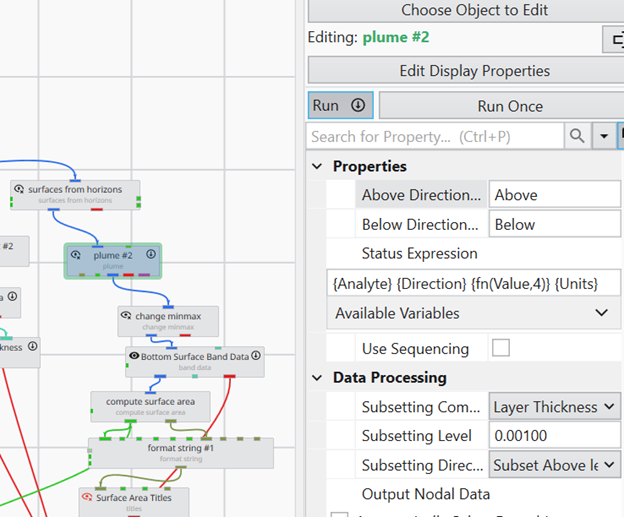
For the float math volume, the formula is simply N1 / N2, where N1 is the total volume passed from the volumetrics module, and N2 is the surface area passed from the compute surface area module.
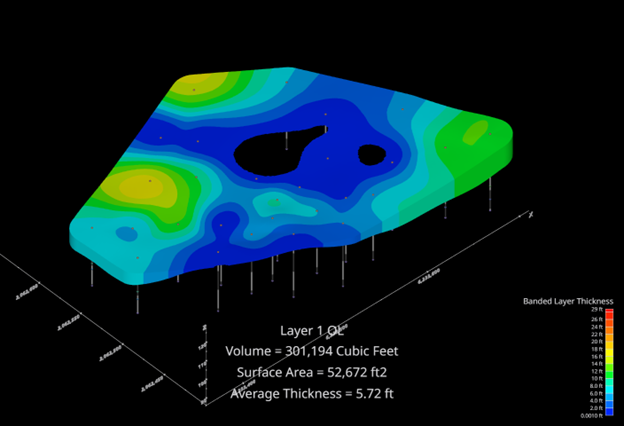
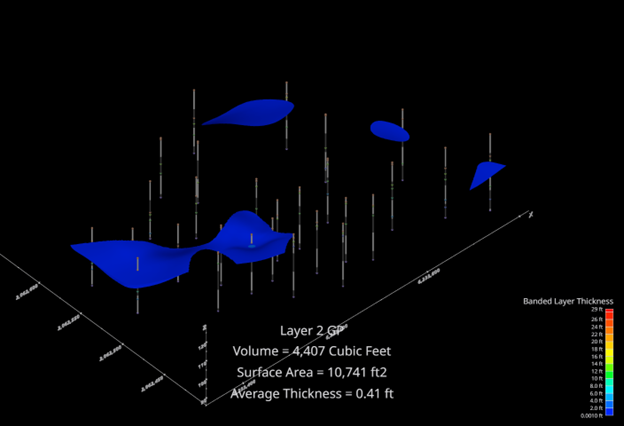
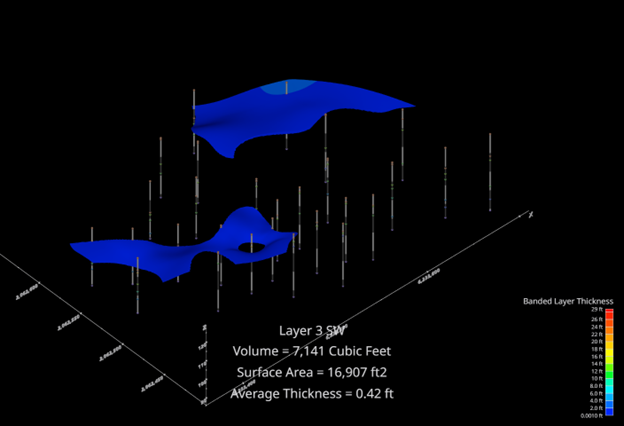
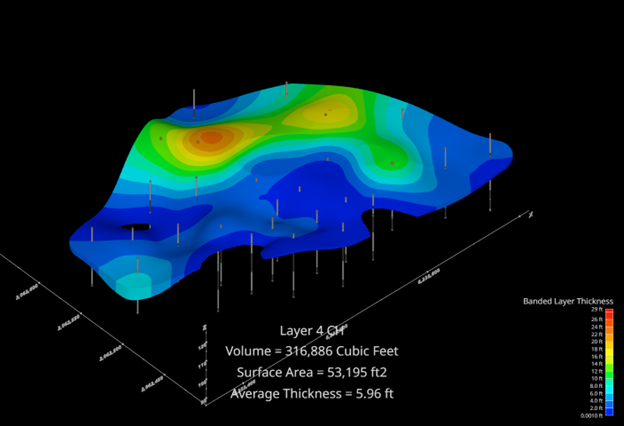
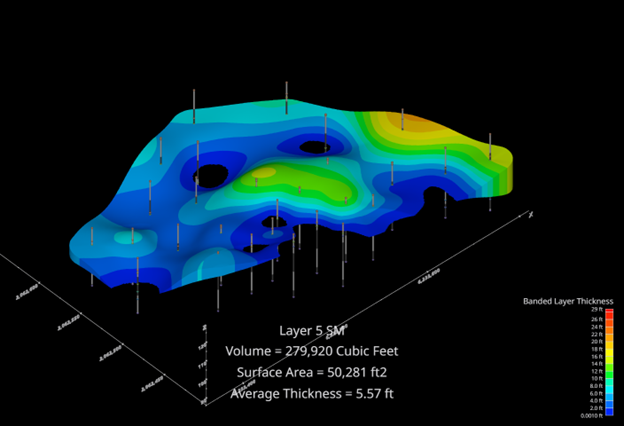
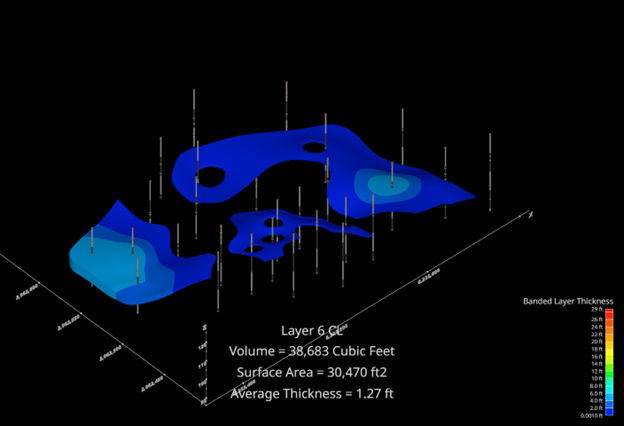
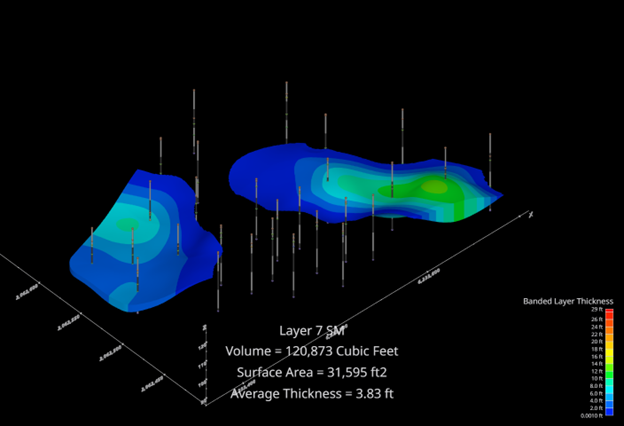
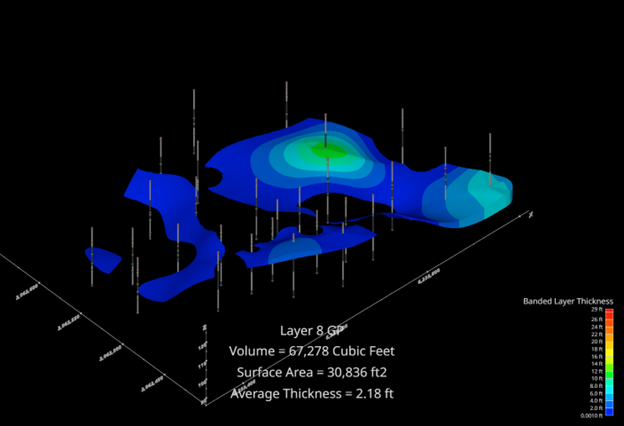
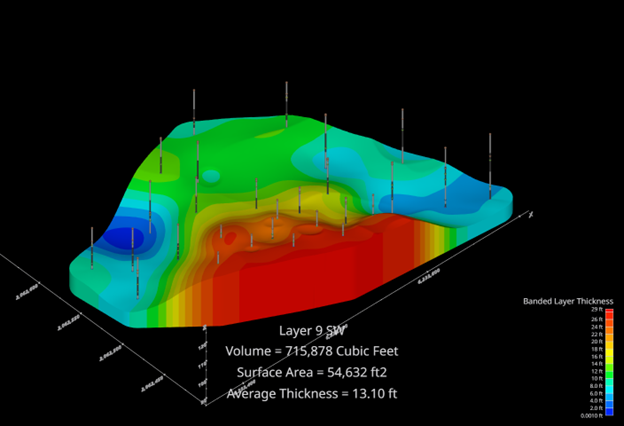
The resulting screenshots and calculation values are shown in sequence below.