
Published May 2024 - Based on EVS Version 2024.3.0
I hope that all of our users have embraced C Tech Web Scenes (CTWS files) as their primary method to publish their EVS modeling results. This topic will focus on the factors that affect the size of your CTWS files and the actions you can take to minimize that size.
Update for 2026: This Tip was written when including any object with lines eliminated the option of compression. That limitation no longer exists: CTWS files containing lines will compress using the newest EVS versions. The guidance below still applies to older EVS versions, and the other size factors remain relevant.
C Tech Web Scenes have dozens of advantages over 4DIMs, and all users should be aware that in the near future, the ability to create 4DIM files will be permanently dropped from EVS.
Why should I care about the size of my CTWS files?
The simple answer is that smaller files are faster and easier for your clients. Whether you are sending the files in emails, placing them on a site for download, or embedding them on your company website, the client needs to download the file, and the bigger it is, the longer that will take. Bigger files are also more taxing for the computer or device your client may be using. This can make everything sluggish.
What makes your CTWS files large?
There are many things that affect the size of your CTWS files:
- Grid resolution: The product of your X-Y-Z grid resolution determines the number of nodes and cells in your model. This directly affects the size of CTWS files.
- Lithologic models use grid smoothing which can dramatically increase the number of nodes and cells beyond what was in the input grid.
- Annotation modules such as CAD, Shapefiles, Aerial Photos, etc. add to the model size. For example, the axes module defaults to 3D extruded text. Each character can have hundreds of nodes and the total size of axes can be significant.
- Every module with a red output port which is connected to the viewer adds Objects to the CTWS Table of Contents and therefore adds to the model size.
Two items in particular have a dramatic effect
- The image used in overlay aerial can add size to your CTWS more than all other objects in your Table of Contents.
- The addition of any object with lines will automatically turn off the ability to Optimize Output. This can have a dramatic effect because the compression inherent in Optimization can reduce the size of CTWS files by as much as 90%. The modules below are among those which can have lines in their output objects. Where an alternative is noted, the lines can be avoided; the remaining items cannot be fixed in this way.
- axes: The only alternative is the direction indicator module
- external edges: pass through the tubes module
- isolines
- 3d legend (legend is ok because it is converted to a 2d image)
- CAD or Shapefiles with lines
- Streamlines
- Line fonts: use TrueType fonts instead
For this topic I’m going to use one of the Studio Project applications: Earth Volumetric Studio Projects 2024.1 > Analytical (Contaminant) Modeling > fuel-storage-union-efb.intermediate.evs. The application has these modules:
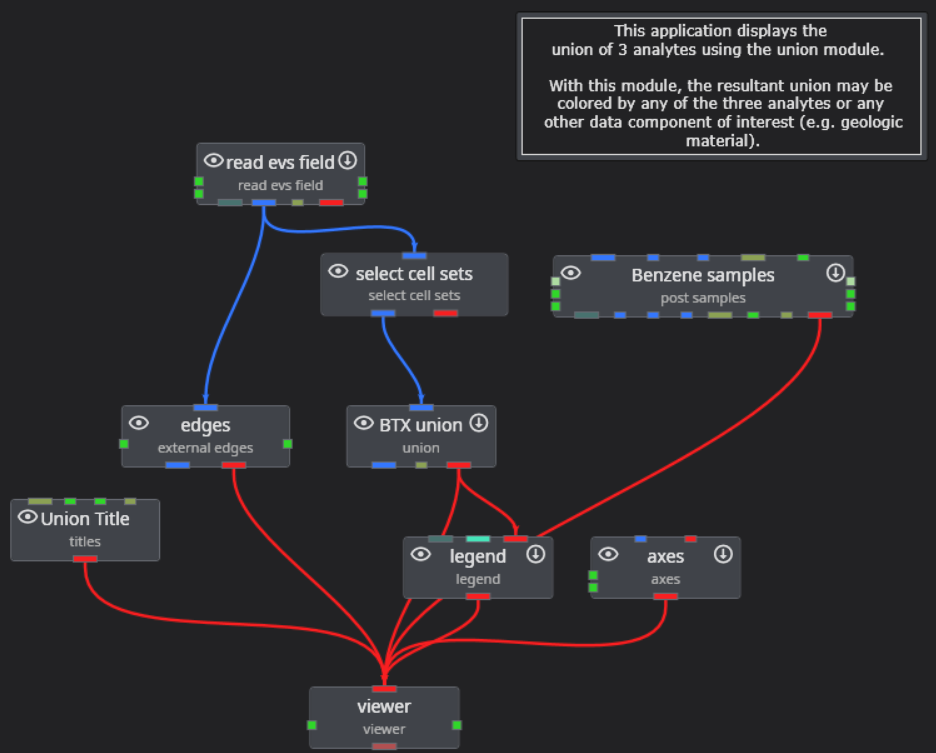
When I export the default version of this application as a CTWS file, the output looks like:
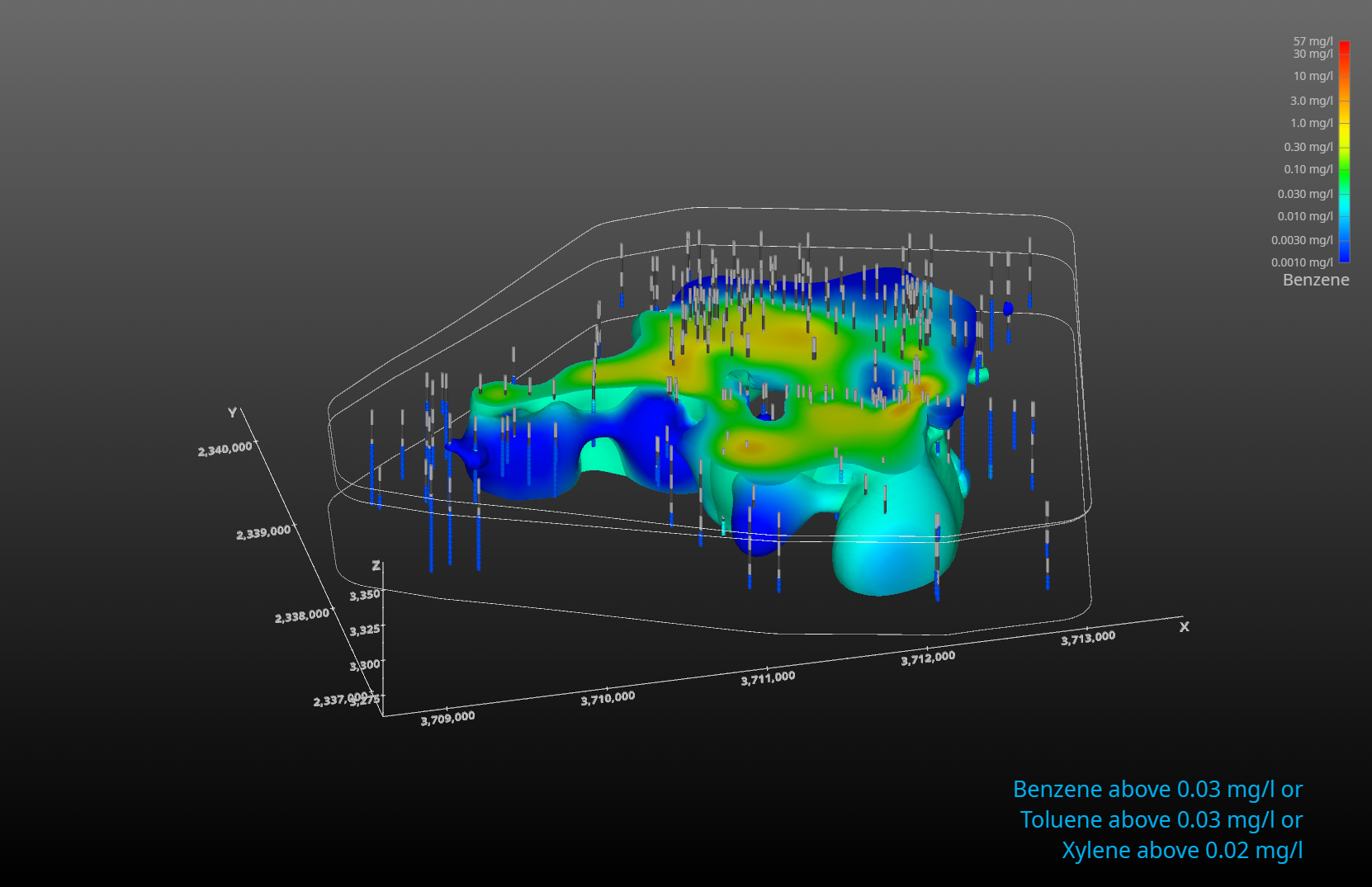
and the CTWS file cannot be optimized, resulting in a file size of 5.74Mb.
If we replace axes with direction indicator and pass external edges through the tubes module, the application becomes:
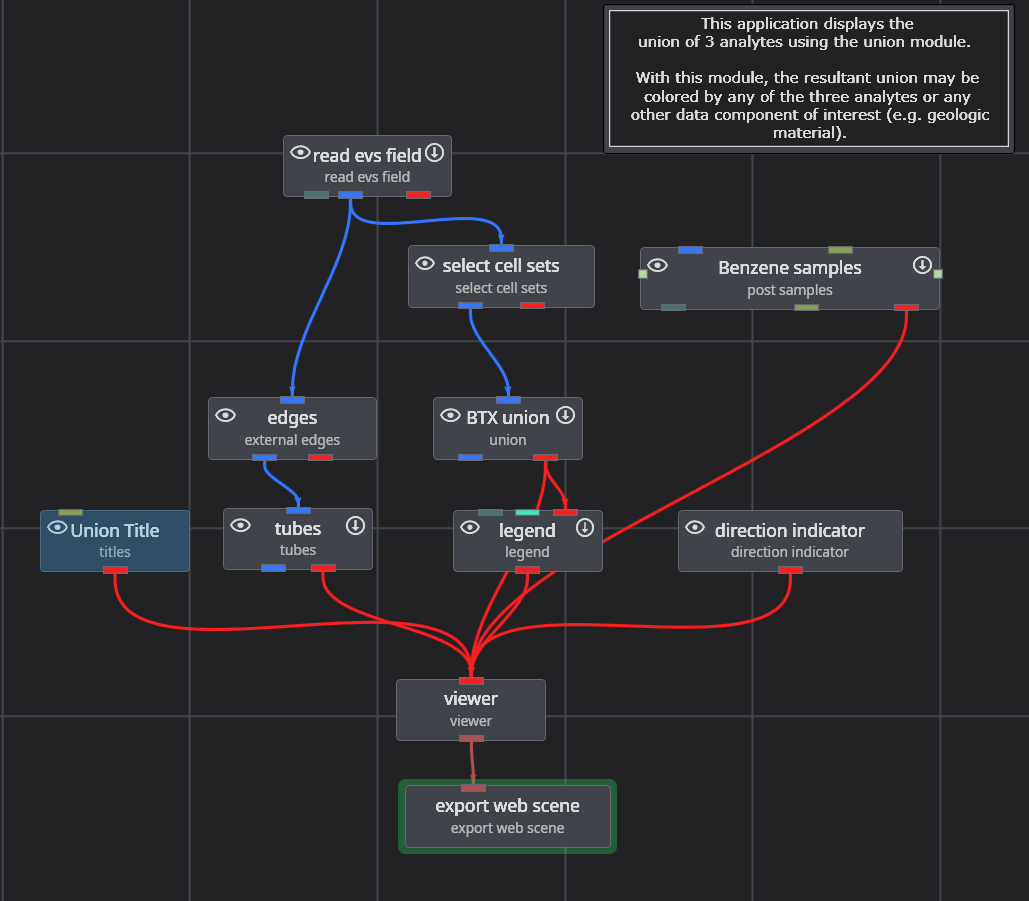
and the output looks like:
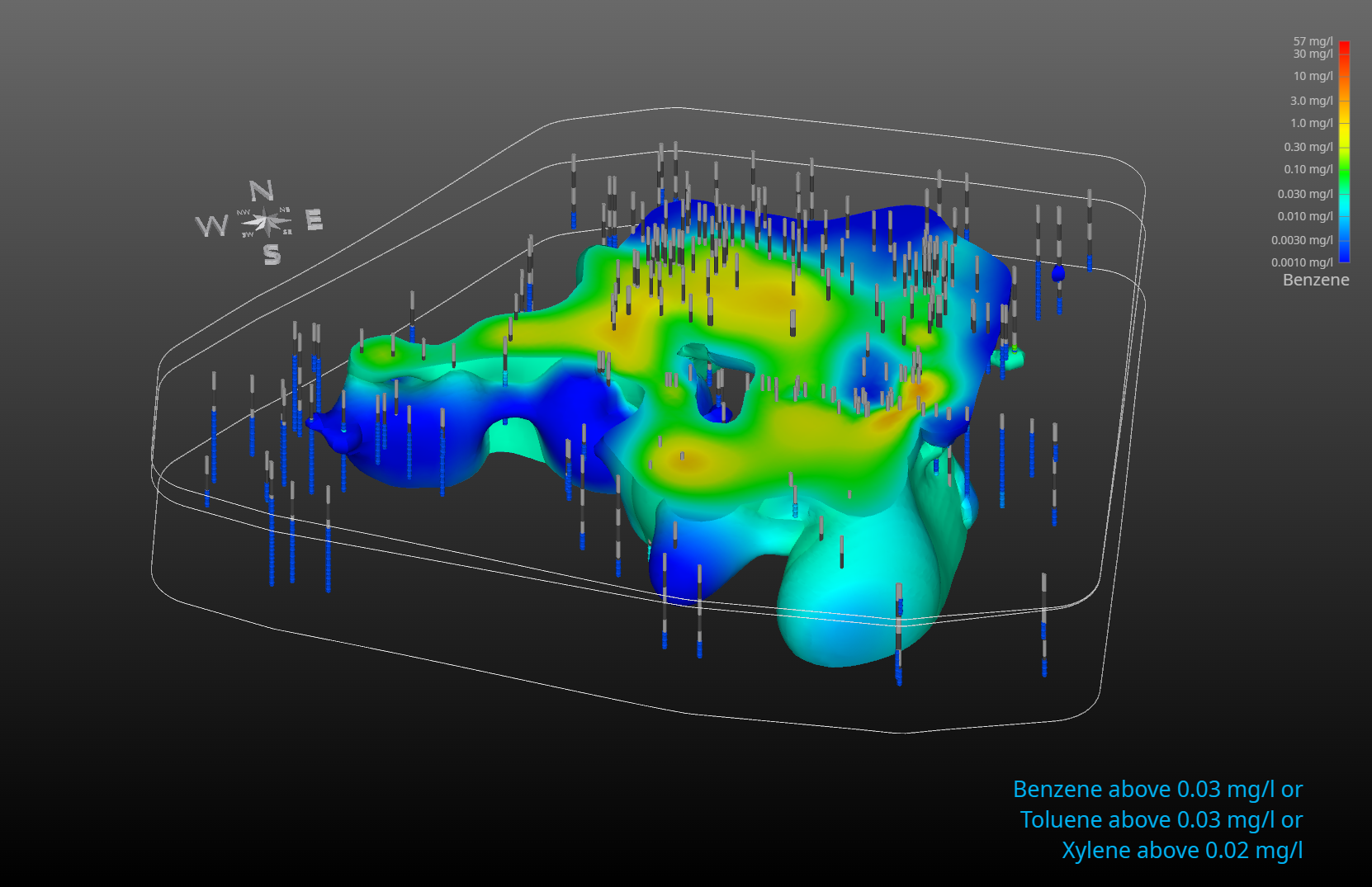
Now the CTWS file can be optimized, resulting in a file size of 727 kb (one-eighth as big).