Published March 2024 - Based on EVS Version 2024.3.0
Bookmarks provide a quick and easy way to control your EVS application and they provide important control over your C Tech Web Scenes as well. They can control one or all of the following:
- The view (Azimuth, Inclination, Scale, Roll, etc.) in the viewer
- The Visibility and/or Opacity of all modules in the application which are connected to the viewer
- The selected State of all Sequences in your application.
Why Use Bookmarks
- Bookmarks in EVS
- Bookmarks can only be created (saved) in EVS and their primary purpose is to provide more control over C Tech Web Scenes
- However, this does not mean that they are not incredibly useful in EVS.
- The ability to save and recover the visibilities of all objects, set a view, and/or set all sequence states can help with your development and refinement of your application.
- Bookmarks in C Tech Web Scenes
- Your goal as the EVS modeler should be to Tell the site’s story.
- Bookmarks are a powerful tool that allows you to do that with a power and fidelity previously not possible.
What Can Bookmarks Do?
- Bookmarked Views (a.k.a. camera orientations) are Saved Azimuth, Inclination, Roll, Scale & Center
- The Center which was last set in EVS will be the center.
- It is not necessarily the center of the apparent view because an “apparent” center has no true 3D coordinate.
- Selecting a view will set the camera orientation in EVS or Web Viewer to the saved settings.
- EVS allows you to save any number of views. Please note that these will be affected if your model’s extents change which is why Bookmarks should be created when your application is mature.
- By default, Views are name by Azimuth and Elevation: Azi 200 / Inc 18, however, YOU SHOULD ALWAYS RENAME BOOKMARKS to be more relevant to the end user, such as “Closeup view of Storage Tanks”
- The Center which was last set in EVS will be the center.
- Bookmarked Visibilities are collections of every module’s Visible and Opacity properties
- Each visibility is the associated Visible and Opacity properties of all modules connected to the viewer at the time the visibility is saved.
- LIMITATIONS: Our 3D Scene Viewer provides the ability control the visibilities of individual cell sets (e.g. geologic layers) within the objects, however, these cell set visibilities cannot be bookmarked in EVS.
- The Visible and Opacity properties of modules which are added after saving a visibility are not controlled, so it is advisable to save visibilities only after your application is mature.
- Visibilities only save object visibility and opacity. Parameters such as plume levels or slice positions are not saved.
- The Visible property in group objects reflects the visibility of each object connected to the group.
- Turning Visible on or off turns on or off the visibility of all objects connected to the group.
- You cannot change the opacity of a group object.
- Advanced visibility options: EVS you can set any object’s visibility to be On, Off, Locked or Excluded
- Locked objects are On, but cannot be turned Off in C Tech’s 3D Scene Viewer
- This is useful for items like a company’s Logo or other critical features you always want to remain visible.
- Excluded objects are effectively not written to the CTWS. It is identical to disconnecting from the viewer in EVS.
- Locked objects are On, but cannot be turned Off in C Tech’s 3D Scene Viewer
Bookmarked States
- You can also save the selected State of all sequences in your model.
- Bookmarks do not control the state of individual sequences, but rather save and control the state of all sequences.
- Possible Unintended Consequences:
- If you save the states of all sequences in EVS, but also include bookmarked Views and Visibilities to focus on one aspect of your model.
- Even though you may only intend to control a sequence within the focus of this bookmark, the currently selected State of all sequences will be saved.
- This means that if the end-user of the CTWS has changed other sequence states, those will be affected when the bookmark is played.
- The only way to exclude specific sequences is if those sequences do not yet exist in your application when you save the bookmark.
How To Create Bookmarks
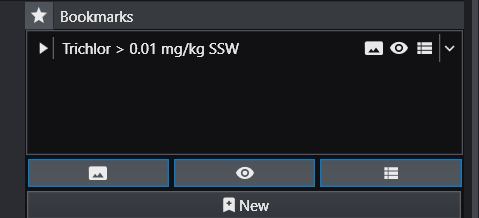
Bookmarks are created in Application Properties (if their visibility is ON). Below is the Bookmarks controls in Application Properties. Note the three buttons which are shown on (highlighted in blue). From left to right, these are Views, Visibilities and Sequence States.
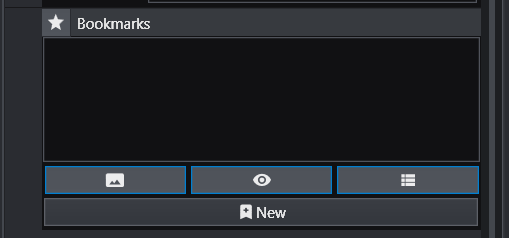
You can choose to have any bookmark change just one or all of these action classes. It isn’t always ideal to have bookmarks control all three actions. It is up to the Application Creator to decide on the optimal functionality.
When you are ready to create a new bookmark:
- Decide what actions you want and set the View, Visibilities and/or States in EVS to those conditions.
- Turn on the appropriate action buttons
- Press the New button to see the new bookmark with Default naming
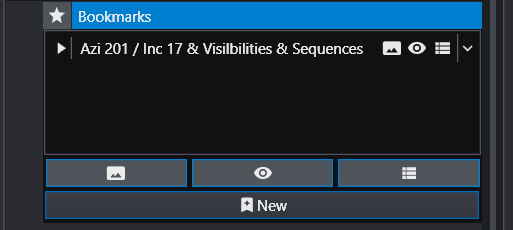
Our default naming includes the Azimuth and Inclination (if the first action button is ON) and also tells you that it is also controlling Visibilities and Sequences. However, this name is only an appropriate name if only View is controlled. You should rename this Bookmark to be as informative as possible, such as Trichlor > 0.01 mg/kg SSW.
TIME TO RENAME YOUR BOOKMARK
It is more important to properly name your bookmark than any other action you may take. Put yourself in the position of your client, the end-user of the C Tech Web Scene you will be delivering. What good is a bookmark if the client cannot ascertain its purpose and function?
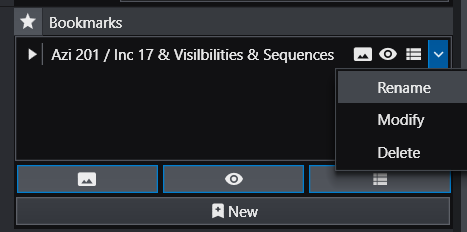
To rename it, click on the down arrow to the far right and select Rename.
HOW TO PLAY BOOKMARKS
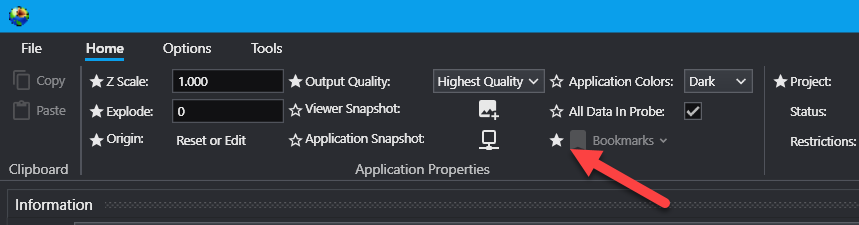
Bookmarks are saved and played (used) in the Application Properties window, but they must be turned ON in the main Ribbon as shown below:
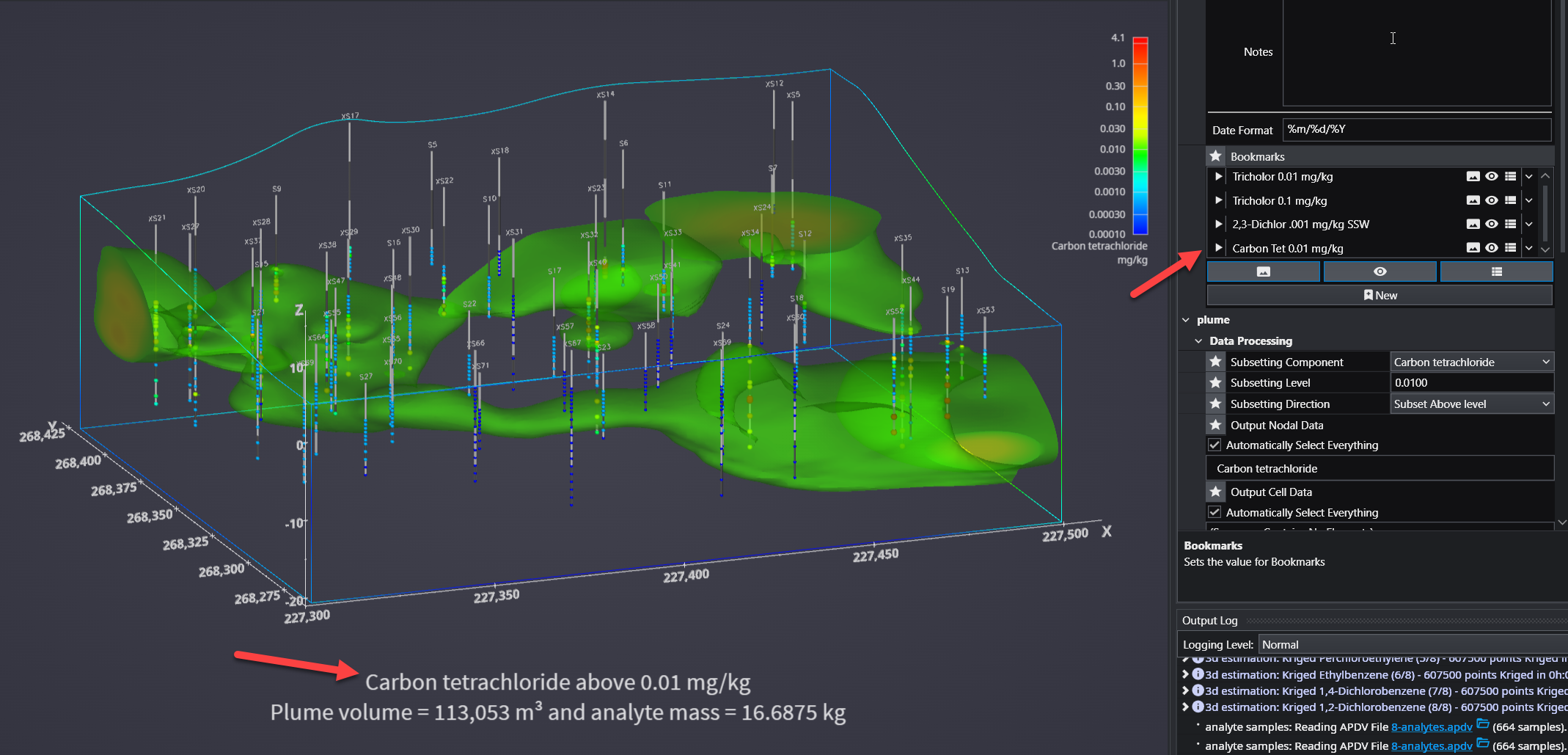
Bookmarks are played (applied) in Application Properties (if their visibility is ON). The example below has 4 bookmarks, and each is set to control the View, Visibilities and Sequence State. Note that each has a play icon (white triangle) on the left. Clicking Play triggers the functionality of the bookmark to be applied to the application in EVS. Similarly, if a CTWS file is saved for this application, all four bookmarks will be included.
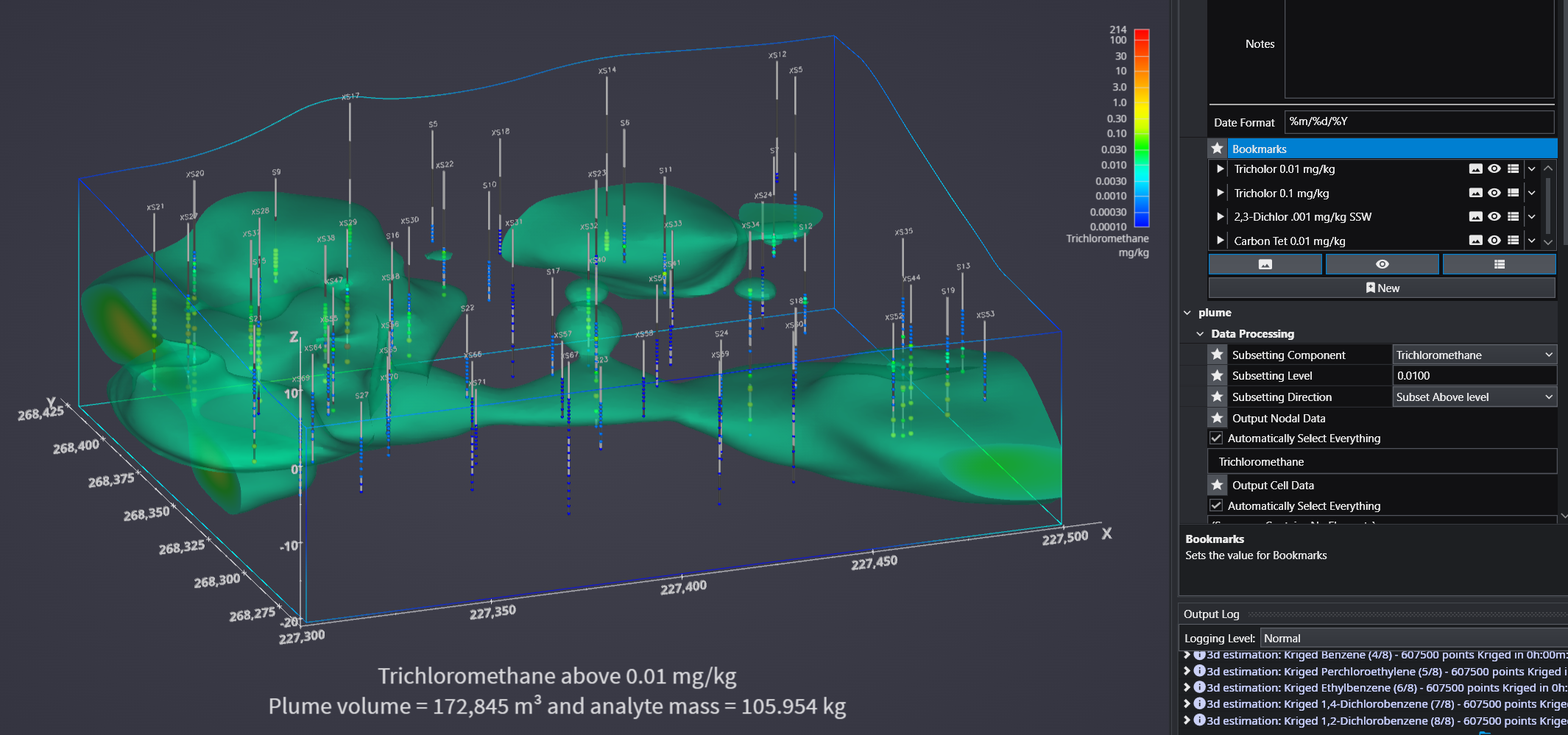
Clicking on the last of these bookmarks produces this: