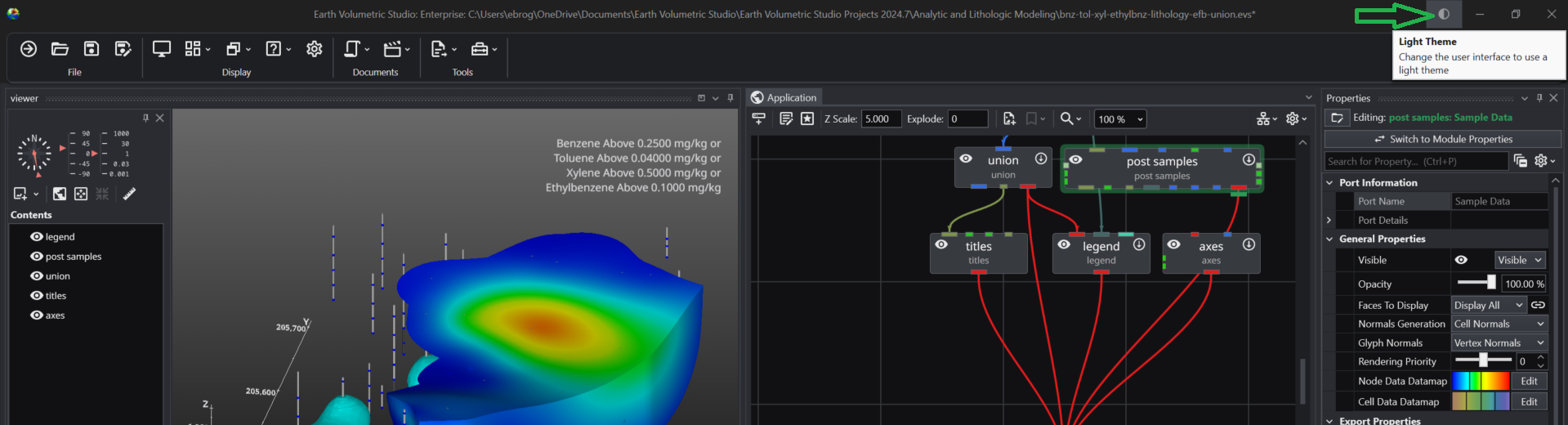
The application offers both a Light and a Dark theme to customize the appearance of the user interface. This choice is purely a matter of personal preference and does not affect the application’s functionality or the output of your visualizations. You can switch between themes at any time to best suit your working environment and visual comfort.
Choosing Your Theme: Light vs. Dark
Selecting a theme can have a significant impact on readability and eye comfort depending on your work environment and personal preferences.
- Dark Theme: The dark theme uses a dark background with light-colored text. Many users find this reduces eye strain, especially when working for long periods or in low-light conditions. It can also help reduce screen glare and improve focus on the central content by making the surrounding interface elements recede.
- Light Theme: The light theme provides a traditional light background with dark text. This often offers superior readability in brightly lit environments, such as a well-lit office or a room with significant natural light. For some users, the high contrast of dark text on a light background can appear sharper and more familiar.
How to Change Themes
You can switch between the Light and Dark themes from three different locations within the application.
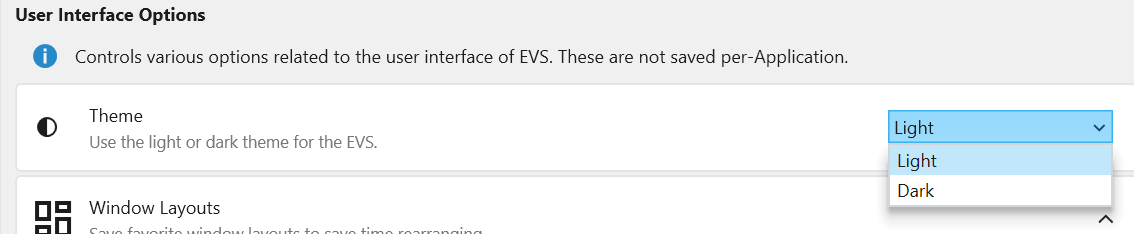
1. Setting the Default Theme in Options
To set your preferred theme that the application will use every time it starts, you can use the Options window.
- Navigate to the main application Menu > Options.
- In the Options window, select User Interface Options.
- Under “Color Options for Applications”, choose your desired theme.
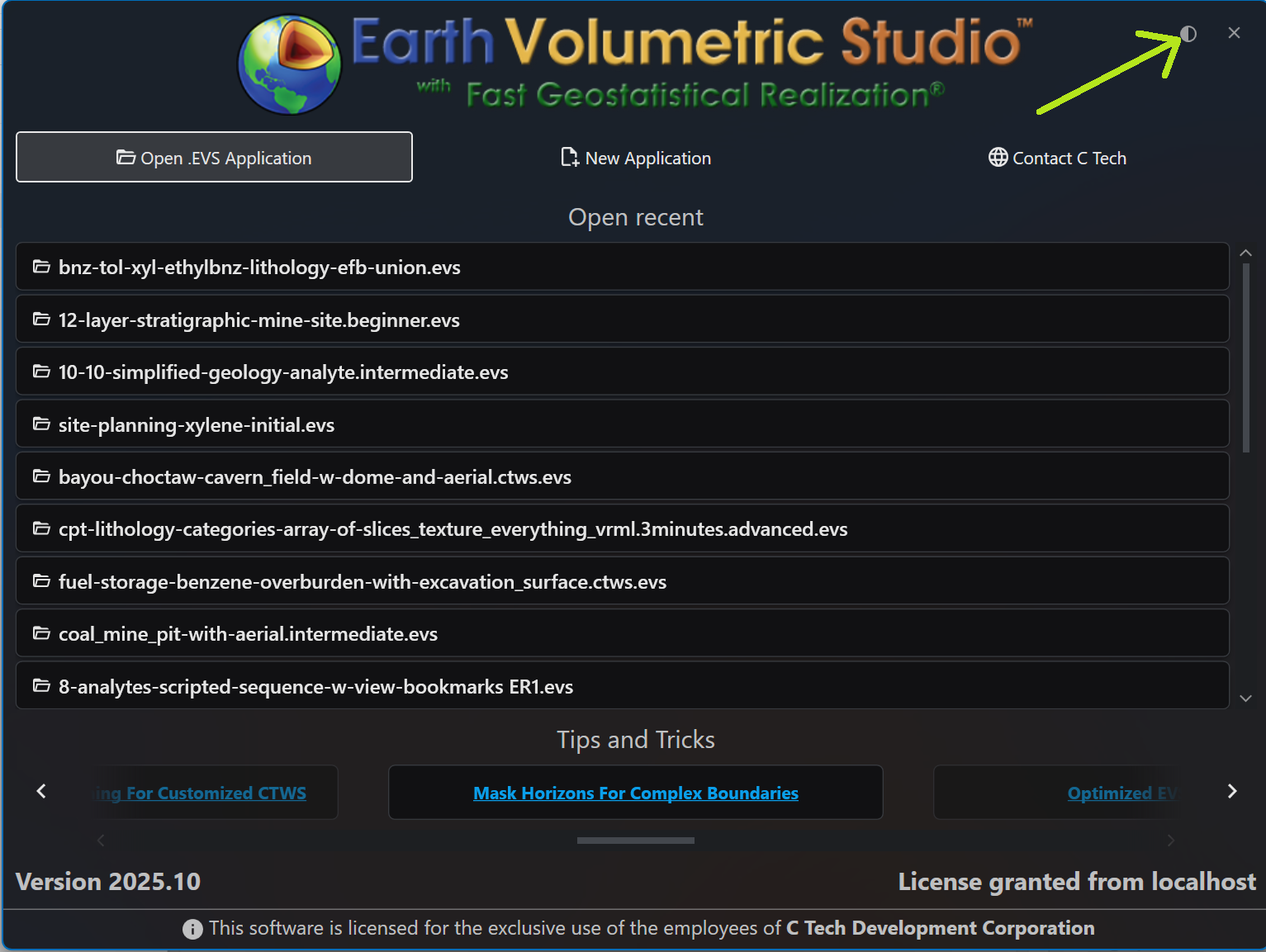
2. Toggling on the Launch Window
When you first start the application, you can quickly toggle the theme directly from the launch window before opening a project. Click the half-moon icon in the upper-right corner to switch between the Light and Dark themes.
3. Toggling in the Main Application Window
You can also switch themes on-the-fly while you are working. In the upper-right corner of the main application window, you will find the same half-moon icon. Clicking this icon will instantly toggle the interface between the Light and Dark themes, allowing you to adapt to changing lighting conditions or preferences without interrupting your workflow.
Main window with Light Theme active:
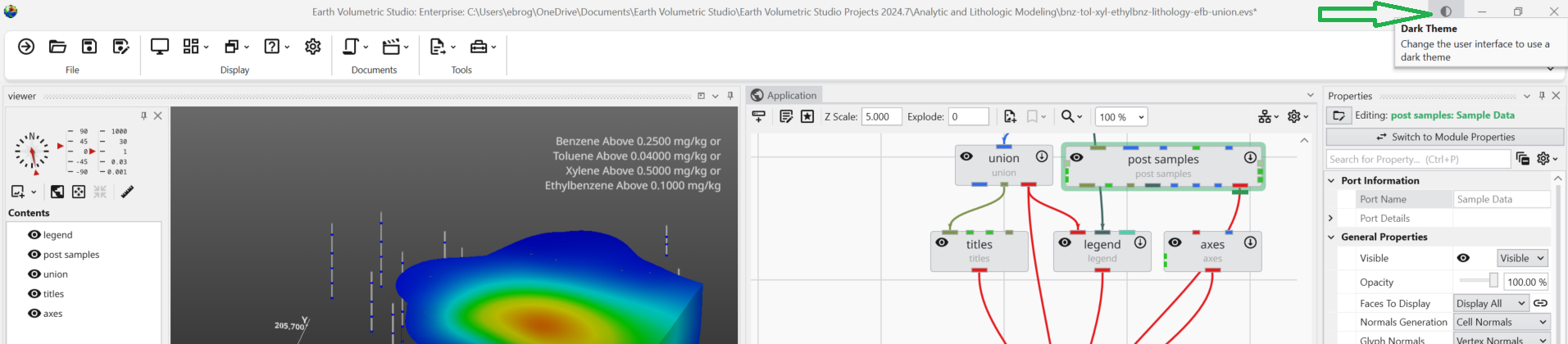
Main window after toggling to Dark Theme: