The Module Library is a core component of the Application window, serving as the repository for all modules used to build data processing and visualization workflows. It is located on the left side of the Application window and a fixed part of it. Unlike most other windows, it cannot be undocked, but it can be hidden when not in use.
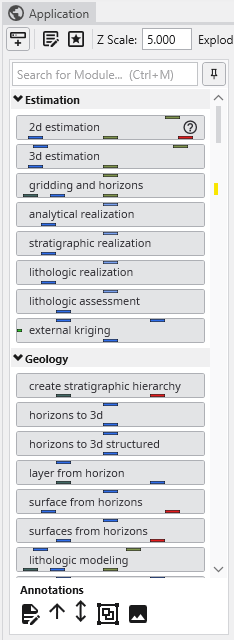
Modules are organized into collapsible categories, such as Estimation and Geology, allowing you to easily browse and find the tools you need. You can control whether these categories are expanded or collapsed by default in the Options menu of the Application window. To add a module to your workflow, simply drag it from the library and drop it onto the Application Network canvas. Alternatively, double clicking a module will also create a new instance on the Application Network.
At the top of the Module Library, you will find controls for searching and docking.
The Search bar allows you to quickly filter the list of modules. As you type, the library will display only those modules whose names match your search query. You can also use the keyboard shortcut Ctrl+M to focus on the search bar, even if the Module Library is unpinned and closed.
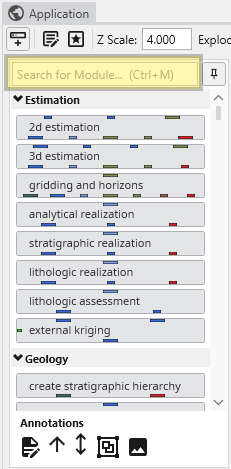
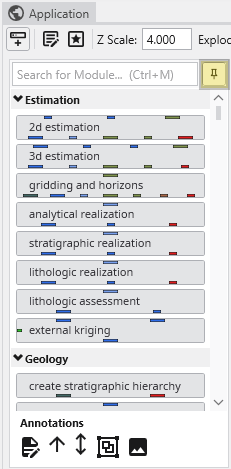
Next to the search bar is the Pin button. This button controls the auto-hide behavior of the Module Library. When the library is pinned, it remains permanently visible. If you unpin it, the library will automatically slide away when not in use and can be reopened by clicking the Show Module Library button in the Application window’s toolbar or via the keyboard shortcut Ctrl+M.
Annotations
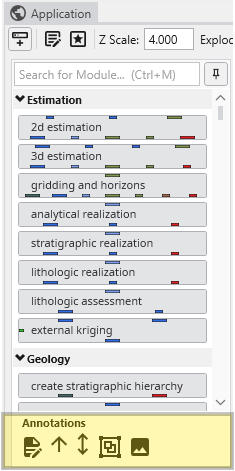
At the bottom of the Module Library is a set of tools for adding visual annotations to your Application Network. These elements help document your workflow, clarify connections, and organize complex applications. Clicking on an annotation shows contextual menu items such as Delete, Copy, Paste and a coloring option.
| Annotation | Description |
|---|---|
| Text Annotation | Adds a text box directly onto the Application Network canvas. You can use it to add notes, titles, or descriptions for different parts of your workflow. |
| Line Annotations | There are two types of line annotations for drawing arrows on the canvas. These are useful for pointing to specific modules or visually grouping related items that may not be physically close to each other. |
| Group Annotation | Creates a visual container for a set of modules. You can drag modules inside a group annotation to organize them as a logical unit. The group can be named, resized, and collapsed, which can be useful for simplifying the view of a large Application Network. When you collapse a group, it is displayed as a single item, and all connections to the modules it contains are shown connecting to the group instead. |
| Image Annotation | Places an image from a file directly onto the Application Network canvas. This can be used for adding logos, diagrams, or other visual aids to your workflow documentation. |