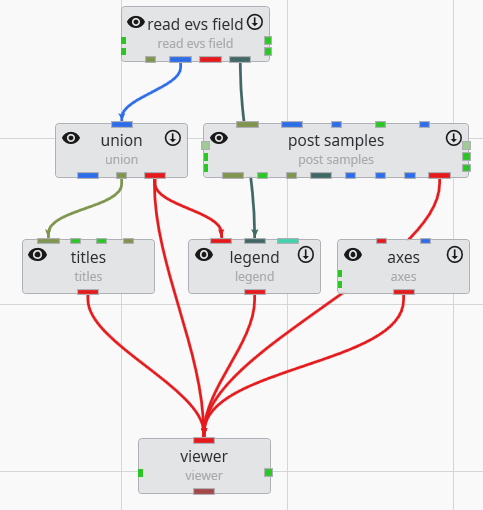
Modules in the Application Network are linked together by connections, which represent the flow of data from an output port of one module to an input port of another. Creating and removing these connections is fundamental to building and modifying your application’s workflow. The system helps ensure that you only make valid connections between compatible port types.
Creating Connections
There are two primary methods for connecting modules: dragging with the mouse or using the right-click context menu.
Method 1: Drag and Drop
This is the most common and intuitive way to connect modules.
- In the Application Network, locate the output port on the source module that you wish to connect from.
- Press and hold the left mouse button on the output port and begin dragging your cursor away from it. A line will appear and follow your cursor, originating from the port.
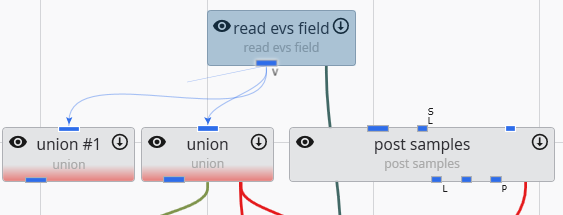
- Drag the cursor towards the target module. While you keep the left mouse button down, all compatible input ports will be highlighted, indicating where a valid connection can be made. Incompatible ports will remain un-highlighted. This guidance behavior can be controlled in the Options page in the Menu.
- Release the mouse button over one of the highlighted, compatible input ports. The connection will be established, and a solid line will now link the two ports.
Method 2: Using the Context Menu
This method is particularly useful in complex applications where modules are far apart, making dragging impractical.
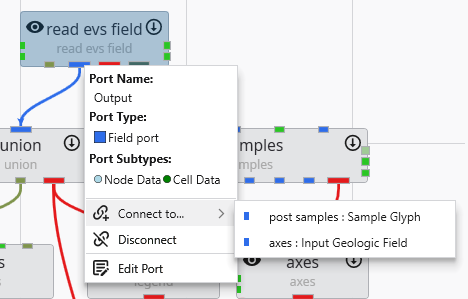
- Move your cursor over the desired port (input or output) on the source module.
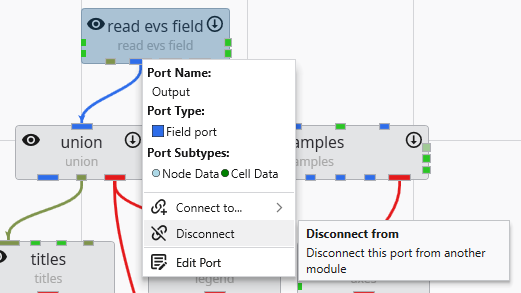
- Click the right mouse button to open the port’s context menu.
- Select the Connect to… option. This will typically open a sub-menu or a dialog window that lists all compatible ports available in the entire application.
- Choose the target module and port from the list. The connection will be created automatically.
Removing Connections
You can remove existing connections using either a keyboard shortcut or the right-click context menu.
Method 1: Using the Delete Key
- Move your cursor over the connection line you wish to remove. The line will highlight to indicate it is interactive.
- Click the connection with the left mouse button to select it. A selected connection is typically indicated by a change in its appearance, such as becoming thicker or changing to a dashed line.
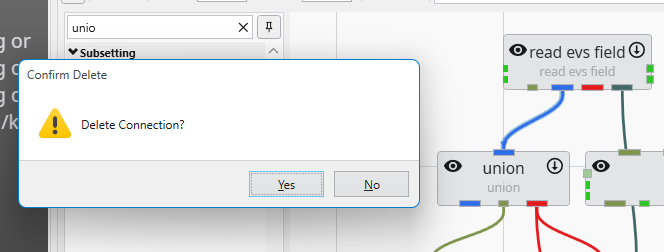
- With the connection selected, press the Delete key on your keyboard. The connection will be removed if you confirm the warning that will pop up.
Method 2: Using the Context Menu
- Move your cursor directly over the connection line you wish to remove.
- Click the right mouse button to open the context menu for that connection.
- Select the Disconnect option from the menu. The connection will be removed immediately.
Once a connection is removed, the flow of data between the two modules is stopped. The downstream module will no longer receive updates from the upstream module and may enter a “No Output” state (indicated by a red bar) if it no longer has a valid data source. See Module Status Indicators.
Connection Style
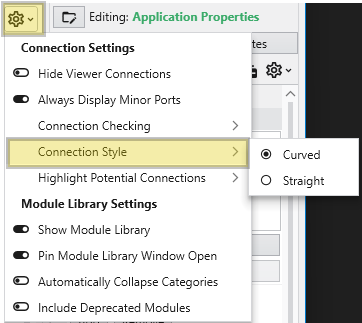
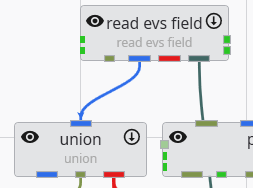
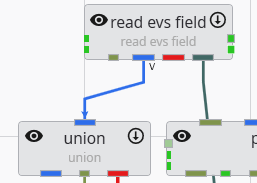
The Application Network provides flexibility in how the connections between modules are displayed. You can customize the visual style of these connections, choosing between direct, straight lines or smooth, curved lines. This setting allows you to tailor the appearance of your workspace for optimal clarity, which can be particularly helpful when working with complex applications where numerous connections might overlap.
| Curved Connections: | Straight Connections: |
|---|---|
| 
|