Module Properties
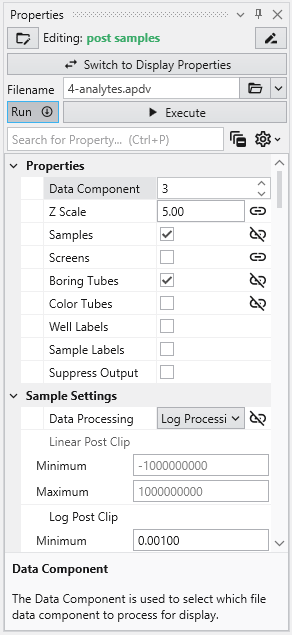
When you select a module in the Application Network, its settings are displayed in the Properties window. This window allows you to configure the module’s parameters and control its execution behavior. At the top of the window, the name of the module you are editing is displayed.
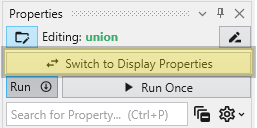
Switch to Display Properties
This button provides a quick way to access the properties of the module’s primary Renderable Port (red) if they are being displayed in a viewer. The Red Port Properties will also feature a button to quickly switch back again.
Execution Control
The toolbar at the top of the Module Properties window provides powerful tools for managing when and how a module executes.
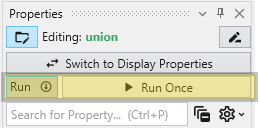
- Run Toggle: This switch controls the module’s automatic execution. By default, it is on, meaning the module will automatically run whenever one of its properties is changed or when an upstream module it depends on finishes running. Toggling this off prevents the module from running automatically. This is particularly useful when you want to make multiple changes to a module’s settings without triggering potentially time-consuming computations after each adjustment. This is also displayed and configurable on the modules in the Application Network. See Module Status Indicators.
- Run Once Button: When available, this button allows you to manually trigger the execution of the currently selected module. It forces the module to run a single time. This is most effective when the Run toggle is turned off, as it lets you apply your changes and see the result without having to re-enable automatic execution.
Module-Specific Properties
Below the execution controls, the Properties section contains all the configurable parameters for the selected module. The settings here are unique to each module’s function. These properties allow you to customize the module’s behavior to fit the specific needs of your analysis.
Property Description
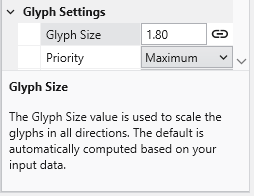
At the bottom of the Properties window is a description panel. This panel is your first and most important resource for understanding what a specific property does. When you select a property from the list, this panel automatically updates to show a detailed explanation of that property and its function. For instance, selecting “Data Processing” will display text explaining that this property allows to declare whether the input data is to be treated as linear or log processed. This immediate, context-sensitive help makes it easy to learn and configure even complex modules without having to consult external documentation.
Here is an example for the Property Description of the “Glyph Size” property: