The Properties window is the primary interface in Earth Volumetric Studio for viewing and editing the parameters of various objects within your application. These objects can include modules, output ports, or the application itself. All properties for a selected object are displayed here, organized into logical, collapsible categories.
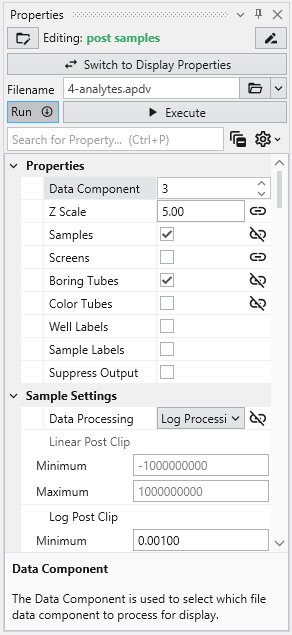
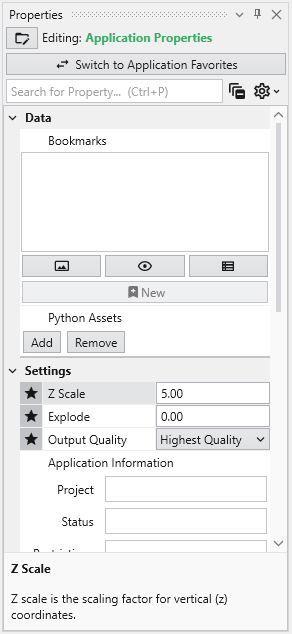
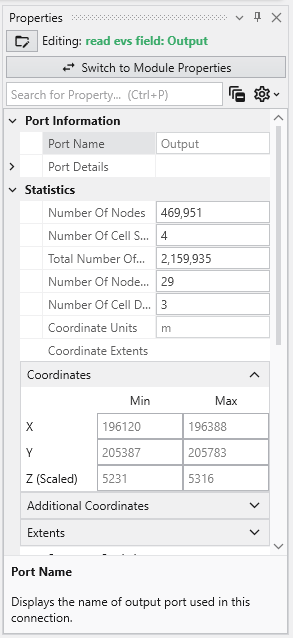
| Module properties: | Application properties: | Port properties: |
|---|---|---|
| 
| 
|
Accessing the Properties Window
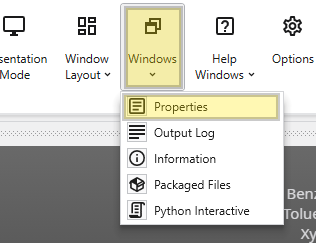
If the Properties window is not already open, navigate to the Windows button in the Main Toolbar to show it.
Editing Objects
Once the window is visible, you can load an object’s properties for editing. The most direct method is to double-click a module or a port of a module in the Application Network. Alternatively, you can use the Choose Object to Edit dropdown menu at the top of the Properties window, which provides a list of all objects in your application and allows you to quickly switch between them.
Navigating and Filtering Properties
The Properties window includes several tools to help you find and manage parameters efficiently. A Search for Property box at the top of the window allows you to filter the displayed properties by typing a search string; you can also use the Ctrl+P keyboard shortcut to focus on the search box. Next to the search box, the Collapse Categories button lets you expand or collapse all property categories at once.
Options
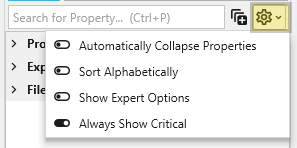
Further customization is available through the Options menu, accessible via the gear icon. These are global settings for the Properties window and allow you to change how properties are displayed.
| Option | Description |
|---|---|
| Automatically Collapse Properties | When enabled, all property categories are collapsed when properties of a new object are loaded. |
| Sort Alphabetically | Changes the order of properties to an alphabetical sorting. |
| Show Expert Options | Reveals advanced parameters. |
| Always Show Critical | Ensures essential properties are never hidden. |
Toggling Module and Display Properties
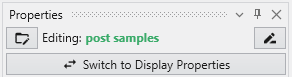
The Switch to Display Properties button allows quick switching between the properties of the selected module and the properties of the primary red output port of it, if it has one. This is the same as double-clicking on the primary red port, but allows faster swapping right within the Properties window.
Toggling Application Properties and Application Favorites
The same button when shown in the Application Properties is labeled Switch To Application Favorites. It allows toggling between the two.
Property Descriptions
At the bottom of the Properties window is a description area. When you select a property from the list, this area displays a brief explanation of what the property does and how to use it, providing helpful context as you configure your modules.
The Application Properties provide a centralized location to access critical parameters needed to control your application. Any property that impacts the application itself and is not specific to an instanced module will show here. Accessing Application Properties The Application Properties are available via a button in the Application Window toolbar:
The Application Favorites feature provides a powerful way to create a custom control panel for your EVS application. It allows you to gather the most
Module Properties When you select a module in the Application Network, its settings are displayed in the Properties window. This window allows you to configure the module’s parameters and control its execution behavior. At the top of the window, the name of the module you are editing is displayed.
Understanding Linked Properties In Earth Volumetric Studio, a Linked Property is a parameter whose value is automatically determined within the application, rather than being manually set by the user. This dynamic connection allows for a more intelligent and consistent workflow. You can identify a linked property by the link icon located next to it in the Properties window
Port Properties When you double-click an output port on a any module in the Application Network, the Properties window displays detailed information and settings for that specific port. While the properties shown vary depending on the type of data the port provides, certain elements are common to all ports.
Introduction to Datamaps In the fields of scientific and geometric visualization, a datamap is a fundamental concept that serves as the bridge between raw numerical data and its visual representation. At its core, a datamap is a function or a lookup table that translates data values into visual properties, most commonly color. Think of it as a sophisticated legend that instructs the rendering engine how to “paint” the data onto a geometric object, such as a surface, a volume, or a set of points.