The Operation and User Preferences window is the central hub for configuring application-wide settings in Earth Volumetric Studio. It allows you to customize the user interface, set default behaviors for new projects, manage system resources, and personalize user information. Tailoring these settings can significantly improve your workflow and efficiency.
To access this window, click the Options button on the main application menu located on the left side of the screen.
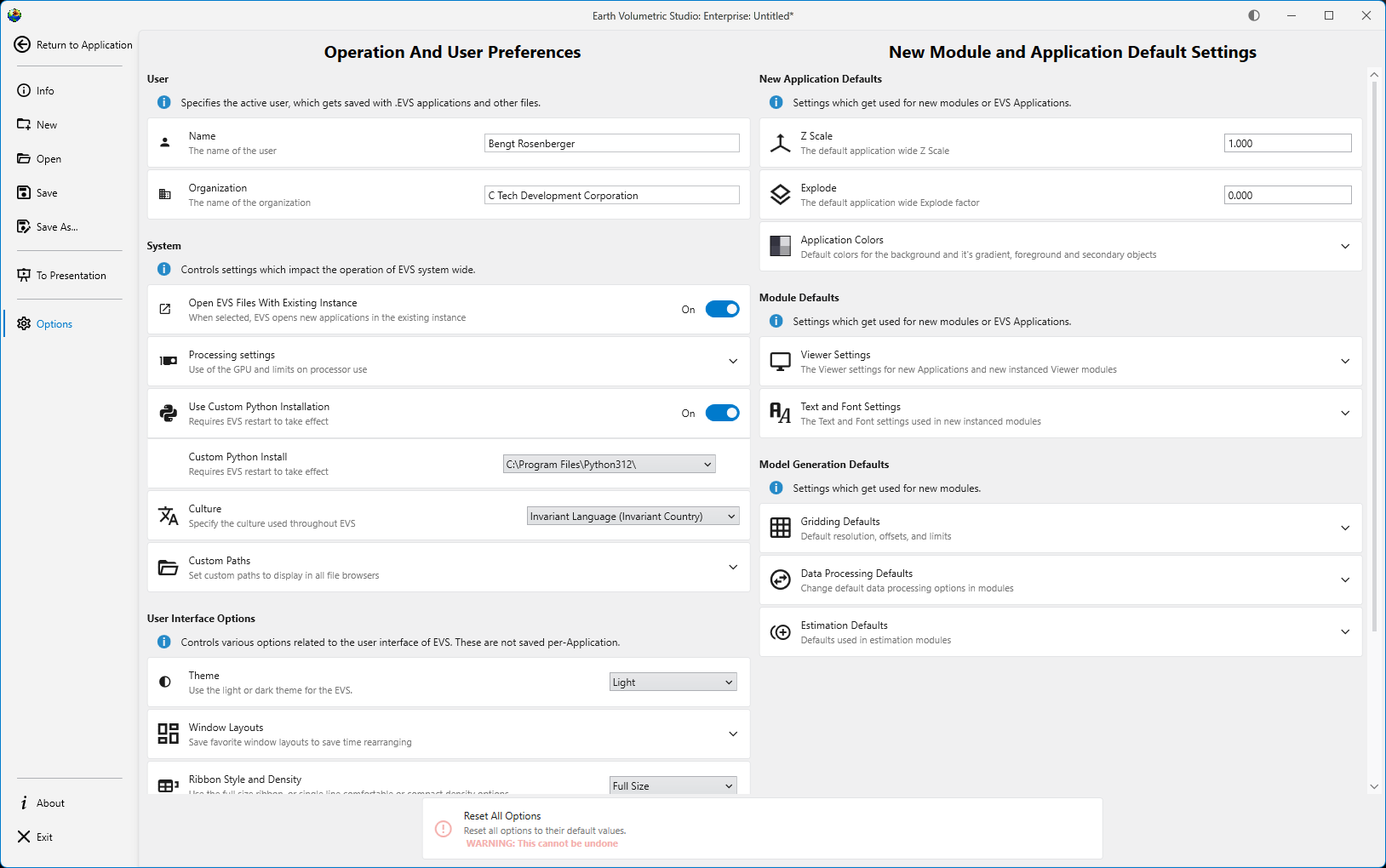
The window is divided into several logical sections, each handling a different aspect of the application’s configuration.
The options on the left side are all user preferences, and determine the look, feel, and operation of EVS for the current user. The options on the right side change the default values used for new modules and applications.
User
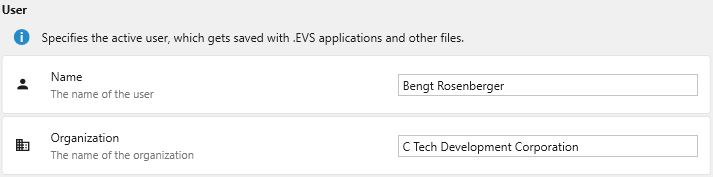
This section specifies the active user and their organization. This information is saved with .evs application files and other outputs, helping to track authorship and ownership of projects.
| Setting | Description |
|---|---|
| Name | The name of the primary user. This name is stored as metadata within your project files. |
| Organization | The name of your company or organization. This is also saved as metadata for project management and collaboration. |
System
The System section controls settings that impact the core operation of EVS system-wide, including file handling, hardware utilization, and integration with external tools like Python.
| Setting | Description |
|---|---|
| Open EVS Files With Existing Instance | When enabled, any .evs file you open from Windows File Explorer will launch within the currently running instance of Earth Volumetric Studio. If disabled, a completely new instance of the program will be launched for each file. |
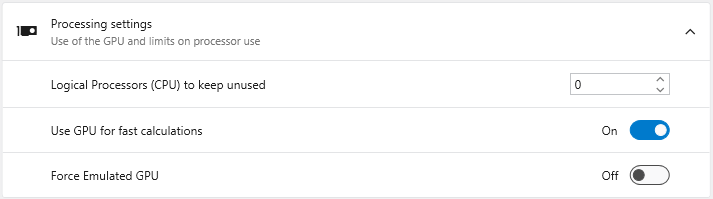
| Processing settings | This section allows you to manage how EVS utilizes your computer’s hardware. |
|
- **Logical Processors (CPU) to keep unused**: Reserves a specific number of your CPU's logical processors (cores/threads) for the operating system and other applications. This prevents EVS from consuming 100% of your CPU during intensive calculations, keeping your system responsive.
- **Use GPU for fast calculations**: When enabled, EVS leverages your graphics processing unit (GPU) to accelerate certain calculations. It is recommended to keep this enabled if you have a dedicated graphics card.
- **Force Emulated GPU**: An advanced troubleshooting setting. It forces EVS to use a software-based GPU emulator instead of your physical graphics card, which can help diagnose graphics-related issues but at a significant performance cost.
User Interface Options
This section controls the visual appearance and layout of the EVS user interface.
| Setting | Description |
|---|---|
| Theme | Choose a visual theme for the application. For more details, see the Themes topic.
|
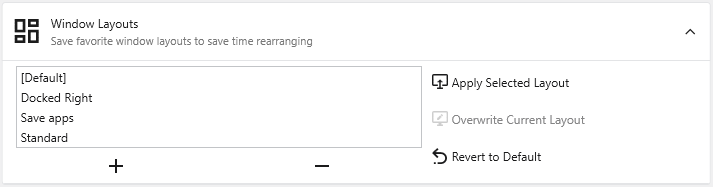
| Window Layouts | Save, manage, and apply different arrangements of the application’s windows. For more about creating layouts, see Docking and Undocking Windows and Windows and Layout. |
|
- **Layout List**: Displays all saved layouts.
- **+ / - Buttons**: Save the current window arrangement as a new layout or delete the selected layout.
- **Apply Selected Layout**: Applies the window positions from the selected layout.
- **Overwrite Current Layout**: Updates the selected layout with the current arrangement of windows.
- **Revert to Default**: Resets the selected layout to its original state.
- **Full Size**: The default style, featuring large icons with descriptive text.
- **Comfortable**: A more compact style with smaller icons and text.
- **Compact**: A minimal style with icons only.
- **Display in Title Bar**: Moves the toolbar into the application's title bar to maximize vertical space.
- **Hide Viewer Connections**: Hides connection lines to and from Viewer modules to reduce visual clutter.
- **Always Display Minor Ports**: When enabled, all module ports are visible. When disabled, less-used "minor" ports are hidden until you hover over the module.
- **Connection Checking**: Determines how strictly EVS validates module connections. "Strict Checking" ensures data types are perfectly compatible.
- **Connection Style**: Sets the visual style of connection lines (Curved or Straight).
- **Highlight Potential Connections**: Controls which available ports are highlighted as valid targets when dragging a connection (Major Ports Only, Include Minor Ports, or None).
- **Max Potential Connections**: Limits the number of potential connections highlighted at once to maintain performance.
- **Display Expert Properties**: Reveals advanced or less commonly used module parameters.
- **Always Show Critical Properties**: Ensures that important parameters are always visible, even if their category is collapsed.
- **Automatically Collapse Categories**: When enabled, all property categories collapse when you select a new module.
- **Include Deprecated Modules**: Shows older modules kept for backward compatibility.
- **Automatically Collapse Module Categories**: When enabled, all module categories in the Module Library will be collapsed by default.
New Module and Application Default Settings
This area defines the default settings that are applied to new applications, modules, and data processing tasks.
New Application Defaults
| Setting | Description |
|---|---|
| Z Scale | Sets the default vertical exaggeration (Z-Scale) for new applications. |
| Explode | Sets the default explode factor for new applications, which pushes modules apart in the 3D viewer. |
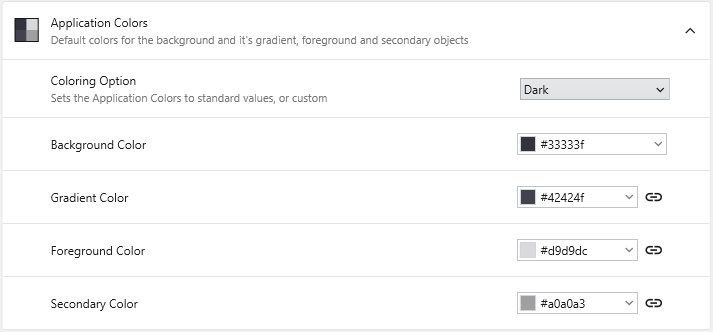
| Application Colors | Sets the default colors for elements in the Viewer window for new applications. |
|
- **Coloring Option**: Select from predefined color schemes (Light, Dark) or choose "Custom" to enable the color pickers below.
- **Background Color**: Sets the solid background color of the Viewer.
- **Gradient Color**: Creates a two-color vertical gradient with the Background Color.
- **Foreground Color**: Defines the default color for text, axes, and other primary annotations.
- **Secondary Color**: Defines the default color for less prominent visual elements.
Module Defaults
| Setting | Description |
|---|---|
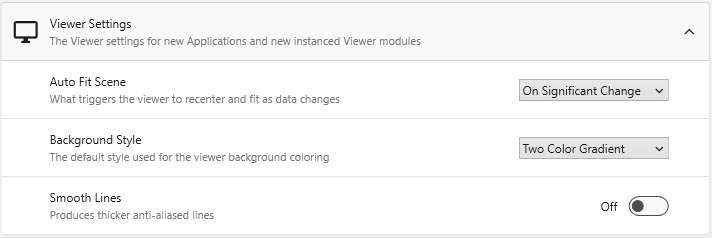
| Viewer Settings | Defines the default rendering and behavior for new Viewer modules. |
|
- **Auto Fit Scene**: Controls when the viewer automatically rescales to fit all objects (On Significant Change, On Any Change, or Never).
- **Background Style**: Sets the default background rendering style (Two Color Gradient, Solid, or Vignette).
- **Smooth Lines**: When enabled, applies anti-aliasing to produce thicker, smoother lines.
- **Default Font**: Sets the default font family for text in new modules.
- **Force True Type Fonts**: When enabled, forces modules to use scalable TrueType fonts.
- **Include Language Specific Fonts**: Loads additional font sets for displaying characters from non-Latin languages (e.g., Chinese, Japanese, or Korean).
Model Generation Defaults
Provides fine-grained control over the default parameters used in modules for gridding, data processing, and statistical estimation.
| Setting Area | Description |
|---|---|
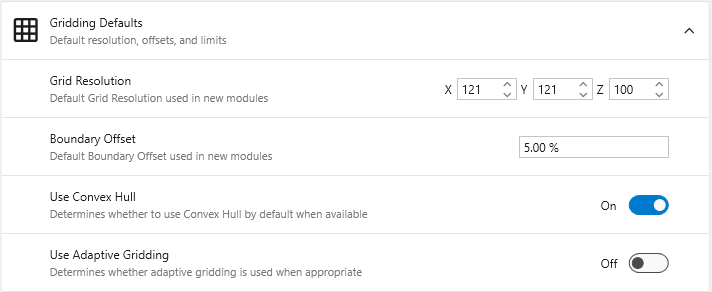
| Gridding Defaults | Defines the default settings for new gridding modules like krige_3d. |
|
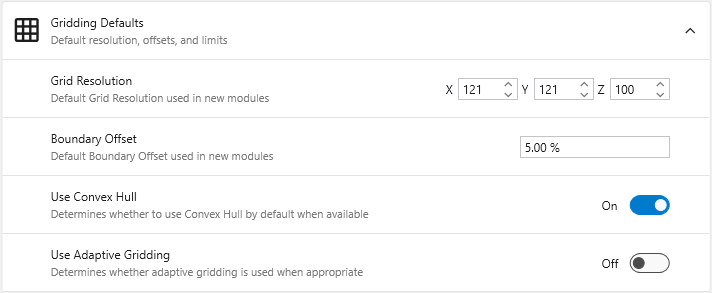
- **Grid Resolution**: Sets the default number of nodes in the X, Y, and Z dimensions.
- **Boundary Offset**: Defines a default percentage to expand the grid boundary beyond the input data extents.
- **Use Convex Hull**: When enabled, automatically uses the convex hull of the input data as the gridding boundary.
- **Use Adaptive Gridding**: When enabled, uses adaptive gridding techniques by default.
- **Pre Clip Minimum**: Sets the default minimum clipping value applied to data **before** interpolation.
- **Post Clip Minimum**: Sets the default minimum clipping value applied to data **after** interpolation.
- **Horizontal Vertical Anisotropy**: Sets the default ratio of horizontal to vertical anisotropy.
- **Use all samples if # samples below**: When enabled, the module uses all data samples for estimation if the total count is below the specified limit.
- **Number of Points**: Specifies the number of nearby data points to use for estimation.
- **Statistical Confidence Tolerance**: Sets the default tolerance for statistical confidence when data processing is "Linear".
- **Statistical Confidence Factor**: Sets the default factor for statistical confidence when data processing is set to "Log Processing".
- **Confidence for Min and Max Plume**: Sets the default statistical confidence level for determining plume extents.
Reset All Options
The Reset All Options button at the bottom of the window reverts all settings to their original factory defaults. This action is irreversible and affects all sections, so it should be used with caution.