The Main Toolbar
The Main Toolbar is the primary command bar in Earth Volumetric Studio, located at the top of the main application window. It provides streamlined access to the application’s most common features and functions. The toolbar is organized into logical sections: File, Display, Documents, and Tools, making it easier to locate and use the necessary commands for your projects.
File
This section contains essential commands for file management.

| Button | Description |
|---|---|
| Show Menu | Opens the main application menu, which provides access to a comprehensive list of commands, including those not present on the Main Toolbar. |
| Open | Provides quick access to open Earth Volumetric Studio project files. |
| Save | Saves the currently active project. If the project has not been saved before, it will prompt you for a file name and location. |
| Save As… | Saves the current project under a new name or in a different location. |
Display
This section provides tools to manage the application’s user interface, windows, and general options.

| Button | Description |
|---|---|
| Presentation Mode | Toggles a full-screen mode that maximizes the viewer and hides certain UI elements, ideal for presentations. |
| Window Layout | A dropdown menu that allows you to quickly load saved window layout configurations. Use the Windows Layouts section in the Options menu to create new layouts. |
| Windows | A dropdown menu to show, hide, or bring focus to specific windows within the application, such as the Properties or Output Log windows. |
| Help Windows | A dropdown menu to access the main help file or show the module help window. |
| Options | Opens the main Options dialog, where you can configure application-wide settings. |
Documents
This section is dedicated to managing document-centric features like scripting and animation.

| Button | Description |
|---|---|
| Python Scripting | A dropdown menu that provides access to the Python scripting interface, allowing you to create, open, and run Python scripts to automate tasks and extend functionality. |
| Animation | A dropdown menu for creating and opening animations. This includes commands for the Animation Control panel, which allows you to define keyframes and playback your animated sequences. |
Tools
This section contains a collection of specialized tools and utilities.

| Button | Description |
|---|---|
| Generate EVS Input | A dropdown menu with tools that assist in creating or formatting data files for use in Earth Volumetric Studio from various input file formats. |
| Tools | A dropdown menu that provides access to a variety of supplementary tools and utilities available within the application. |
Toolbar Styles
You can customize the appearance of the Main Toolbar to suit your preferences. Right-click anywhere on the toolbar to open the “Ribbon Style and Density” menu, or use the arrow to the right of the toolbar.
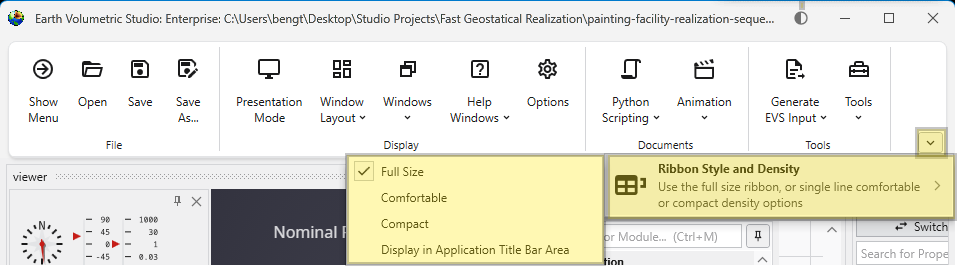
These settings can also be configured in the main Options dialog in the Menu. The available styles are detailed below.
| Style | Description | Example |
|---|---|---|
| Full Size | The default style, featuring large buttons with descriptive text for clarity. | 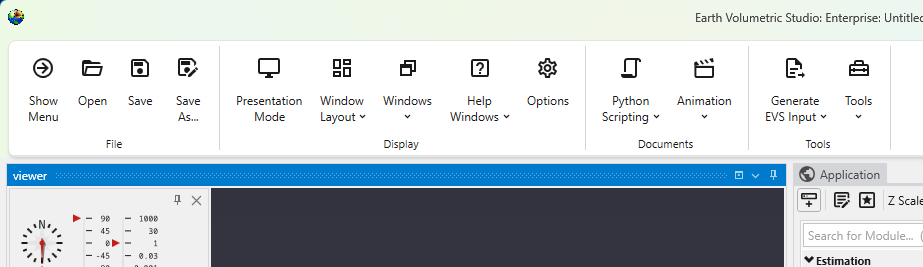
|
| Comfortable | A more compact style that reduces the size of buttons and text, providing a balance between usability and screen space. | 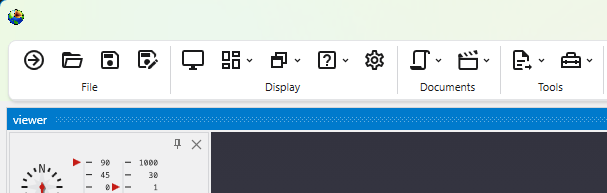
|
| Compact | The most space-efficient style, displaying only icons without text labels for a minimal footprint. | 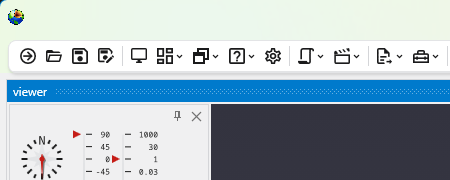
|
| Display in Application Title Bar Area | This option moves the toolbar into the application’s title bar, freeing up additional vertical space in the main window. | 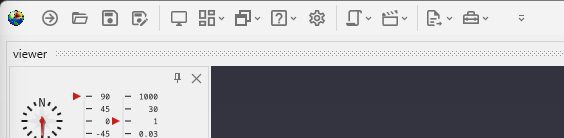
|
Presentation Mode optimizes the user interface for interacting with a completed application. It simplifies the workspace by hiding development-focused UI elements, allowing you to focus on the application’s controls and outputs. Accessing Presentation Mode You can enable Presentation Mode using the Presentation Mode button in the Main Toolbar.
Accessing Help The help can be found through the Help Windows button in the Main Toolbar. General Application Help For general information, searching, and browsing all help topics, you can use the main Help window.
The Tools menu provides a collection of utilities for file conversion, data processing, and creating animations. These tools are designed to help you prepare your data for use in EVS. Accessing Tools The Tools button can be found in the Main Toolbar. Clicking it will open a list of available tools.