Extracts external faces from a 2D or 3D field for rendering.
Extracts the outer edges of a mesh.
Create a fence diagram along a user defined (x, y) path.
Create a slice through an input field.
Produce lines of constant value which can be offset from a 2D surface, or the external faces of a 3D surface.
Create a subset of your input on one side of a planar surface.
Create a true 3D volumetric subset of a 3D input. The resulting volume can be used as input for further subsetting or volumetric computations since it is volumetric. This module should not normally be used when you desire a visualization of a plume but rather when you wish to do subsequent operations such as analysis, slices, etc.
Create a true 3D volumetric subset of a 3D input using multiple subset criteria. The resulting volume can be used as input for further subsetting or volumetric computations since it is volumetric.
Allows for a large number of complex parallel subsetting operations required to compute and visualize the union of multiple analytes and threshold levels.
Eliminate whole cells from the input mesh based on the nodal data of one or more nodes that comprise the cells.
Create the 2D footprint by creating a surface at the specified Z Position with an x-y extent that matches the 3D input.
Split an input field into two output fields based upon slope or aspect data using a subset expression.
Select individual geologic layers or lithologic materials for output.
Produce a wireframe representation of an unstructured cell data mesh. This allows viewing of all grid boundaries (internal AND external) of the input mesh. The edges module is useful in that it is able to render lines around adaptive gridding locations.
Subsections of Subsetting
external faces
The external faces module extracts external faces from a 2D or 3D field for rendering. It produces a mesh of only the external faces of each cell set of a data set. Because each cell set’s external faces are created, there may be faces that are seemingly internal (vs. external). This is especially true when external faces is used subsequent to a plume module on 3D (volumetric) input.
Ports
| Direction | Name | Type | Description |
|---|---|---|---|
| Input | Input Field | Field | The field to use for external faces. |
| Output | Output Field | Field | The external faces field. |
| Output | Output Object | Renderable | A renderable object to display. |
Properties
| Property | Type | Description |
|---|---|---|
| Allow Run | Boolean | The Allow Run Toggle will prevent the module from running. This allows the user to make multiple changes without the module constantly updating. |
| Execute | Button | The Run Once button will cause the module to run one time even if the Allow Run toggle has been turned off. |
External Faces
| Property | Type | Description |
|---|---|---|
| Ignore Existing Normals | Boolean | Ignores any normals that already exist in the input field, forcing the module to always compute normals from scratch. |
| Split Edges | Boolean | Split surfaces when the edge between two neighboring cells is sharp. This improves rendering in most cases. |
| Split Edge Angle | Double | The Split Edge Angle is the maximum angle allowed between two adjacent faces before they are disconnected to create visually sharp edges. |
| Z Scale | Double | The Z Scale is the vertical exaggeration to apply to the display object. |
| Remove Internal Layer Boundaries | Boolean | Remove Internal Layer Boundaries allows the user to merge cell sets in order to remove non-visible, internal layer boundaries. |
| Keep Cell Sets | Boolean | If Remove Internal Layer Boundaries is activated, Keep Cell Sets allows the user to split the cells of the merged field back into original cell sets after calculating external faces. |
external edges
The external edges module produces a wireframe representation of an unstructured cell data mesh. This is generally used to visualize the skeletal shape of the data domain while viewing output from other modules, such as plumes and surfaces, inside the unstructured mesh. It produces a mesh of only the external edges which meet the edge angle criteria for each cell set of a data set. Because each cell set’s external faces are used, there may be edges that are seemingly internal (vs. external). This is especially true when external edges is used subsequent to a plume module on 3D (volumetric) input.
Ports
| Direction | Name | Type | Description |
|---|---|---|---|
| Input | Input Field | Field | The field to use for external gridding. |
| Output | Output Field | Field | The external grid field. |
| Output | Output Object | Renderable | A renderable object to display. |
Properties
| Property | Type | Description |
|---|---|---|
| Extraction Method | Choice: Edge Angle, Boundary Edges, Wireframe | The Extraction Method determines how edges are extracted. Edge Angle chooses all edges of cells with an angle greater than specified angle. Boundary Edges extract all edges only used by a single cell, which is useful when doing edges of a surface. Wireframe extracts all external edges of the field. |
| Max Edge Angle | Double | The Max Edge Angle is defined as the angle between two faces or cells in the model. Setting Max Edge Angle to 0 causes all external cell (element) edges in the model to be visible. Intersections between faces or cells with angles greater than the Max Edge Angle are visible. Exterior model edges are always visible. |
| Z Scale | Double | The Z Scale is the vertical exaggeration to apply to the display object. |
cross section
The cross section module creates a fence diagram along a user defined (x, y) path. The fence cross-section has no thickness (because it is composed of areal elements such as triangles and quadrilaterals), but can be created in either true 3D model space or projected to 2D space.
It receives a 3D field (with volumetric elements) into its left input port and it receives lines or polylines (from draw lines, polyline processing, import cad, isolines, import vector gis, or other sources) into its right input port. Its function is similar to buffer distance, however it actually creates a new grid and does not rely on any other modules (e.g. plume or plume shell) to do the “cutting”. Only the x and y coordinates of the input (poly)lines are used because cross section cuts a projected slice that is z invariant. The module recalculates when either input field is changed (and Run Automatically is on) or when the “Run Once” button is pressed.
If you select the option to “Straighten to 2D”, cross section creates a straightened fence that is projected to a new 2D coordinate system of your choice. The choices are XZ or XY. For output to ESRI’s ArcMAP, XY is required.
NOTE: The beginning of straightened (2D) fences is defined by the order of the points in the incoming line/polyline. This is done to provide the user with complete control over how the cross-section is created. However, if you are provided a CAD file and you do not know the order of the line points, you can export the CAD file using the write lines module which provides a simple text file that will make it easy to see the order of the points.
Ports
| Direction | Name | Type | Description |
|---|---|---|---|
| Input | Input Field | Field | The main field for input. |
| Input | Input Line | Field | The main line for creating fence. |
| Output | Output Field | Field | The fence field. |
| Output | Output Object | Renderable | A renderable object displaying the subset fence. |
Properties
| Property | Type | Description |
|---|---|---|
| Allow Run | Boolean | The Allow Run toggle will prevent the module from running when unselected. |
| Execute | Button | This button will force the module to run even if the Allow Run toggle has been turned off. This allows the user to make a number of changes before updating. |
| Clean Fence Boundaries | Boolean | The Clean Fence Boundaries toggle attempts to merge all cells between each fence segment (created by each line segment of your 2D input). Occasionally the output will look better with it off, but usually it is better left on. |
| Straighten To 2D | Boolean | The Straighten to 2D toggle is used to project your 3D fence to a 2D representation. Where each sample’s x value becomes the distance to the line passed into the Input Line port. |
| Straightened Plane | Choice: Export in XZ, Export in XY | The Straightened Plane allows the user to set the plane the straightened samples are in. This requires samples that have been Straightened to 2D. |
| Nodal Data Components | Multi-select | The Node Data Components toggles allow you to select which nodal data to include in the fence. |
| Cell Data Components | Multi-select | The Cell Data Components toggles allow you to select which cell data to include in the fence. |
slice
The slice module allows you to create a subset of your input which is of reduced dimensionality. This means that volumetric, surface and line inputs will result in surface, line and point outputs respectively. This is unlike cut which preserves dimensionality.
The slice module is used to slice through an input field using a slicing plane defined by one of four methods:
- A vertical plane defined by an X or Easting coordinate
- A vertical plane defined by a Y or Northing coordinate
- A Horizontal plane defined by a Z coordinate
- An arbitrarily positioned Rotatable plane which requires a 3D point through which the slicing plane passes, a Dip direction, and a Strike direction
Info
The slice module may be controlled with the driven sequence module. Only the orthogonal slice methods (Easting, Northing and Horizontal) may be used with driven sequence.
Ports
| Direction | Name | Type | Description |
|---|---|---|---|
| Input | Input Field | Field | The field to use for slicing. |
| Output | Output Field | Field | The slice field. |
| Output | Output Object | Renderable | A renderable object to display. |
| Output | Output Sequence | Sequence | The generated sequence of states. |
Properties
| Property | Type | Description |
|---|---|---|
| Allow Run | Boolean | This toggle can prevent the module from running. Allowing the user to make changes to large data sets without waiting for updates. |
| Execute | Button | This button will force the module to run even if the Allow Run toggle has been turned off. This allows the user to make a number of changes before updating. |
| Z Scale | Double | The Z Scale is the vertical exaggeration to apply to the display object. |
Slice Settings
| Property | Type | Description |
|---|---|---|
| Use Sequencing | Boolean | Turning this on allows the sequences to drive the slice module instead of the positions. |
| Slice Type | Choice: Slice Easting, Slice Northing, Slice Horizontal, Rotatable | The Slice Type is how the slicing plane is specified. |
| X Position | Double | The X Position of the slice (used with Slice Easting and Rotatable). |
| Y Position | Double | The Y position of the slice (used with Slice Northing and Rotatable). |
| Z Position | Double | The Z Position of the slice (used with Slice Horizontal and Rotatable). |
| Plane Rotation | Heading/Dip | The Plane Rotation control allows the user to set both the Heading and the Dip of the Rotatable Slice. |
| Reset | Button | The Reset button will cause the Position of the slice to return to the center of the model. |
| Current State | Sequence State | The current state to be passed to the script. |
| State Control | Choice: Slider, Combo Box, List Box | The State Control determines how the user will interact with the created sequence of states. |
| Allow Cycles | Boolean | Allows the state control to be cycled in CTWS files. |
| Sequence Generation Properties | Value generator | Generates the list of values for sequencing. Methods: Linear By Step (values from an anchor point at a fixed step size), Linear By Count (a fixed number of evenly-spaced values), User Entries (manually specified values). |
| State Title | Expression | The State Title sets the template which is used to generate the title for each state of the sequence. |
Data Mapping
| Property | Type | Description |
|---|---|---|
| Nodal Data | Multi-select | The Nodal Data from the Input Field to include in the Output Field. |
| Cell Data | Multi-select | The Cell Data from the Input Field to include in the Output Field. |
isolines
The isolines module is used to produce lines of constant (iso)value on a 2D surface (such as a slice plane), or the external faces of a 3D surface, such as the external faces of a plume. The input data for isolines must be a surface (faces), it cannot be a volumetric data field. If the input is the faces of a 3D surface, then the isolines will actually be 3D in nature. Isolines can automatically place labels in the 2D or 3D isolines. By default isolines are on the surface (within it) and they have an elevated jitter level (1.0) to make them preferentially visible. However they can be offset to either side of the surface.
Ports
| Direction | Name | Type | Description |
|---|---|---|---|
| Input | Input Field | Field | The field used to generate contours. |
| Input | Input Contour levels | Contours | Contour level information. |
| Output | Output Field | Field | The field containing generated isolines. |
| Output | Output Contour levels | Contours | Contour level information. |
| Output | Output Object | Renderable | A renderable object displaying the grid created by the module. Note that this is output even when Allow Run is off. |
Properties
| Property | Type | Description |
|---|---|---|
| Allow Run | Boolean | This toggle can prevent the module from running. Allowing the user to make changes to large data sets without waiting for updates. |
| Execute | Button | The Execute button forces the module to run. If this has been pressed and the application saved, it will cause the module to run when the application is loaded. |
Isoline Settings
| Property | Type | Description |
|---|---|---|
| Isoline Component | Choice | The Isoline Component refers to the nodal data component that will be used to create isolines. |
| Min Max Linking | Choice: Link Min/Max, Recalculate from Data | The Min Max Linking control is used to set the linked values for the Minimum and Maximum Isoline levels. If the min and max values for the selected component have been changed, Recalculate can be used to find the actual min and max. |
| Isoline Generation Properties | Value generator | Generates the list of isoline levels. Methods: Per Log Decade (logarithmic spacing with a set number of isolines per decade), Linear By Step (values from an anchor point at a fixed step size), Linear By Count (a fixed number of evenly-spaced values), User Entries (manually specified values). |
| Surface Offset | Double | The Surface Offset controls where the isolines will be placed, vertically, in reference to the surface. |
| Offset Both Ways | Boolean | Offset Both Ways will enable creating isolines on both sides of a surface e.g. the top and bottom sides of a ground surface. |
Label Settings
| Property | Type | Description |
|---|---|---|
| Add Labels | Boolean | The Add Labels toggle specifies whether labels are added. |
| Flip Labels Horizontally | Boolean | The Flip Labels Horizontally toggle will flip all labels upside down. Depending on the viewpoint and the data, this may be useful for making the labels more readable. |
| Flip Labels Vertically | Boolean | The Flip Labels Vertically toggle will flip all labels to the other side of the surface. Depending on the viewpoint and the data, this may be useful for making the labels more readable. |
| Label Spacing | Double | The Label Spacing value. |
| Label Height | Double | The Label Height scales the size of each label. |
| Label Start | Double | The Label Start will offset the start of each label along the line. |
| Format Label Numbers | Number Formatting | The Format Label Numbers control allows the user to set how numbers that are turned into labels will be formatted. |
| Label Suffix | Choice: Use Data Units, User Specified, None | The Label Suffix is a string that is appended to each label. |
| User Suffix | String | If the User Specified option is selected in Label Suffix, the string can be set with this value. |
cut
The cut module allows you to create a subset of your input which is of the same dimensionality. This means that volumetric, surface, line and point inputs will have subsetted outputs of the same object type. This is unlike slice which decreases dimensionality.
The cut module cuts through an input field using a cutting plane defined by one of four methods:
- A vertical plane defined by an X or Easting coordinate
- A vertical plane defined by a Y or Northing coordinate
- A Horizontal plane defined by a Z coordinate
- An arbitrarily positioned Rotatable plane which requires a 3D point through which the cutting plane passes, a Dip direction, and a Strike direction
Info
The cut module may be controlled with the driven sequence module. Only the orthogonal cut methods (Easting, Northing and Horizontal) may be used with driven sequence.
The cutting plane essentially cuts the data field into two parts and sends only the part above or below the plane to the output ports (above and below are terms which are defined by the normal vector of the cutting plane). The output of cut is the subset of the model from the side of the cut plane specified.
Ports
| Direction | Name | Type | Description |
|---|---|---|---|
| Input | Input Field | Field | The field to use for cutting. |
| Output | cut Field | Field | The cut field. |
| Output | Output Field | Field | The input field with cut data. |
| Output | Output Object | Renderable | A renderable object to display. |
| Output | Output Sequence | Sequence | The generated sequence of states. |
Properties
| Property | Type | Description |
|---|---|---|
| Allow Run | Boolean | This toggle can prevent the module from running. Allowing the user to make changes to large data sets without waiting for updates. |
| Z Scale | Double | The Z Scale is the vertical exaggeration to apply to the display object. |
Cut Settings
| Property | Type | Description |
|---|---|---|
| Use Sequencing | Boolean | Turning this on allows the sequences to drive the cut module instead of the positions. |
| Cut Type | Choice: Cut Easting, Cut Northing, Cut Horizontal, Rotatable | The Cut Type is how the cutting plane is specified. |
| Cut Direction | Choice: Cut Below, Cut Above | The Cut Direction is used to determine whether the mesh above or below the cutting plane is sent to the output port. |
| X Position | Double | The X Position of the cut plane (used with Easting and Rotatable). |
| Y Position | Double | The Y position of the cut plane (used with Northing and Rotatable). |
| Z Position | Double | The Z Position of the cut plane (used with Horizontal and Rotatable). |
| Plane Rotation | Heading/Dip | The Plane Rotation control allows the user to set both the Heading and the Dip of the Rotatable Cut Plane. |
| Reset | Button | The Reset button will cause the Position of the cut plane to return to the center of the model. |
| Current State | Sequence State | The current state to be passed to the script. |
| State Control | Choice: Slider, Combo Box, List Box | The State Control determines how the user will interact with the created sequence of states. |
| Allow Cycles | Boolean | Allows the state control to be cycled in CTWS files. |
| Sequence Generation Properties | Value generator | Generates the list of values for sequencing. Methods: Linear By Step (values from an anchor point at a fixed step size), Linear By Count (a fixed number of evenly-spaced values), User Entries (manually specified values). |
| State Title | Expression | The State Title sets the template which is used to generate the title for each state of the sequence. |
Data Mapping
| Property | Type | Description |
|---|---|---|
| Nodal Data | Multi-select | The Nodal Data from the Input Field to include in the Output Field. |
| Cell Data | Multi-select | The Cell Data from the Input Field to include in the Output Field. |
plume
The plume module creates a (same dimensionality) subset of the input, regardless of dimensionality. What this means, in other words, is that plume can receive a field (blue port) model with cells which are points, lines, surfaces and/or volumes and its output will be a subset of the same type of cells.
This module should not normally be used when you desire a visualization of a 3D volumetric plume but rather when you wish to do subsequent operations such as analysis, slices, etc.
Info
The plume module may be controlled with the driven sequence module.
Ports
| Direction | Name | Type | Description |
|---|---|---|---|
| Input | Input Field | Field | A field containing nodal data. |
| Input | Input Isolevel | Number | The value used for subsetting. |
| Output | Status | String | Text containing the subsetting information. |
| Output | Output Isolevel | Number | The value used for subsetting. |
| Output | Output Field | Field | A field containing a new unstructured mesh which contains the surfaces which are the external faces of a subset of the input. |
| Output | Plume | Renderable | A renderable object displaying the subsetted plume data. |
| Output | Output Sequence | Sequence | The generated sequence of states. |
Properties
| Property | Type | Description |
|---|---|---|
| Allow Run | Boolean | The Allow Run toggle will prevent the module from running when unselected. |
| Execute | Button | The Run Once button will cause the module to run one time even if the Allow Run toggle has been turned off. |
| Above Direction String | String | When the Subsetting Direction is set to Subset Above Level, the Direction String will use this string as its identifier. |
| Below Direction String | String | When the Subsetting Direction is set to Subset Below Level, the Direction String will use this string as its identifier. |
| Status Expression | Expression | The Status Expression sets the template which is used to generate the status string, and the title for each state of the sequence. |
| Use Sequencing | Boolean | Turning this on allows the sequences to drive the module instead of the positions. |
Data Processing
| Property | Type | Description |
|---|---|---|
| Subsetting Component | Choice | The Subsetting Component is the nodal data value to use to subset the input by. |
| Subsetting Level | Double | The Subsetting Level is used to set the level for subsetting the input field. If a value is chosen larger than the max value, the max value is placed in the edit box. Similarly, if a value less than the minimum is input, the minimum value is placed in the box. The default level is the arithmetic average of the minimum and maximum values in the subsetting component. |
| Subsetting Direction | Choice: Subset Below level, Subset Above level | The Subsetting Direction choice allows the user to select which range of values to include in the output. Either the range of data from the subsetting level to the max can be selected, or the range of data from the subsetting level to the min of the data. |
| Output Nodal Data | Multi-select | The Output Nodal Data choice allows the user to select the nodal data to include in the output. |
| Output Cell Data | Multi-select | The Output Cell Data choice allows the user to select the cell data to include in the output. |
Sequence Settings
| Property | Type | Description |
|---|---|---|
| Current State | Sequence State | The current state to be passed to the script. |
| State Control | Choice: Slider, Combo Box, List Box | The State Control determines how the user will interact with the created sequence of states. |
| Allow Cycles | Boolean | Allows the state control to be cycled in CTWS files. |
| Sequence Generation Properties | Value generator | Generates the list of values for sequencing. Methods: Linear By Step (values from an anchor point at a fixed step size), Linear By Count (a fixed number of evenly-spaced values), User Entries (manually specified values), Per Log Decade (logarithmic spacing with a set number of values per decade). |
intersection
The intersection module is a powerful module that incorporates some of the characteristics of plume, yet allows for any number of volumetric sequential (serial) subsetting operations.
The functionality of the intersection module can be obtained by creating a network of serial plume modules. The number of analytes in the intersection is equal to the number of plume modules required.
The intersection of multiple analytes and threshold levels can be equated to the answer to the following question (example assumes three analytes A, B & C with respective subsetting levels of a, b and c):
“What is the volume within my model where A is above a, AND B is above b, AND C is above c?”
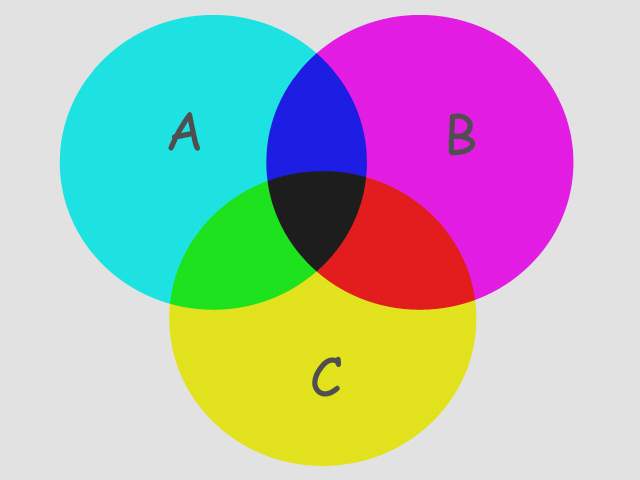
The figure above is a Boolean representation of 3 analyte plumes (A, B & C). The intersection of all three is the black center portion of the figure. Think of the image boundaries as the complete extents of your models (grid). The “A” plume is the circle colored cyan and includes the green, black and blue areas. The intersection of just A & C would be both the green and black portions.
Ports
| Direction | Name | Type | Description |
|---|---|---|---|
| Input | Input Field | Field | The main field for input. |
| Output | Output Field | Field | The subset field. |
| Output | Status | String | Text containing the intersection subset information. |
| Output | Output Object | Renderable | A renderable object displaying the selected data from the subset. |
Properties
| Property | Type | Description |
|---|---|---|
| Allow Run | Boolean | The Allow Run Toggle will prevent the module from running. This allows the user to make multiple changes without the module constantly updating. |
| Execute | Button | The Run Once button will cause the module to run one time even if the Allow Run toggle has been turned off. |
| Map Components | Multi-select | The Map Components value allows the user to select which data components to include in the output after the subsetting has completed. |
| Map Cell Components | Multi-select | The Map Cell Components value allows the user to select which cell data components to include in the output after the subsetting has completed. |
| Output String | Choice: First Subset, All Subsets, Last Subset | The Output String contains the name(s) and value(s) of the intersection subsets. |
| Above Output String | String | When the Include Region is set to Above, the Output String will use this string as its identifier. |
| Output String Delimiter | String | When the Output String consists of All Subsets, the Delimiter is the string occurring between each subset text. |
| Below Output String | String | When the Include Region is set to Below, the Output String will use this string as its identifier. |
Subsetting Values
| Property | Type | Description |
|---|---|---|
| Subset List | Subset Editor | The list of intersections to create. |
union
The union module is a powerful module that automatically performs a large number of complex serial and parallel subsetting operations required to compute and visualize the union of multiple analytes and threshold levels. The functionality of the union module can be obtained by creating a network fragment composed of only plume modules. However as the number of analytes in the union increases, the number of plume modules increases very dramatically. The table below lists the number of plume modules required for several cases:
| Number of Analytes | Number of plume Modules |
|---|---|
| 2 | 3 |
| 3 | 6 |
| 4 | 10 |
| 5 | 15 |
| 6 | 21 |
| 7 | 28 |
| n | (n * (n+1)) / 2 |
From the above table, it should be evident that as the number of analytes in the union increases, the computation time will increase dramatically. Even though union appears to be a single module, internally it grows more complex as the number of analytes increases.
The union of multiple analytes and threshold levels can be equated to the answer to the following question (example assumes three analytes A, B & C with respective subsetting levels of a, b and c):
“What is the volume within my model where A is above a, OR B is above b, OR C is above c?”
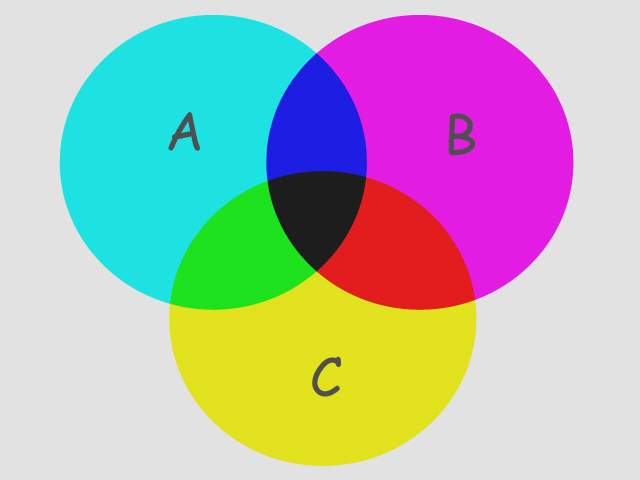
The figure above is a Boolean representation of 3 analyte plumes (A, B & C). The union of all three is the entire colored portion of the figure. Think of the image boundaries as the complete extents of your models (grid). The “A” plume is the circle colored cyan and includes the green, black and blue areas. The union of just A & C would be all colored regions EXCEPT the magenta portion of B.
Ports
| Direction | Name | Type | Description |
|---|---|---|---|
| Input | Input Field | Field | The main field for input. |
| Output | Output Field | Field | The subset field. |
| Output | Status | String | Text containing the union subset information. |
| Output | Output Object | Renderable | A renderable object displaying the selected data from the subset. |
Properties
| Property | Type | Description |
|---|---|---|
| Allow Run | Boolean | The Allow Run Toggle will prevent the module from running. This allows the user to make multiple changes without the module constantly updating. |
| Execute | Button | The Run Once button will cause the module to run one time even if the Allow Run toggle has been turned off. |
| Map Components | Multi-select | The Map Components value allows the user to select which data components to include in the output after the subsetting has completed. |
| Map Cell Components | Multi-select | The Map Cell Components value allows the user to select which cell data components to include in the output after the subsetting has completed. |
| Output String | Choice: First Subset, All Subsets, Last Subset | The Output String contains the name(s) and value(s) of the intersection subsets. |
| Above Output String | String | When the Include Region is set to Above, the Output String will use this string as its identifier. |
| Output String Delimiter | String | When the Output String consists of All Subsets, the Delimiter is the string occurring between each subset text. |
| Below Output String | String | When the Include Region is set to Below, the Output String will use this string as its identifier. |
Subsetting Values
| Property | Type | Description |
|---|---|---|
| Subset List | Subset Editor | The list of unions to create. |
subset by expression
The subset by expression module creates a subset of the input grid with the same dimensionality. It can receive a field (blue port) model with cells which are points, lines, surfaces and/or volumes and its output will be a subset of the same type of cells.
Subset by expression is different from plume in that it outputs entire cells making its output “lego-like”.
It uses a mathematical expression allowing you to do complex subsetting calculations on coordinates and multiple data components with a single module, which can dramatically simplify your network and reduce memory usage. It has 2 floating point variables (N1, N2) which are setup with ports so they can be easily animated.
Operators:
- == Equal to
- < Less than
- > Greater Than
- <= Less than or Equal to
- >= Greater Than or Equal to
- or
- and
- in (as in list)
Example Expressions:
- If Nodal data is selected:
- D0 >= N1 All nodes with the first analyte greater than or equal to N1 will be used for inclusion determination.
- (D0 < N1) or (D1 < N2) All nodes with the first analyte less than or equal to N1 OR the second analyte less than or equal to N2 will be used for inclusion determination.
- If Cell data is selected:
- D1 in [0, 2] where D1 is Layer will give you the uppermost and third layers.
- D1 in [1] where D1 is Layer will give you the middle layer.
- D1 == 0 where D1 is Layer will give you the uppermost layer
- D1 >= 1 where D1 is Layer will give you all but the uppermost layer
Ports
| Direction | Name | Type | Description |
|---|---|---|---|
| Input | Input Field | Field | The field to use when calculating the expression. |
| Input | Input Number Variable 1 | Number | A value used as a variable in the expression. |
| Input | Input Number Variable 2 | Number | A value used as a variable in the expression. |
| Output | OutputField | Field | The field created when applying the expression with the result being false. |
| Output | Output Number Variable 1 | Number | A value used as a variable in the expression. |
| Output | Output Number Variable 2 | Number | A value used as a variable in the expression. |
| Output | Output Object | Renderable | A renderable object to display. |
Properties
| Property | Type | Description |
|---|---|---|
| Allow Run | Boolean | The Allow Run toggle will prevent the module from running when unselected. |
| Execute | Button | The Run Once button will cause the module to run one time even if the Allow Run toggle has been turned off. |
| Z Scale | Double | The Z Scale is the vertical exaggeration to apply to the display object. |
| Subset By | Choice: Nodal Data, Cell Data | The Subset By control allows the user to choose which criteria to use for subsetting cells. |
| N1 | Double | The N1 value may be passed in via the Input Number Variable 1 port and is usable by the expression. |
| N2 | Double | The N2 value may be passed in via the Input Number Variable 2 port and is usable by the expression. |
| Subset Expression | String | The Subset Expression is used to determine which node or cell to include in the output. All expressions should resolve to either a true or false for each node (if using a nodal subset) or cell (if using a cell subset). |
| Nodal Subset Variables | String (read-only) | The Variables to use to set the criteria when subsetting by nodal data. |
| Expression Cells To Include | Choice: All Nodes Match Criteria, Any Node Matches Criteria | The Expression Cells To Include value allows the user to include a cell if all nodes in the cell match the expression criteria, or if any of the nodes in the cell match the expression criteria. |
| Cell Subset Variables | String (read-only) | The Variables to use to set the criteria when subsetting by cell data. |
footprint
The footprint module is used to create the 2D footprint of a 3D input. It creates a surface at the specified Z Position with an x-y extent that matches the 3D input. The footprint output does not contain data, but data can be mapped onto it with external kriging.
NOTE: Do not use adaptive gridding when creating the 3D grid to be footprinted and mapping the maximum values with krig 2d (as in the example shown below). Footprint will produce the correct area, but krig 2d will map anomalous results when used with 3d estimation’s adaptive gridding.
Ports
| Direction | Name | Type | Description |
|---|---|---|---|
| Input | Input Field | Field | The field to use for creating the subset. |
| Output | Output Field | Field | The footprint field. |
| Output | Output Boundary | Field | The footprint boundary lines. |
| Output | Output Object | Renderable | A renderable object to display. |
Properties
| Property | Type | Description |
|---|---|---|
| Allow Run | Boolean | This toggle can prevent the module from running. Allowing the user to make changes to large data sets without waiting for updates. |
| Gridding Method | Choice: Outline Only, Regular Grid | Controls which method is used to fill the outline of the footprint with points. Outline Only does not output any surface on the footprint port. Regular Grid distributes points in a grid with a spacing defined by the Cell Size option. |
| Grid Cell Size | Double | If the Gridding Method is Regular Grid this defines the spacing of the grid to fill the interior of a footprint outline with points. |
| Z Position | Double | Z Position determines the Z location of the output. This allows you to position the output at the most convenient elevation. |
Refinement
| Property | Type | Description |
|---|---|---|
| Boundary Tolerance | Double | The Boundary Tolerance defines the minimum allowable distance - expressed as a percentage of the Grid Cell Size - that an internal grid point must maintain from the boundary to be included in the output. This constraint helps prevent the formation of long, narrow triangles by enforcing spacing between grid points and boundary edges. |
| Shape Tolerance | Double | The Shape Tolerance specifies the maximum distance a boundary polygon point may deviate from the imaginary line between its two neighbor points to be considered a distinct point. Points closer than this threshold are treated as collinear and removed to simplify the output. A larger value results in fewer output points and segments but a less accurate footprint. |
slope aspect splitter
The slope aspect splitter module will split an input field into two output fields based upon the slope and/or aspect of the external face of the cell and the subset expression used. The input field is split into two fields: one for which all cell orientations are true for the subset expression, and another field for which all cell orientations are false for the subset expression.
All data from the original input is preserved in the output.
Flat Surface Aspect: If you have a flat surface then a realistic aspect cannot be generated. This field lets you set the value for those cells.
- To output all upward facing surfaces: use the default subset expression of SLOPE < 89.9. If your object was a perfect sphere, this would give you most of the upper hemisphere. Since the equator would be at slope of 90 degrees and the bottom would be >90 degrees.
(Notice there is potential for rounding errors, use 89.9 instead of 90)
Note: If your ground surface is perfectly flat and you wanted only it, you could use SLOPE < 0.01, however in the real world where topography exists, it can be difficult if not impossible to extract the ground surface and not get some other bits of surfaces that also meet your criteria.
- General expression (assuming a standard cubic building):
A) SLOPE > 0.01 (Removes the top of the building)
B) SLOPE > 0.01 and SLOPE < 179.9 (Removes the top and bottom of the building)
Since ASPECT is a variable it must be defined for each cell. In cells with a slope of 0 or 180 there would be no aspect without our defining it with the flat surface aspect field.
Units are always degrees. You could change them to radians if you want inside the expression. (SLOPE * PI/180)
Ports
| Direction | Name | Type | Description |
|---|---|---|---|
| Input | Input Field | Field | Accepts a data field. |
| Input | Input Number Variable 1 | Number | Accepts the first numeric value for the slope or aspect expression. |
| Input | Input Number Variable 2 | Number | Accepts the second numeric value for the slope or aspect expression. |
| Output | Output True Field | Field | Outputs the field which matches the subsetting expression. |
| Output | Output False Field | Field | Outputs the opposite of the true field. |
Properties
| Property | Type | Description |
|---|---|---|
| Z Scale | Double | Z scale is the scaling factor used on the input field. |
| Flat Surface Aspect | Double | The value to use for Aspect Value over a flat surface. |
| N1 | Double | The N1 variable usable by expressions. |
| N2 | Double | The N2 variable usable by expressions. |
| Subset Expression | String | The expression used to subset the input field. |
| Subset Variables | String | Variables available for determining which field to write output. |
| Split Edges | Boolean | Split surfaces when the edge between two neighboring cells is sharp. This improves rendering in most cases. |
| Split Edge Angle | Double | The Split Edge Angle is the maximum angle allowed between two adjacent faces before they are disconnected to create visually sharp edges. |
select cell sets
The select cell sets module provides the ability to select individual stratigraphic layers, lithologic materials or other cell sets for output. If connected to explode and scale, multiple select cell sets modules will allow selection of specific cell sets for downstream processing. One example would be to texture map the top layer with an aerial photo after one select cell sets and to color the other layers by data with a parallel select cell sets path. This can be accomplished by multiple explode and scale modules, but that would be much less efficient.
Ports
| Direction | Name | Type | Description |
|---|---|---|---|
| Input | Input Field | Field | The main field for input. |
| Output | Output Field | Field | The field with the selected cell sets. |
| Output | Output Object | Renderable | A renderable object displaying the selected data from the cell set. |
Properties
| Property | Type | Description |
|---|---|---|
| Select Cell Sets | Multi-select | The Select Cell Sets control allows the user to select the cell sets from the Input Field to include in the output. |
edges
The edges module is similar to the external edges module in that it produces a wireframe representation of the nodal data making up an unstructured cell data mesh. There is however, no adjustment of edge angle and therefore only allows viewing of all grid boundaries (internal AND external) of the input mesh. The edges module is useful in that it is able to render lines around adaptive gridding locations whereas external edges does NOT render lines around this portion of the grid.
Ports
| Direction | Name | Type | Description |
|---|---|---|---|
| Input | Input Field | Field | The main input field. |
| Output | Output Field | Field | The field with selected data. |
| Output | Output Object | Renderable | A renderable object displaying the selected data. |
Properties
| Property | Type | Description |
|---|---|---|
| Color By | Choice: Nodal Data, Solid Color | The Color By choice allows the user to select how to color the output edges. |
| Nodal Data Component | Choice | If Nodal Data is selected in the Color By choice, the Nodal Data Component will allow the user to select the data component to color by. |
| Object Color | Color | If Solid Color is selected in the Color By choice, the Object Color allows the user to set the color of the output edges. |
| Vector Component | Integer | If the selected Color By component is a nodal data component in a vector form, the Vector Component will allow the user to select to color by the entire vector (-1) or a single component of the vector. |
| Use Vector Magnitude | Boolean | If the Use Vector Magnitude toggle is selected then the selected nodal component will be treated as a vector and the magnitude of that vector used to create the output datamap. |