Let’s begin by creating a very simple application. In the Modules pane in the Application window, type p in the Search for Module section.
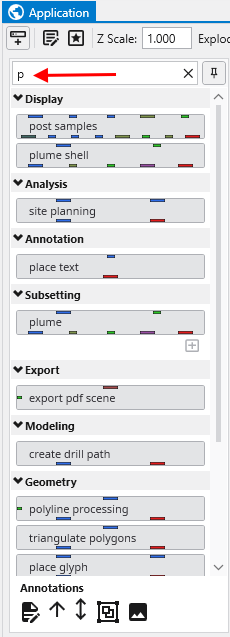
Notice that as soon as you type p, only those modules which start with this letter are displayed. The one we want in the first one listed, “post samples”.
We now want to copy the post_samples module into our Application window. We do this using the mouse. Left-click on “post samples” in the Modules window and hold the mouse down. Drag post samples to the Application Network window and place it above the viewer as shown below.
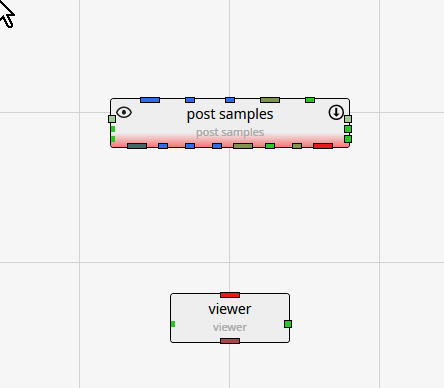
Note that post samples has a red border along the bottom. This tells us that the module has not yet run. This visual indication is very useful, especially with complex applications.
The next step is to connect post samples and the viewer. You can see that the only port color they have in common is red. Left-click in the red output port of post samples:
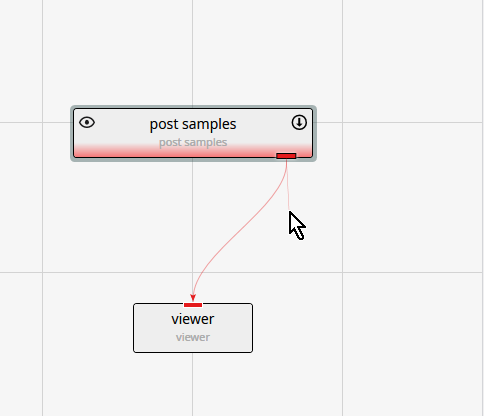
Then, while holding down the left-mouse, drag a short distance from the port, but near the thin-red connection, until the connection becomes bolder.
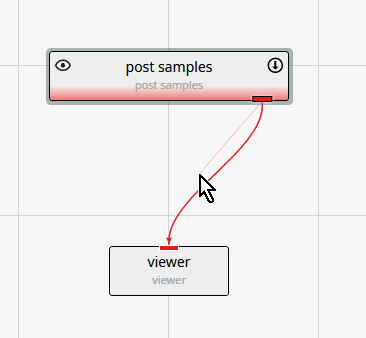
At this point, release the left mouse button and the connection is made. The reason for the thin and bolder lines is that there are often multiple modules that can be connected. All will be shown thin, but only the connection which is closest to the cursor will be bold.
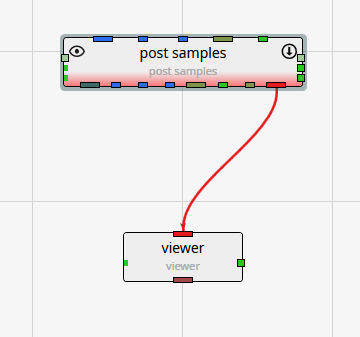
Deleting a connection
If we make an incorrect connection, we can delete the connection. To delete the connection, merely click on it to highlight it and then press the Delete key on your keyboard.