GMF files are different than most other C Tech file formats in that the data is specifically NOT associated with borings. GMF files can be viewed using post samples, but file statistics can often be more useful, especially when dealing with large datasets.
Let’s build a new application:
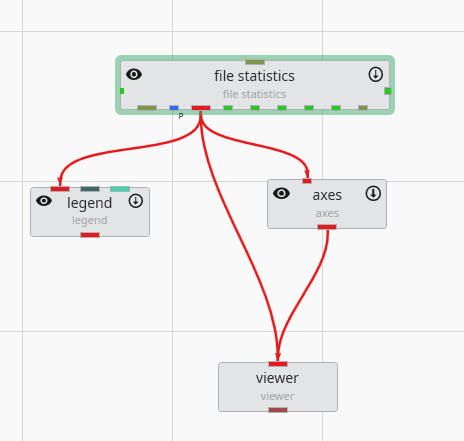
file statistics (and post samples) will only display a single surface of a GMF file at one time. The advantage of file statistics is that it will provide the extents and basic statistics information. The Component Or Layer parameter determines which surface is displayed. 0 (zero) is the first surface.
file statistics outputs points which are colored by elevation (for GMF files).
Double click on file statistics and select the file Reference\bottom.gmf. In the Application window at the top or the Application Properties, make sure the Z-Scale is set to 5.0.
The viewer should show:
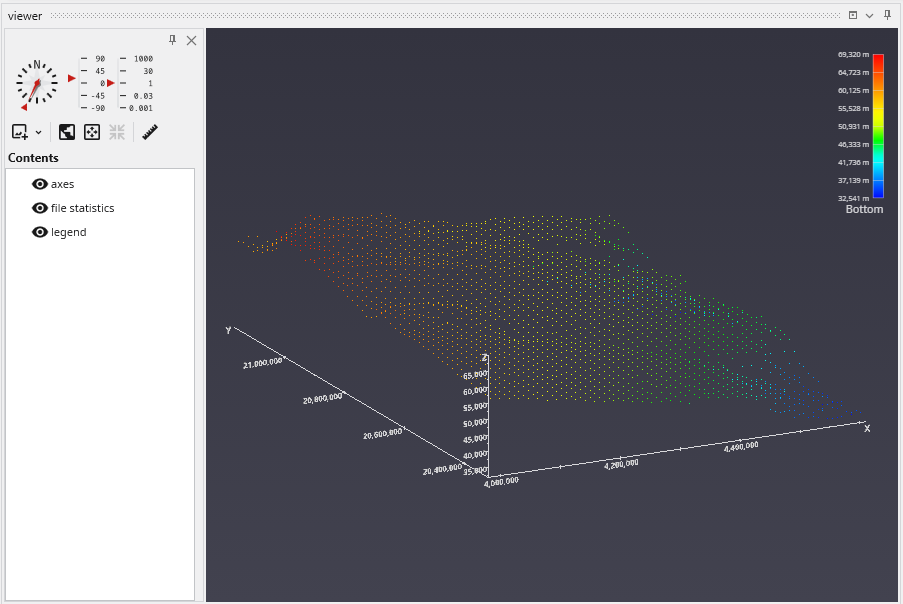
In the view above, each point is displayed as a single pixel point. You can increase the size to be a square of 2x2 pixels or larger using the Point Size parameter in the red port’s Point And Line Properties.
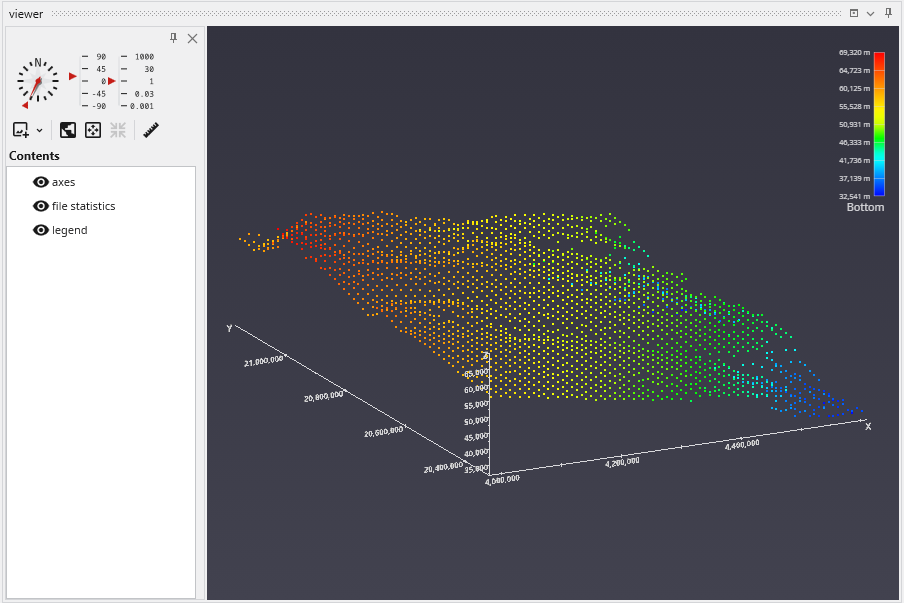
file statistics shows a summary of the selected surface (data minimum and maximum, mean, median and standard deviation) under Summary Statistics in its Statistic Settings. For the full statistics view, click Open Statistics Window:
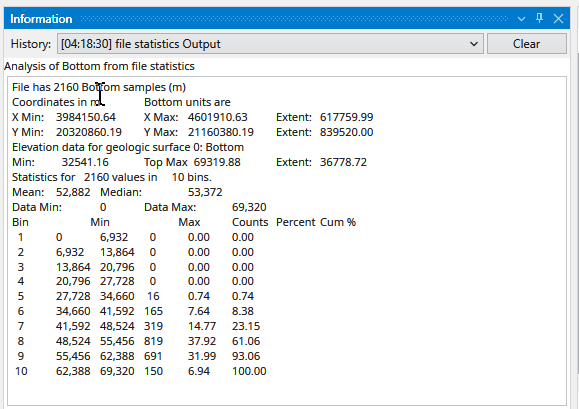
The statistics window shows the extents, summary statistics and distribution of the surface’s elevations, with a histogram. The number of histogram bins comes from the module’s Number Of Bins (10 here), and can also be changed with Bins in the window’s toolbar.