By default, Adobe Reader displays a yellow security warning banner when opening 3D PDFs, and 3D content may not play automatically. This page describes how to configure Adobe Reader or Acrobat for the best experience.
Enabling 3D Content
To enable 3D content playback, go to Edit > Preferences > 3D & Multimedia and check Enable playing 3D content. For more information, see Adobe’s documentation on enabling 3D content.
Enterprise Configuration
IT administrators can manage this setting centrally via the Windows registry:
| Purpose | Registry Key |
|---|---|
| Enable 3D content per user | HKCU\Software\Adobe\Acrobat Reader\<version>\3D\bEnable3DContent |
| Disable and lock 3D rendering | HKLM\SOFTWARE\Policies\Adobe\<product>\<version>\FeatureLockDown\bEnable3D |
Full Screen and Zoom
Warning
Right-clicking the background of a 3D PDF shows a Full Screen Multimedia option. Do not use it. This feature has known bugs in Adobe Reader and Acrobat that can cause major display errors.
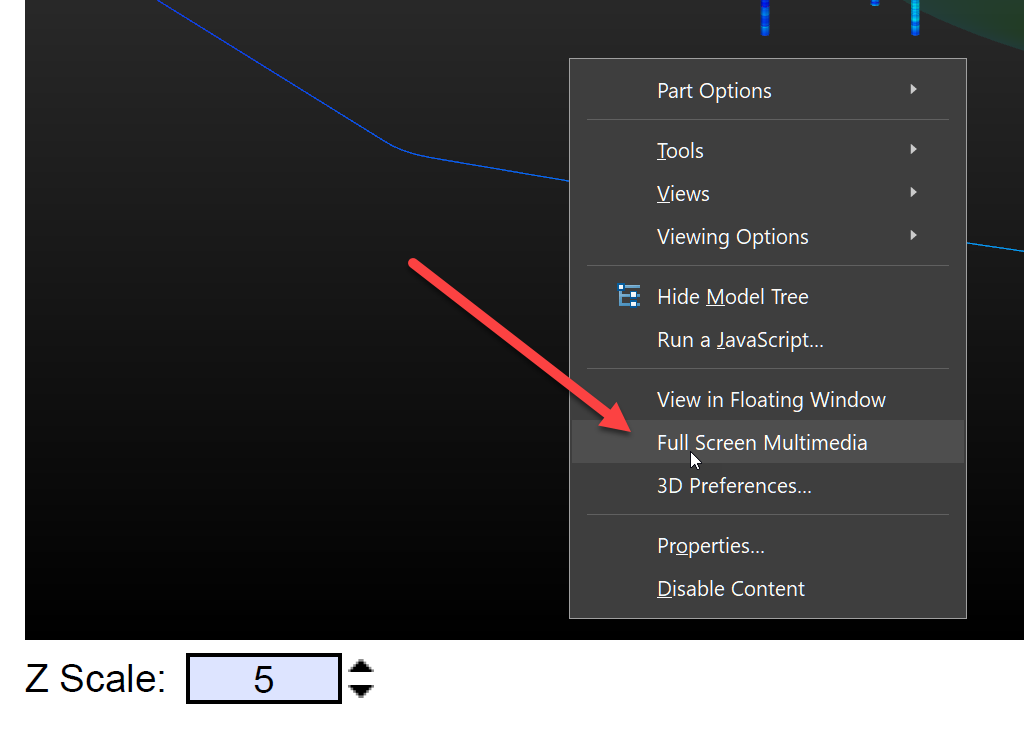
Instead, use the Full Screen option from the View menu in Adobe Reader or Acrobat:
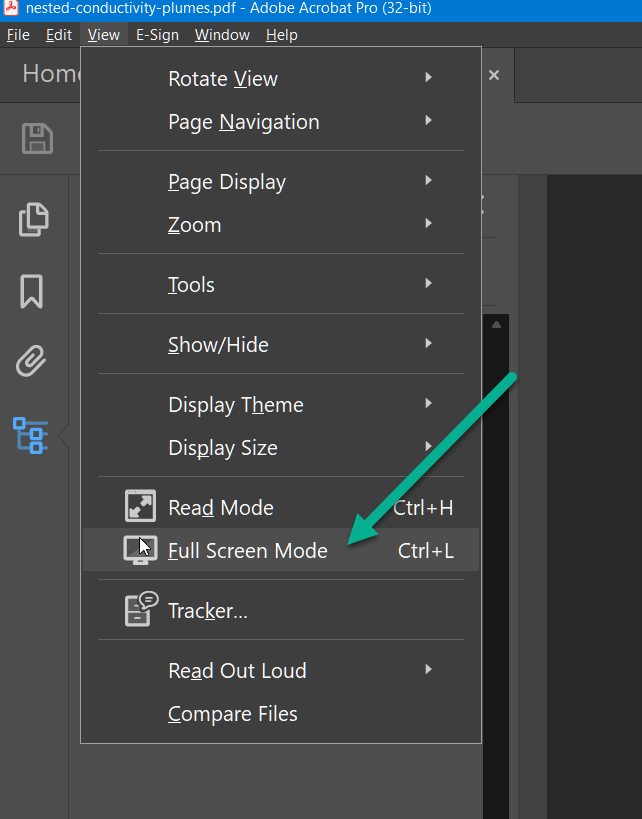
Once in full screen mode, you can zoom in further on any page containing 3D content if needed.