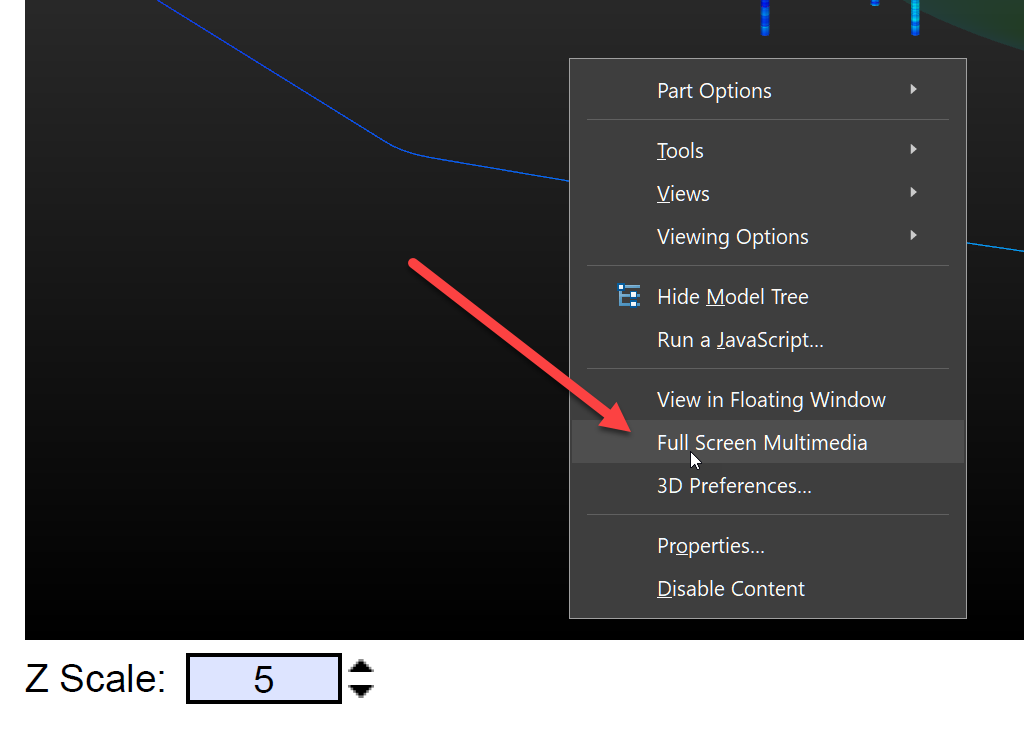
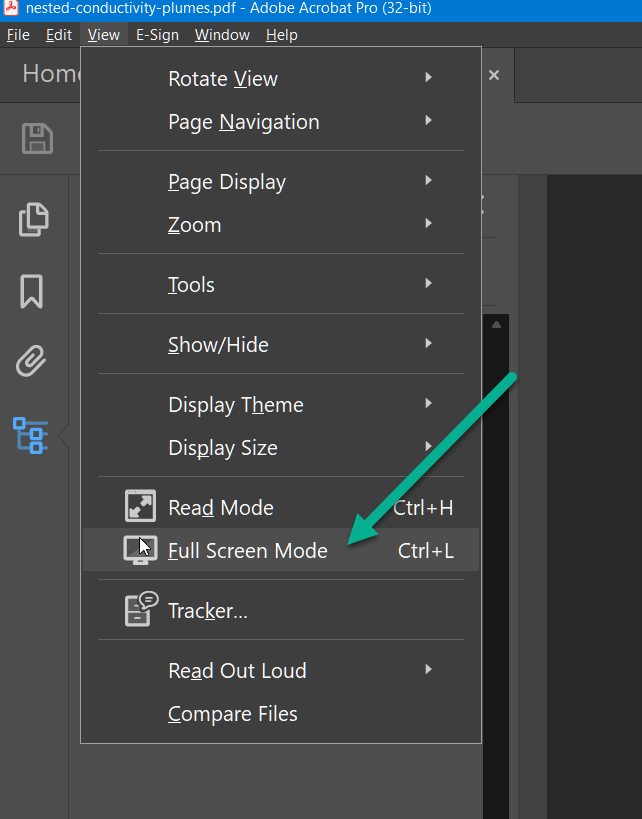
This page walks through what to expect when opening a 3D PDF for the first time in Adobe Reader or Acrobat, and how to get the best viewing experience.
Enabling 3D Content
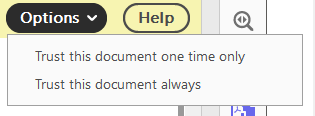
When opening a 3D PDF with default settings, Adobe Reader may show a security prompt asking whether to trust the document. You can choose to trust it once or always:
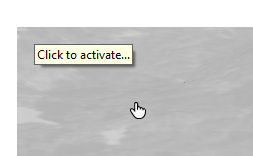
After trusting the document, the poster image (a static preview of the 3D scene) is displayed. Hovering over it shows a Click to Activate prompt, which loads the interactive 3D model:
For a smoother experience, enable 3D content globally in Adobe’s preferences. Go to Edit > Preferences > 3D & Multimedia and turn on Enable playing 3D content:
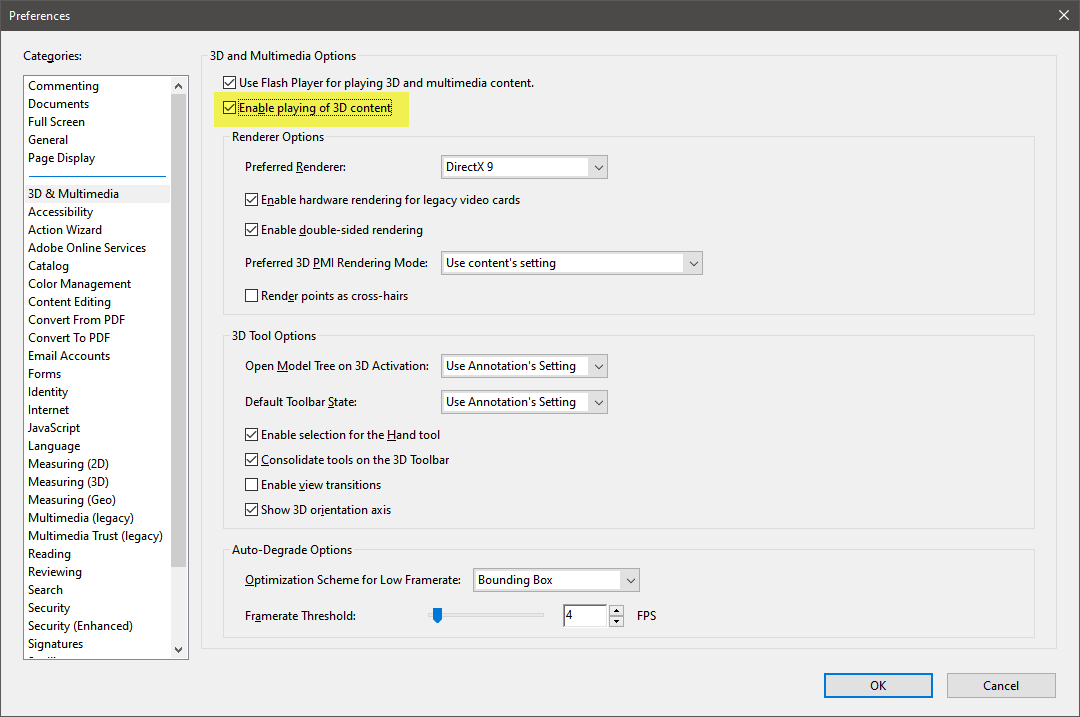
With this setting enabled, Adobe will activate the 3D content automatically once you click on it, without showing a security prompt each time. See Optimizing 3D PDF Playback for more configuration options.
Margins and Page Layout
The margins around the 3D content area are determined by how the aspect ratio of your EVS viewer compares to the chosen paper size. Margins are configured in the converter’s Page settings.
Interacting with the Model
Once activated, you can interact with the 3D model directly in the PDF. In the view below, the Model Tree (Table of Contents) has been expanded on the left side of the page, showing the named components of the scene:
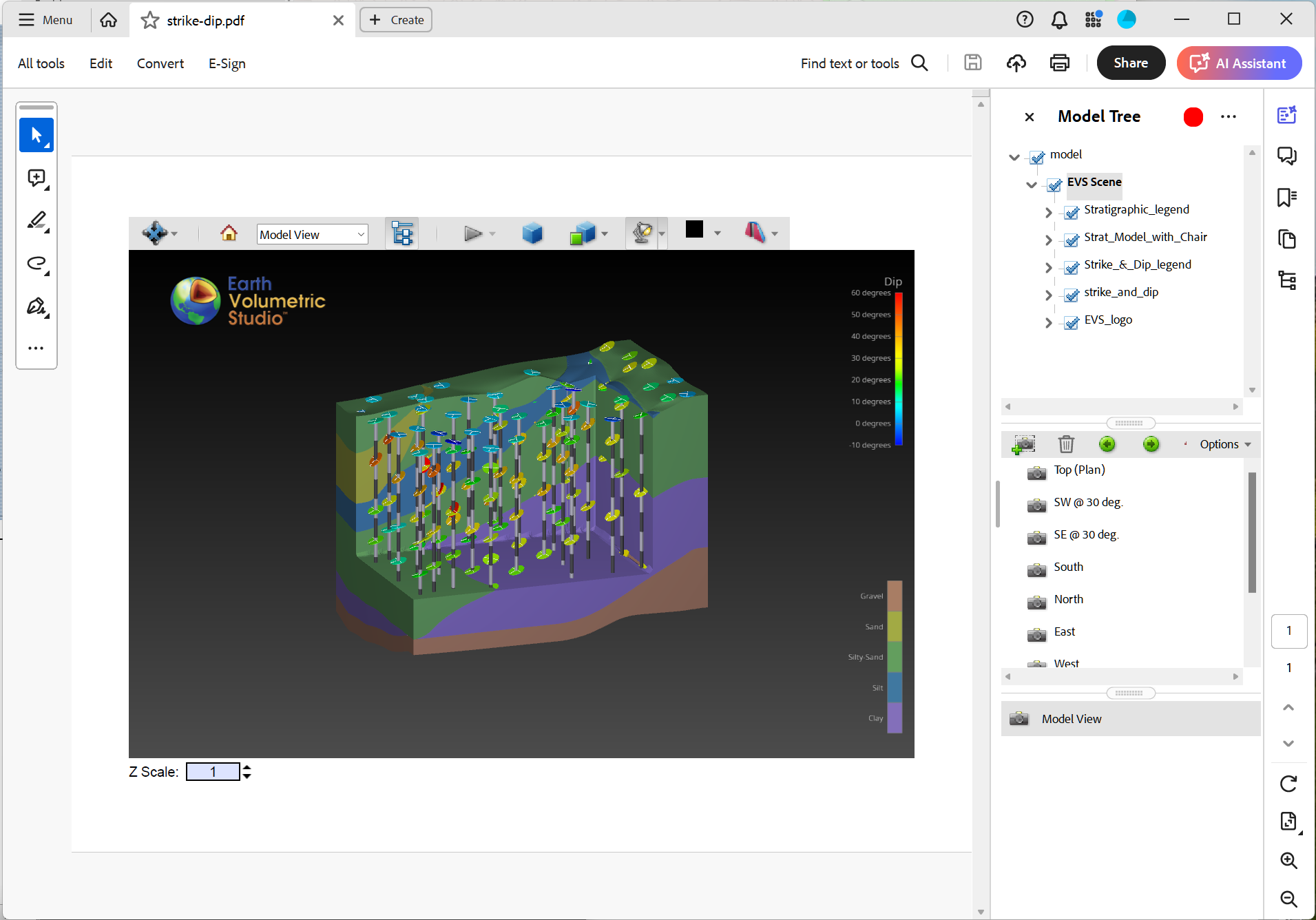
You can toggle the visibility of any object in the Model Tree. For example, turning off the Strat_Model_with_Chair object:
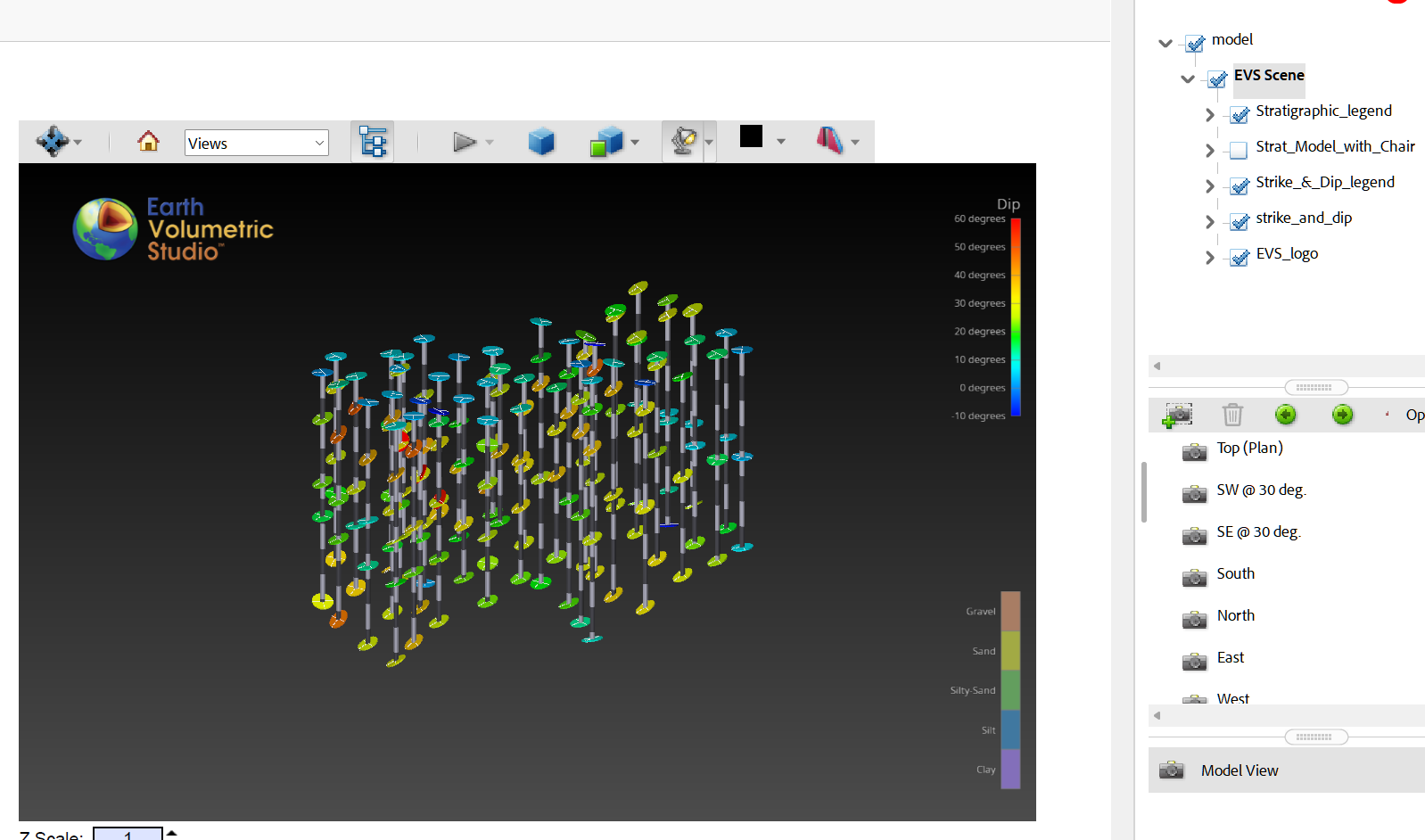
The toolbar also includes view buttons. If Bookmarked Views were created in EVS, they will appear here as well. The Model View corresponds to the view that was active in EVS when the EVSPDF was exported.
Next Steps
For tips on improving rendering performance and configuring Adobe Reader or Acrobat for the best 3D experience, see Optimizing 3D PDF Playback.