INSTALLATION:
Enterprise License Customers please see this topic, all other users continue below
Run the installer CTech3DPDFConverter.exe. Download the latest version from ctech.com/downloads.
Upon completion of the installation, run the C Tech 3D PDF Converter program.
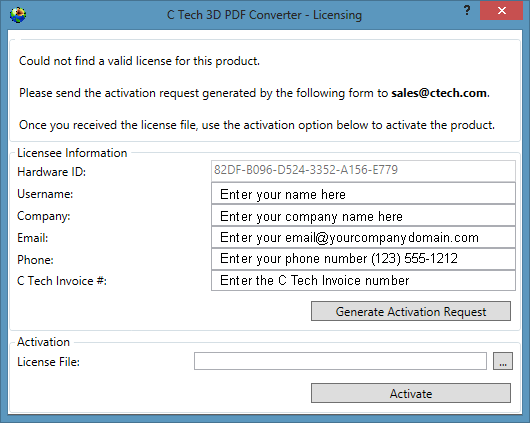
If no license exists, the program will automatically open the Licensing window shown below.
You must contact C Tech to purchase a license before an Activation Request can be processed.
- The Licensee Information must list the C Tech Invoice number in order to be processed.
- The Hardware ID is automatically populated when you run the Licensing tool.
- Please fill out all portions completely. If your information does not precisely match the information on the referenced invoice, we cannot process the license.
- Be sure to request a license from the computer you wish to license.
- The Activation must be done when logged in as the end user who wants to run the C Tech 3D PDF Converter
- Only CPU locked (fixed) licensing is available for this product for non-Enterprise customers.
After entering your personal Licensee Information, click on the Generate Activation Request, it will create a file with a .CAR suffix which must be emailed to sales@ctech.com
Info
It may take up to 2 business days before we reply with a license file.
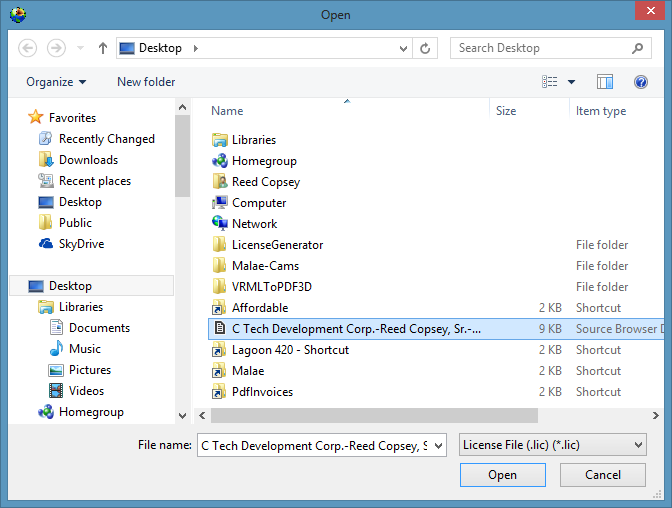
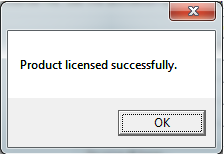
Upon receiving the license file (.lic suffix) from C Tech, run CTech3DPDFConverter.exe again, load the license file and click on Activate
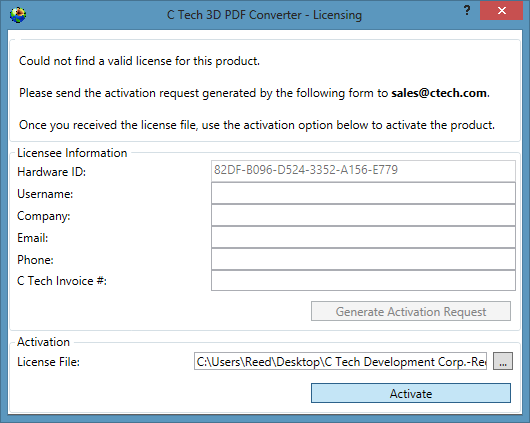
You should see:
Be sure to learn about Optimizing 3D PDF Playback in Adobe Reader or Acrobat
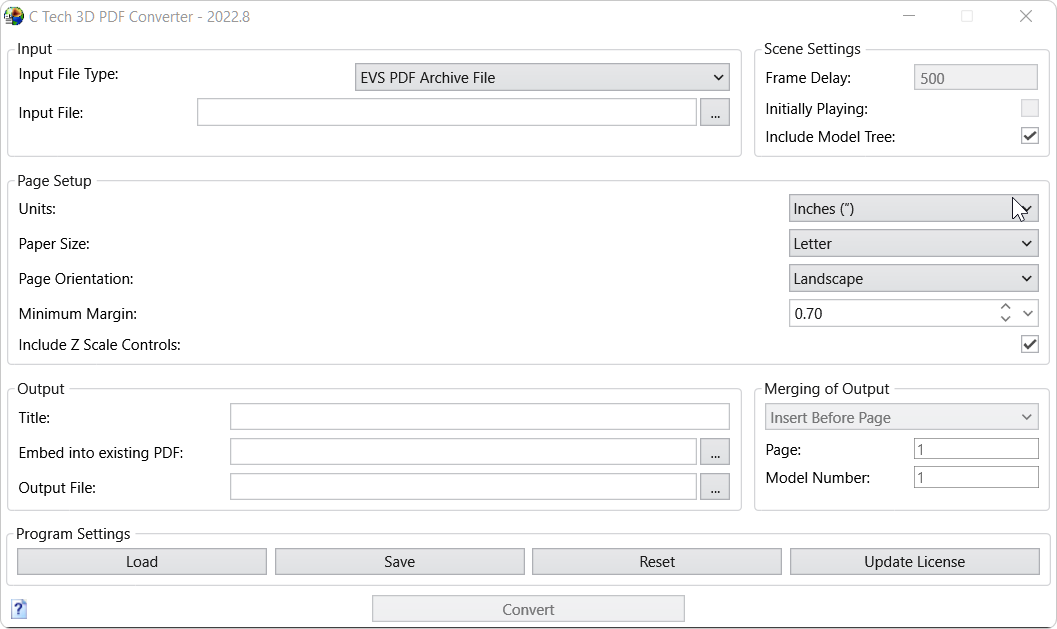
After successful licensing, when you run CTech3DPDFConverter.exe you will see the main window: