For organizations with a C Tech Enterprise Program subscription and the PDF Converter Unlimited Add-On. Licenses are served automatically through the C Tech Universal License Server: no per-machine activation required.
Subsections of Installation
Warning
This installation guide only applies to standard (non-Enterprise) customers. Enterprise License customers, please see Enterprise Installations for your setup instructions.
Installation
To get started, download the latest version of the installer from ctech.com/downloads and run CTech3DPDFConverter.exe. Follow the on-screen prompts to complete the installation.
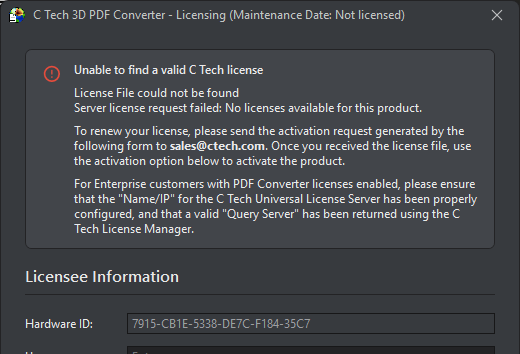
Once the installation is finished, launch C Tech 3D PDF Converter. If no valid license is found on the system, an error banner is shown and the licensing window will open automatically so you can get set up right away.
Licensing
Before you can use the converter, you will need to purchase a subscription from C Tech and complete the activation process described below. The licensing window can be opened at any time by clicking Update License at the bottom of the Output section, and will open automatically on first launch if no valid license is detected.
Once a license is active, the title bar of the licensing window displays your current subscription expiration date, giving you a quick way to check when your subscription is due for renewal.
Licensee Information
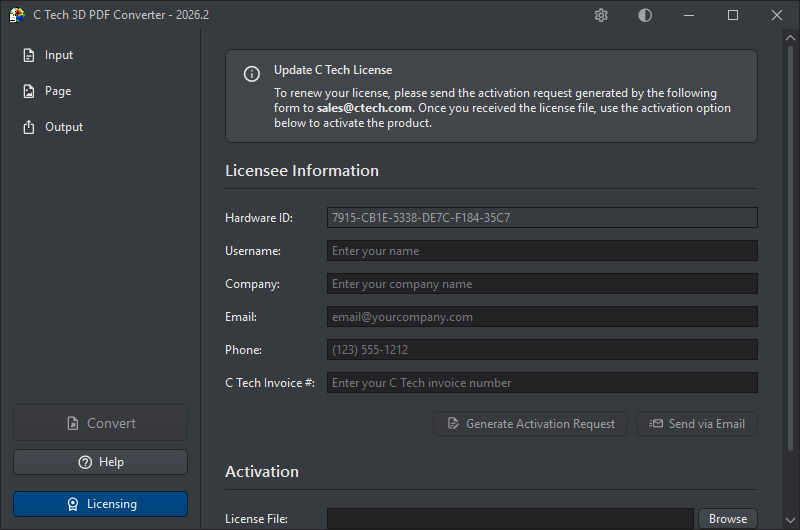
Start by filling in your details in the Licensee Information section. It is important that all fields are completed accurately. The information you provide must precisely match the details on your C Tech invoice, otherwise the activation request cannot be processed.
Field
Description
Hardware ID
Automatically detected from your system (read-only). This ties the license to your machine and is included in the activation request automatically.
Username
Your name
Company
Your organization
Email
Your email address
Phone
Your phone number
C Tech Invoice #
The invoice number from your C Tech purchase
Info
Standard (non-Enterprise) licenses are CPU-locked, meaning the license is tied to the specific machine you activate on. Make sure you are running the activation on the computer where the converter will be used, and that you are logged in as the end user who will be running the application.
Generating an Activation Request
Once your Licensee Information is complete, click Generate Activation Request. This will create an activation request file with a .car suffix, which needs to be sent to C Tech for processing.
To send the request, click Send via Email. This opens a pre-addressed email to sales@ctech.com containing your activation request information in the email body. The email will include a line marked DO NOT CHANGE BELOW HERE. Do not edit or remove any of the content below that line, as it contains the technical details C Tech needs to generate your license.
Info
Please allow up to 2 business days for C Tech to reply with your license file.
Activating Your License
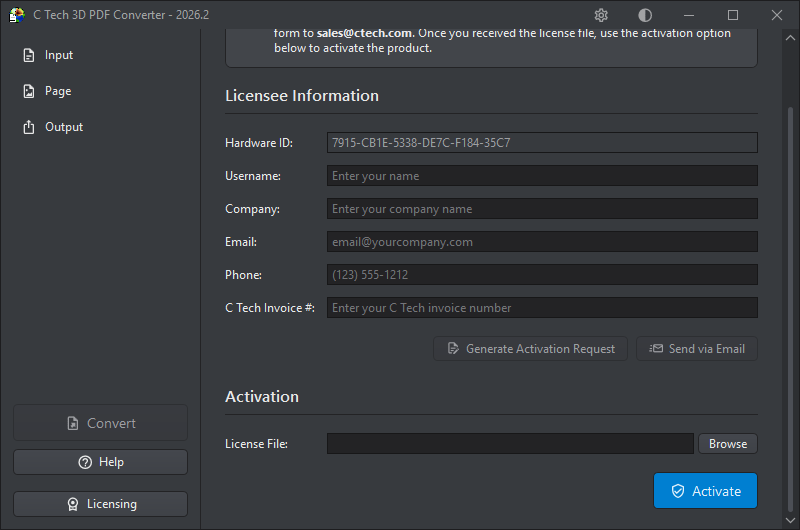
When you receive the license file (.lic) from C Tech, you are ready to complete the activation. Scroll down to the Activation section of the licensing dialog:
Run CTech3DPDFConverter.exe
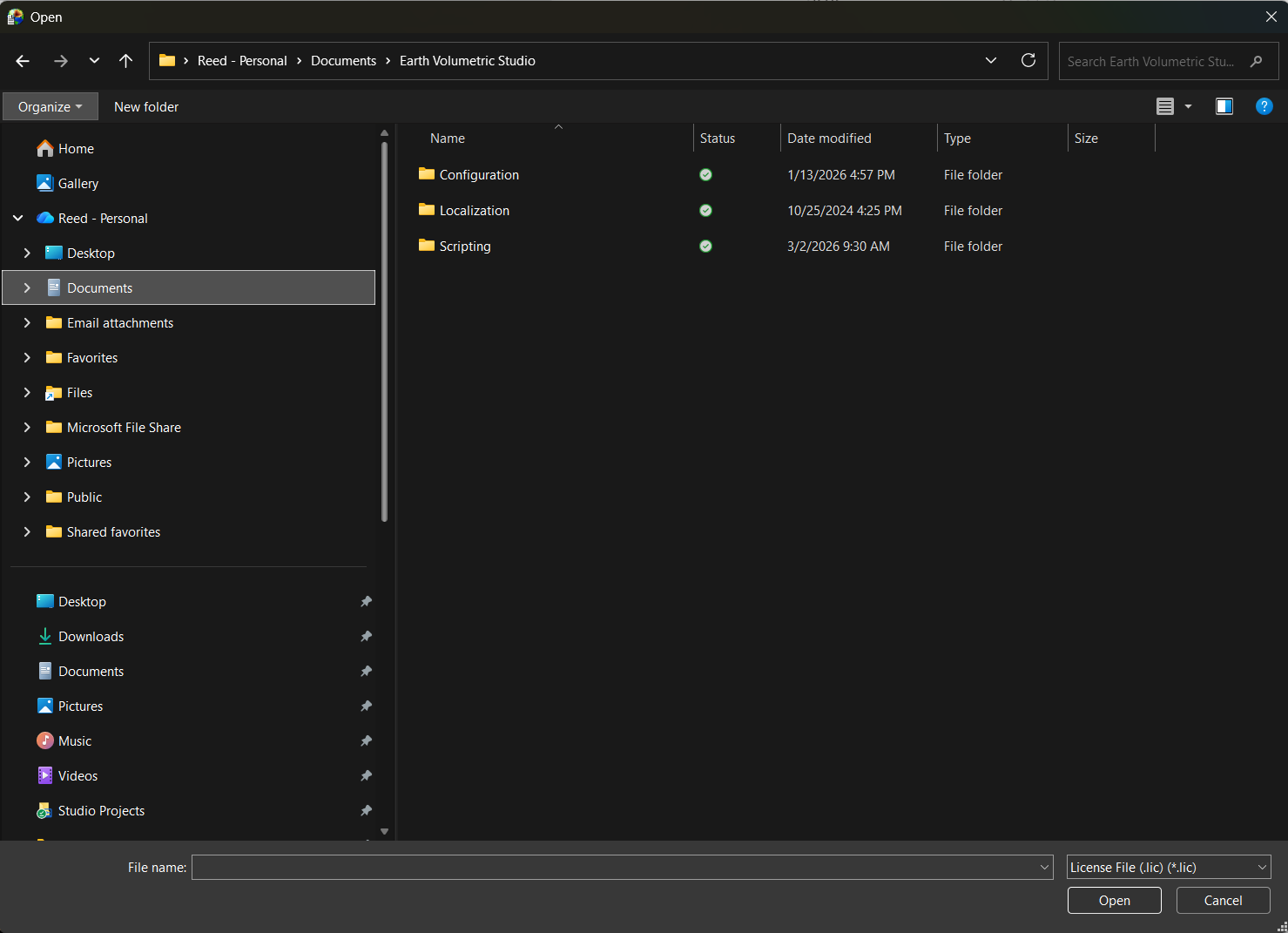
Click Browse next to the License File field and select the .lic file you received
Click Activate
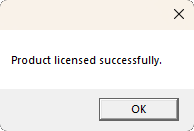
If activation is successful, you will see a confirmation message:
The converter automatically backs up any existing license before applying the new one, so your previous license is preserved if anything goes wrong.
Renewing Your Subscription
When your subscription is due for renewal, you do not need to reinstall the application. Simply click the Licensing button at the bottom of the sidebar in the main converter window to open the licensing dialog, then follow the same activation process described above.
Enterprise Licensing
Enterprise customers who have access to the C Tech Universal License Server do not need to go through the manual activation process. Instead, the converter will automatically request a license from the server each time it starts up. To use this, make sure the license server is correctly configured in the C Tech License Manager before launching the converter.
These instructions only apply to Enterprise Program customers who have paid for the PDF Converter Unlimited Add-On. Standard (non-Enterprise) customers should refer to Installing C Tech 3D PDF Converter instead.
Prerequisites
Before proceeding, ensure the following software is installed on your servers and client computers. All packages are available from ctech.com/downloads:
C Tech 3D PDF Converter: installed on each client computer that will generate 3D PDFs
C Tech License Manager: installed on all EVS client computers with 3D PDF users
C Tech Universal License Server: installed on all EVS servers that will support 3D PDF users
Note: You must have received EVS Key updates after June 1, 2022. If you have a current Enterprise License Subscription and need updated keys for the PDF Converter, contact sales@ctech.com.
Warning
PDF Converter licenses are synchronized to your Enterprise License renewal. The PDF Converter will not function if your Enterprise subscription has expired, unless a valid non-expired standalone license is also present on the same machine.
Installation
For Earth Volumetric Studio (EVS) users, make sure to install EVS and the C Tech License Manager prior to installing the C Tech 3D PDF Converter. If no EVS usage is intended, install the C Tech License Manager directly. See EVS Floating Enterprise Installation for licensing setup and C Tech License Manager for License Manager configuration.
Once the License Manager is configured and the EVS server is reachable, run CTech3DPDFConverter.exe and follow the on-screen prompts to complete the installation. The PDF Converter will open fully licensed without displaying a licensing request screen: no .car activation files are required.