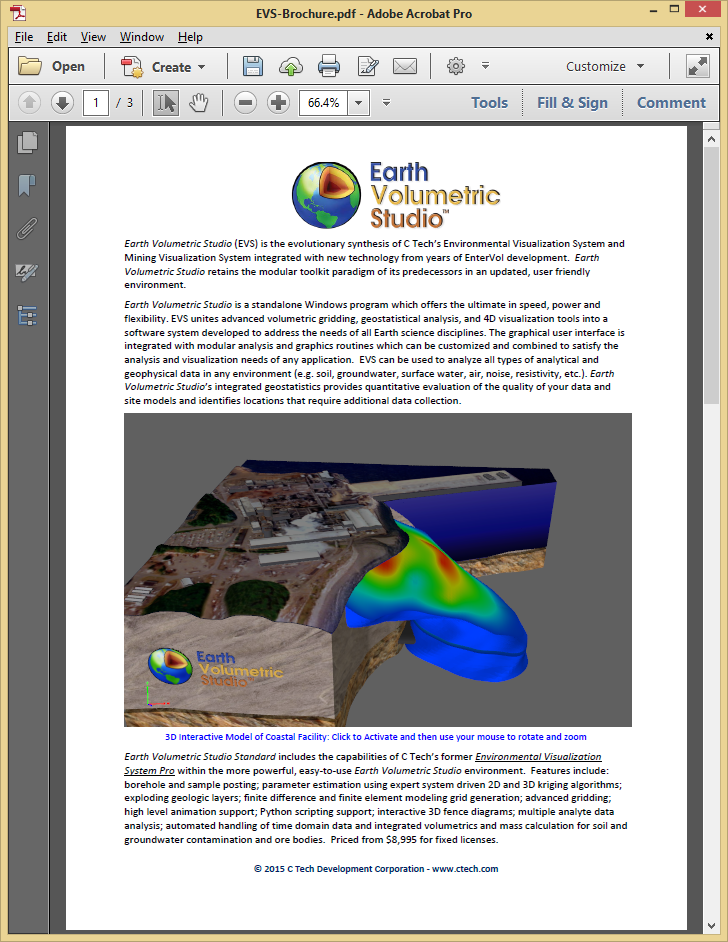
The most direct method to put a 3D model into a PDF report is to first create a PRC file. The C Tech PDF Converter can output both PDF and PRC formats. PDF files can be immediately viewed as a 3D PDF, whereas PRC files must be inserted into a PDF file using Adobe Acrobat Pro.
Info
PRC files do not include lighting and other rendering information which we put into 3D PDFs. If you are unhappy with the quality of PRC output, you should use PDF.
Using whatever software you wish, begin by leaving a blank space on the appropriate page of a PDF file/report where you’ll want the 3D model to be placed.
Open the PDF file in Adobe Acrobat Pro
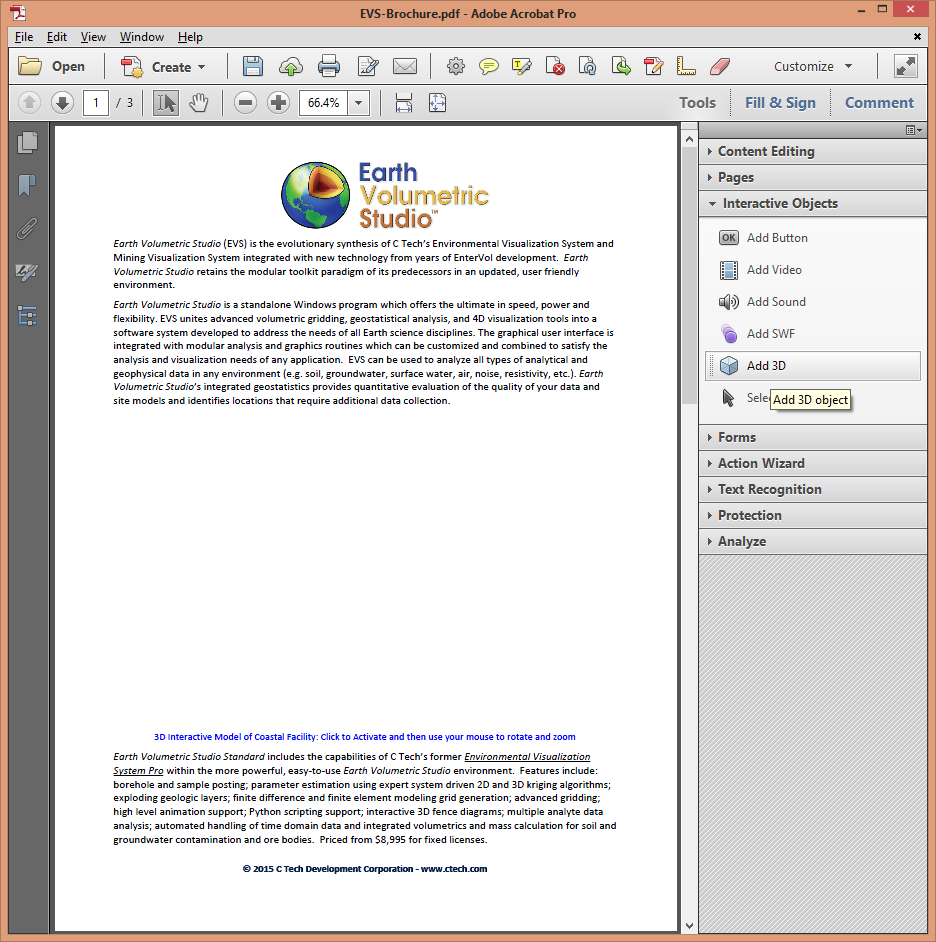
Choose Tools, Rich Media, Add 3D
Select a rectangular area where you wish to place the 3D Model.
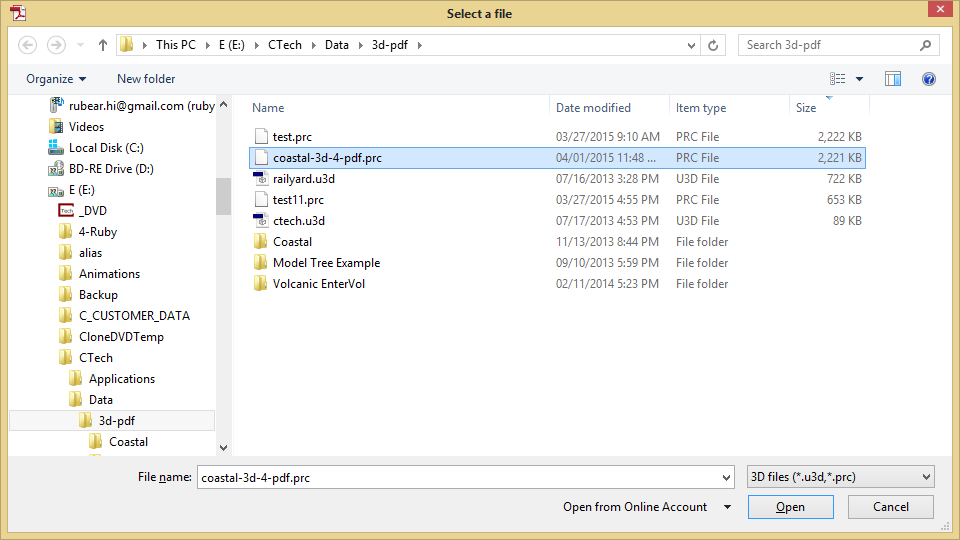
When done, it will prompt you for a file name. Click the Browse button and browse to your PRC file as shown below:
The end result is shown below. When first viewed (or if viewed with software other than Adobe Reader or Adobe Acrobat Pro), you will see the poster image.
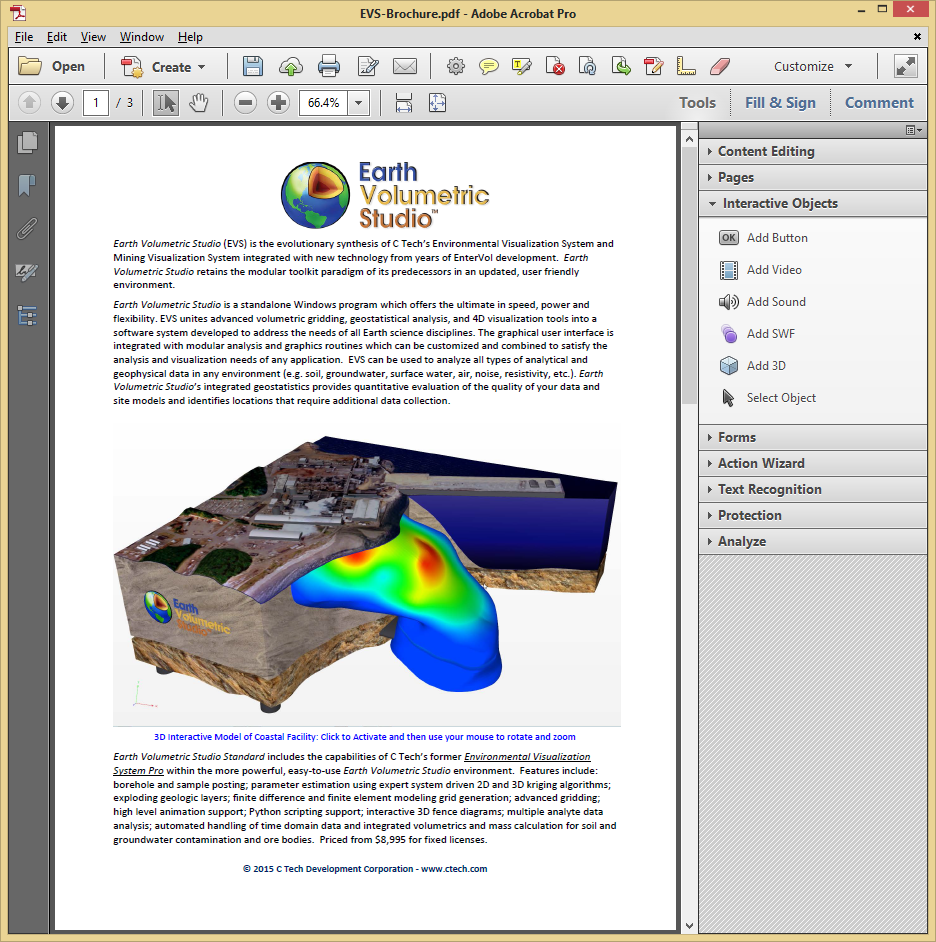
Once the user clicks on the image, it will show the 3D PDF