The C Tech 3D PDF Converter turns 3D scene files from Earth Volumetric Studio into interactive 3D PDFs that anyone can open in Adobe Reader or Acrobat: no specialized software required. Share site models, contamination plumes, geologic cross-sections, and other visualizations with clients, regulators, and stakeholders as self-contained PDF documents.
Common issues and workarounds for the C Tech 3D PDF Converter
Subsections of C Tech 3D PDF Converter Help
This page walks through what to expect when opening a 3D PDF for the first time in Adobe Reader or Acrobat, and how to get the best viewing experience.
Enabling 3D Content
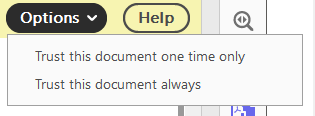
When opening a 3D PDF with default settings, Adobe Reader may show a security prompt asking whether to trust the document. You can choose to trust it once or always:
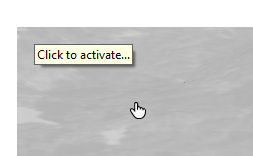
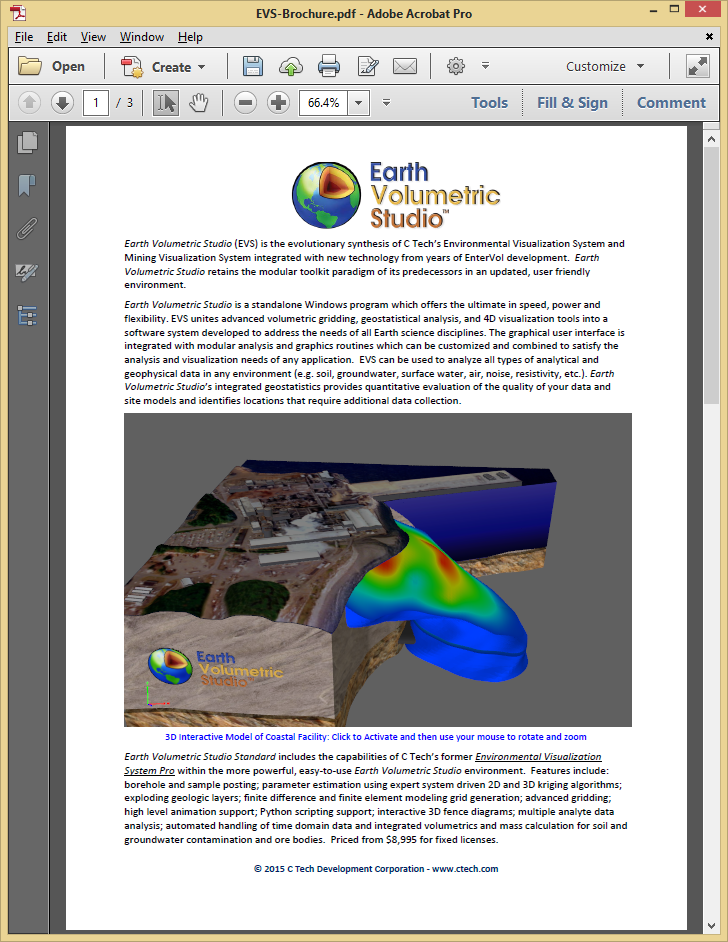
After trusting the document, the poster image (a static preview of the 3D scene) is displayed. Hovering over it shows a Click to Activate prompt, which loads the interactive 3D model:
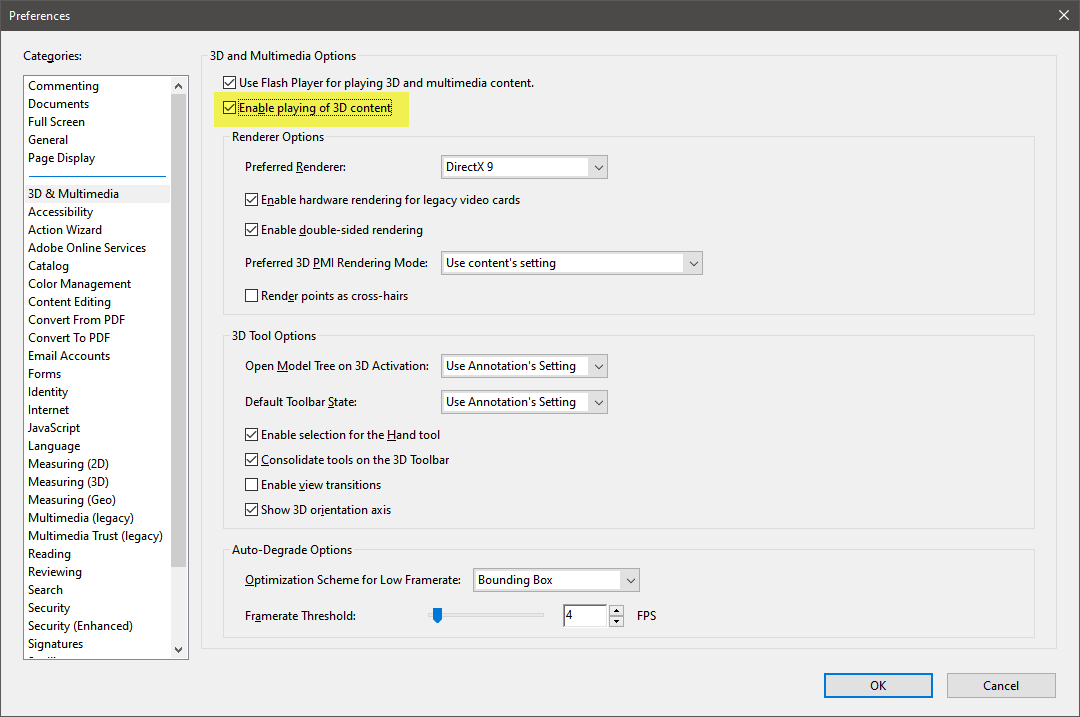
For a smoother experience, enable 3D content globally in Adobe’s preferences. Go to Edit > Preferences > 3D & Multimedia and turn on Enable playing 3D content:
With this setting enabled, Adobe will activate the 3D content automatically once you click on it, without showing a security prompt each time. See Optimizing 3D PDF Playback for more configuration options.
Margins and Page Layout
The margins around the 3D content area are determined by how the aspect ratio of your EVS viewer compares to the chosen paper size. Margins are configured in the converter’s Page settings.
Interacting with the Model
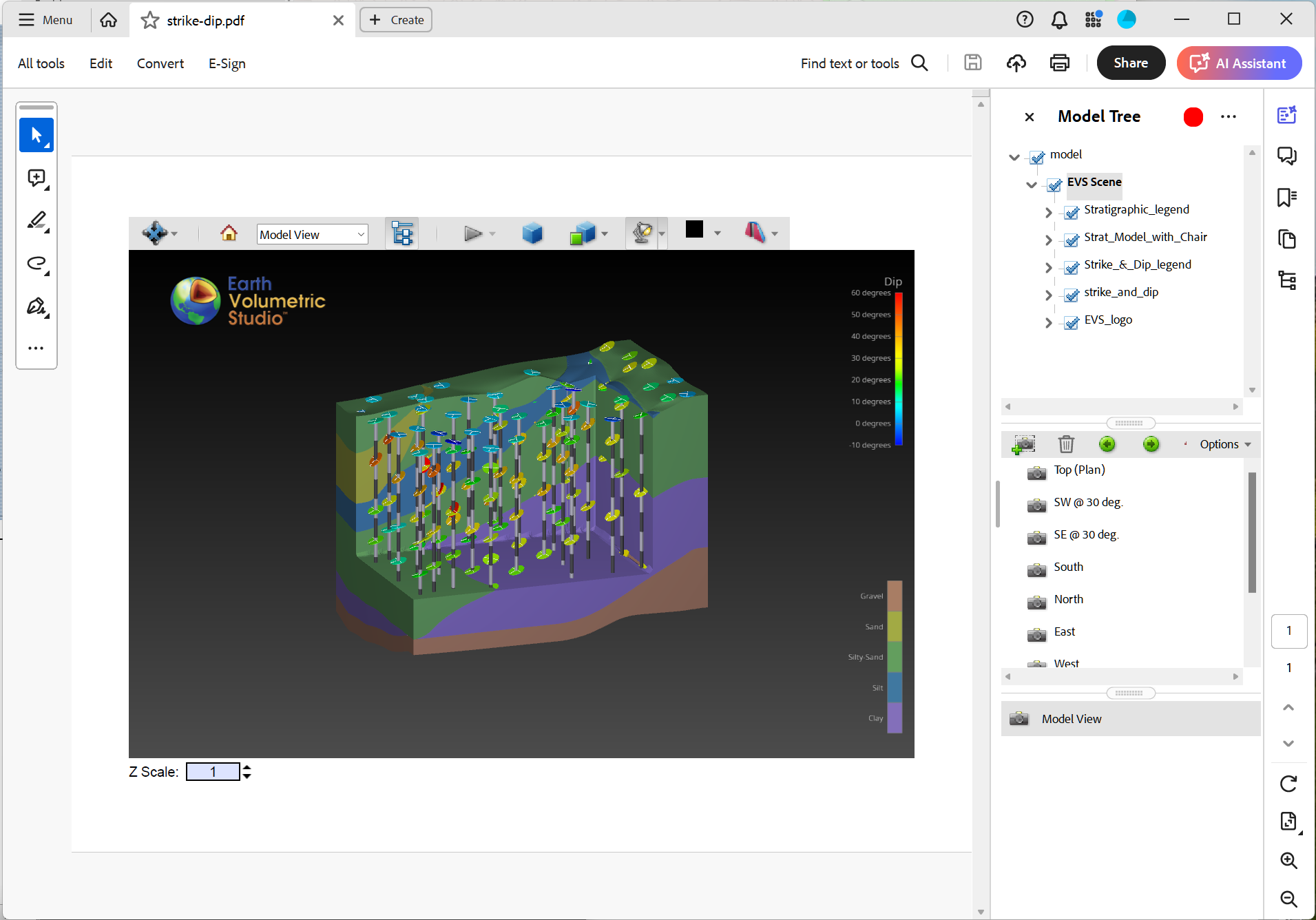
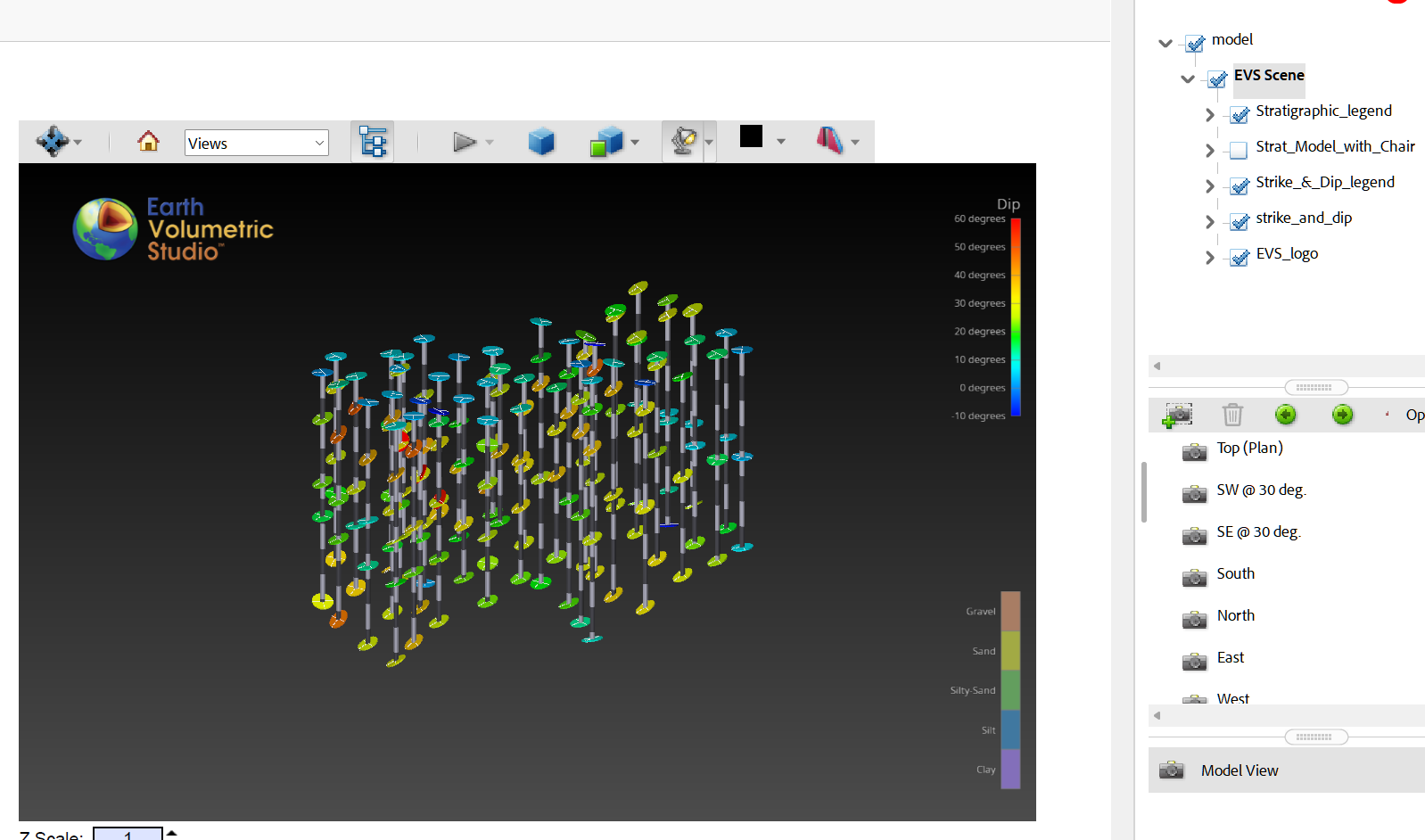
Once activated, you can interact with the 3D model directly in the PDF. In the view below, the Model Tree (Table of Contents) has been expanded on the left side of the page, showing the named components of the scene:
You can toggle the visibility of any object in the Model Tree. For example, turning off the Strat_Model_with_Chair object:
The toolbar also includes view buttons. If Bookmarked Views were created in EVS, they will appear here as well. The Model View corresponds to the view that was active in EVS when the EVSPDF was exported.
Next Steps
For tips on improving rendering performance and configuring Adobe Reader or Acrobat for the best 3D experience, see Optimizing 3D PDF Playback.
Subsections of Viewing 3D PDF Files
By default, Adobe Reader displays a yellow security warning banner when opening 3D PDFs, and 3D content may not play automatically. This page describes how to configure Adobe Reader or Acrobat for the best experience.
Enabling 3D Content
To enable 3D content playback, go to Edit > Preferences > 3D & Multimedia and check Enable playing 3D content. For more information, see Adobe’s documentation on enabling 3D content.
Enterprise Configuration
IT administrators can manage this setting centrally via the Windows registry:
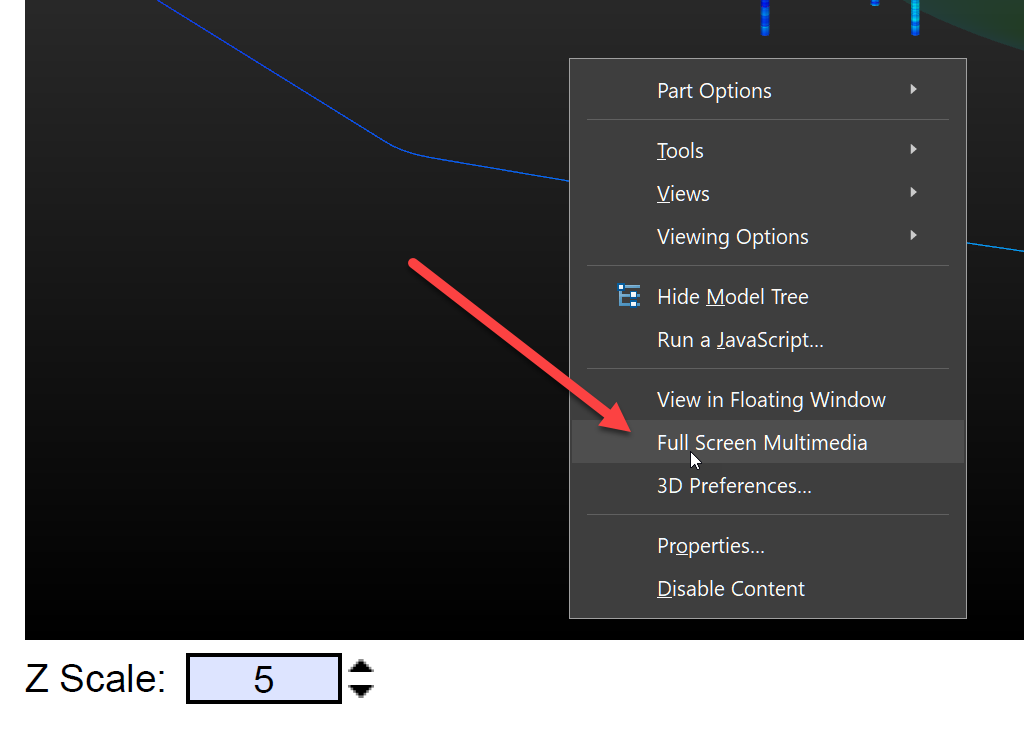
Right-clicking the background of a 3D PDF shows a Full Screen Multimedia option. Do not use it. This feature has known bugs in Adobe Reader and Acrobat that can cause major display errors.
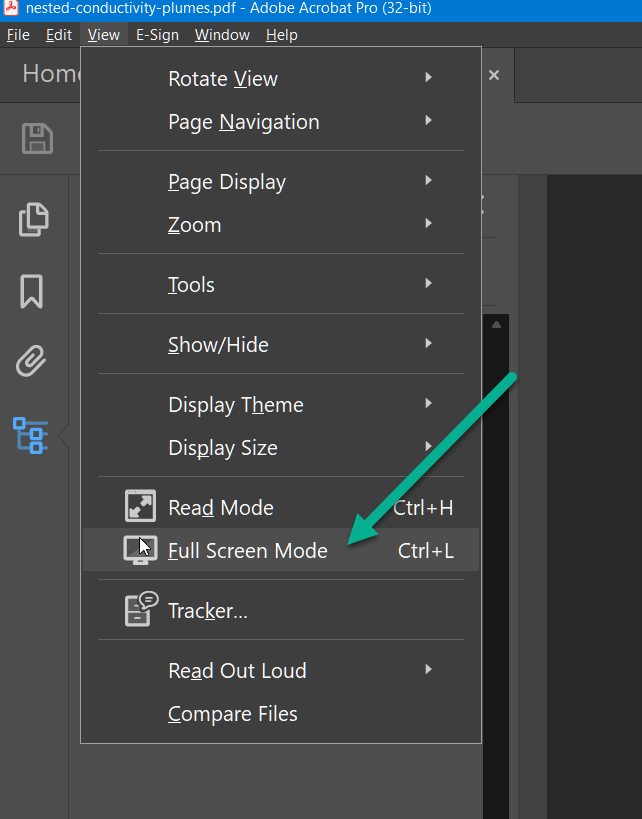
Instead, use the Full Screen option from the View menu in Adobe Reader or Acrobat:
Once in full screen mode, you can zoom in further on any page containing 3D content if needed.
For organizations with a C Tech Enterprise Program subscription and the PDF Converter Unlimited Add-On. Licenses are served automatically through the C Tech Universal License Server: no per-machine activation required.
Subsections of Installation
Warning
This installation guide only applies to standard (non-Enterprise) customers. Enterprise License customers, please see Enterprise Installations for your setup instructions.
Installation
To get started, download the latest version of the installer from ctech.com/downloads and run CTech3DPDFConverter.exe. Follow the on-screen prompts to complete the installation.
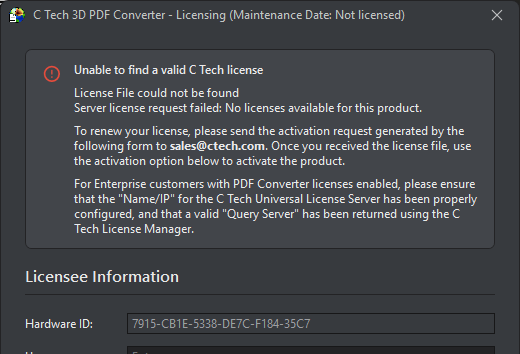
Once the installation is finished, launch C Tech 3D PDF Converter. If no valid license is found on the system, an error banner is shown and the licensing window will open automatically so you can get set up right away.
Licensing
Before you can use the converter, you will need to purchase a subscription from C Tech and complete the activation process described below. The licensing window can be opened at any time by clicking Update License at the bottom of the Output section, and will open automatically on first launch if no valid license is detected.
Once a license is active, the title bar of the licensing window displays your current subscription expiration date, giving you a quick way to check when your subscription is due for renewal.
Licensee Information
Start by filling in your details in the Licensee Information section. It is important that all fields are completed accurately. The information you provide must precisely match the details on your C Tech invoice, otherwise the activation request cannot be processed.
Field
Description
Hardware ID
Automatically detected from your system (read-only). This ties the license to your machine and is included in the activation request automatically.
Username
Your name
Company
Your organization
Email
Your email address
Phone
Your phone number
C Tech Invoice #
The invoice number from your C Tech purchase
Info
Standard (non-Enterprise) licenses are CPU-locked, meaning the license is tied to the specific machine you activate on. Make sure you are running the activation on the computer where the converter will be used, and that you are logged in as the end user who will be running the application.
Generating an Activation Request
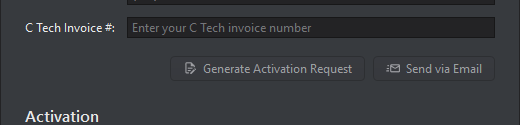
Once your Licensee Information is complete, click Generate Activation Request. This will create an activation request file with a .car suffix, which needs to be sent to C Tech for processing.
To send the request, click Send via Email. This opens a pre-addressed email to sales@ctech.com containing your activation request information in the email body. The email will include a line marked DO NOT CHANGE BELOW HERE. Do not edit or remove any of the content below that line, as it contains the technical details C Tech needs to generate your license.
Info
Please allow up to 2 business days for C Tech to reply with your license file.
Activating Your License
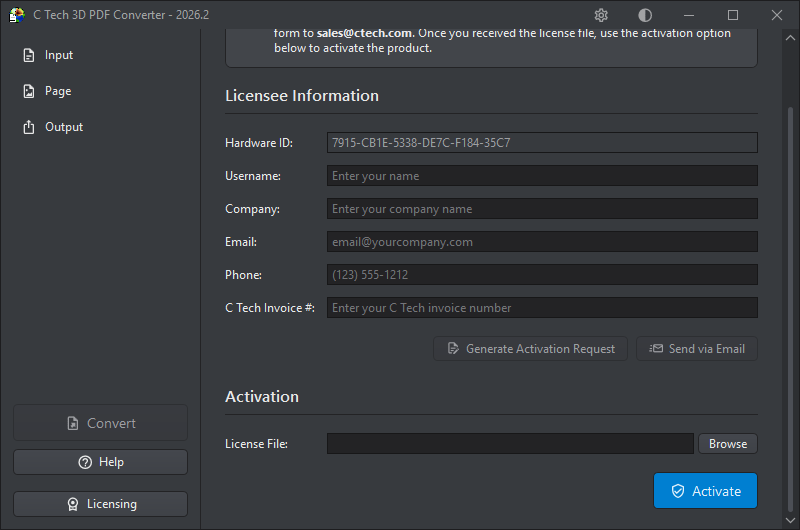
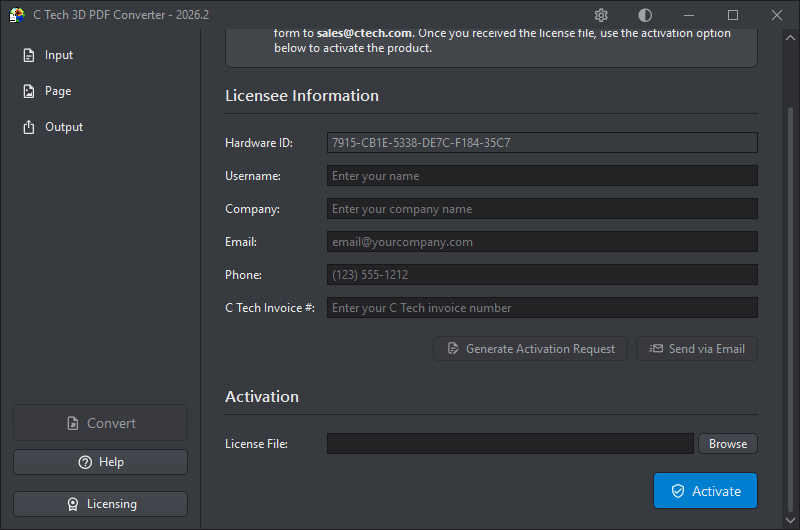
When you receive the license file (.lic) from C Tech, you are ready to complete the activation. Scroll down to the Activation section of the licensing dialog:
Run CTech3DPDFConverter.exe
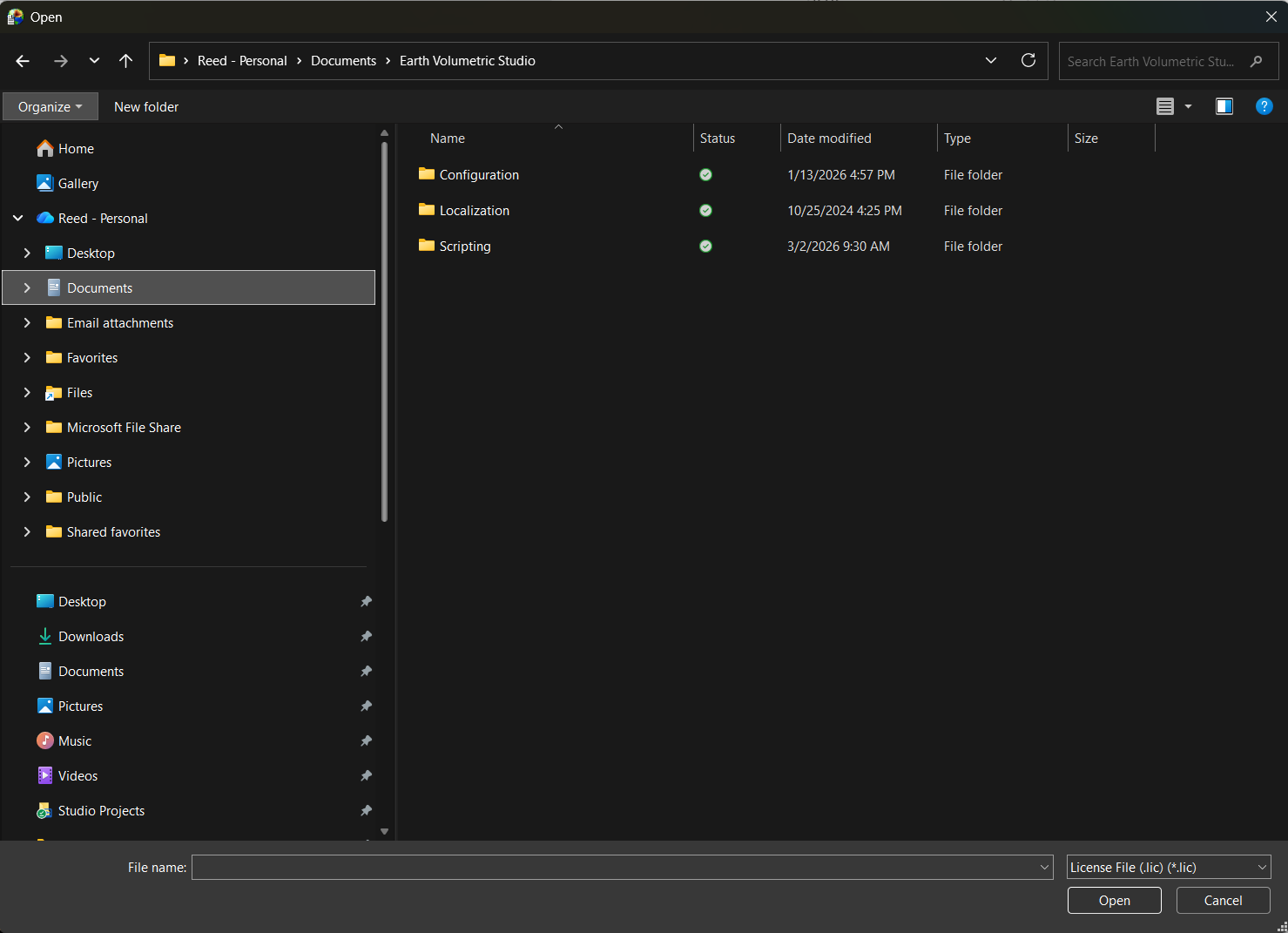
Click Browse next to the License File field and select the .lic file you received
Click Activate
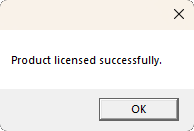
If activation is successful, you will see a confirmation message:
The converter automatically backs up any existing license before applying the new one, so your previous license is preserved if anything goes wrong.
Renewing Your Subscription
When your subscription is due for renewal, you do not need to reinstall the application. Simply click the Licensing button at the bottom of the sidebar in the main converter window to open the licensing dialog, then follow the same activation process described above.
Enterprise Licensing
Enterprise customers who have access to the C Tech Universal License Server do not need to go through the manual activation process. Instead, the converter will automatically request a license from the server each time it starts up. To use this, make sure the license server is correctly configured in the C Tech License Manager before launching the converter.
These instructions only apply to Enterprise Program customers who have paid for the PDF Converter Unlimited Add-On. Standard (non-Enterprise) customers should refer to Installing C Tech 3D PDF Converter instead.
Prerequisites
Before proceeding, ensure the following software is installed on your servers and client computers. All packages are available from ctech.com/downloads:
C Tech 3D PDF Converter: installed on each client computer that will generate 3D PDFs
C Tech License Manager: installed on all EVS client computers with 3D PDF users
C Tech Universal License Server: installed on all EVS servers that will support 3D PDF users
Note: You must have received EVS Key updates after June 1, 2022. If you have a current Enterprise License Subscription and need updated keys for the PDF Converter, contact sales@ctech.com.
Warning
PDF Converter licenses are synchronized to your Enterprise License renewal. The PDF Converter will not function if your Enterprise subscription has expired, unless a valid non-expired standalone license is also present on the same machine.
Installation
For Earth Volumetric Studio (EVS) users, make sure to install EVS and the C Tech License Manager prior to installing the C Tech 3D PDF Converter. If no EVS usage is intended, install the C Tech License Manager directly. See EVS Floating Enterprise Installation for licensing setup and C Tech License Manager for License Manager configuration.
Once the License Manager is configured and the EVS server is reachable, run CTech3DPDFConverter.exe and follow the on-screen prompts to complete the installation. The PDF Converter will open fully licensed without displaying a licensing request screen: no .car activation files are required.
The C Tech 3D PDF Converter creates interactive 3D PDF documents from EVSPDF files exported from Earth Volumetric Studio. The generated PDFs can be viewed in any PDF reader that supports 3D content.
Before you can use the converter, you must have an active license. See Installation for setup and activation instructions.
Quick Start
Open the application
In the Input section, select your .evspdf file
Adjust page and output settings as needed
In the Output section, choose where to save the PDF
Click Convert at the bottom of the sidebar
Sections
The application is organized into the following sections, accessible from the sidebar on the left.
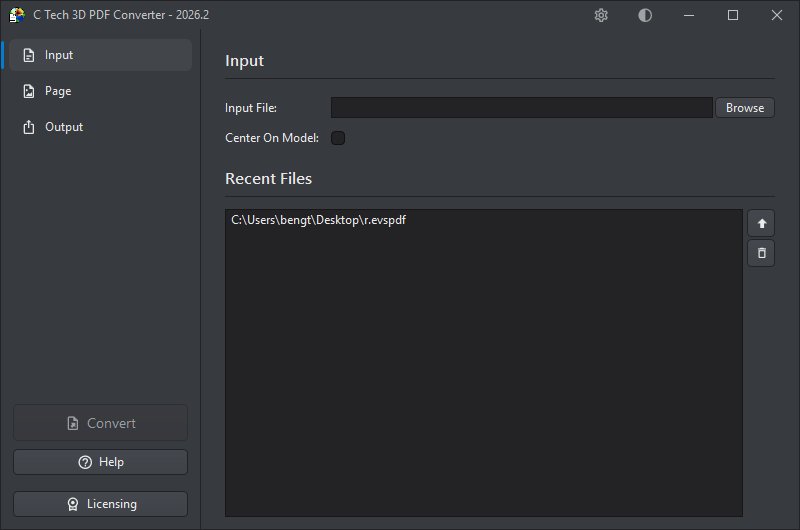
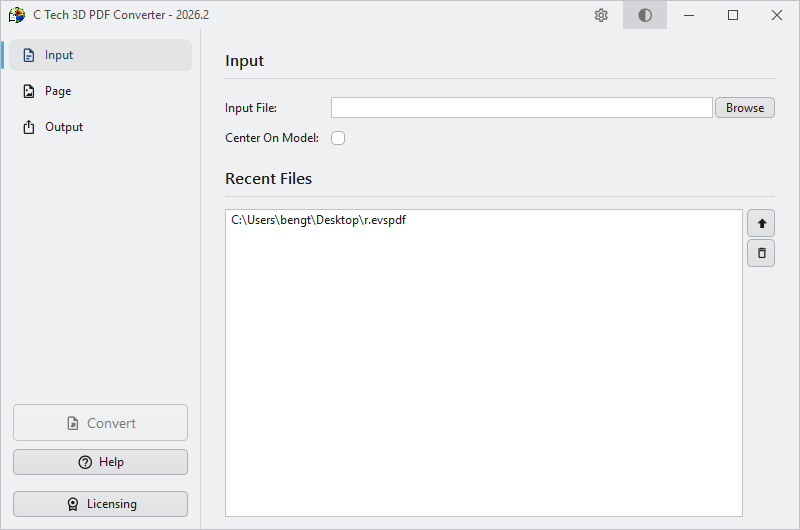
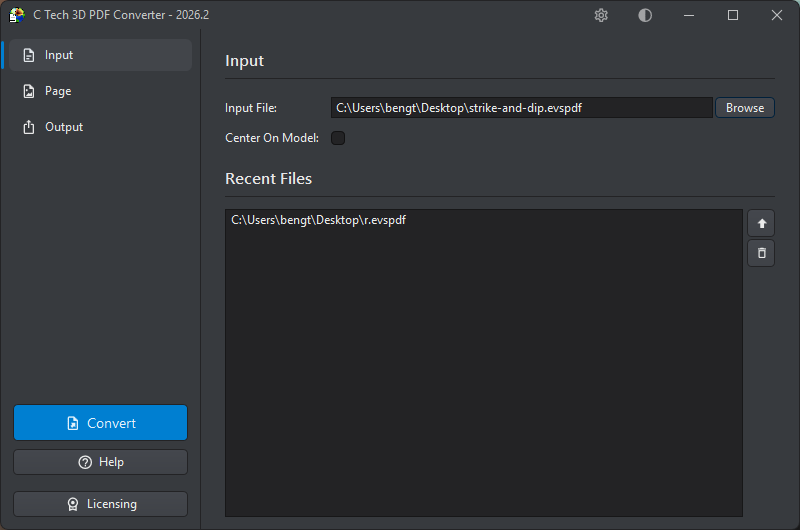
The Input section is where you select the source file for your 3D PDF.
Input File
Enter the path to an .evspdf file, or click Browse to select one. You can also drag and drop the file onto the input field.
Center On Model
When checked, the converter repositions the scene so the model is centered at the coordinate origin. This is recommended for models located far from the origin, which can display incorrectly in the PDF viewer with symptoms like jittery rotations and flickering surfaces. Centering the model eliminates these problems. Reported coordinates will still reflect the original model position.
Recent Files
The Recent Files list shows up to 15 previously used EVSPDF files, making it easy to switch between projects. Double-click any entry to select it as the current input, or use the buttons on the right:
Button
Action
Use
Set the selected file as the current input
Remove
Remove the file from the recent list
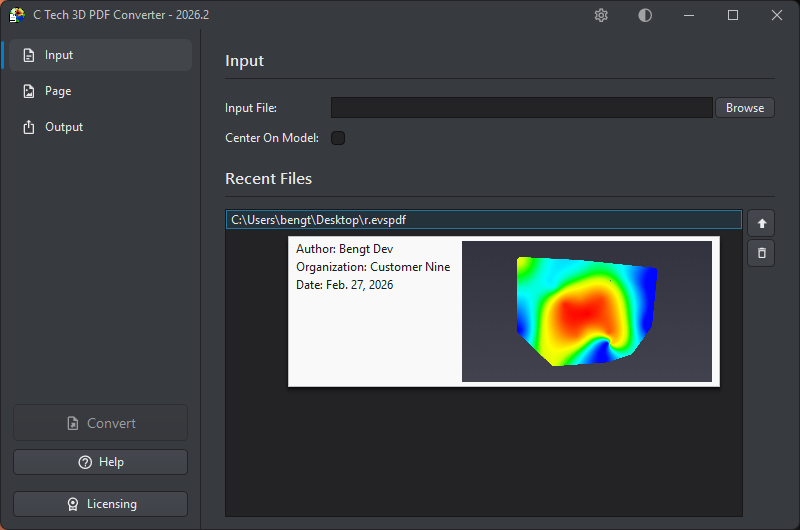
File Preview
Hovering over any file in the Recent Files list shows a tooltip with metadata and a preview image of the model.
The following information is shown where available:
Field
Description
Author
The person who created the file
Organization
The organization or company
Date
The date the file was created
Project
The project name (hidden if not set)
Description
A description of the contents (hidden if not set)
Restrictions
Any usage restrictions (hidden if not set)
Preview
A thumbnail image of the 3D model
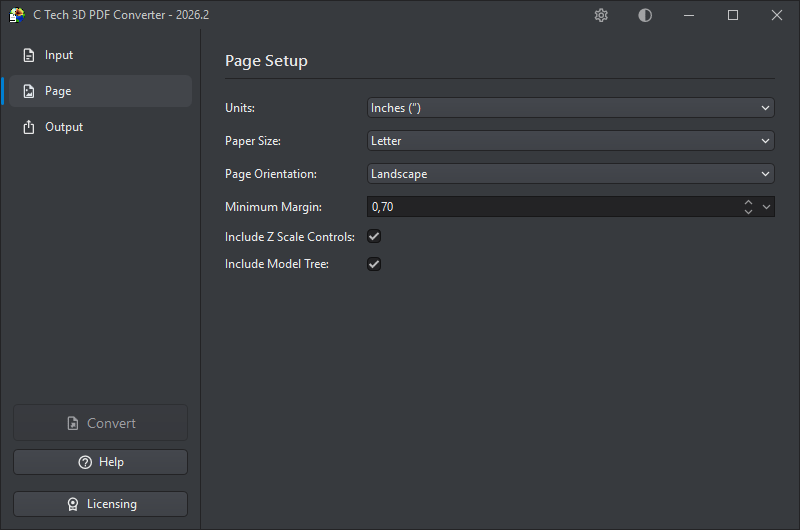
The Page section controls the dimensions and layout of the output PDF page, as well as optional controls embedded in the PDF.
Units
Choose the measurement units for page dimensions and margins. Changing the units will automatically convert the existing margin value so nothing is lost. This setting also controls the units used for measurements performed in the embedded 3D view of the generated PDF.
Unit
Abbreviation
Millimeters
mm
Inches
"
Points
pts
Pixels
px
Paper Size
Select a standard paper size from the dropdown. Available options include:
Category
Sizes
US
Letter, Legal, Executive, Folio, Ledger, Tabloid
ISO A-series
A0 – A10
ISO B-series
B0 – B10
ISO C-series
C0 – C10
Page Orientation
Choose between Landscape (wider than tall) and Portrait (taller than wide) to match the intended layout of your document.
Minimum Margin
Sets the minimum margin around the 3D content area, in the selected units. The default is 0.70 inches. When you change the units, the margin value is automatically converted so the physical size remains the same.
The dropdown arrow button on the right side of the field opens a built-in calculator, letting you enter an expression (such as 25.4 / 2) that is evaluated and applied as the new margin value.
The actual margins depend on how the aspect ratio of the poster image (the static preview of the 3D scene) compares to the chosen page size:
If the aspect ratio of the poster image precisely matches the chosen page size, all margins will be equal and set to the Minimum Margin.
If the aspect ratio of the poster image is more landscape than the chosen page size, the left and right margins will equal the Minimum Margin and the top and bottom margins will be larger.
If the aspect ratio of the poster image is more portrait than the chosen page size, the top and bottom margins will equal the Minimum Margin and the left and right margins will be larger.
Include Z Scale Controls
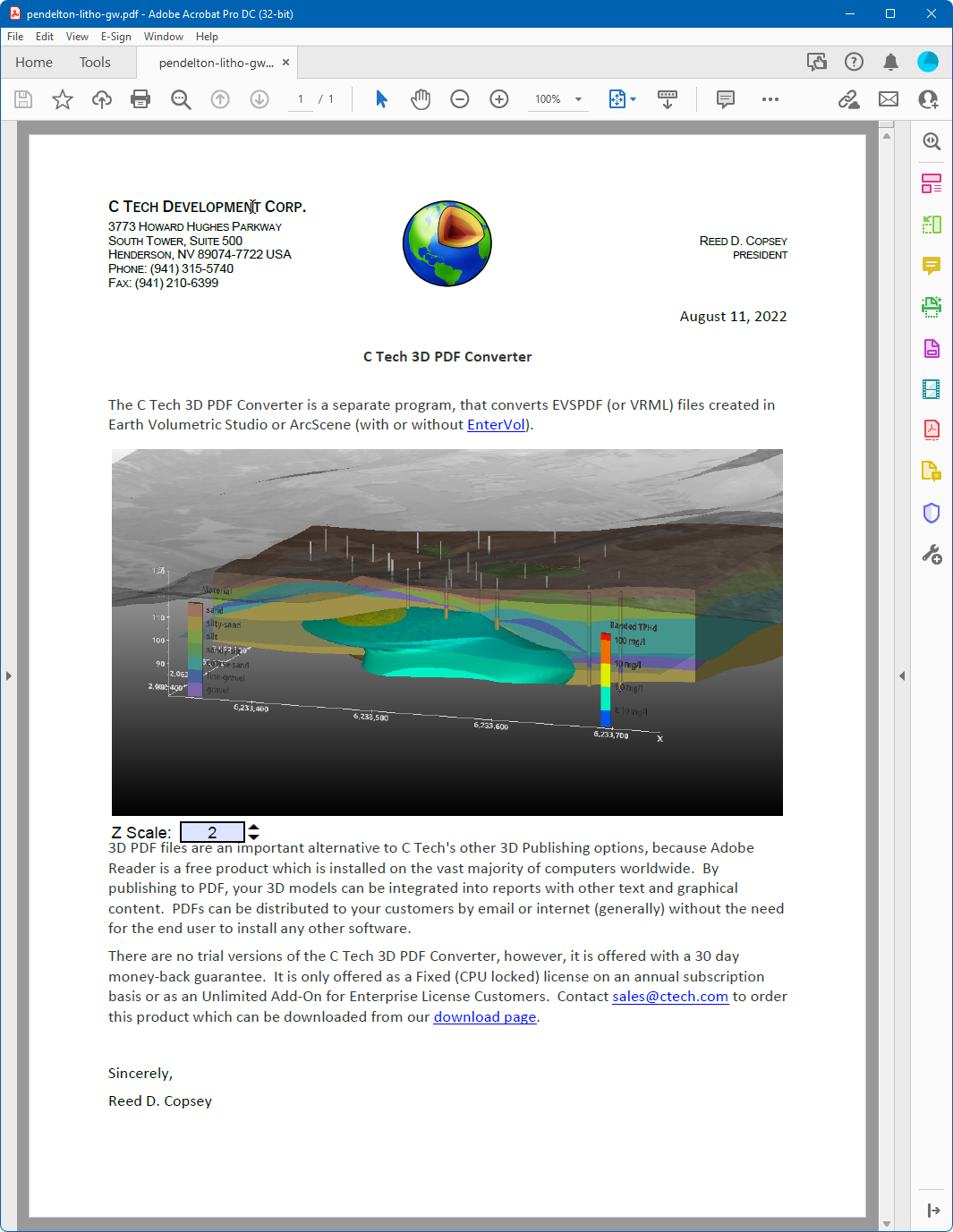
When checked, the generated PDF includes vertical exaggeration controls that let the viewer adjust the Z scale interactively while viewing the model.
Include Model Tree
When checked, the generated PDF includes a model tree panel that allows the viewer to toggle the visibility of individual parts of the 3D model. This is particularly useful for complex models with multiple named components.
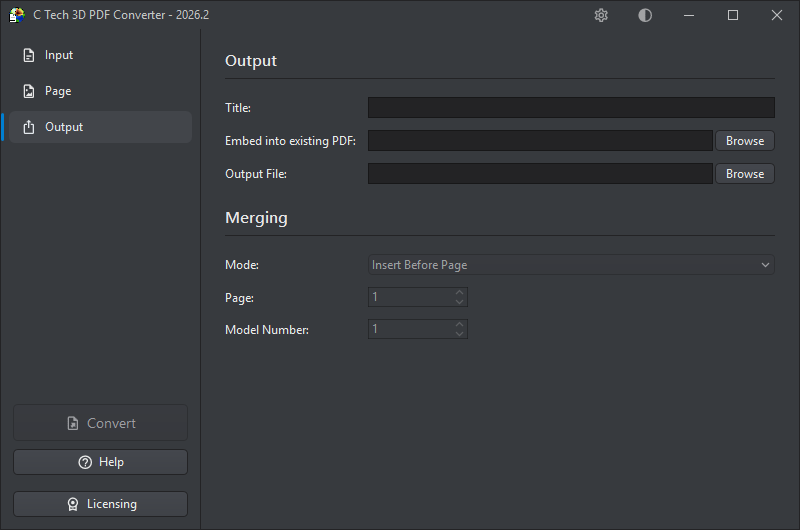
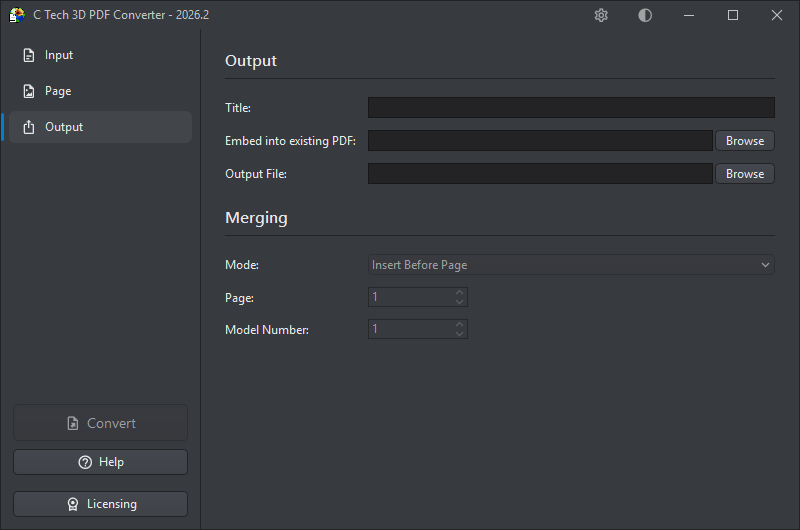
The Output section is where you specify where the generated PDF will be saved, and optionally how it should be merged into an existing PDF document.
Title
An optional title for the PDF document. The title also appears as the root node name in the Model Tree. Titles should be less than 30 characters. If left blank, the title will default to “EVS Scene”.
Embed into Existing PDF
If you want to merge the 3D content into an existing PDF rather than creating a new standalone file, enter the path to the target PDF here, click Browse, or drag and drop a PDF onto the field. Once a template PDF is selected, the Merging options below will become available.
To prepare a template PDF with placeholder 3D annotations that can be replaced with converted models, see Creating Template PDF Files.
For a walkthrough of the full process (from setting up a template to replacing placeholders with 3D content), see Using Template PDF Files.
Tip
Alternatively, you can output a PRC file from the converter and use Adobe Acrobat Pro to insert it into an existing PDF manually. See Using Adobe Acrobat with PRC Files for details.
Output File
Specifies where the generated PDF will be saved. Click Browse to choose a location, or type the path directly. The output file can be set to the same path as the Embed into Existing PDF field. In that case, the converter will read the existing PDF, merge in the 3D content, and write the result back to the same file, effectively updating it in place.
Info
You can also save the output as a .prc file instead of a PDF by changing the file extension. PRC files can be inserted directly into existing PDFs using Adobe Acrobat Pro. See Using Adobe Acrobat with PRC Files for instructions.
Merging
These options control how the 3D content is inserted into the template PDF, and are only available when a template has been specified above.
Mode: Determines how the 3D content is placed within the template:
Mode
Description
Insert Before Page
Inserts the 3D content as a new page before the specified page number
Insert After Page
Inserts the 3D content as a new page after the specified page number
Replace 3D Model
Replaces an existing 3D annotation in the template PDF. This is covered in detail in the Using Template PDF Files topic.
Page: The page number in the template PDF used as the reference point for insertion (for Insert Before/After modes).
Model Number: When using Replace 3D Model mode, this identifies which 3D annotation on the specified page should be replaced, for pages that contain multiple 3D models. Minimum value: 1.
Info
You can only replace or insert one 3D model at a time. For multiple models, perform sequential operations: use the output file from each operation as the input for the next.
Subsections of Output
If you want to embed a 3D model within a page of an existing PDF report (rather than inserting it as a full page), you first need to place a placeholder 3D object in the document using Adobe Acrobat Pro. The C Tech 3D PDF Converter can then replace that placeholder with your actual 3D content.
Info
If you want to insert a full-page 3D PDF into an existing document, no placeholder is needed. Use the Insert Before Page, Insert After Page, or Replace 3D Model options in the Output section.
Step 1: Prepare the Document
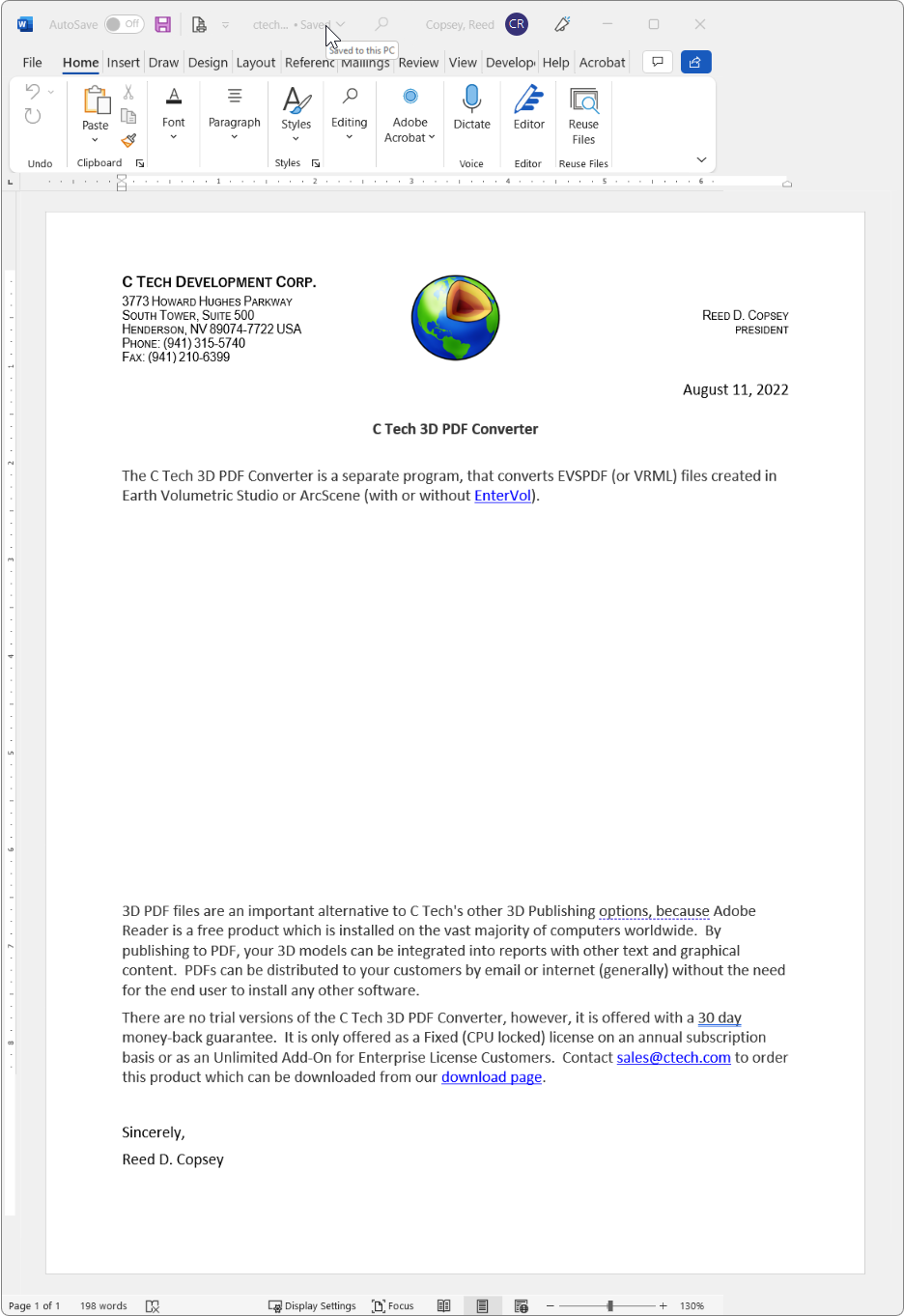
In your authoring application (such as Microsoft Word), leave a blank space on the page where the 3D model should appear:
Export or save the document as a PDF in the usual way.
Step 2: Insert the Placeholder in Adobe Acrobat Pro
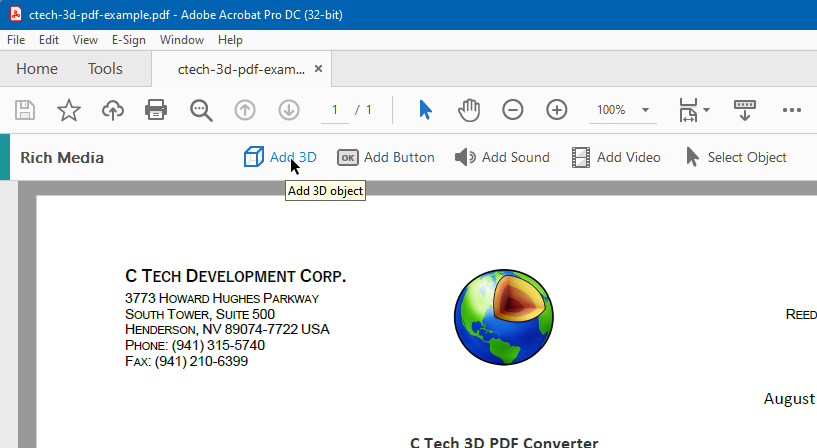
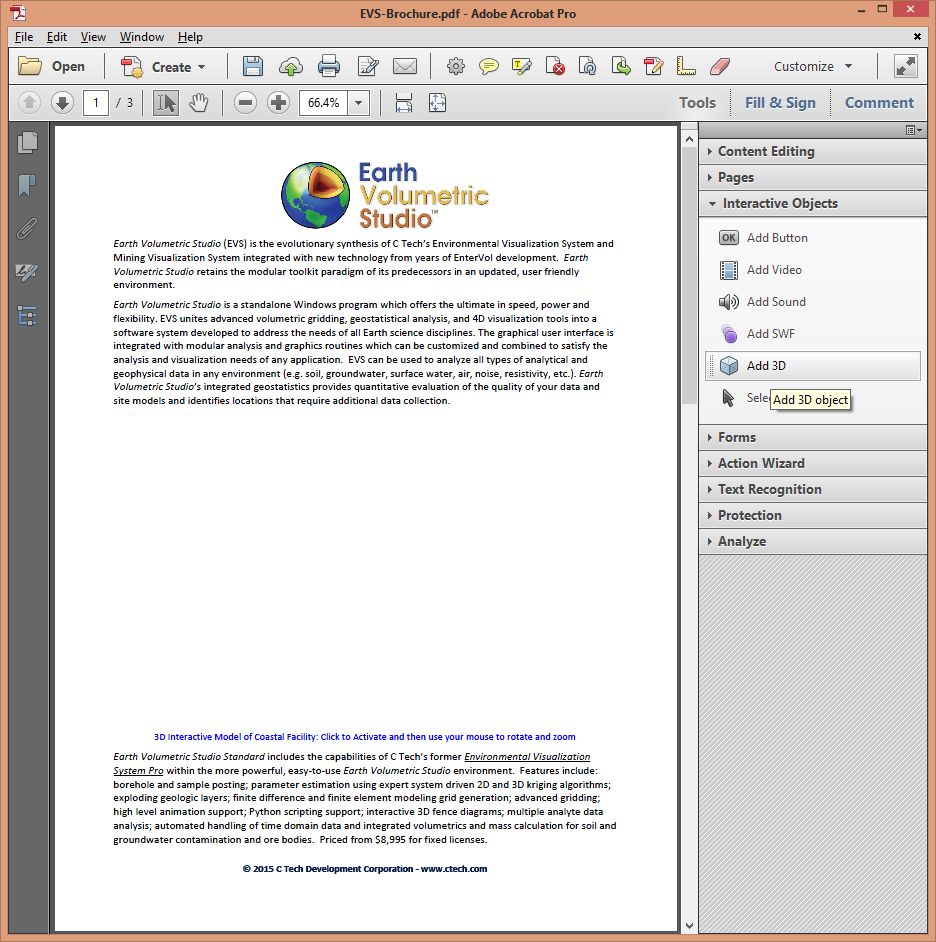
Open the PDF in Adobe Acrobat Pro DC and go to Tools > Rich Media > Add 3D:
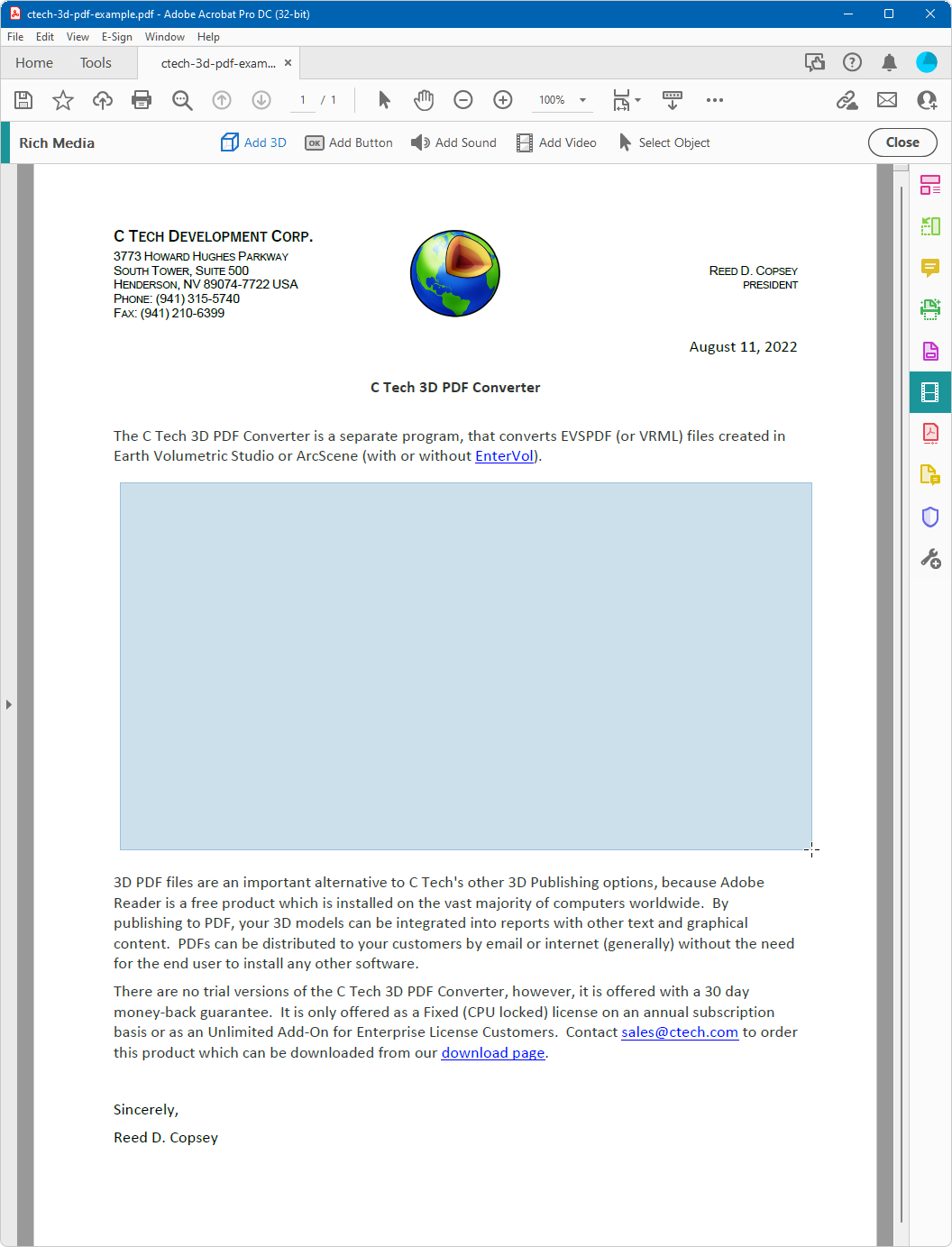
Draw a rectangle over the blank area where the 3D model should be placed:
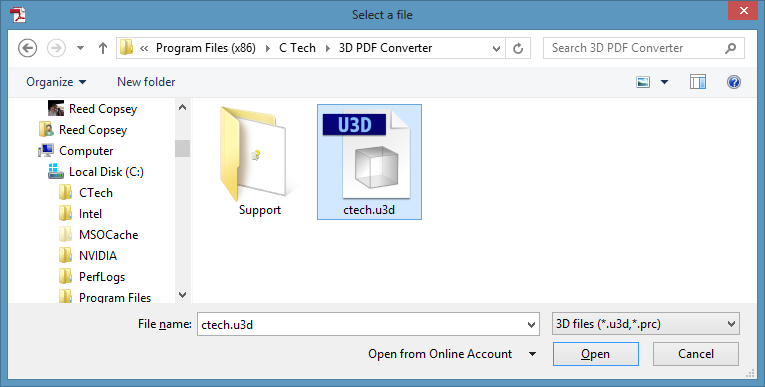
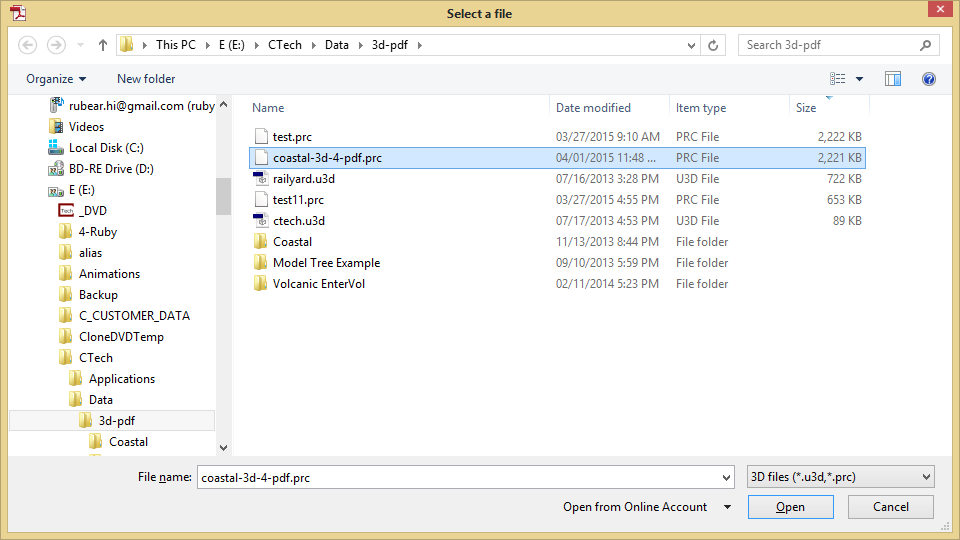
When prompted for a file, click Browse and select ctech.u3d:
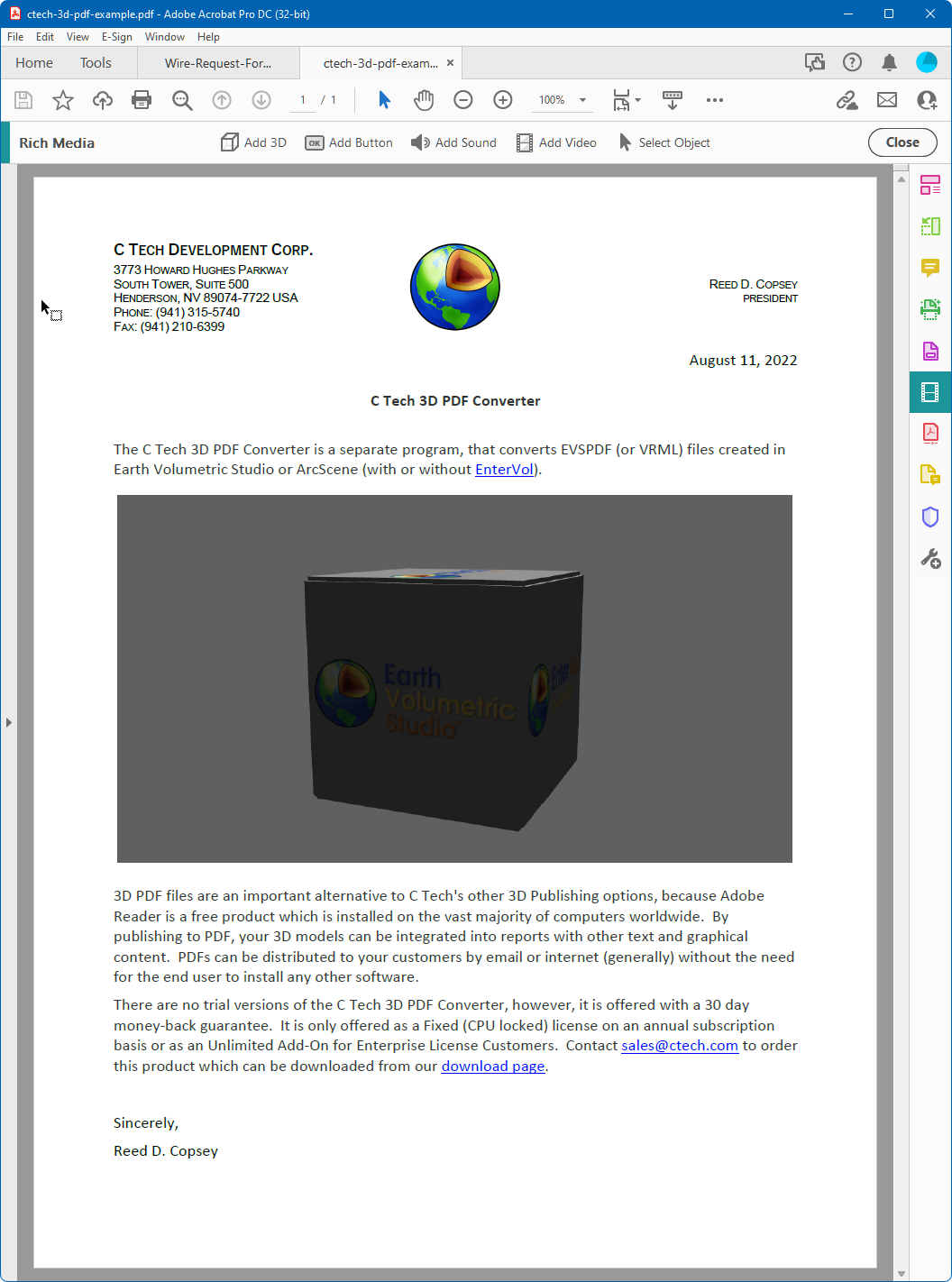
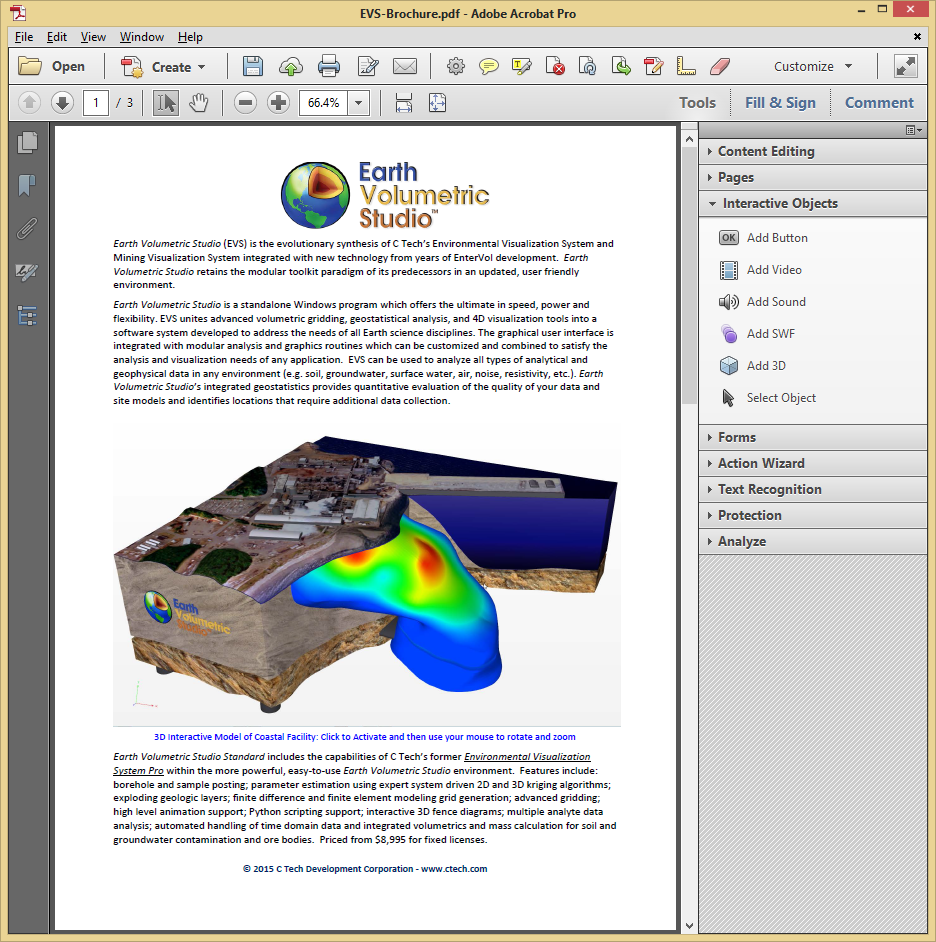
This inserts the placeholder 3D object into the document:
Repeat this process for each additional 3D model you need in the document, then save the PDF.
The Replace 3D Model mode in the C Tech 3D PDF Converter lets you substitute an existing 3D annotation in a PDF with your own 3D content. This is how you update a document that already has a placeholder or an older 3D model embedded in it.
To use this mode, you need a PDF that already contains one or more 3D models or placeholders. A sample PDF with C Tech logo placeholders is included with the installer. For instructions on creating your own template, see Creating Template PDF Files.
Replacing the Annotation
To replace a 3D model, you only need to know which page it is on and which annotation number it is on that page. Open the C Tech 3D PDF Converter and configure the Output section as follows:
Set Embed into Existing PDF to the PDF containing the placeholder
Set Mode to Replace 3D Model
Set Page to the page number containing the 3D annotation
Set Model Number to the annotation number on that page (use 1 if there is only one)
The new 3D content will automatically fill the size and position of the existing annotation.
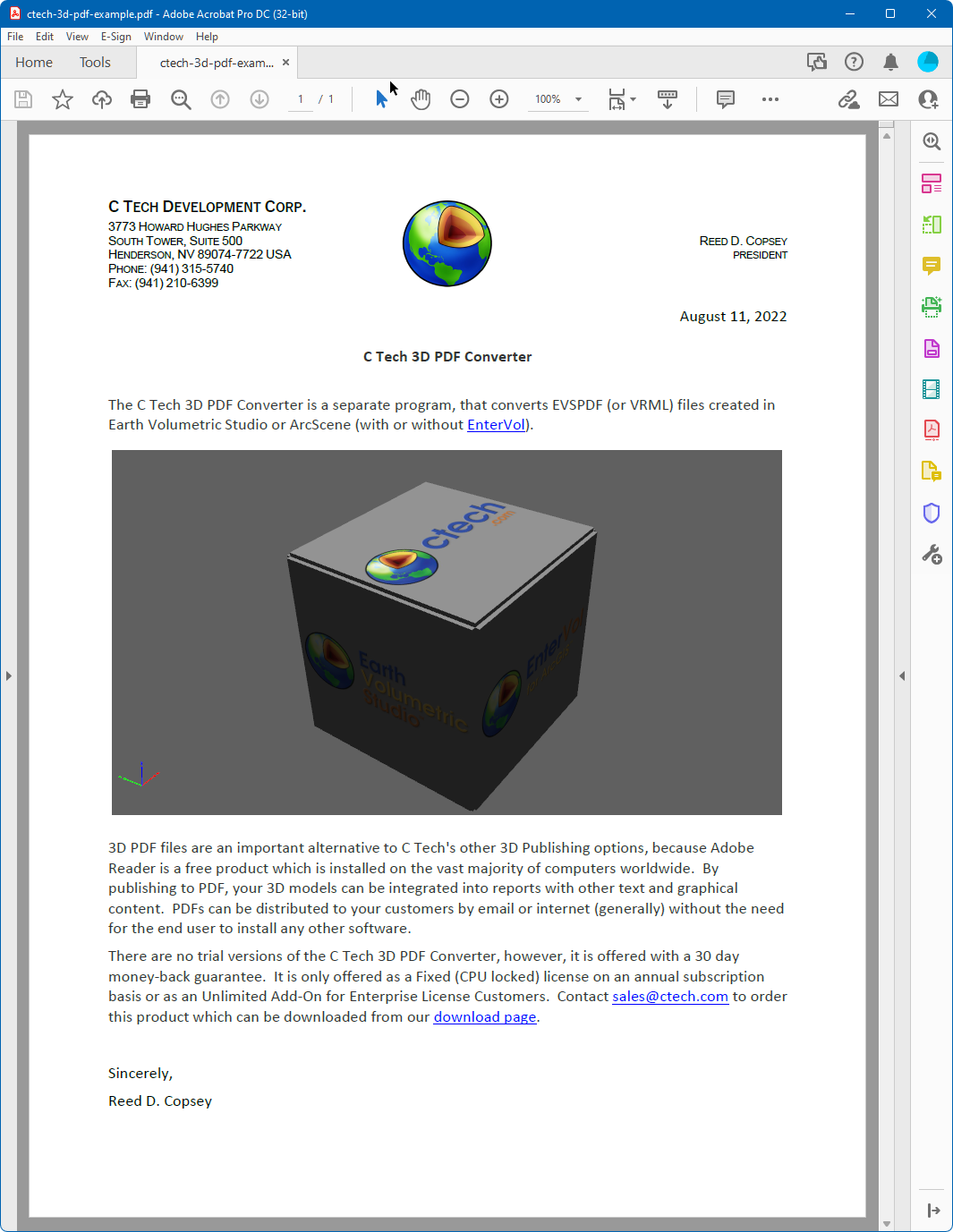
After converting, the placeholder is replaced with your 3D content:
The C Tech 3D PDF Converter can output both PDF and PRC formats. While PDF files can be viewed immediately as interactive 3D documents, PRC files must be inserted into an existing PDF using Adobe Acrobat Pro. This approach is useful when you want to place a 3D model within a specific area of a page in an existing report.
Info
PRC files do not include the lighting and rendering information that is embedded in 3D PDFs. If the visual quality of PRC output is not acceptable, use the PDF output format instead.
Inserting the PRC File
In your authoring application, leave a blank space on the page where the 3D model should appear, then export the document as a PDF. Open the PDF in Adobe Acrobat Pro:
Go to Tools > Rich Media > Add 3D, then draw a rectangle over the area where the 3D model should be placed. When prompted for a file, click Browse and select your PRC file:
Result
When the document is first opened, the poster image is displayed in place of the 3D model:
Clicking on the image activates the interactive 3D content:
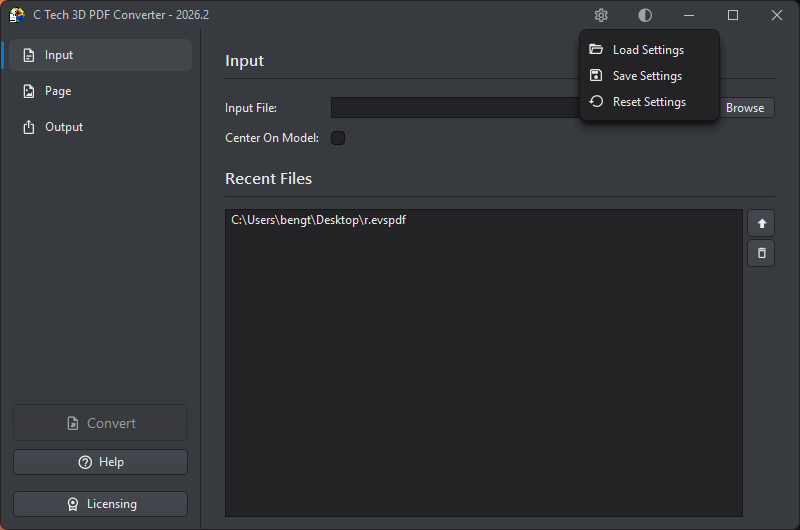
Converter settings are managed through the gear icon in the title bar. Clicking it opens a small flyout menu with three options:
Option
Description
Load Settings
Load a previously saved settings file, restoring all options to the state they were in when saved
Save Settings
Save all current settings to a file so they can be reloaded later (useful when working with multiple projects or configurations)
Reset Settings
Reset all settings back to their defaults
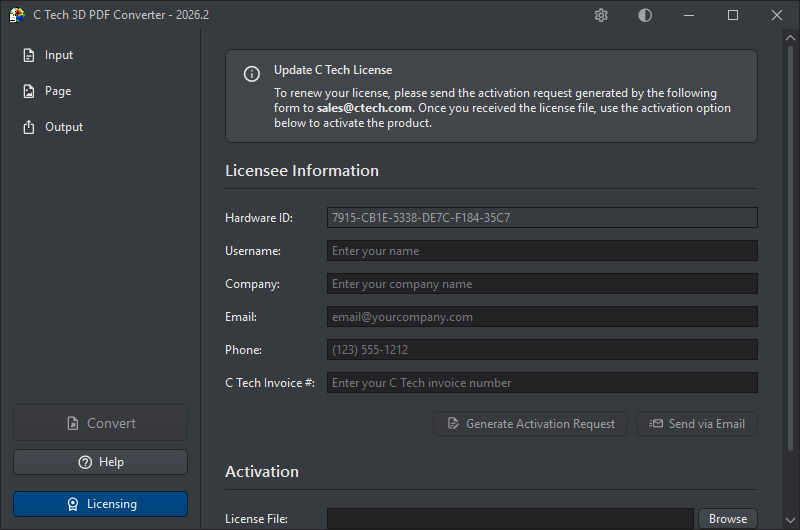
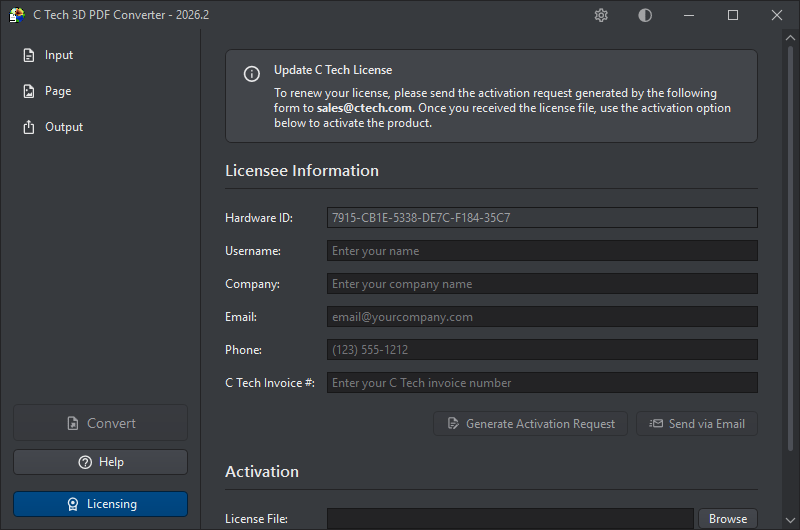
The Licensing button at the bottom of the sidebar opens the licensing dialog, where you can activate a new license or renew an existing one.
The dialog is split into two parts. Scroll up to see the Licensee Information and activation request controls:
Scroll down to reach the Activation section, where you load your license file and activate:
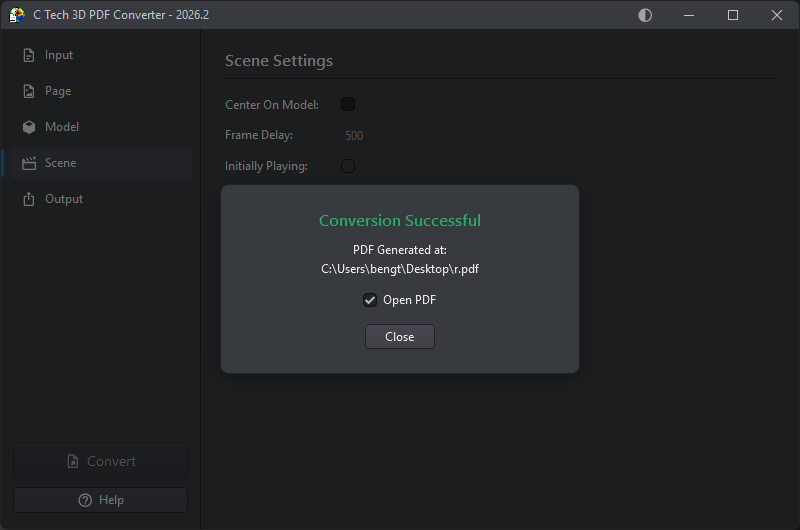
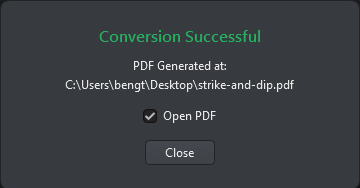
Once you have configured your settings, click Convert at the bottom of the sidebar to begin. When conversion completes successfully, a confirmation dialog is shown with the path to the generated PDF.
The Open PDF checkbox, which is checked by default, will open the generated PDF in your default PDF viewer as soon as you click Close. Uncheck it if you want to close the dialog without opening the file.
If the conversion fails, an error log is shown in place of the success dialog, describing what went wrong.
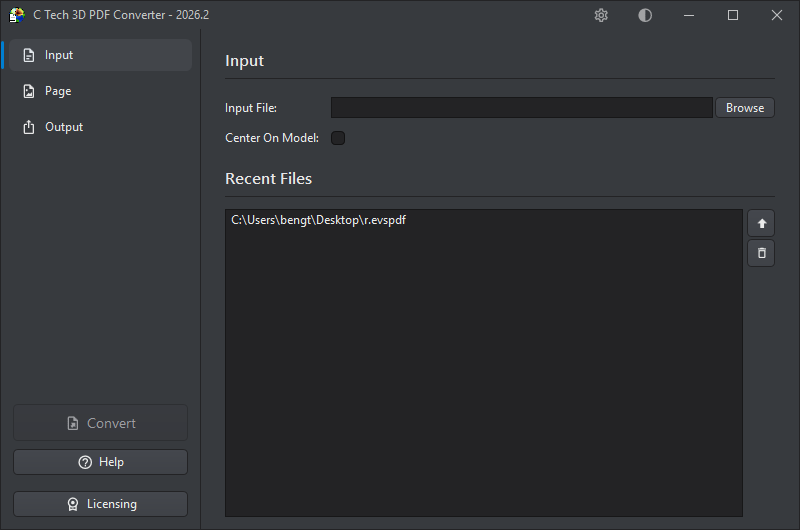
The converter supports light and dark themes, toggled by the circle button in the title bar. In the light theme, the button shows a moon icon. Click it to switch to dark. In the dark theme, it shows a sun icon. Click it to switch back to light.
All C Tech products with theme support, including Earth Volumetric Studio and the C Tech License Manager, share the same theme configuration. Switching the theme in any of these applications will cause all others to match that theme on their next startup.
This page covers best practices for preparing Earth Volumetric Studio models for 3D PDF export, and walks through the full conversion process from EVS to a finished PDF.
Exporting from Earth Volumetric Studio
The C Tech 3D PDF Converter works with .evspdf files produced by the Export PDF Scene module in Earth Volumetric Studio. This module is available if you have a PDF license on the same computer, or an Enterprise license with the PDF Converter option.
Things to Avoid
Some EVS features are not supported in the 3D PDF format:
Do not use the Forward Facing font option in any modules (such as post_samples)
Do not use volume rendering: none of the volume rendering techniques are supported, including the volume_renderer and adjust_opacity modules
What the EVSPDF Export Produces
When you export using the Export PDF Scene module, the resulting .evspdf file is created quickly from your existing scene. It contains a poster image at the resolution of your viewer and inherits the Z Scale of your model so it is correctly displayed in the 3D PDF. A Table of Contents is automatically built from the names of modules connected to the viewer. Rename your modules beforehand for a more informative result.
Example Walkthrough
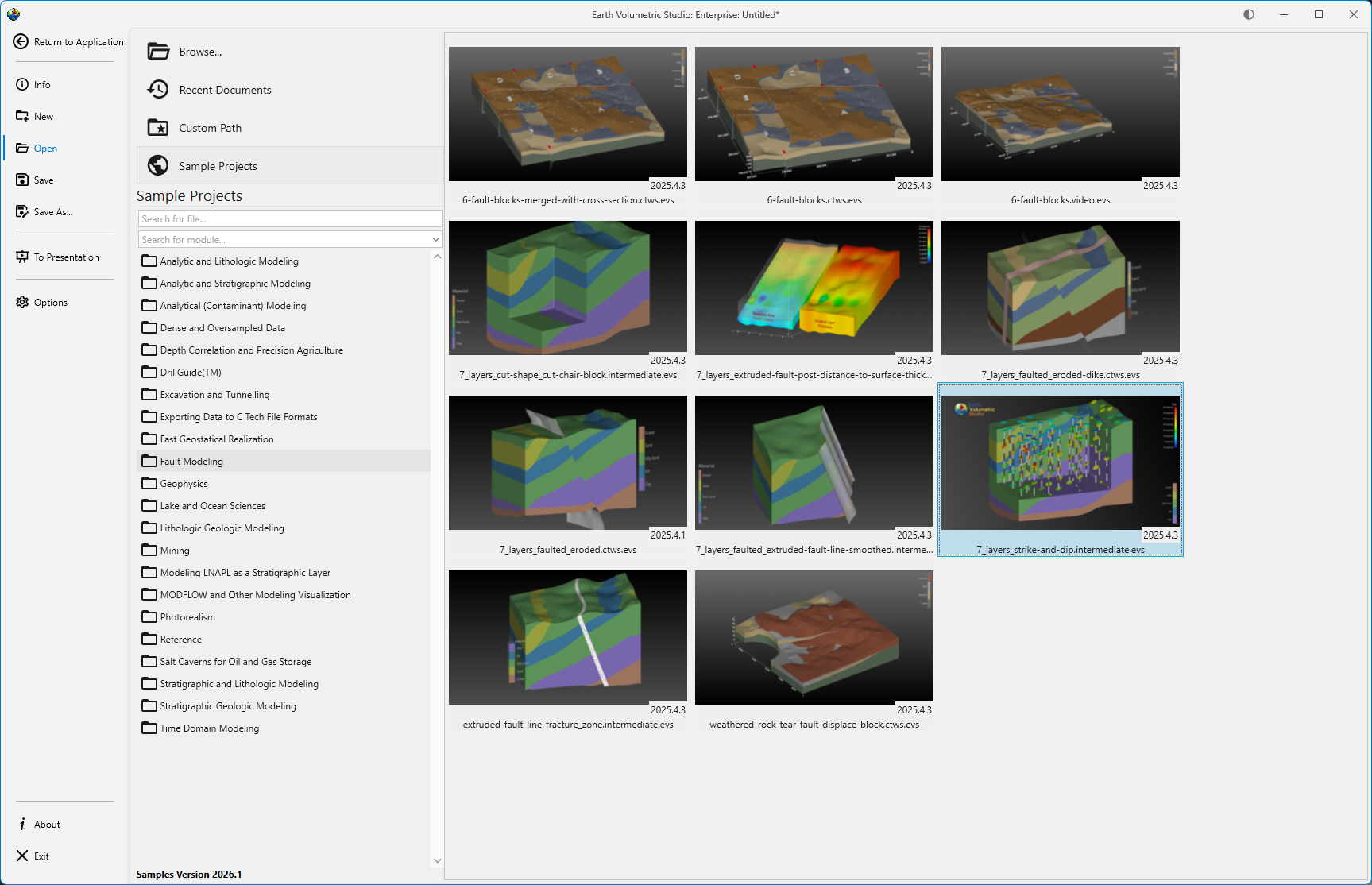
To illustrate the process, start by loading one of the Studio sample projects:
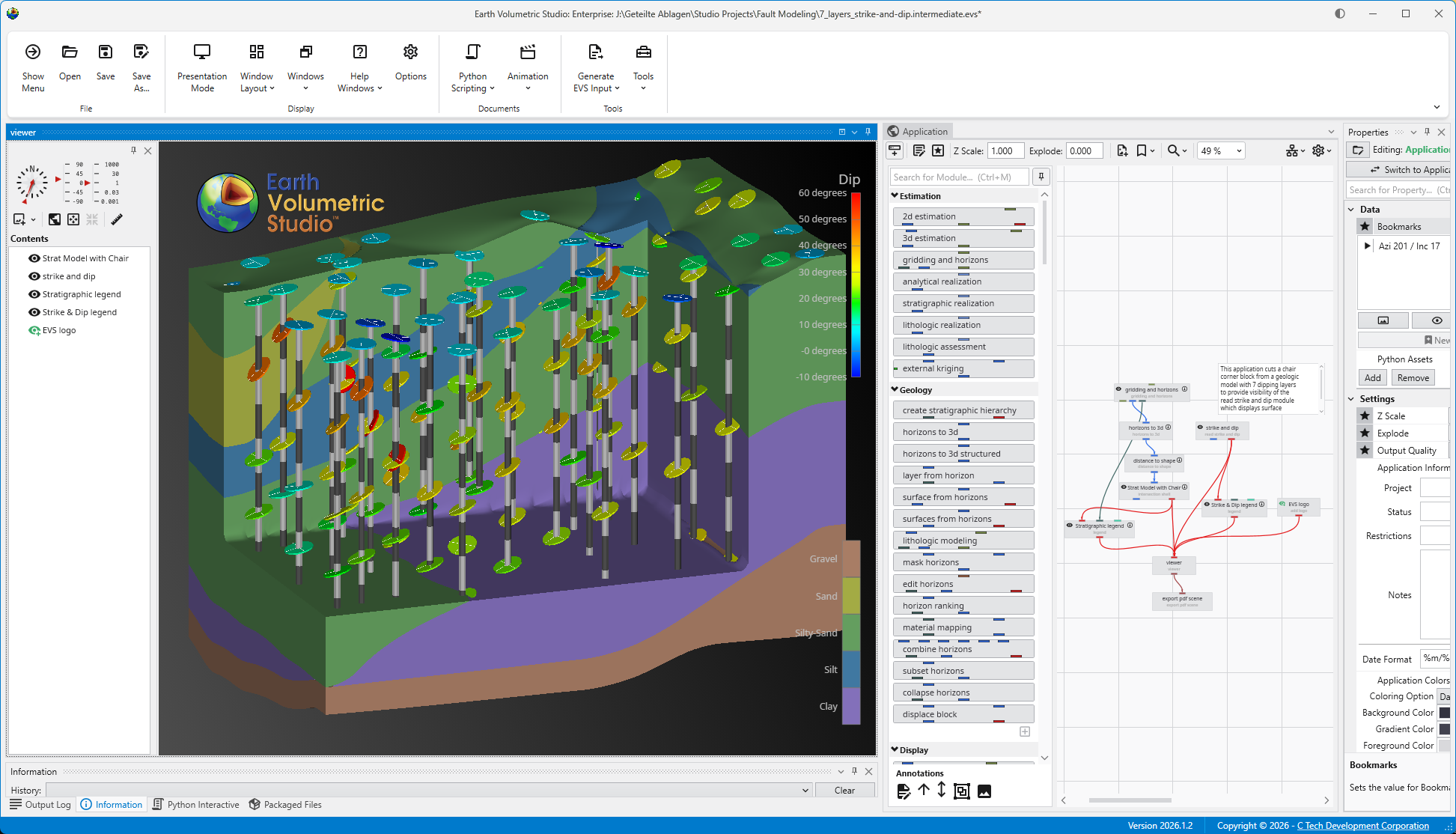
The scene looks like this in the EVS viewer:
This scene includes two legends and a logo. Export it to .evspdf using the Export PDF Scene module, then open the C Tech 3D PDF Converter.
Drag and drop the .evspdf file into the Input File box. Optionally, enter a Title: this will appear as the top-level entry in the Table of Contents. All other default settings are suitable for most projects.
In the example above, Include Z Scale Controls has been enabled to allow the viewer to adjust vertical exaggeration interactively.
The conversion takes only a few seconds. When it completes, a confirmation message is shown:
The generated PDF is now ready to open in Adobe Reader or Acrobat.
Known Issues
Issue
Details and Workaround
Conversion fails
Input and output files must be on a local drive or a network drive mapped to a drive letter. If you are overwriting an existing PDF, make sure it is not currently open in Adobe Reader or Acrobat, since an open file will silently prevent the conversion from completing.
Gradient backgrounds do not print correctly
Adobe print drivers render gradient backgrounds as multiple bands when printing 3D PDFs. Use a solid color background (set the top and bottom colors to the same value) to avoid this.
2D overlay objects
EVSPDFs support 2D overlay objects, but some have 3D equivalents that work better in the PDF viewer. Use legend 3d instead of legend, and titles 3d instead of titles. The add logo module is supported as-is.
Forward Facing Text
Forward Facing Text is not supported in 3D PDFs and cannot be rendered correctly. Avoid using it in any module, including post_samples and 3d titles.
Adobe Acrobat Limitations
The following are limitations of Adobe Acrobat’s 3D engine that are outside of C Tech’s control:
Measure Distance tool: should only be used with the model at Z Scale = 1. It cannot account for vertical exaggeration, so any distance measurement involving a difference in Z coordinates will be incorrect.
Transparency: objects with an opacity less than 1.0 may not render correctly.
Model Tree: Adobe automatically adds two parent levels to the model tree: model and EVS Scene.