This page covers best practices for preparing Earth Volumetric Studio models for 3D PDF export, and walks through the full conversion process from EVS to a finished PDF.
Exporting from Earth Volumetric Studio
The C Tech 3D PDF Converter works with .evspdf files produced by the Export PDF Scene module in Earth Volumetric Studio. This module is available if you have a PDF license on the same computer, or an Enterprise license with the PDF Converter option.
Things to Avoid
Some EVS features are not supported in the 3D PDF format:
- Do not use the Forward Facing font option in any modules (such as
post_samples) - Do not use volume rendering: none of the volume rendering techniques are supported, including the
volume_rendererandadjust_opacitymodules
What the EVSPDF Export Produces
When you export using the Export PDF Scene module, the resulting .evspdf file is created quickly from your existing scene. It contains a poster image at the resolution of your viewer and inherits the Z Scale of your model so it is correctly displayed in the 3D PDF. A Table of Contents is automatically built from the names of modules connected to the viewer. Rename your modules beforehand for a more informative result.
Example Walkthrough
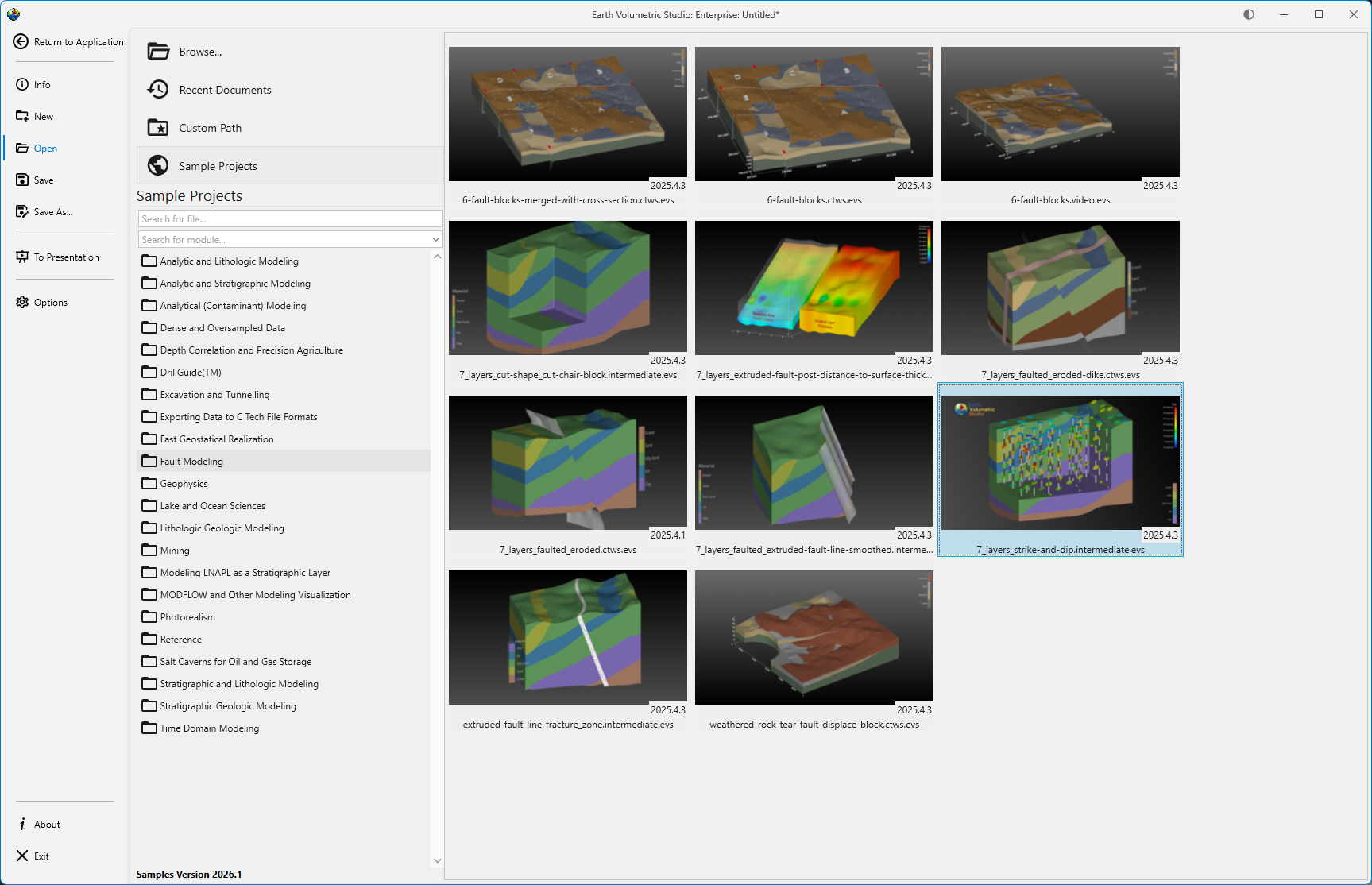
To illustrate the process, start by loading one of the Studio sample projects:
The scene looks like this in the EVS viewer:
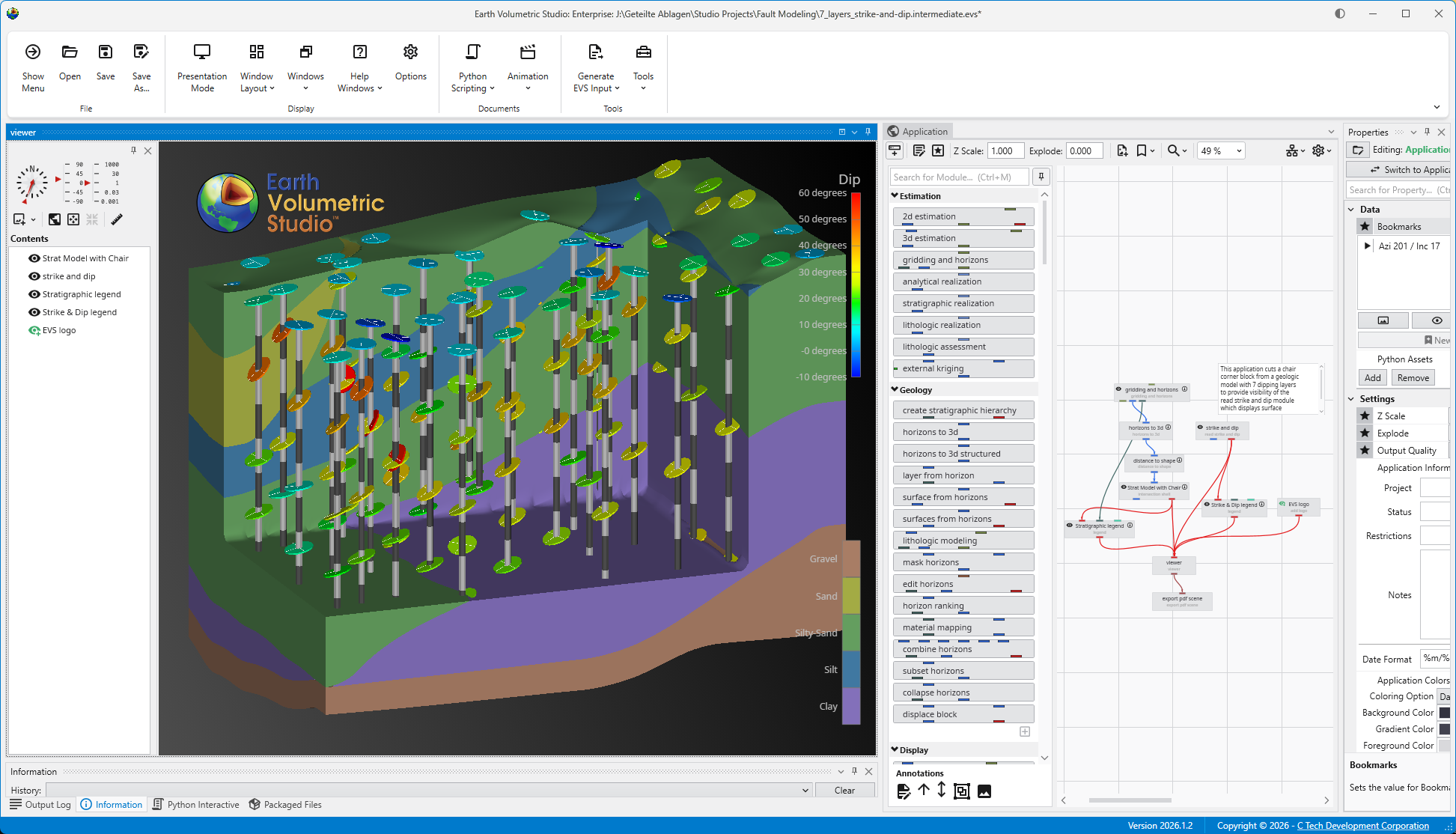
This scene includes two legends and a logo. Export it to .evspdf using the Export PDF Scene module, then open the C Tech 3D PDF Converter.
Drag and drop the .evspdf file into the Input File box. Optionally, enter a Title: this will appear as the top-level entry in the Table of Contents. All other default settings are suitable for most projects.
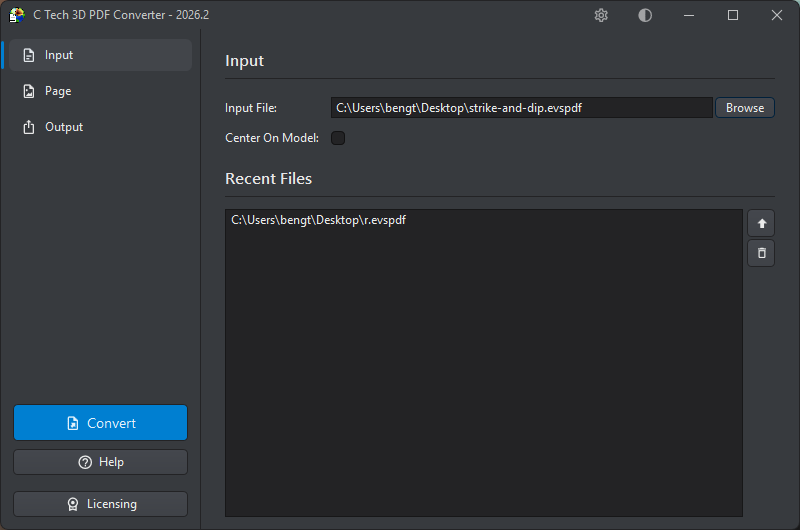
In the example above, Include Z Scale Controls has been enabled to allow the viewer to adjust vertical exaggeration interactively.
The conversion takes only a few seconds. When it completes, a confirmation message is shown:
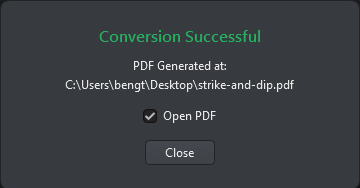
The generated PDF is now ready to open in Adobe Reader or Acrobat.