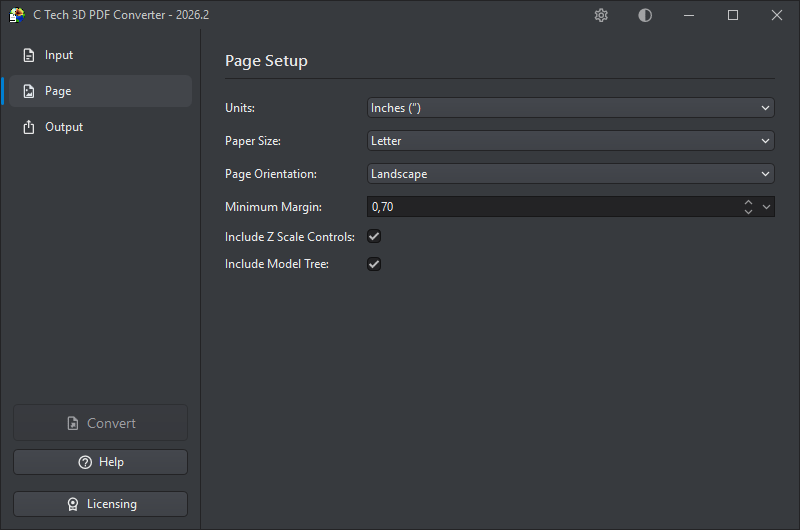
The Page section controls the dimensions and layout of the output PDF page, as well as optional controls embedded in the PDF.
Units
Choose the measurement units for page dimensions and margins. Changing the units will automatically convert the existing margin value so nothing is lost. This setting also controls the units used for measurements performed in the embedded 3D view of the generated PDF.
| Unit | Abbreviation |
|---|---|
| Millimeters | mm |
| Inches | " |
| Points | pts |
| Pixels | px |
Paper Size
Select a standard paper size from the dropdown. Available options include:
| Category | Sizes |
|---|---|
| US | Letter, Legal, Executive, Folio, Ledger, Tabloid |
| ISO A-series | A0 – A10 |
| ISO B-series | B0 – B10 |
| ISO C-series | C0 – C10 |
Page Orientation
Choose between Landscape (wider than tall) and Portrait (taller than wide) to match the intended layout of your document.
Minimum Margin
Sets the minimum margin around the 3D content area, in the selected units. The default is 0.70 inches. When you change the units, the margin value is automatically converted so the physical size remains the same.
The dropdown arrow button on the right side of the field opens a built-in calculator, letting you enter an expression (such as 25.4 / 2) that is evaluated and applied as the new margin value.
The actual margins depend on how the aspect ratio of the poster image (the static preview of the 3D scene) compares to the chosen page size:
- If the aspect ratio of the poster image precisely matches the chosen page size, all margins will be equal and set to the Minimum Margin.
- If the aspect ratio of the poster image is more landscape than the chosen page size, the left and right margins will equal the Minimum Margin and the top and bottom margins will be larger.
- If the aspect ratio of the poster image is more portrait than the chosen page size, the top and bottom margins will equal the Minimum Margin and the left and right margins will be larger.
Include Z Scale Controls
When checked, the generated PDF includes vertical exaggeration controls that let the viewer adjust the Z scale interactively while viewing the model.
Include Model Tree
When checked, the generated PDF includes a model tree panel that allows the viewer to toggle the visibility of individual parts of the 3D model. This is particularly useful for complex models with multiple named components.