If you want to embed a 3D model within a page of an existing PDF report (rather than inserting it as a full page), you first need to place a placeholder 3D object in the document using Adobe Acrobat Pro. The C Tech 3D PDF Converter can then replace that placeholder with your actual 3D content.
Info
If you want to insert a full-page 3D PDF into an existing document, no placeholder is needed. Use the Insert Before Page, Insert After Page, or Replace 3D Model options in the Output section.
Step 1: Prepare the Document
In your authoring application (such as Microsoft Word), leave a blank space on the page where the 3D model should appear:
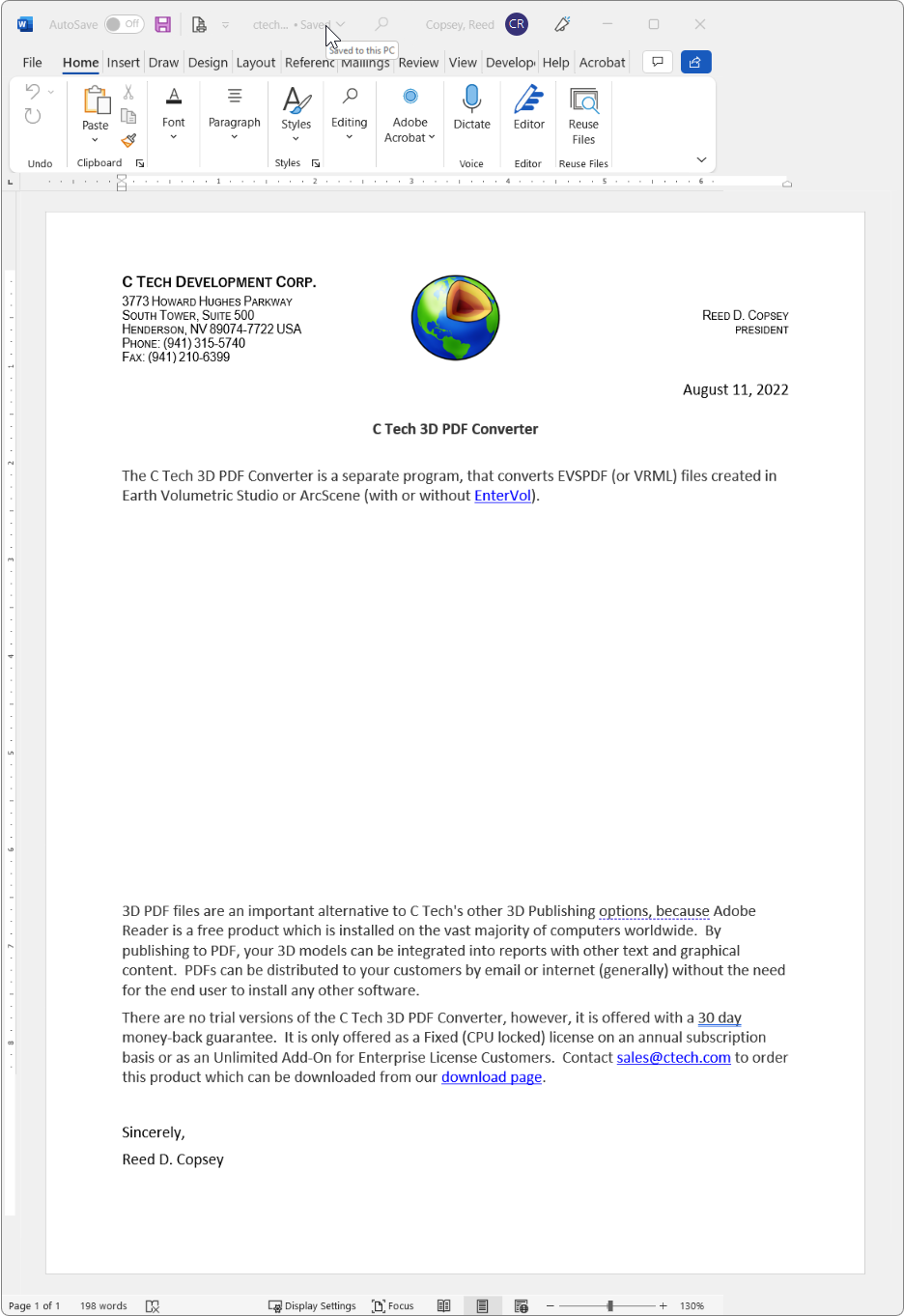
Export or save the document as a PDF in the usual way.
Step 2: Insert the Placeholder in Adobe Acrobat Pro
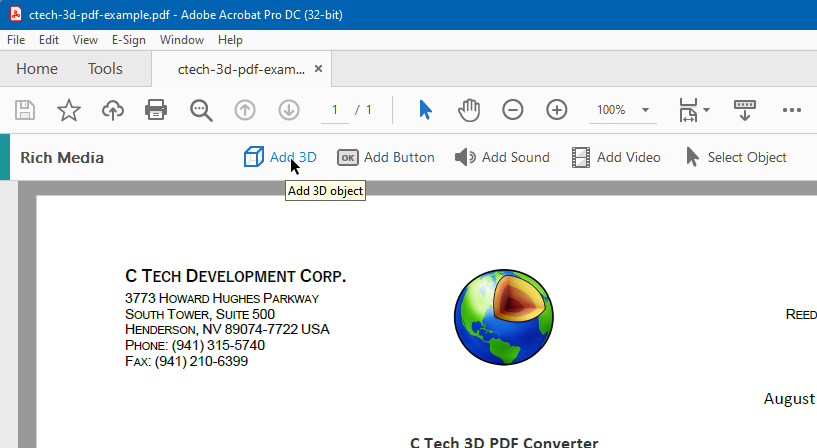
Open the PDF in Adobe Acrobat Pro DC and go to Tools > Rich Media > Add 3D:
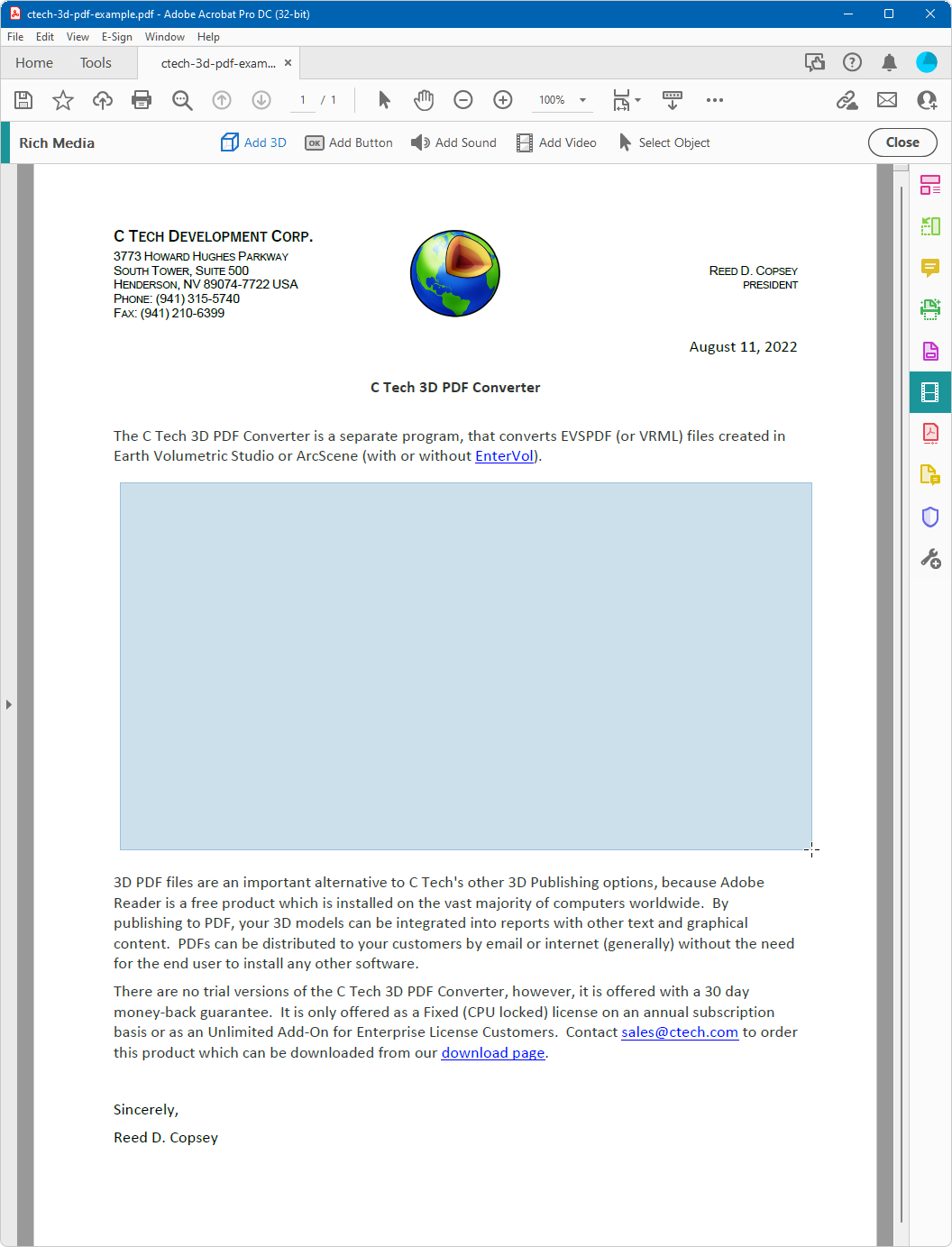
Draw a rectangle over the blank area where the 3D model should be placed:
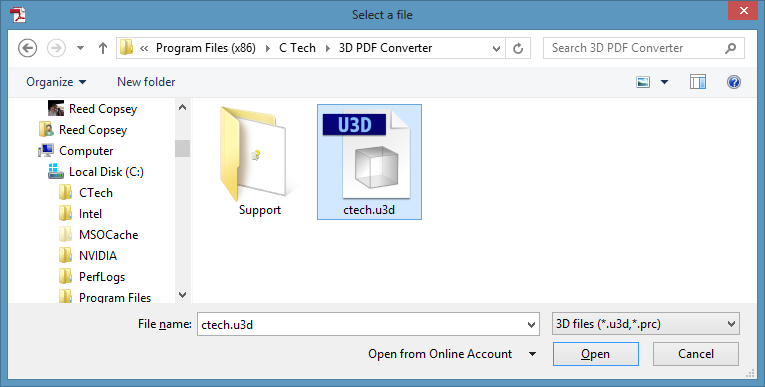
When prompted for a file, click Browse and select ctech.u3d:
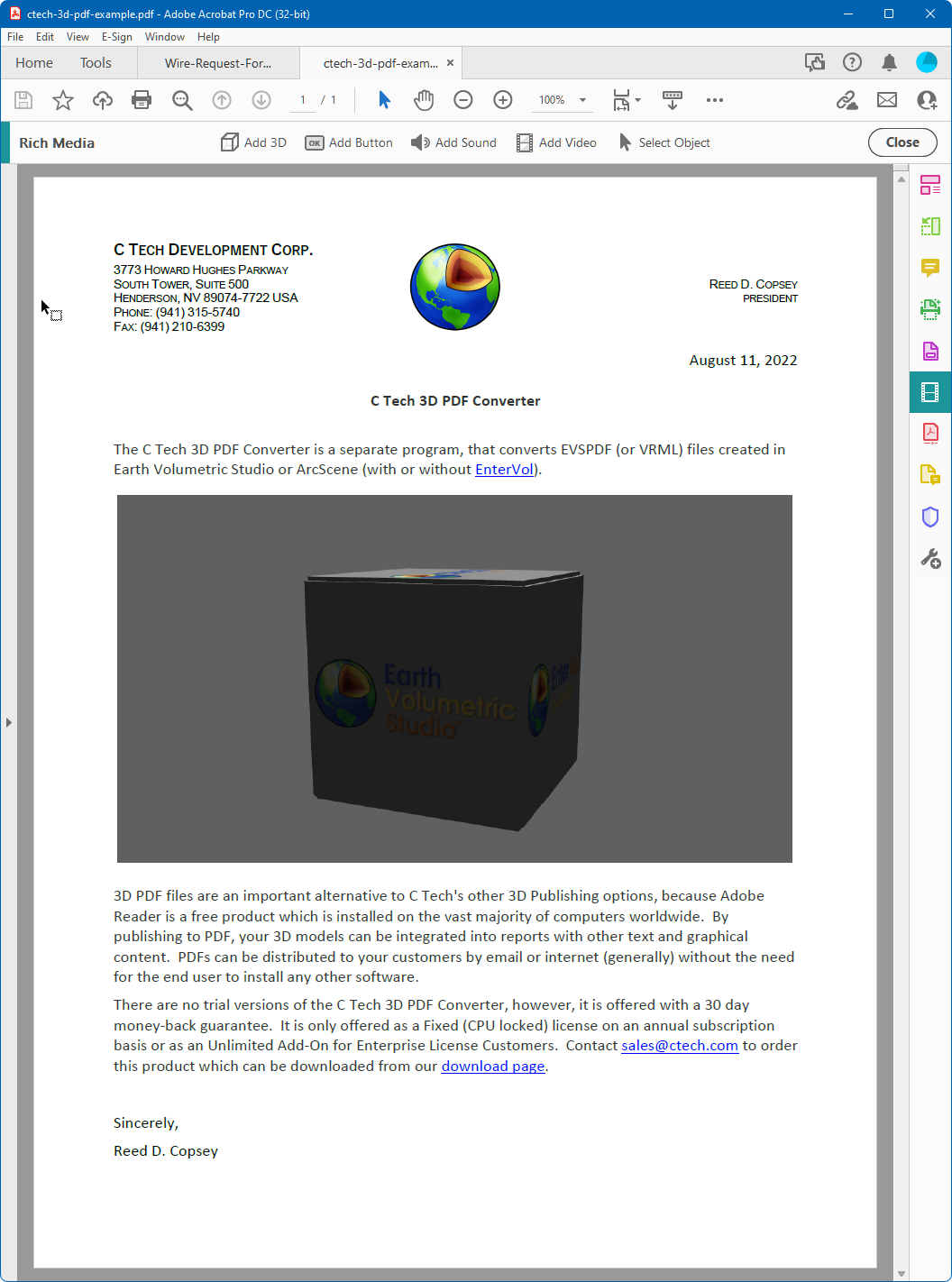
This inserts the placeholder 3D object into the document:
Repeat this process for each additional 3D model you need in the document, then save the PDF.
You are now ready to replace each placeholder with your 3D content.