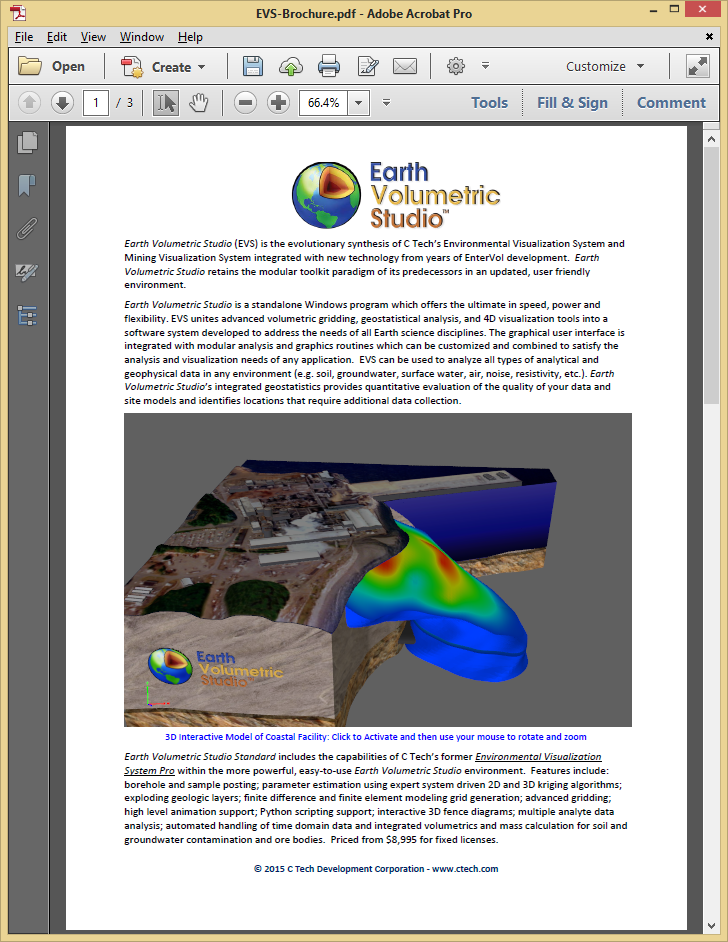
The C Tech 3D PDF Converter can output both PDF and PRC formats. While PDF files can be viewed immediately as interactive 3D documents, PRC files must be inserted into an existing PDF using Adobe Acrobat Pro. This approach is useful when you want to place a 3D model within a specific area of a page in an existing report.
Info
PRC files do not include the lighting and rendering information that is embedded in 3D PDFs. If the visual quality of PRC output is not acceptable, use the PDF output format instead.
Inserting the PRC File
In your authoring application, leave a blank space on the page where the 3D model should appear, then export the document as a PDF. Open the PDF in Adobe Acrobat Pro:
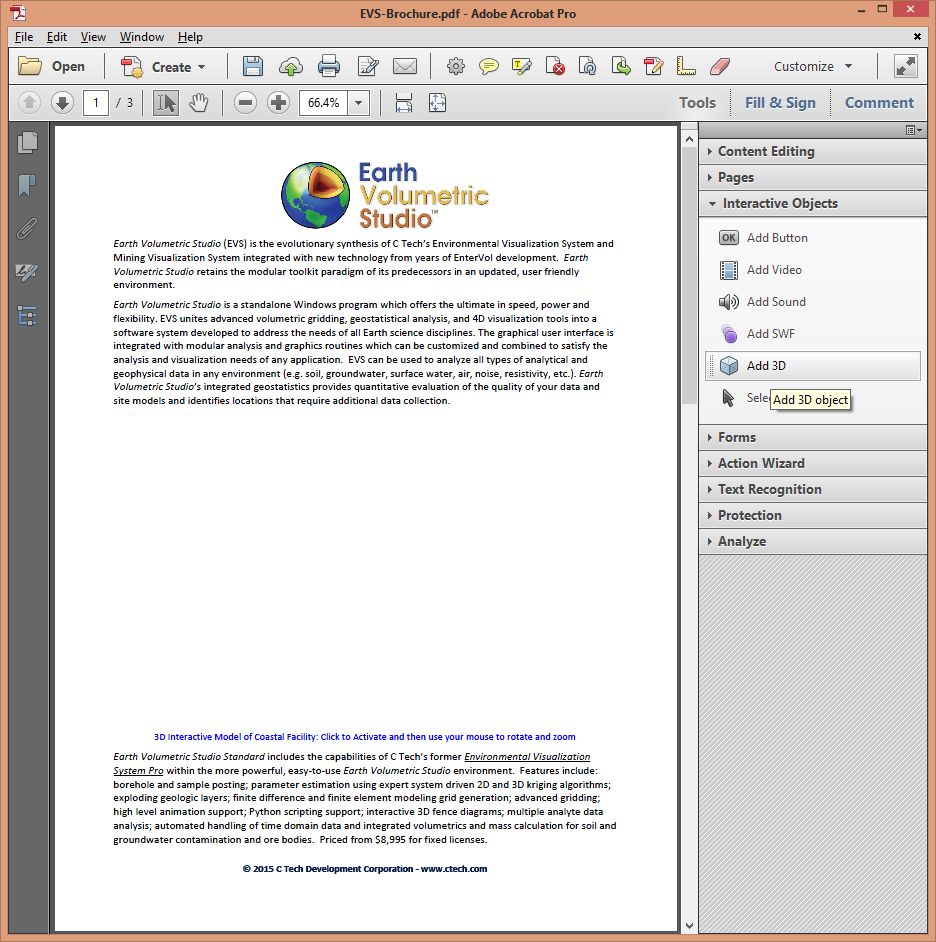
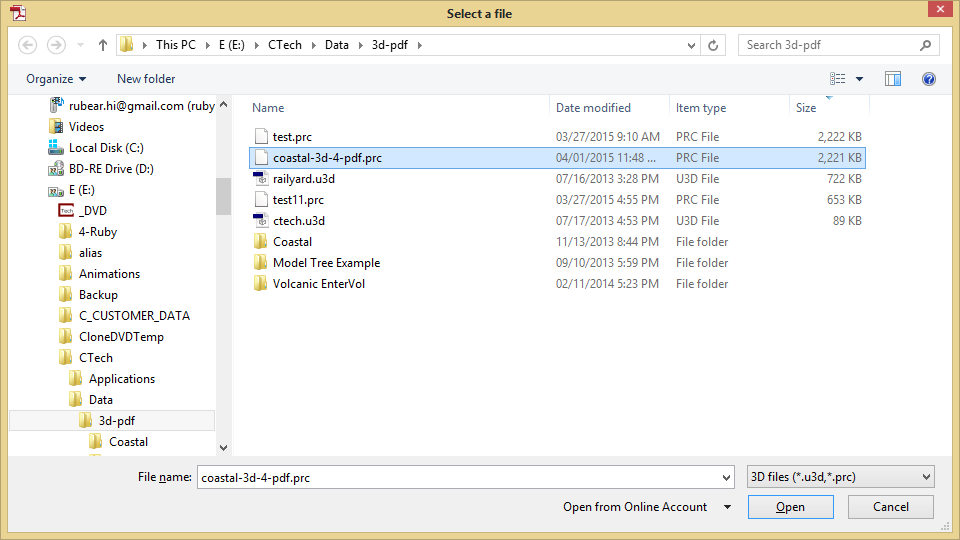
Go to Tools > Rich Media > Add 3D, then draw a rectangle over the area where the 3D model should be placed. When prompted for a file, click Browse and select your PRC file:
Result
When the document is first opened, the poster image is displayed in place of the 3D model:
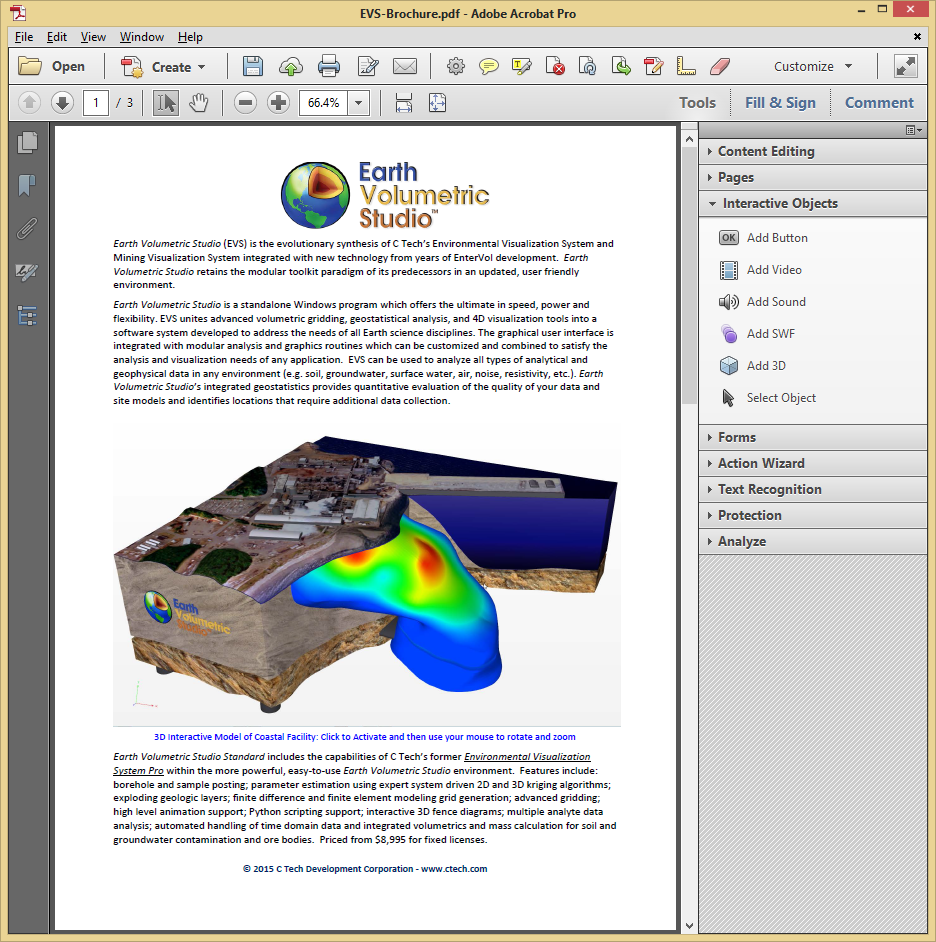
Clicking on the image activates the interactive 3D content: