Here are common problems with C Tech licensing and how to solve them. If your problem is not listed, email support@ctech.com and attach a support package.
Info
Using EVS 2026.3.5 and earlier with the License Manager 2026.3 or a license server? See Troubleshooting for older versions.
Send C Tech a support package
The Troubleshooting page in the License Manager gathers what C Tech needs into one zip file. That is the License Manager log, the logs of recent EVS and PDF Converter runs, and a check of their prerequisites. Nothing is sent from your computer.
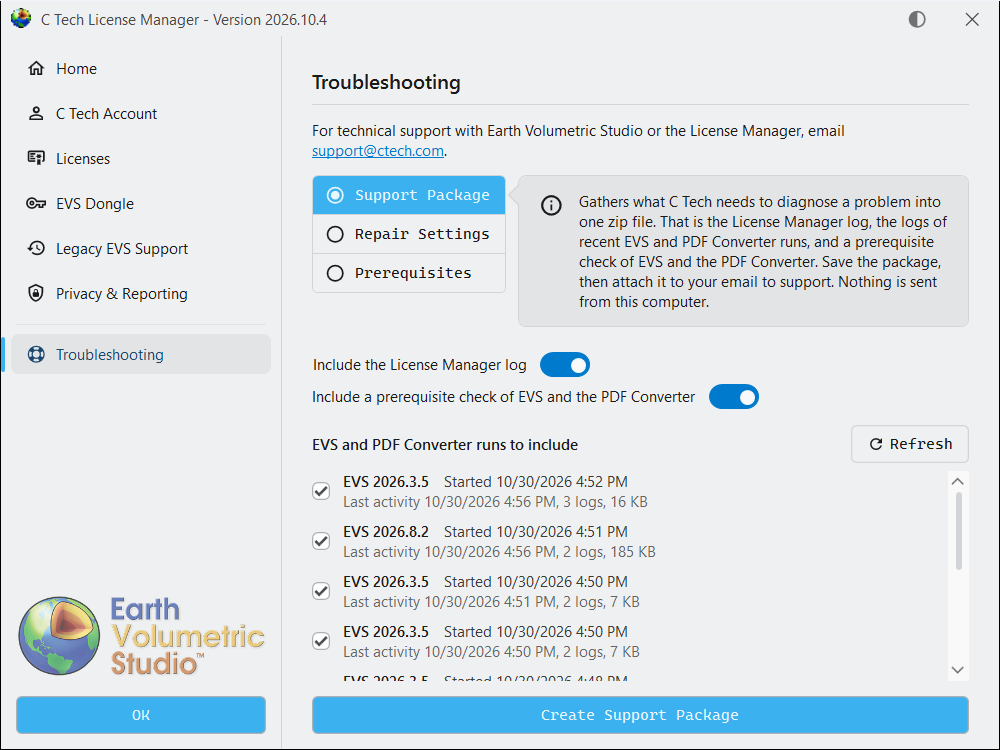
- Open the License Manager and select Troubleshooting.
- Under Support Package, choose what to include and the EVS runs that had the problem.
- Select Create Support Package and save the zip file.
- Email it to support@ctech.com with a description of the problem.
EVS does not start or stops responding
Use Repair Settings on the Troubleshooting page. Each repair saves a copy of your EVS settings first.
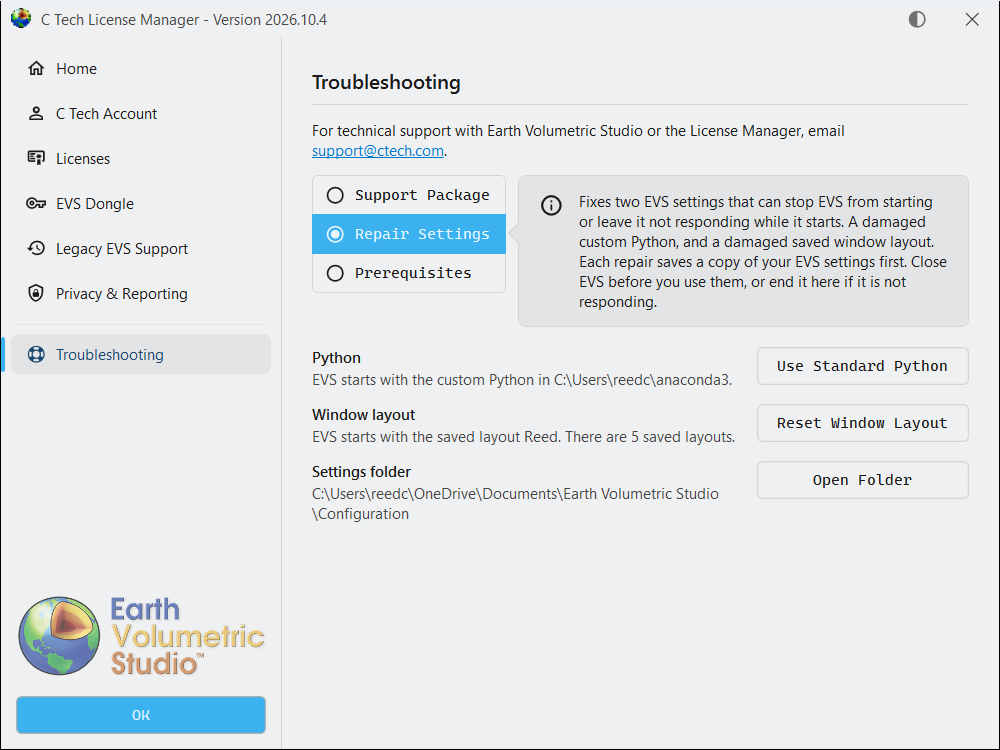
- End EVS. Closes an EVS that is not responding. Unsaved work in EVS is lost.
- Use Standard Python. Switches EVS back from a custom Python installation.
- Reset Window Layout. Clears a damaged saved window layout.
- Open Folder. Opens your EVS settings folder.
A program does not start at all
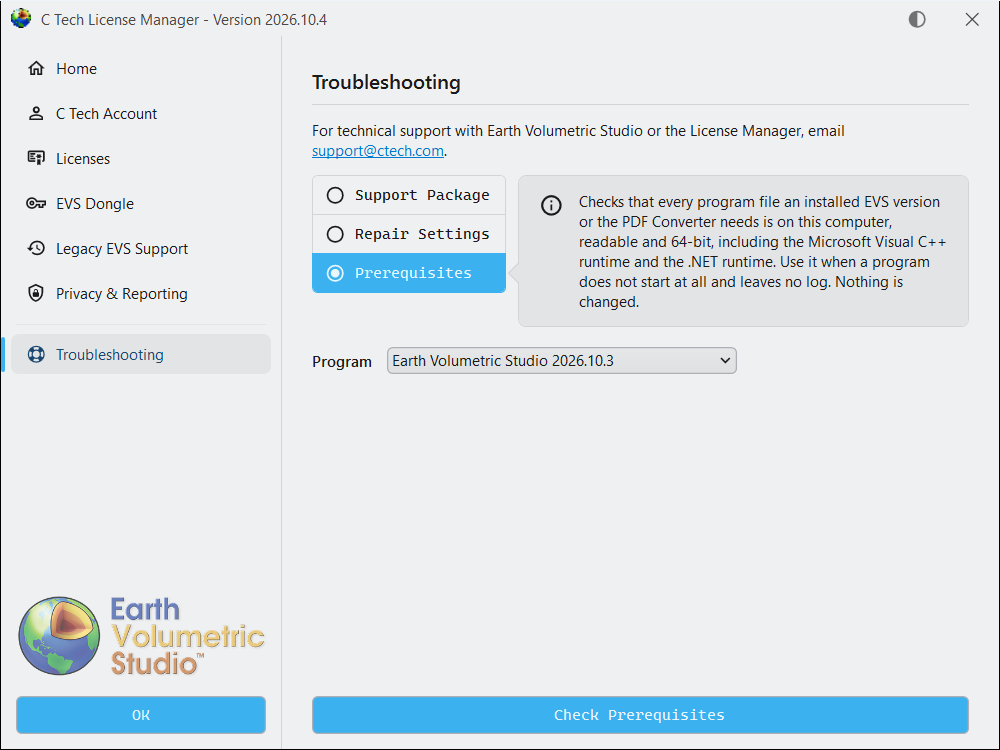
Use Prerequisites on the Troubleshooting page. Choose the program and select Check Prerequisites. It checks that every file the program needs is present, including the Microsoft Visual C++ runtime and the .NET runtime.
Messages
C Tech License Manager 2026.10.1 or later is required
Your EVS is newer than the installed License Manager. Run the EVS setup again, or install the latest License Manager by itself.
This license is currently in use on another device
Your EVS Fixed license is active on your other computer. Close EVS there, then start it here. If EVS on the other computer did not close normally, the license becomes free within about 7 minutes. See Fixed Seats and Devices.
You’ve reached the device limit for this license
Both computers allowed for your EVS Fixed license are registered, and this is a third. On the Licenses and Devices page, retire the computer you no longer use with Take Over License or Retire Device. The retired computer can no longer use the license, and the change can use a counted replacement. See Fixed Seats and Devices.
Your license is no longer assigned to you
Your organization admin removed your license assignment. Ask them to assign it again, then select Refresh on the Licenses page.
The C Tech online service could not be reached
Check the computer’s internet connection. A firewall or proxy may block the connection to C Tech. EVS keeps running offline for a limited time. See Working offline.
Your licensing changed in the C Tech License Manager
You changed the licensing mode or account while EVS was running. Restart EVS.
Module execution is paused until your license is available again
EVS lost its license, for example because the License Manager exited or the computer is offline too long. Editing and saving keep working. Start the License Manager, or reconnect, and EVS continues.
License dongles cannot be used on a virtual machine
Use Online licensing on virtual machines.
No valid EVS license dongle was found
Check that the dongle is attached and select Refresh on the EVS Dongle page. Only fixed EVS dongles are supported.
The license dongle’s subscription ended
Renew your subscription with C Tech. The new date is written to the dongle while you are signed in. See Dongle Renewals.
Legacy EVS Support shows Blocked
An old license server or another program on this computer is in the way. See Remove Old License Servers.
Log files
- License Manager.
%LOCALAPPDATA%\C Tech\Licensing\manager.log - EVS.
%APPDATA%\C Tech\Diagnostics\
The support package includes both.