Here are common problems you may run into when installing, setting up, or updating C Tech licenses. If your issue is not listed here, contact C Tech support at support@ctech.com.
Unable to authenticate with licensing service
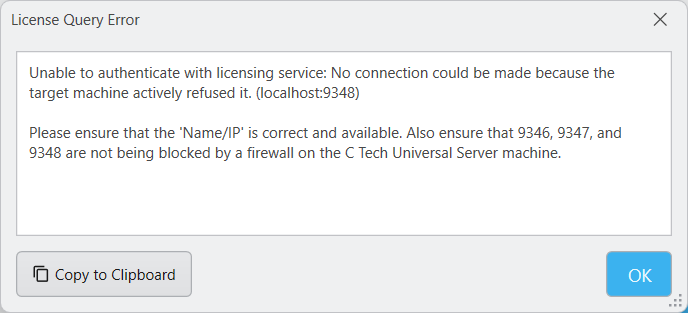
First, check that the server address you entered in Server Configuration is correct and reachable on your network. If that looks right, the most likely problem is that your network is blocking the ports the license server uses.
Warning
Make sure ports 9346, 9347, and 9348 are open on the computer running the C Tech Universal License Server. These ports allow the license server to communicate with client computers.
License update file is corrupted
Go back to the original email from C Tech and check that the file has not changed. Virus and malware protection software can sometimes damage email attachments. Tell your security software to ignore .ctupdate files so it does not modify them.
If the issue persists, contact C Tech support for an alternative delivery method.
USB license key not included in the update
The update file may not cover all USB license keys in your organization. Check the invoice from C Tech for a list of supported keys. If your key is not listed, it was not included in this update.
USB dongle update fails via Remote Desktop
When you connect to a computer using Remote Desktop, you may not be able to access USB license keys. Remote Desktop does not always allow direct access to USB hardware.
To work around this, open the C Tech License Manager and use Server Configuration to connect to “localhost” (which points to the same computer you are on). Then apply the update remotely. See License Updates for step-by-step instructions.