Online Licensing

Online licensing uses your C Tech account. There is no license server to install and no license file to load. It covers these licenses.

  • EVS Fixed
  • EVS Floating
  • EVS Enterprise
  • EVS University

Set up Online licensing

  1. Open the C Tech License Manager from the Windows Start Menu.

  2. On the Home page, select Online or Demo. Online licenses use the same mode as demos.

  3. Select Login to C Tech and enter the email address for your C Tech account.
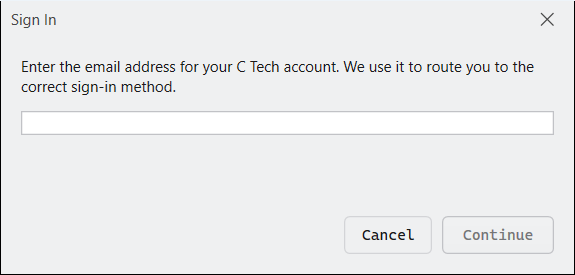
    Sign In window Sign In window

  4. Your web browser opens. Sign in there. If your organization uses single sign-on, you sign in with your company account.

  5. Return to the License Manager. Your name, organization and email now show under User Information.
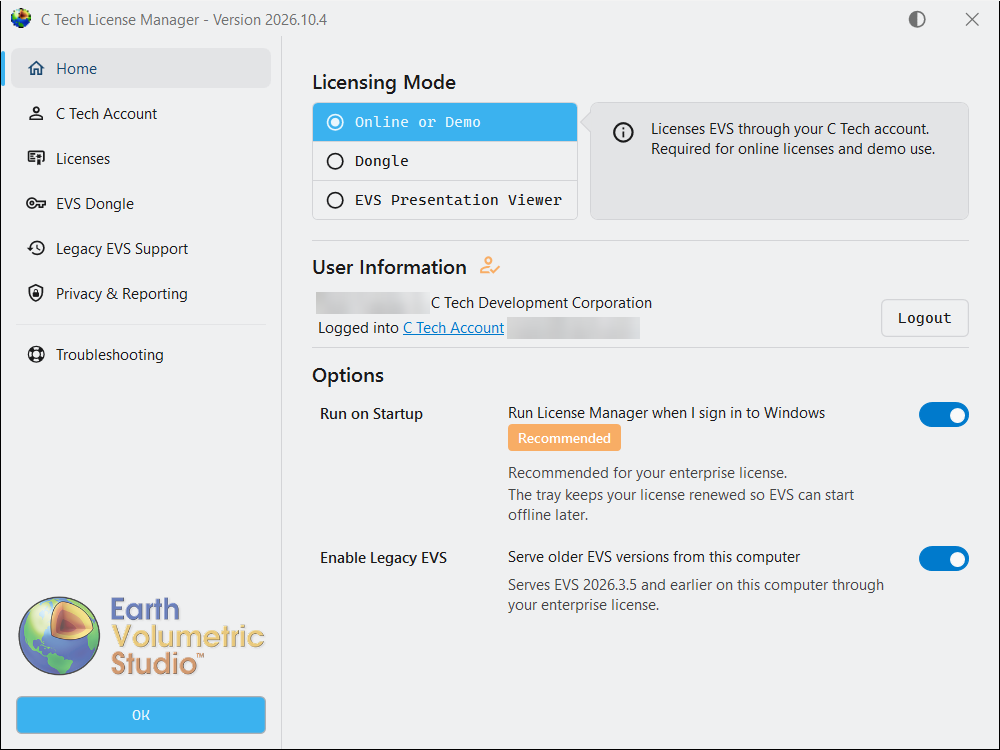
    Home page signed in with Online or Demo selected Home page signed in with Online or Demo selected

  6. Select OK, then start EVS.

Tip

No account yet? Ask your company’s C Tech administrator to invite you, then accept the emailed invitation. If your company uses single sign-on, as Enterprise customers often do, no invitation is needed. Select Login to C Tech and sign in with your company account. See Company Accounts and Seats.

Check your licenses

The Licenses page lists the licenses your organization holds and whether each one is available to you.
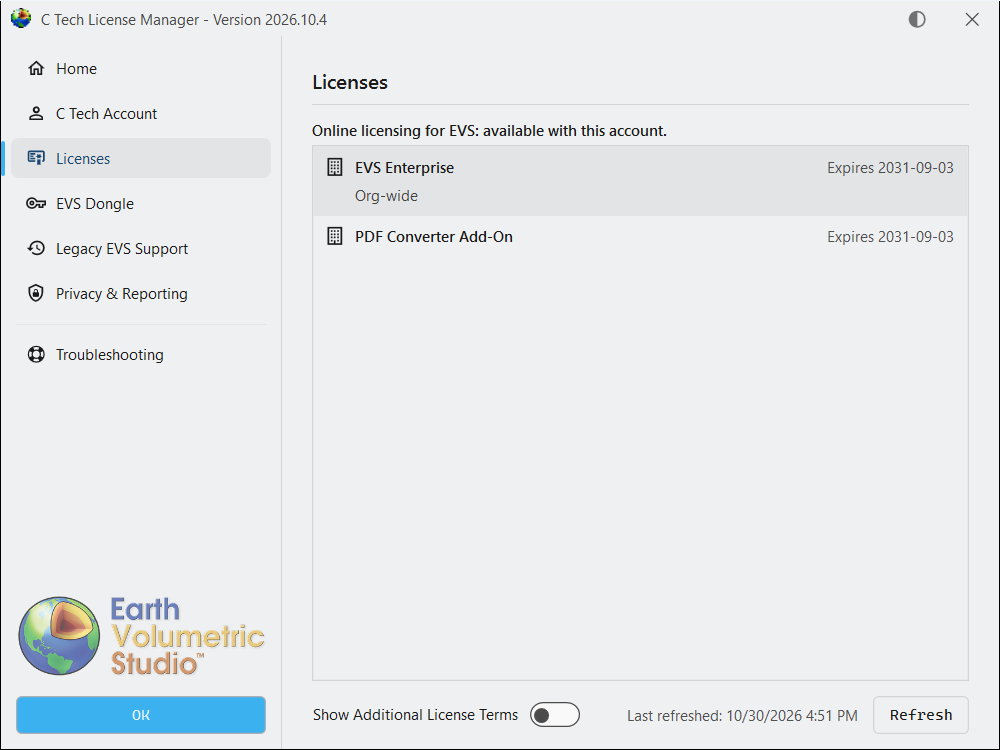
Licenses page Licenses page

  • Assigned to you. You can use this license.
  • Not assigned to you. Ask your company administrator to assign it. To see who they are, sign in to account.ctech.com and open the Company tab, which lists your administrators. The Ask your organization admin link on this page opens it for you.
  • Refresh. Reloads your account and its licenses. Use it after an admin changes your assignment.

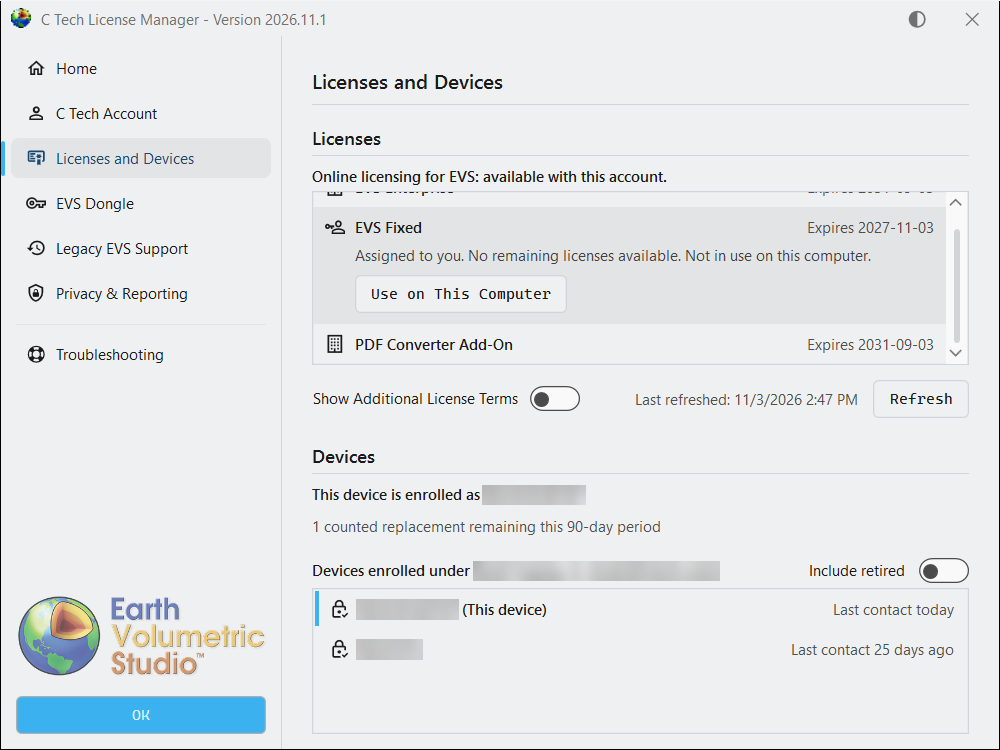
If you hold an EVS Fixed license, the page is called Licenses and Devices and also shows your computers. See Fixed Seats and Devices.

Keep the License Manager running

Leave Run on Startup turned on. The License Manager then starts in the Windows system tray when you sign in to Windows and keeps your license renewed in the background.

Tip

This is recommended for all EVS Fixed and EVS Enterprise users. Renewing in the background keeps your license working if the computer later goes offline.

EVS needs the License Manager while it runs. If you exit the License Manager from the tray, EVS pauses licensed work after a short delay. Editing and saving keep working.

Working offline

After EVS has licensed online on a computer, you can use it there without an internet connection for a limited time. Within that time EVS can run, close and start again offline.

The offline time counts from the License Manager’s last renewal, not from when you go offline. While the License Manager runs and the computer is online, it renews about every 3 hours for EVS Fixed and EVS Demo, and about once a day for EVS Enterprise and EVS University. Before you travel, keep the License Manager running and connected for a few hours. Sleeping or restarting the computer does not reset the offline time.

LicenseCan run offline for
EVS Fixed and EVS DemoUp to 7 days
EVS Enterprise and EVS UniversityUp to 30 days
EVS FloatingNot at all. Floating licenses need a connection the whole time EVS runs.

Several accounts on one computer

Note

Most computers need only one C Tech account. If several people share a computer, each person should sign in to Windows with their own Windows login and sign in to the License Manager there with their own C Tech account.

Several accounts are mainly for consultants who work for more than one licensed company and switch between them for different jobs.

The C Tech Account page lists the accounts remembered for your Windows user. You can switch between them or forget one.
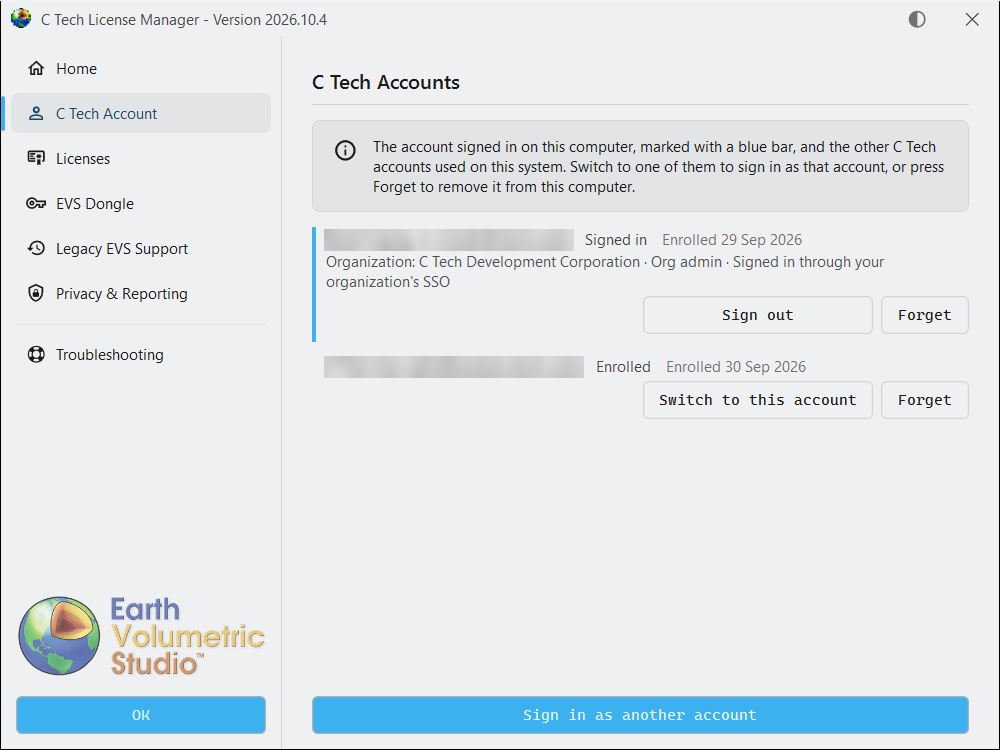
C Tech Account page C Tech Account page

Older EVS versions

EVS 2026.3.5 and earlier can use your Floating, Enterprise or University license through the License Manager. See Legacy EVS Support.
Subsections of Online Licensing

An EVS Fixed license is assigned to one person. That person can register it on 2 computers and use it on 1 at a time.

Using a Fixed license on a new computer

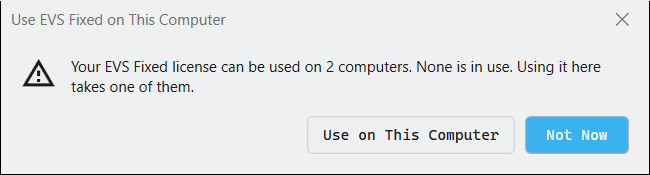
The first time you start EVS with your Fixed license on a computer, you are asked whether to use it there.

Use EVS Fixed on This Computer

Your EVS Fixed license can be used on 2 computers. 1 is in use. Using it here takes the other.

Select Use on This Computer to register the computer, or Not Now to leave things as they are. The License Manager never takes a computer slot by itself.

You can make the same choice later on the Licenses and Devices page in the License Manager.

Licenses and Devices page with Use on This Computer Licenses and Devices page with Use on This Computer

Select Use on This Computer on the EVS Fixed license. The License Manager asks you to confirm before it takes one of your 2 computers.

Use EVS Fixed on This Computer confirmation Use EVS Fixed on This Computer confirmation

Once the computer is registered, Use on This Computer no longer shows on the license.

EVS Fixed registered on this computer EVS Fixed registered on this computer

Switching between your two computers

Moving between your 2 registered computers is free and never counts as a replacement. Close EVS on one computer, then start it on the other.

  • In use on your other computer. EVS will not start while the license is in use on your other computer. If EVS on the other computer did not close normally, the license becomes free within about 7 minutes.
  • Started elsewhere while running. If your license starts on your other computer while EVS is running here, EVS keeps running for 6 more minutes, then pauses licensed work.

Moving to another computer

If both slots are taken and you want to use a new computer, open the Licenses and Devices page on the new computer. The Devices list shows your registered computers.

  • Take Over License. Shows on a computer that holds your license. Retires that computer and moves its slot to this computer. The retired computer can no longer use the license.
  • Retire Device. Shows on a computer that holds no license. Retires it, which frees its slot.

Both retire a computer for good and can use a counted replacement. To move between your 2 registered computers, do not use them. Close EVS on one and start it on the other.

Each change shows what it costs before you confirm.

  • Free replacement. The computer being retired has had no contact with C Tech for more than 10 days.
  • Uses one of N counted replacements this 90-day period. You get one counted replacement in any 90-day period. It belongs to you, not to a computer.

When no counted replacement is left, the page shows the date the next one becomes available.

Turn on Include retired to see computers that were replaced or retired.

These never count as a replacement.

  • Registering a computer for the first time.
  • Signing in again on a computer that is already registered.
  • A computer retired automatically after 30 days with no contact with C Tech.

Reinstalling Windows or resetting a computer makes it a new computer. Retire its old registration the same way.

Lost or broken computer

Retire it from the Licenses and Devices page on your new computer. If you cannot, contact support@ctech.com. A computer with no contact for 30 days is also retired automatically.

Reassigning a Fixed license to another person

Your company administrator assigns each Fixed license on the Assignments tab of account.ctech.com. See Company Accounts and Seats.

  • The new person starts fresh. When a license is reassigned, the previous person’s computers no longer count for it. This never uses anyone’s replacements.
  • 3 reassignments per product. Each time a Fixed license is unassigned, including when its member is removed from your company, that unassignment uses one of your company’s 3 reassignments for that product for the next 60 days. The 3 are shared by all of your company’s Fixed licenses for that product.
  • When all 3 are in use. A freed license cannot be assigned again until the oldest unassignment is 60 days old.
  • New licenses. A license that was never assigned, such as one from a new purchase, can be assigned while your assigned licenses plus the unassignments of the last 60 days are fewer than the licenses your company holds.

For example, your company holds 3 Fixed licenses and 1 is assigned. In the last 60 days you unassigned licenses 3 times, so all 3 reassignments are in use.

  • The 2 free licenses wait. You cannot assign them until the oldest unassignment is 60 days old.
  • Buying 1 more license does not help yet. You now hold 4. Assigned licenses plus recent unassignments are 1 + 3 = 4, which is not fewer than 4.
  • Buying 2 more does. You now hold 5. 1 + 3 = 4 is fewer than 5, so you can assign one license right away.

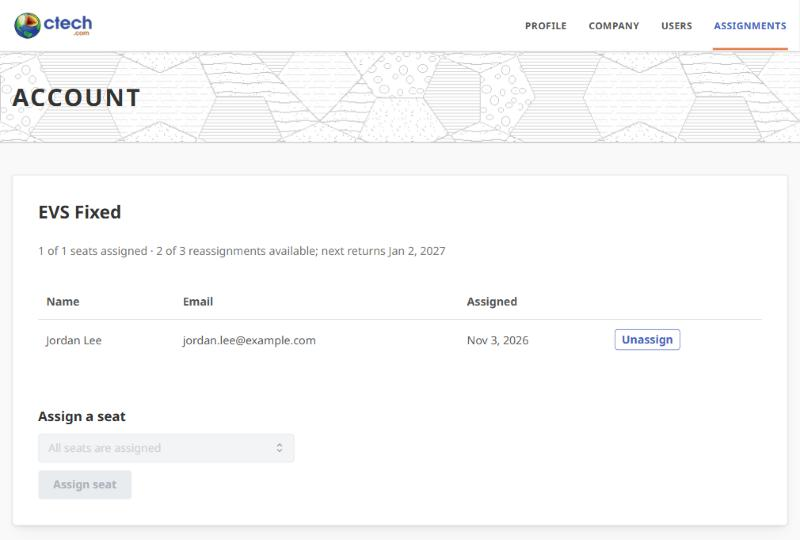
The Assignments tab shows how many reassignments are available and when the next one returns.

Assignments tab showing reassignments available Assignments tab showing reassignments available

See the C Tech Licensing Policy for the full rules.

Enterprise, University and Demo

These licenses have no computer limit. Sign in on any computer and start EVS.

Virtual machines

You can use an EVS Fixed license on a virtual machine, but it is not recommended.

Warning

A virtual machine that is rebuilt, reset or thrown away counts as a new computer each time. Each new one takes one of your 2 computer slots and can use up your counted replacements. When none are left, you cannot use EVS on another computer until the next replacement becomes available.

If you use a virtual machine, follow these rules.

  • Keep the same virtual machine. Use one persistent virtual machine that keeps its disk between sessions.
  • Avoid pooled or non-persistent desktops. Virtual desktops that reset at sign-out or hand you a different machine each time use up your slots quickly.
  • Do not clone or restore it. Do not copy a virtual machine after EVS is registered on it, and do not restore it from an older snapshot.
  • Retire it before you delete it. Select Retire Device on the Licenses and Devices page before you delete a virtual machine. See Moving to another computer.