Online licensing uses your C Tech account. There is no license server to install and no license file to load. It covers these licenses.
- EVS Fixed
- EVS Floating
- EVS Enterprise
- EVS University
Set up Online licensing
Open the C Tech License Manager from the Windows Start Menu.
On the Home page, select Online or Demo. Online licenses use the same mode as demos.
Select Login to C Tech and enter the email address for your C Tech account.
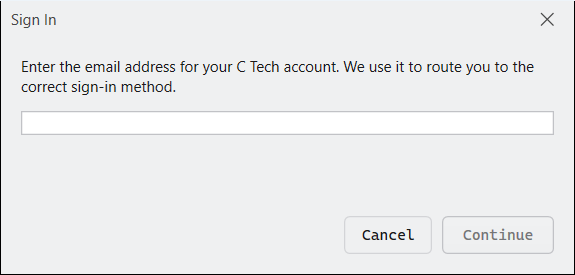
Your web browser opens. Sign in there. If your organization uses single sign-on, you sign in with your company account.
Return to the License Manager. Your name, organization and email now show under User Information.
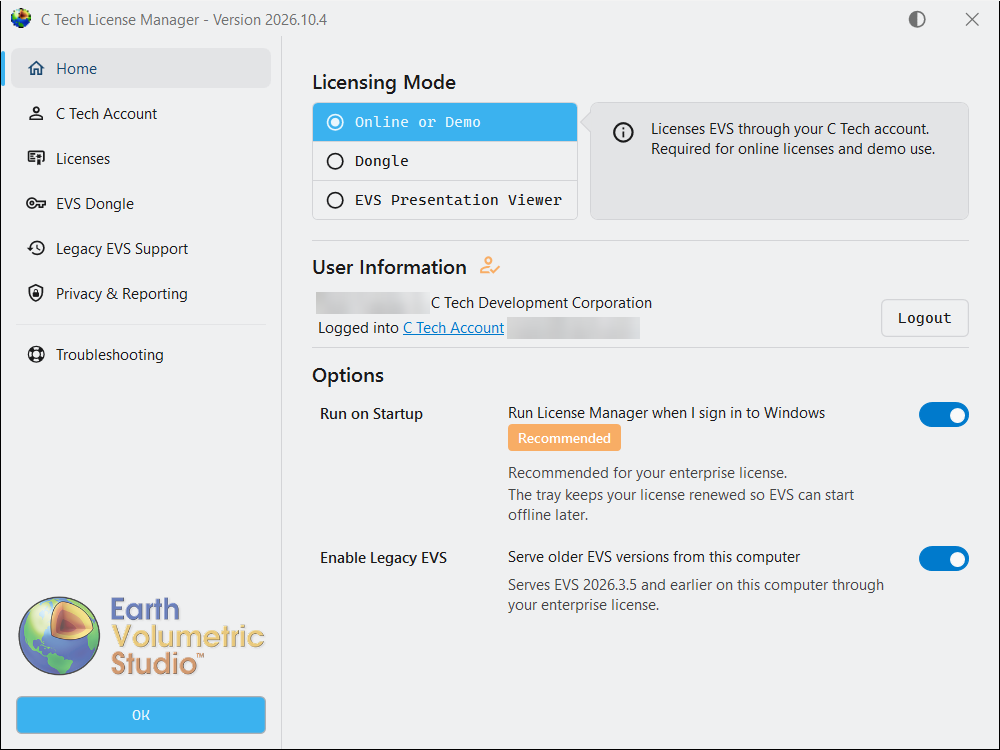
Select OK, then start EVS.
Tip
No account yet? Ask your company’s C Tech administrator to invite you, then accept the emailed invitation. If your company uses single sign-on, as Enterprise customers often do, no invitation is needed. Select Login to C Tech and sign in with your company account. See Company Accounts and Seats.
Check your licenses
The Licenses page lists the licenses your organization holds and whether each one is available to you.
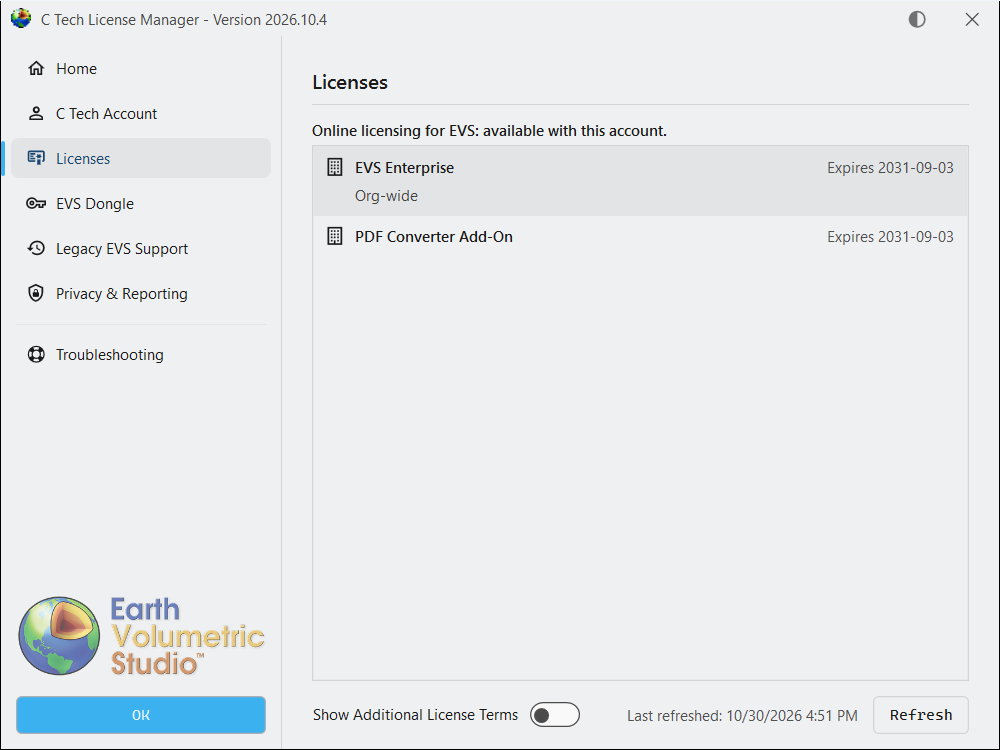
- Assigned to you. You can use this license.
- Not assigned to you. Ask your company administrator to assign it. To see who they are, sign in to account.ctech.com and open the Company tab, which lists your administrators. The Ask your organization admin link on this page opens it for you.
- Refresh. Reloads your account and its licenses. Use it after an admin changes your assignment.
If you hold an EVS Fixed license, the page is called Licenses and Devices and also shows your computers. See Fixed Seats and Devices.
Keep the License Manager running
Leave Run on Startup turned on. The License Manager then starts in the Windows system tray when you sign in to Windows and keeps your license renewed in the background.
Tip
This is recommended for all EVS Fixed and EVS Enterprise users. Renewing in the background keeps your license working if the computer later goes offline.
EVS needs the License Manager while it runs. If you exit the License Manager from the tray, EVS pauses licensed work after a short delay. Editing and saving keep working.
Working offline
After EVS has licensed online on a computer, you can use it there without an internet connection for a limited time. Within that time EVS can run, close and start again offline.
The offline time counts from the License Manager’s last renewal, not from when you go offline. While the License Manager runs and the computer is online, it renews about every 3 hours for EVS Fixed and EVS Demo, and about once a day for EVS Enterprise and EVS University. Before you travel, keep the License Manager running and connected for a few hours. Sleeping or restarting the computer does not reset the offline time.
| License | Can run offline for |
|---|---|
| EVS Fixed and EVS Demo | Up to 7 days |
| EVS Enterprise and EVS University | Up to 30 days |
| EVS Floating | Not at all. Floating licenses need a connection the whole time EVS runs. |
Several accounts on one computer
Note
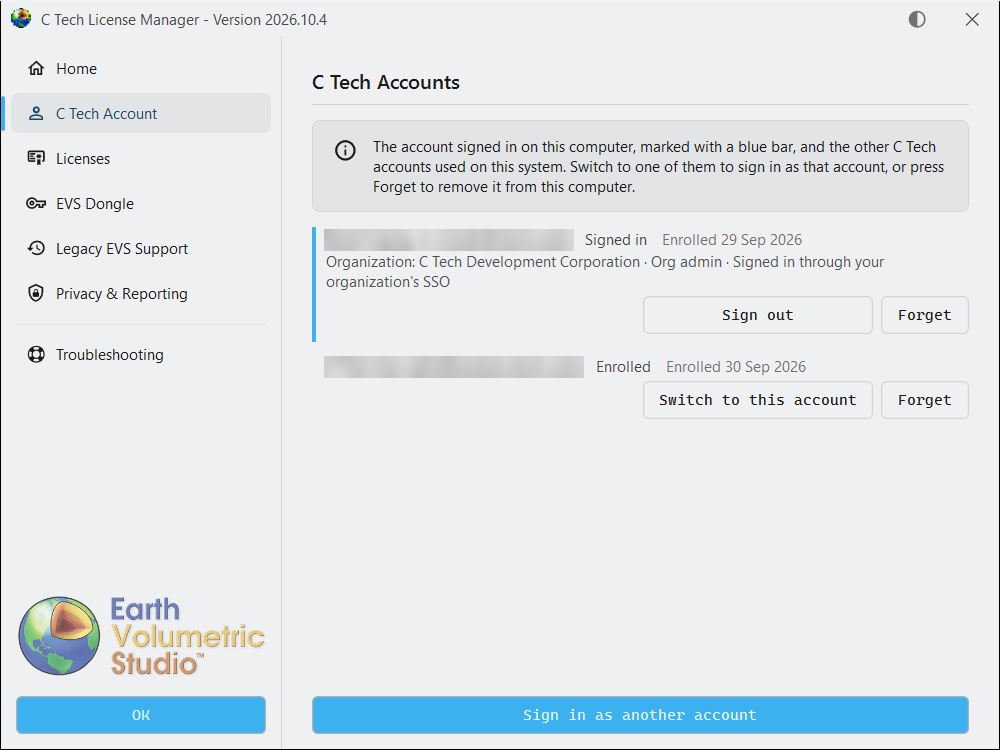
Most computers need only one C Tech account. If several people share a computer, each person should sign in to Windows with their own Windows login and sign in to the License Manager there with their own C Tech account.
Several accounts are mainly for consultants who work for more than one licensed company and switch between them for different jobs.
The C Tech Account page lists the accounts remembered for your Windows user. You can switch between them or forget one.
Older EVS versions
EVS 2026.3.5 and earlier can use your Floating, Enterprise or University license through the License Manager. See Legacy EVS Support.