Dongle Licensing

Dongle licensing uses a fixed EVS USB dongle (license key) attached to the computer. EVS licenses from the dongle without an internet connection.

Set up Dongle licensing

  1. Attach the dongle to a USB port on this computer.

  2. Open the C Tech License Manager from the Windows Start Menu.

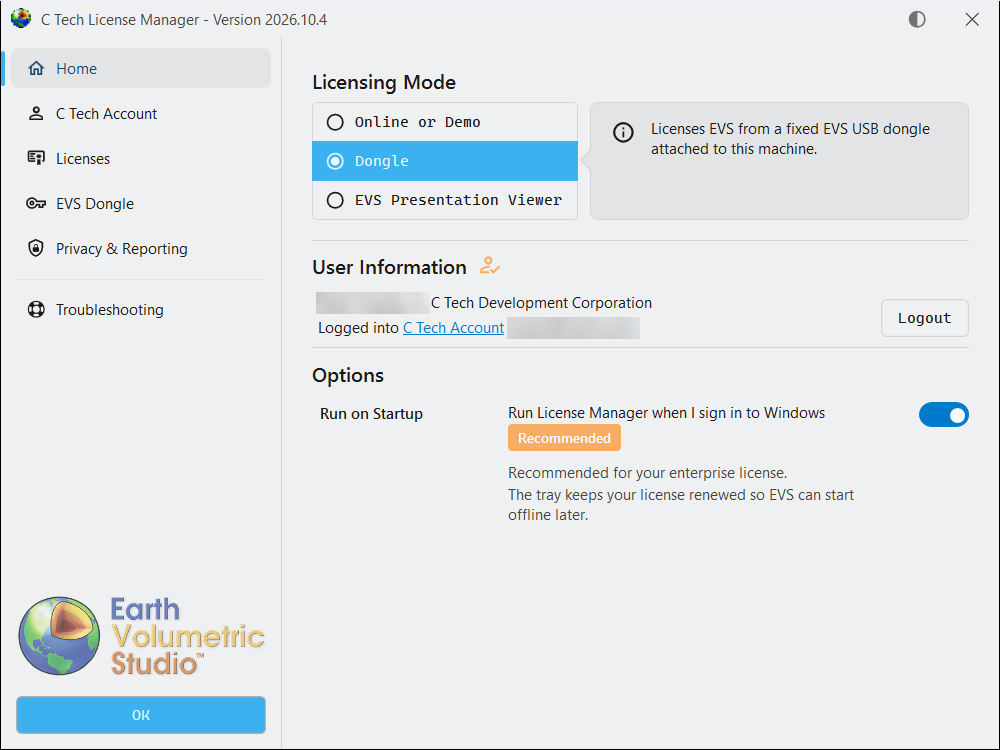
  3. On the Home page, select Dongle.

    Home page with Dongle selected Home page with Dongle selected

  4. If you are not signed in to a C Tech account, enter your Name and Organization under User Information. This helps C Tech support you.

  5. Select OK, then start EVS.

The License Manager must be running while EVS uses the dongle. Leave Run on Startup turned on.

Check the dongle

The EVS Dongle page shows each EVS dongle attached to this computer and the date its subscription is paid through. Select Refresh after you attach or remove a dongle.
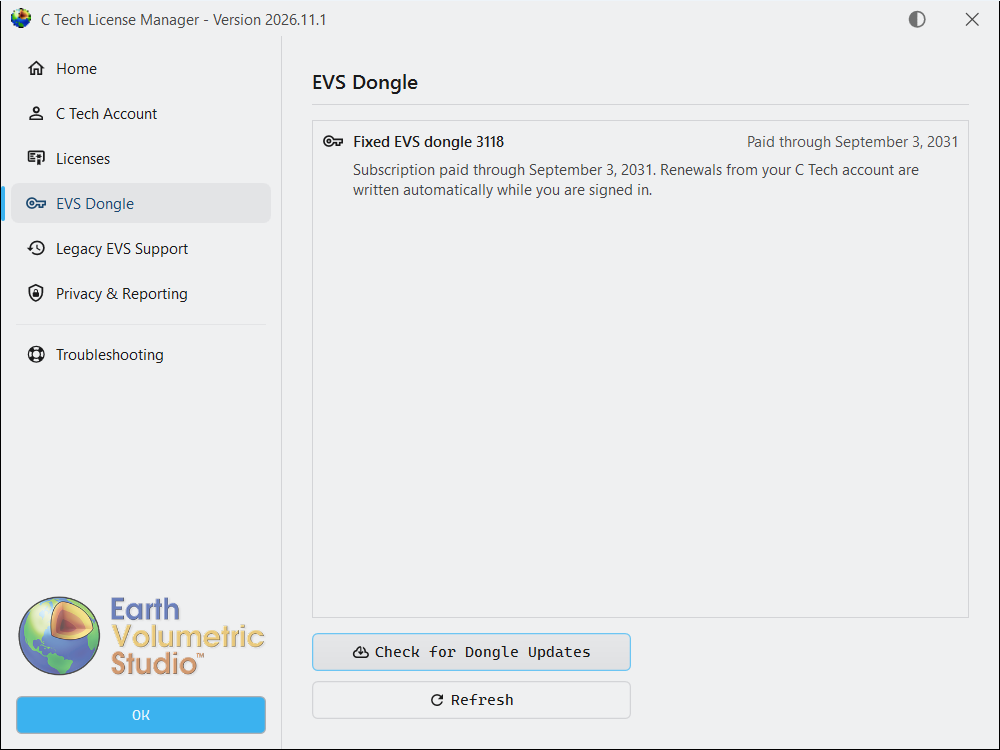
EVS Dongle page EVS Dongle page

Rules for dongles

  • Subscription date. A dongle licenses an EVS release only if its subscription runs through that release’s date or later. Renewals are written to the dongle as described in Dongle Renewals.
  • No virtual machines. Dongles cannot be used on a virtual machine. Use Online licensing there instead.
  • Fixed dongles only. Floating and Enterprise dongles are no longer supported. Those licenses now run as Online licensing. See Move to Online Licensing.

3D PDF Converter with a dongle

A dongle never licenses the 3D PDF Converter. To use it in Dongle mode, also sign in to a C Tech account whose organization holds the PDF Converter Add-On.

Older EVS versions

EVS 2026.3.5 and earlier read the dongle themselves and keep working after you install this License Manager.
Subsections of Dongle Licensing

When you renew your subscription, the new date is written to your dongle from your C Tech account. C Tech no longer sends .ctupdate files.

Automatic renewal

While you are signed in, the License Manager checks every fixed EVS dongle attached to the computer against your C Tech account. It does this when it starts, when you sign in, when your licenses change and once a day. When the dongle’s dates differ from your account, it writes the new dates and shows a notification from the system tray.

Nothing else is needed. You only have to be signed in to the C Tech account the dongle is registered to.

Check now

  1. Attach the dongle and open the C Tech License Manager.

  2. Sign in to your C Tech account if you are not signed in. You can stay in Dongle mode.

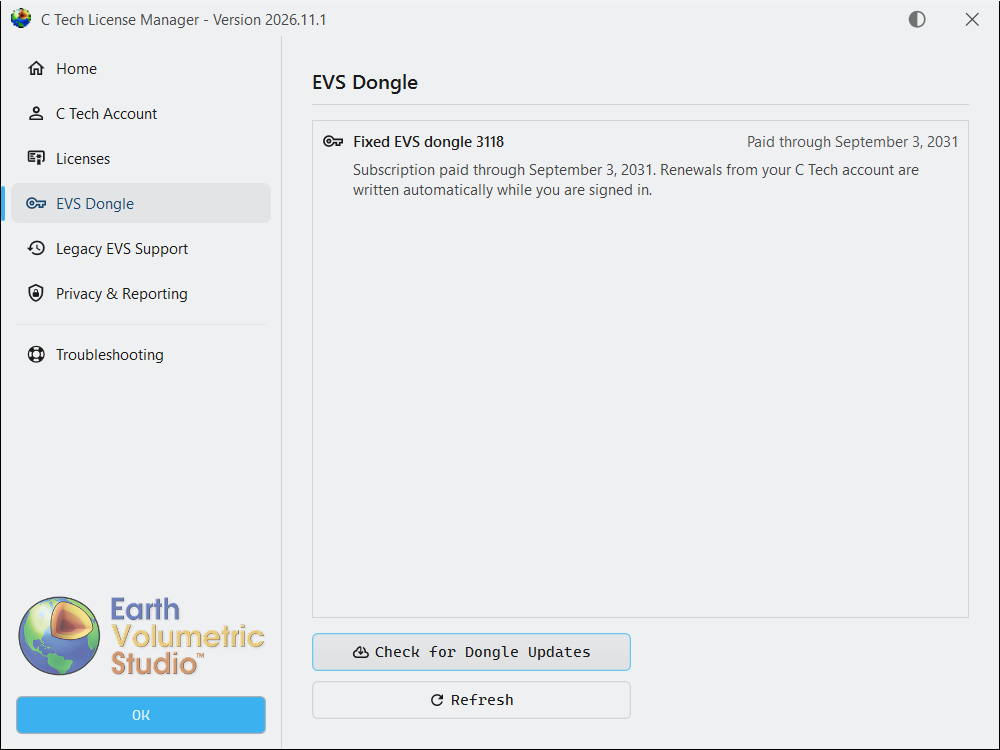
  3. Open the EVS Dongle page and select Check for Dongle Updates.

    EVS Dongle page with Check for Dongle Updates EVS Dongle page with Check for Dongle Updates

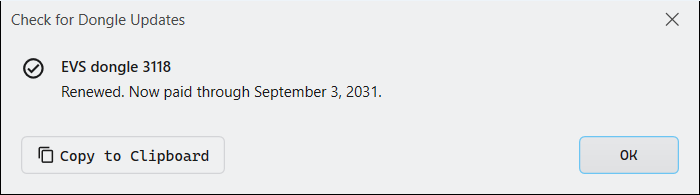
A window shows the result for each dongle, either that it is up to date or what was written. Select Copy to Clipboard to send the results to C Tech support.

Check for Dongle Updates result Check for Dongle Updates result

Computers without internet access

Take the dongle to a computer that has internet access and this License Manager, sign in, and select Check for Dongle Updates. Then return the dongle. You need to do this once per renewal.

Messages you may see

  • This dongle is not registered to your C Tech organization. Contact C Tech with the dongle number to have it added.
  • This dongle holds a lifetime this License Manager does not support. Select Check for Dongle Updates to write your subscription.
  • The license dongle’s subscription ended. Renew your subscription with C Tech. After it is renewed on your account, sign in and the License Manager writes the new date.
  • This license dongle has no subscription end date and is no longer supported. Contact C Tech to replace it.

.ctupdate files

This License Manager does not open .ctupdate files. If you received one for an older version, see License Updates for EVS 2026.3.5 and earlier.