Dongle licensing uses a fixed EVS USB dongle (license key) attached to the computer. EVS licenses from the dongle without an internet connection.
Set up Dongle licensing
Attach the dongle to a USB port on this computer.
Open the C Tech License Manager from the Windows Start Menu.
On the Home page, select Dongle.
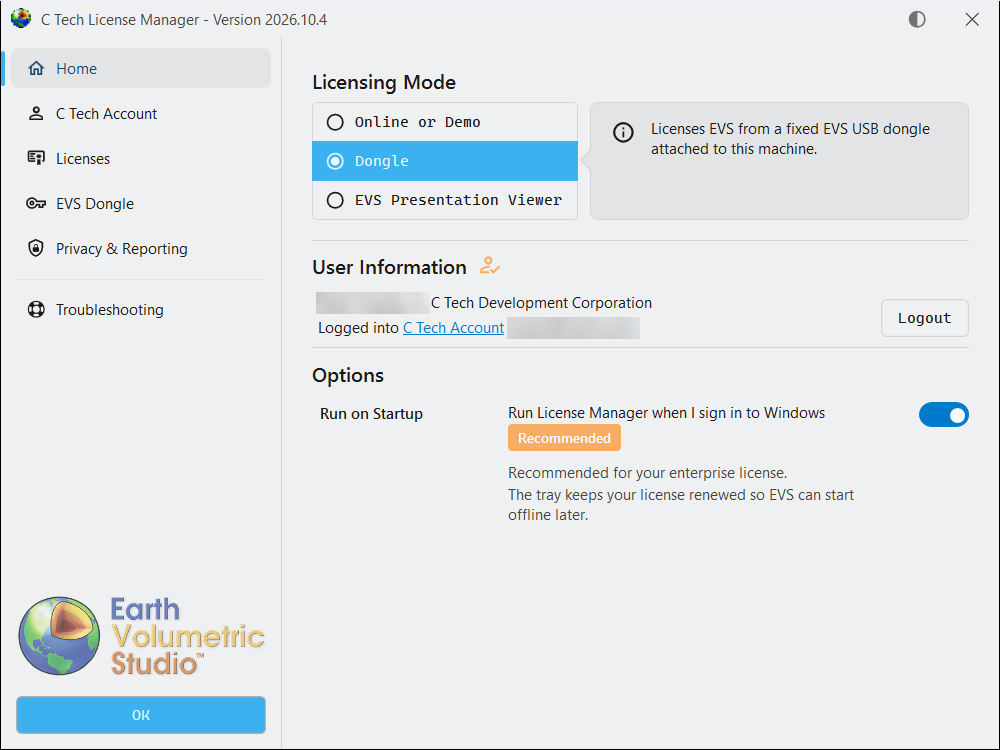
If you are not signed in to a C Tech account, enter your Name and Organization under User Information. This helps C Tech support you.
Select OK, then start EVS.
The License Manager must be running while EVS uses the dongle. Leave Run on Startup turned on.
Check the dongle
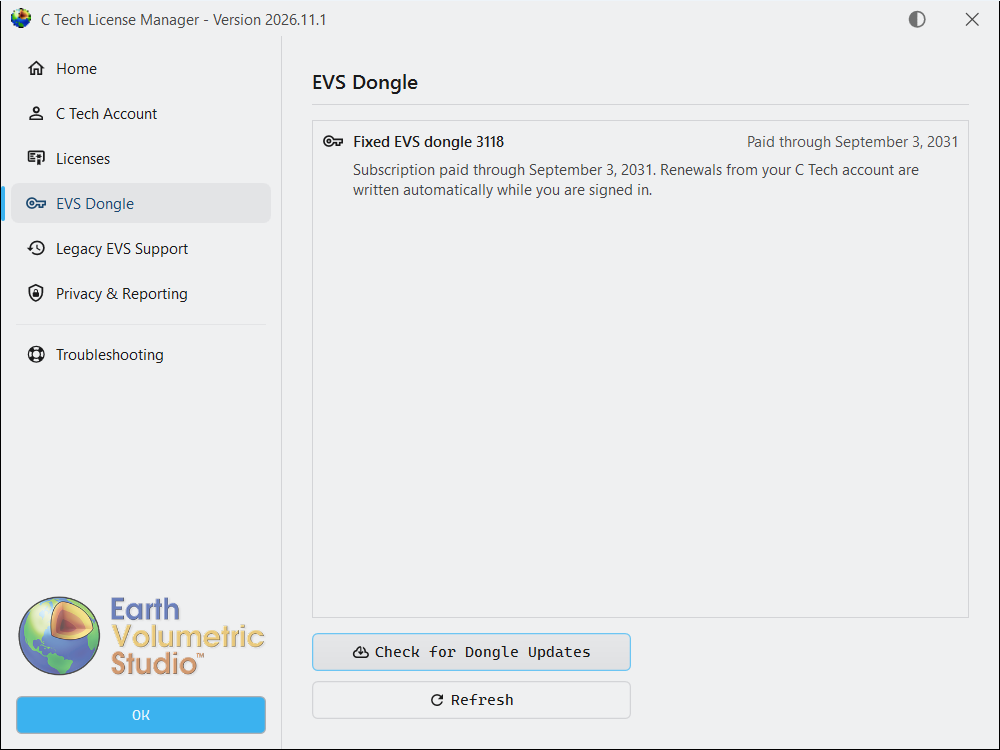
The EVS Dongle page shows each EVS dongle attached to this computer and the date its subscription is paid through. Select Refresh after you attach or remove a dongle.
Rules for dongles
- Subscription date. A dongle licenses an EVS release only if its subscription runs through that release’s date or later. Renewals are written to the dongle as described in Dongle Renewals.
- No virtual machines. Dongles cannot be used on a virtual machine. Use Online licensing there instead.
- Fixed dongles only. Floating and Enterprise dongles are no longer supported. Those licenses now run as Online licensing. See Move to Online Licensing.
3D PDF Converter with a dongle
A dongle never licenses the 3D PDF Converter. To use it in Dongle mode, also sign in to a C Tech account whose organization holds the PDF Converter Add-On.
Older EVS versions
EVS 2026.3.5 and earlier read the dongle themselves and keep working after you install this License Manager.