C Tech License File Updates let you install and update licenses on both local and remote machines. Updates work for both USB dongle licenses and software-based licenses across all C Tech products.
For USB dongle licenses, the update is written directly to the dongle and only needs to be applied once, even if the dongle is later moved to a different computer. For software-based licenses, updates are tied to the specific computer whose System Identifier was provided when the license was created. You can only apply them on that computer.
C Tech will email you a .ctupdate file (or send it another way if needed). You will use this file to apply the update or install a license. Save it somewhere you can easily find it, as you will need it in the following steps.
Warning
If your C Tech License Manager does not match the images on this page, you may be running an old version. Download and install the latest version from https://ctech.com/downloads/.
Local Updates
This is the standard way to update Fixed (USB dongle) licenses. Floating and Enterprise users can also use local updates when applying the update directly on the license server machine. You can also update a remote license server from another computer. See Remote Updates below.
To update your local licenses, click the “Local License Management” tab in the C Tech License Manager, then click the “Load .ctupdate File” button.
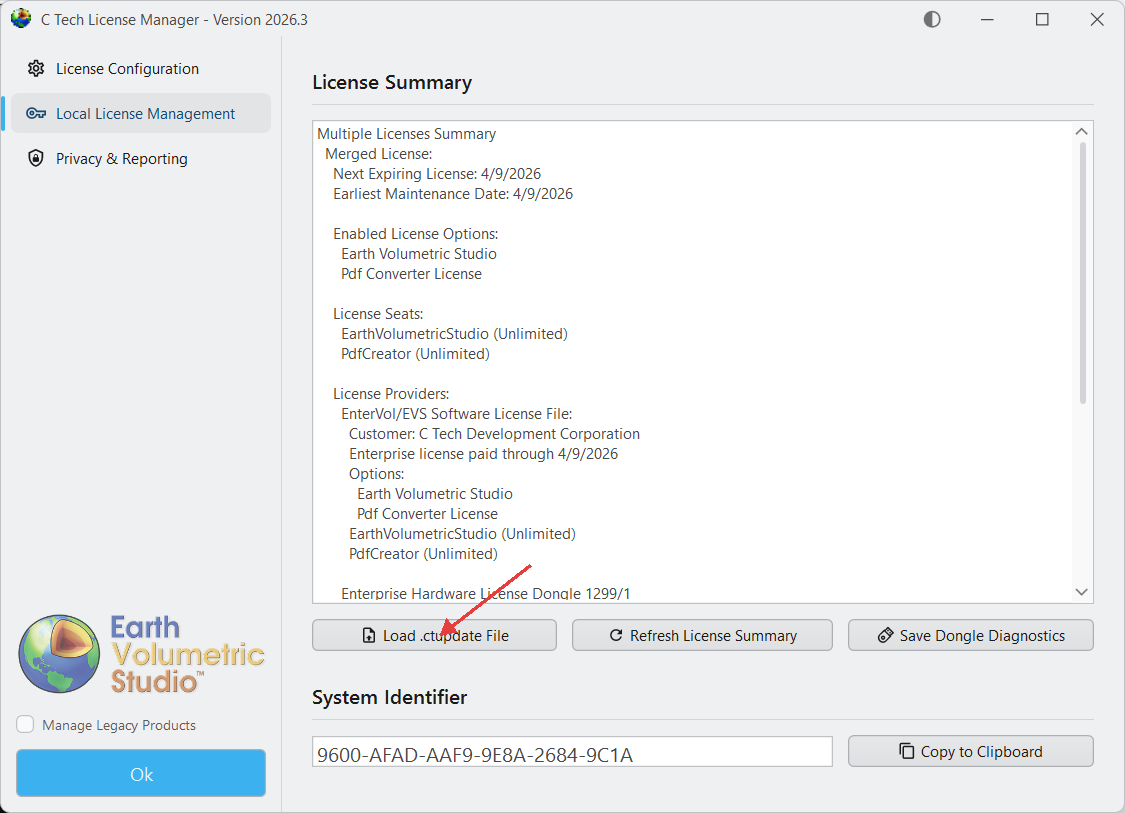
A file browser will open asking you to choose the .ctupdate file you received. Select it, and the License Manager will show whether the update succeeded and display the updated licenses in the License Summary area.
Local License Management Tab Functions
- Load .ctupdate File: Load and apply a C Tech License Update File (.ctupdate) to update or upgrade existing licenses.
- Refresh License Summary: Refreshes the License Summary display to reflect any changes.
- License Summary: Shows all licenses on this computer, including both USB dongle and software-based licenses.
- Save Dongle Diagnostics: If you are having trouble with a USB dongle, use this to create a diagnostics file. Choose a folder to save it in. If C Tech support asks for this, send all generated files as email attachments.
Remote Updates
Remote updates let you update your organization’s license server from your own computer, without needing to be at the server. This is useful for Floating and Enterprise license users who need to update a remote C Tech Universal License Server.
To apply a remote update, click the “License Configuration” tab in the C Tech License Manager. You should already have a license server set up. If not, see License Manager Reference to add one first. Then click the “Load Remote Update File” button.
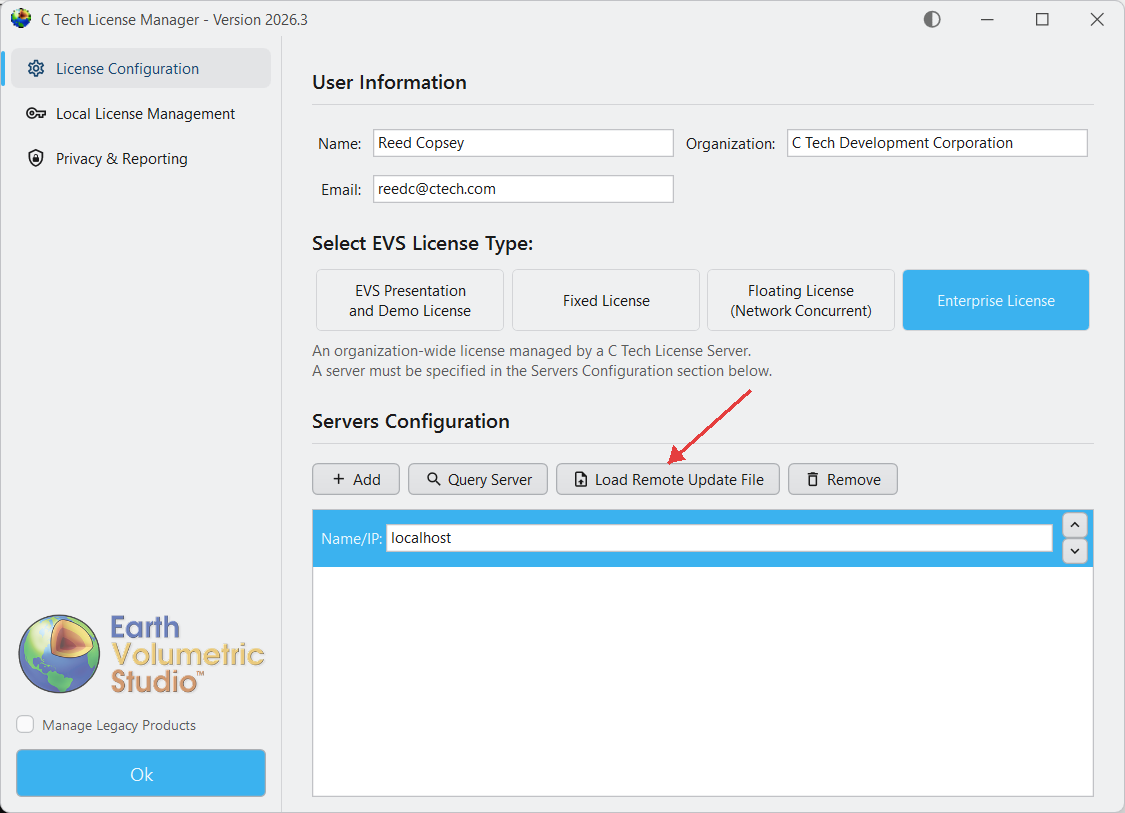
A file browser will open asking you to choose the .ctupdate file you received. Select it, and after a moment the License Manager will show whether the update succeeded. To check the server’s status, click the “Query Server” button on the same row.