License Server Setup

C Tech employs a single license server which supports the following products:

  • Earth Volumetric Studio (EVS) Enterprise Licenses
  • Earth Volumetric Studio Floating Licenses
  • EnterVol for ArcGIS Concurrent and Enterprise Licenses (legacy product)
Info

The C Tech Universal License Server installer also includes the C Tech License Manager. The EVS installer includes it as well.

Before Proceeding

Warning

The minimum versions supported are Windows 11 x64 and Windows Server 2022 x64.

You need Administrator rights to install.

A system reboot may be required to complete the installation.

  • You must make sure the network ports used by the license server are not blocked.
    • Earth Volumetric Studio 2020 and newer versions use port 9348
    • Older Earth Volumetric Studio and MVS releases use port 9346
    • These ports are not user configurable; they are hard coded.
  • If you used C Tech software before 2020, you must uninstall your old license servers first. The new installer will not continue if any old servers are still installed. See Required Uninstalls of C Tech’s Legacy Servers for details.

Once you have completed these steps, run the installer. After it finishes, you can verify the C Tech Universal License Server is installed and running by checking the Windows Services program:
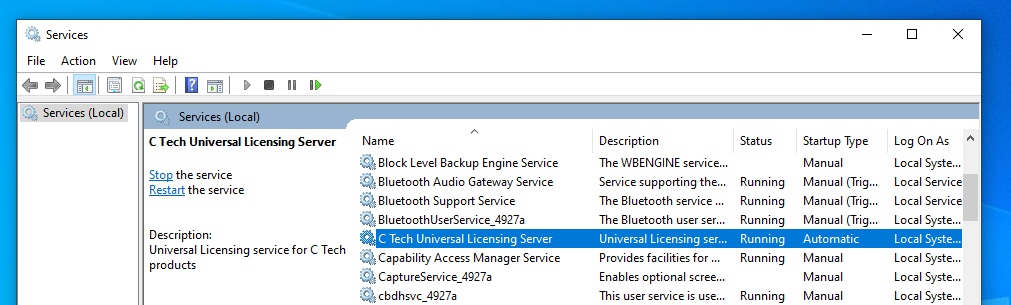
Windows Services showing C Tech Universal License Server Windows Services showing C Tech Universal License Server

You should also check that the C Tech License Manager can connect to the license server:
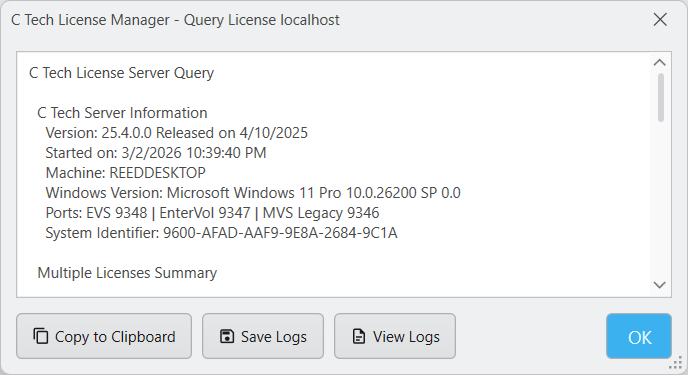
C Tech License Manager Query C Tech License Manager Query

For more information on how to check the license server’s status, see License Updates

Cloud Server Installation For Enterprise Customers

Some Enterprise customers run the C Tech Universal License Server on cloud platforms such as Azure and AWS.

USB license keys must still be accessible through a USB port. Some customers have solved this using USB redirection devices (such as AnywhereUSB). Enterprise USB license keys can be used with virtual machines to serve licenses to your users.

Info

Software based licensing is also available for cloud installation. Contact C Tech support for more information.

See Requesting Enterprise Software Licenses for how to obtain your System Identifier and request a license.

Next Step: Configure Client Machines

Installing the C Tech Universal License Server only sets up the server. You must also set up each user’s computer to connect to it:

  1. Install Earth Volumetric Studio on each client machine.
  2. Install the Earth Volumetric Studio Sample Projects for each user on each client machine.
  3. In the C Tech License Manager, set up each client computer to connect to this server by entering its name or address.

See Floating or Enterprise License Client Installation for step-by-step client configuration instructions.
Subsections of License Server Setup

EVS Enterprise users can use software licenses installed on a C Tech Universal License Server to provide licensing to multiple users. Unlike USB license keys, software licenses are tied to the specific computer where the license server is installed.

Info

For EnterVol for ArcGIS license requests, see Legacy Product Support > Requesting EnterVol Licenses.

To receive your license file after purchase, you will need to provide a “System Identifier” along with some additional information. To find your System Identifier, follow the instructions below based on your setup.

Local Installation

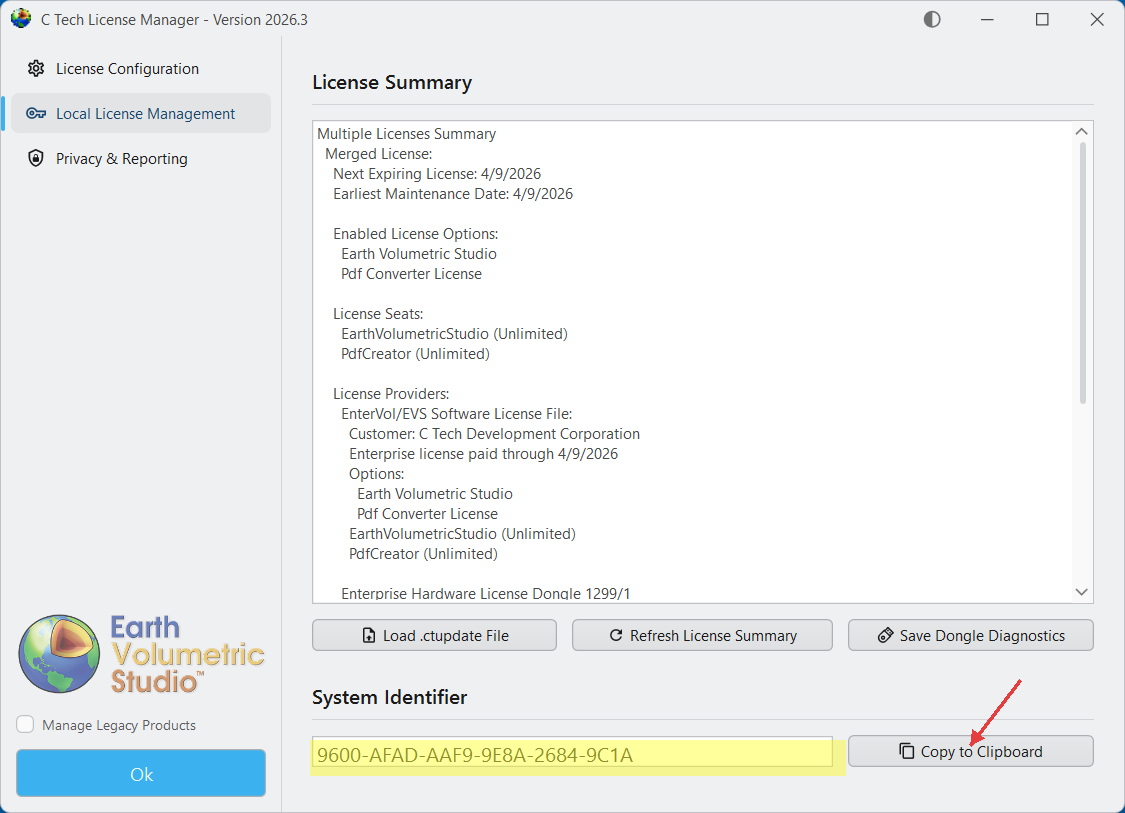
Click the “Local License Management” tab in the C Tech License Manager. At the bottom, you will see the System Identifier section. You can click “Copy to Clipboard” to copy it.

Get System Identifier Get System Identifier

Remote Installation (On a different machine over the network)

In the C Tech License Manager, click the “License Configuration” tab and make sure you have a server properly configured.

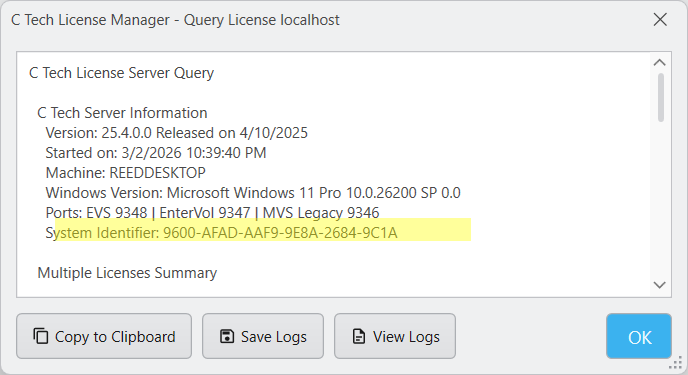
Once you are connected to the server, click the “Query Server” button. The results window will show the System Identifier for the remote server.

Remote System Identifier Remote System Identifier

Licensing Procedure

Here is how to request an Enterprise License:

EVS Enterprise licenses work through the C Tech Universal License Server like other EVS licenses, but are tied to the server’s hardware instead of a USB license key.

To request your purchased license, do the following:

  • Run the C Tech License Manager
    • You can do this on the server or any EVS client computer
      • If you are using a client computer, you must set up the Servers Configuration first.
    • Click the “Query Server” button
    • In the query results window, you will see the “System Identifier”
    • Click “Copy to Clipboard” to copy the full query results including the System Identifier

Remote System Identifier query Remote System Identifier query

Info

Your System Identifier will be unique to your computer.

Then email the System Identifier to sales@ctech.com along with the following information:

  • System Identifier: (your identifier string)
  • Company: (your company name)
  • User: (your name)
  • E-Mail: (your email address)
  • Phone: (your phone number)
  • C Tech’s Invoice number for your order (this is to ensure that you receive the proper licenses)

After verifying your information, C Tech will generate a license file and email it to the address you provided.

Once you receive the .ctupdate file, follow the included instructions to apply the update using the C Tech License Manager.

Info

This only applies to customers who were clients prior to 2020 and are updating old systems.

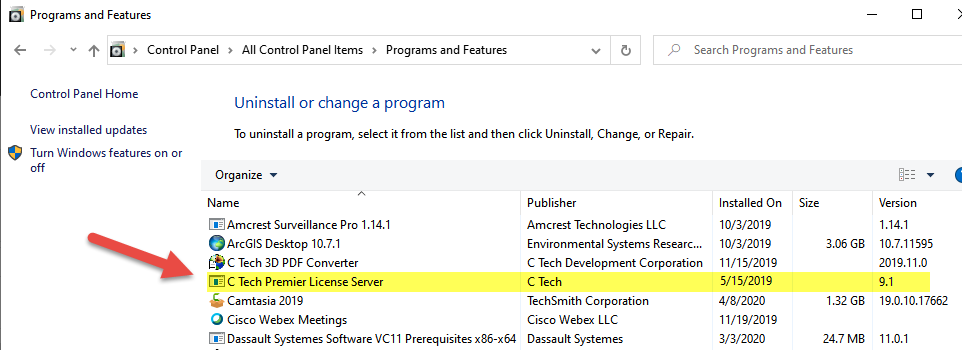
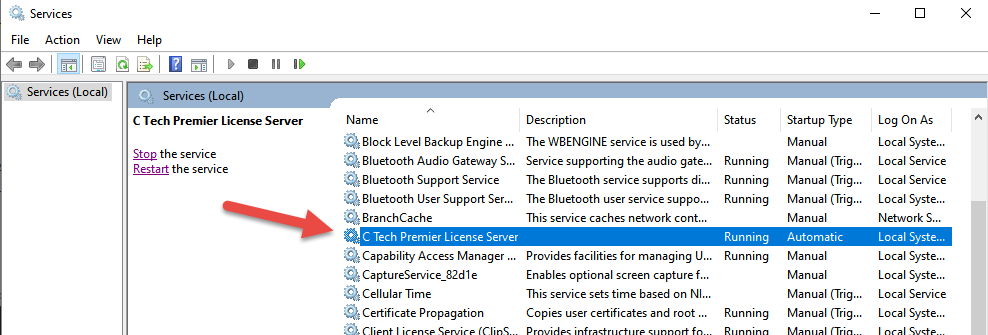
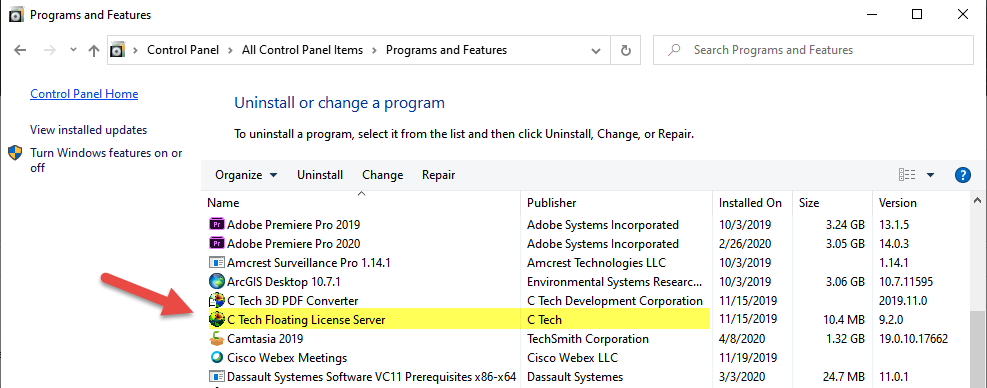
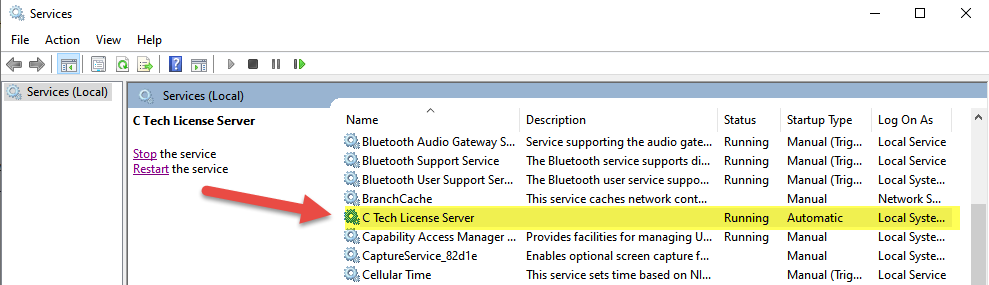
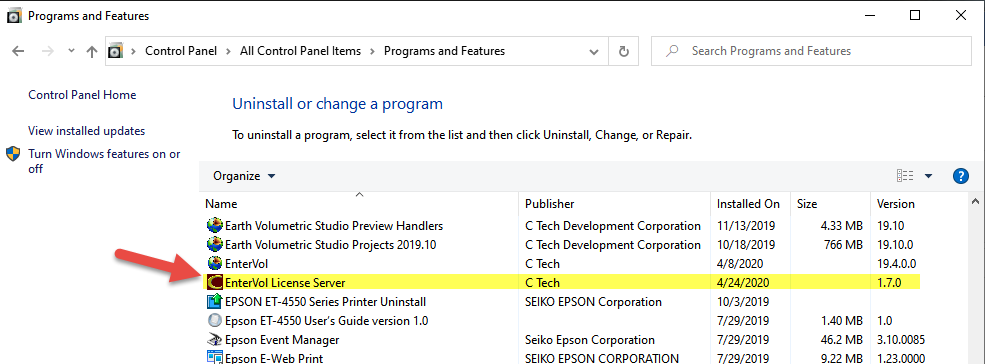
In Control Panel > Programs and Features, there are three legacy C Tech servers which you will need to Uninstall if they exist. These are:

1) C Tech Premier License Server

C Tech Premier License Server in Programs C Tech Premier License Server in Programs

C Tech Premier License Server C Tech Premier License Server

2) C Tech License Server (EVS / MVS Floating License Server)

EVS Floating License Server in Programs EVS Floating License Server in Programs

EVS Floating License Server EVS Floating License Server

3) EnterVol License Server

EnterVol License Server EnterVol License Server

Warning

These are Windows Services, so the new C Tech Universal License Server cannot remove them automatically. You must uninstall them yourself. The new installer will stop if any of these three programs are still installed.