The C Tech License Manager is the tool you and your IT team use to manage all C Tech product licenses.
The C Tech License Manager comes with most C Tech products to help you set up and manage licenses. You can also download a standalone installer from C Tech Development Corporation: Downloads.
To launch it, search for “C Tech License Manager” in the Windows Start Menu. When you open it, you will see three tabs on the left side of the window.
Info
For EnterVol for ArcGIS license configuration, see Legacy Product Support > EnterVol License Manager.
License Configuration Tab
The License Configuration tab lets you enter your information, choose your license type, and set up any remote license servers.
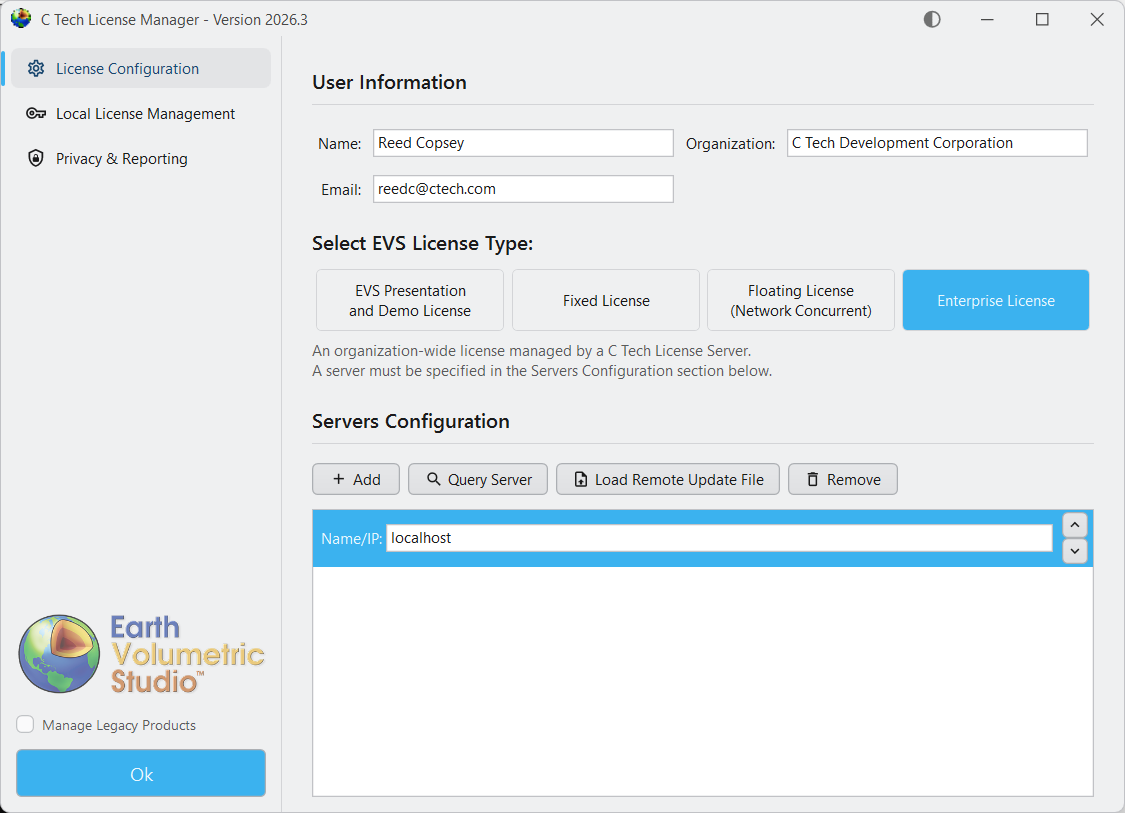
User Information
- Name: Enter the user name if on a client computer. If the license installation is on a server, enter the name of the IT Administrator.
- Organization: Your company name (e.g., ACME Geology, Inc.).
- Email: An official email address (e.g., john-smith@acmegeo.com).
License Type
Choose the license type that matches your purchase. If you select Floating or Enterprise, the Server Configuration section below will become active.
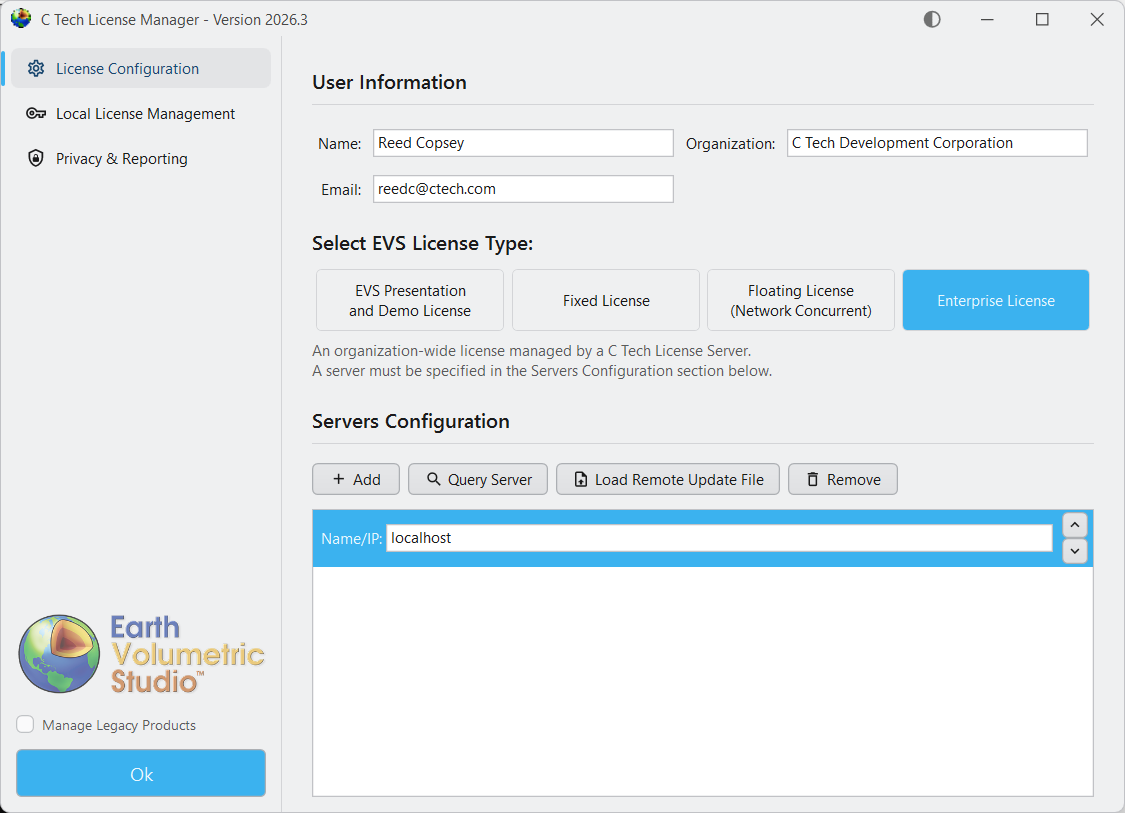
Server Configuration
Info
You can skip this section if you use EVS Demo, Presentation, or Fixed (USB dongle) licenses.
If you use Floating or Enterprise licenses, use the Servers Configuration section to enter the name or address of each computer running the C Tech Universal License Server. You can add multiple servers so that if one goes down, the others keep providing licenses.
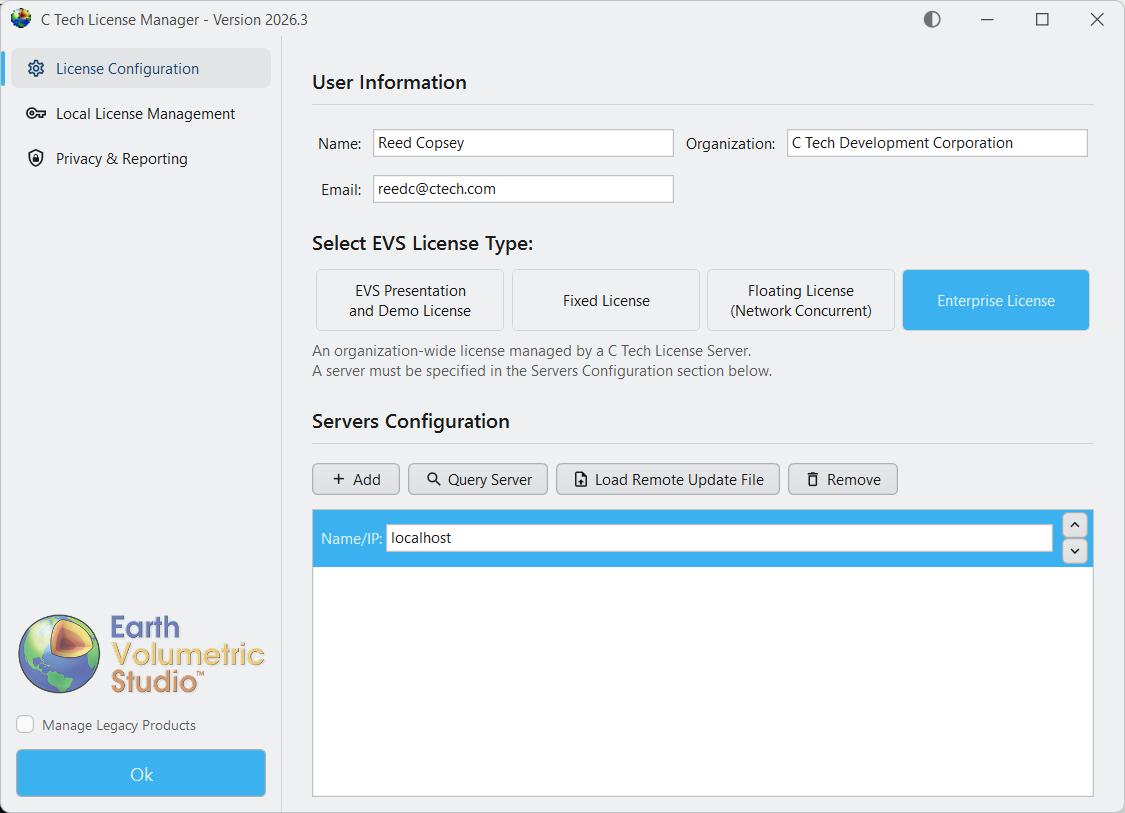
- Add / Remove: Add or remove a server name or address for your license server(s).
- Query Server: Check that you can connect to a license server and view its status. This shows all licenses on the server, along with system information including the System Identifier (needed for software licenses).
- Load Remote Update File: Apply a .ctupdate file to a remote license server. See License Updates for more information.
Local License Management Tab
The Local License Management tab lets you check the status of licenses on this computer, view your System Identifier, and apply license update files (.ctupdate).
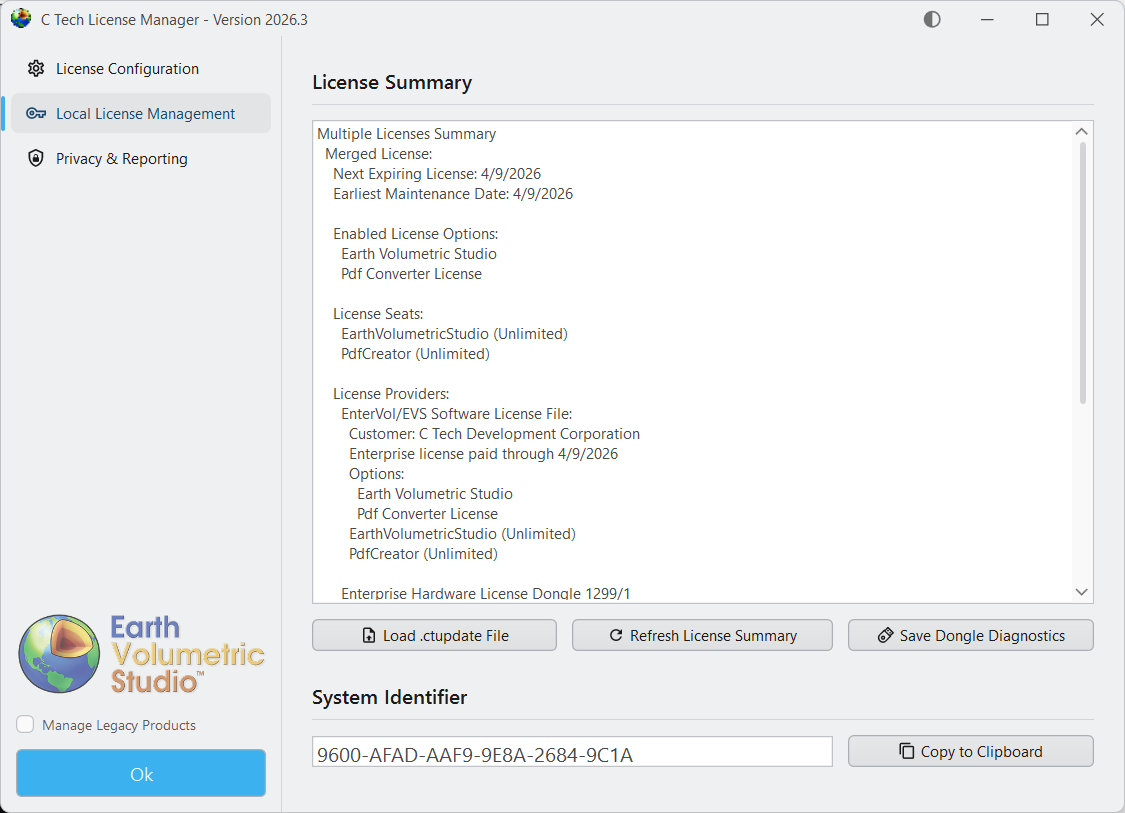
- Load .ctupdate File: Load and apply a C Tech License Update File (.ctupdate) to update or upgrade existing licenses. See License Updates for more information.
- Refresh License Summary: Refreshes the License Summary display to reflect any changes.
- License Summary: Provides a summary of all licenses installed on the local machine, including both USB dongle and software-based licenses.
- System Identifier: Shows this computer’s unique identifier, which you need when requesting software licenses.
- Save Dongle Diagnostics: Creates a diagnostics file for all C Tech USB license keys on this computer. If C Tech support asks for this, send all generated files as email attachments.
Privacy & Reporting Tab
The Privacy & Reporting tab lets you choose whether to send crash reports to C Tech.
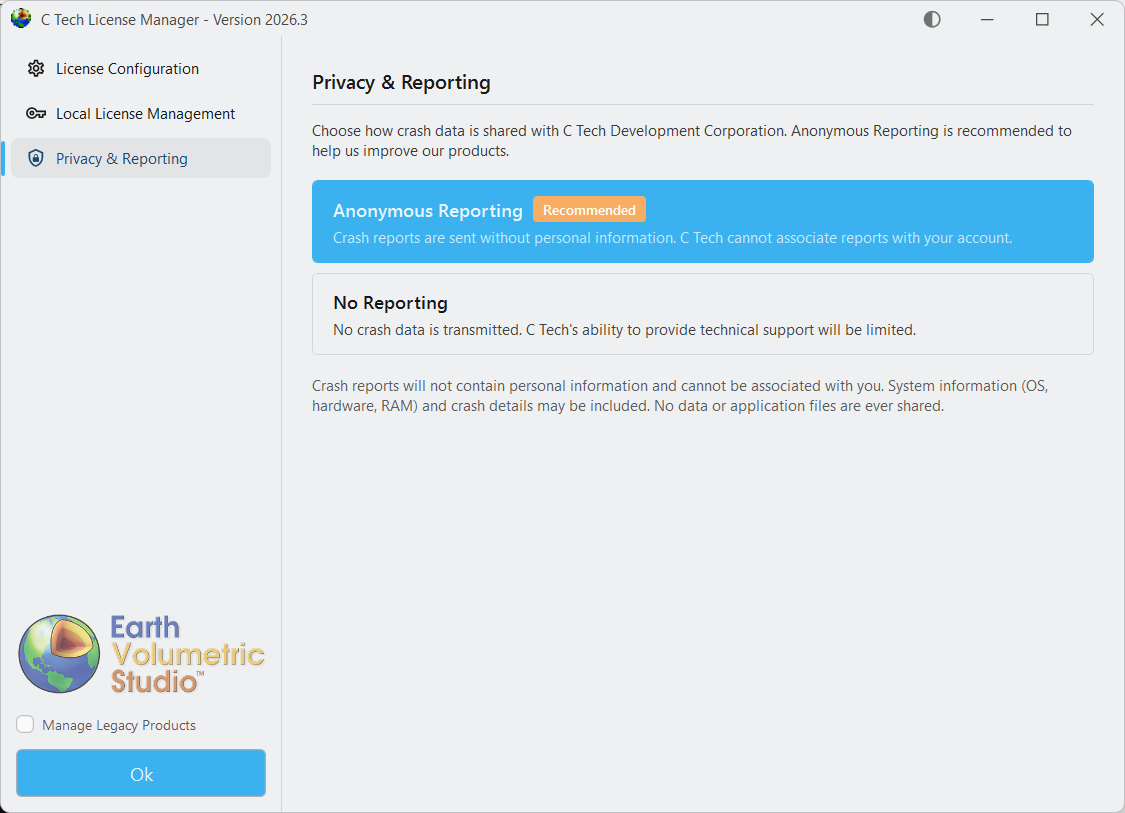
- Anonymous Reporting: Sends anonymous crash data to C Tech to help improve software quality. Reports do not contain personal information and cannot be associated with your account.
- No Reporting: No crash data is shared with C Tech.
Tip
We recommend choosing “Anonymous Reporting” so C Tech can receive crash reports that help us find and fix software problems.