EVS 2026.3.5 and earlier were built to get Floating and Enterprise licenses from a license server. The License Manager can stand in for that server on your own computer, using the license on your C Tech account.
Info
Using a fixed EVS dongle? Older EVS versions read the dongle themselves. You do not need Legacy EVS Support.
Requirements
- Online licensing, signed in to your C Tech account. See Online Licensing.
- An EVS Floating, Enterprise or University license on your account.
- No old C Tech license server installed on this computer. See Remove Old License Servers.
Legacy EVS Support serves only the computer it runs on and only the Windows user who turned it on. Other computers cannot connect to it.
Turn it on
- Open the C Tech License Manager.
- On the Home page, turn on Enable Legacy EVS. You can also turn it on from the Legacy EVS Support page or the tray icon menu.
- Select OK.
- Start your older EVS.
The License Manager sets up the older EVS to use it. You do not need to change any license settings in EVS.
Tip
Turn on Run on Startup on the Home page. Older EVS cannot start the License Manager itself, so without it you must start the License Manager by hand before starting an older EVS. Once you run only EVS 2026.11.1 or later, you can turn Run on Startup off.
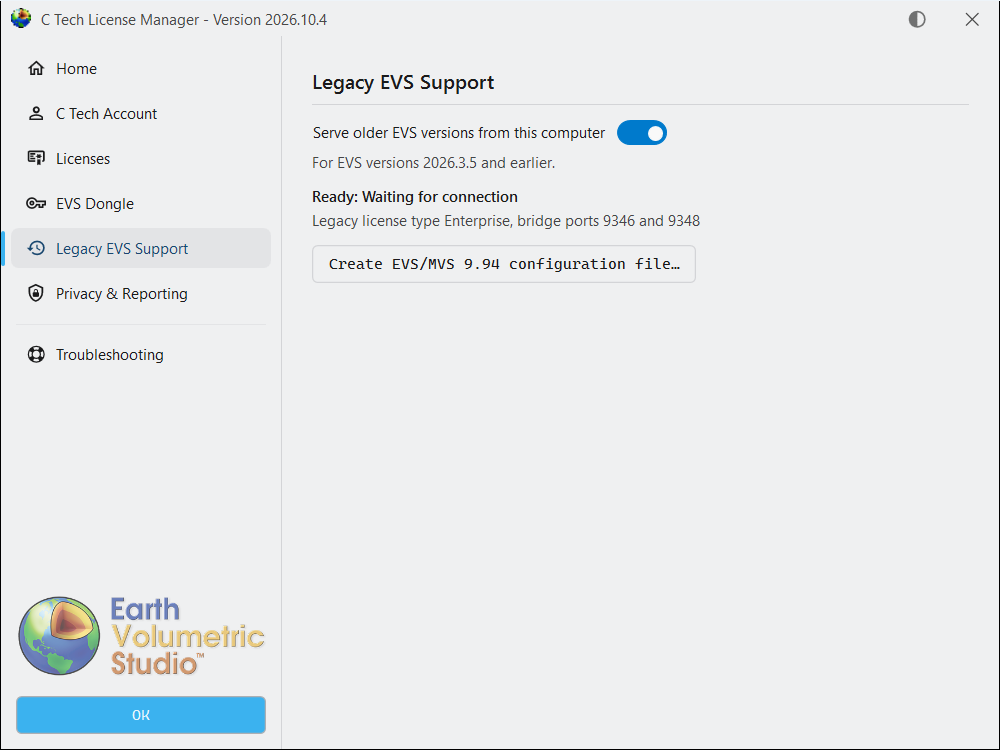
Status
The Legacy EVS Support page shows what the bridge is doing.
- Ready: Waiting for connection. Older EVS can start.
- Ready: Licensing in use. An older EVS is licensed now.
- Sign in to serve older EVS versions. Sign in on the C Tech Account page.
- Blocked. Something on this computer stops the bridge from starting. The page lists what it found. See Remove Old License Servers, then select Check again.
First start of an older EVS
An older EVS that opens the License Manager for its first-time setup waits until the License Manager exits. Finish the setup, then right-click the License Manager tray icon and select Exit. Closing the window is not enough. Start the License Manager again from the Start Menu afterward.