EnterVol for ArcGIS is a legacy product. This section provides installation and licensing documentation for customers who are still using EnterVol.
Info
EnterVol license options are hidden by default in the C Tech License Manager. To reveal them, check the “Manage Legacy Products” checkbox at the bottom of the left sidebar.
For Earth Volumetric Studio (EVS) documentation, please refer to the main sections of this help site.
Installation of the latest version of EnterVol for ArcGIS available from the download site
Hostname or IP Access of the computer running the C Tech Universal License Server
Warning
Installation requires Administrator rights.
Run each executable and follow the instructions to set your preferred install folder and options.
With all license types, the first step of client setup (after software installation) is to set up the proper license type in the C Tech License Manager. The C Tech License Manager has many additional functions discussed in this topic.
Info
EnterVol for ArcGIS license options are hidden by default in the C Tech License Manager. To reveal them, check the “Manage Legacy Products” checkbox at the bottom of the left sidebar.
If your organization has purchased EnterVol concurrent licenses and properly installed and configured the C Tech Universal License Server locally or on your network, you can follow the simple steps below to configure a client installation for a concurrent license.
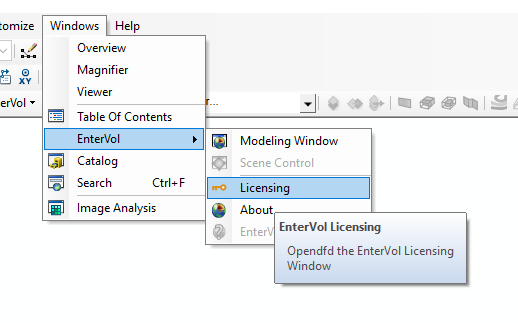
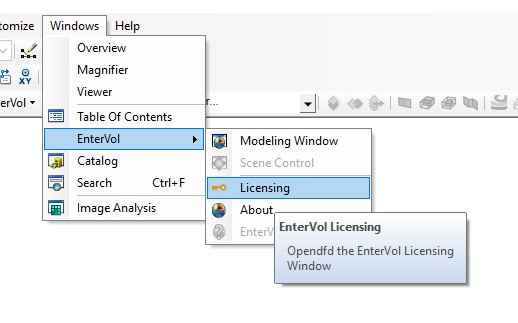
Launch the C Tech License Manager by clicking on the Licensing Option in the EnterVol menu entry under Windows > EnterVol > Licensing
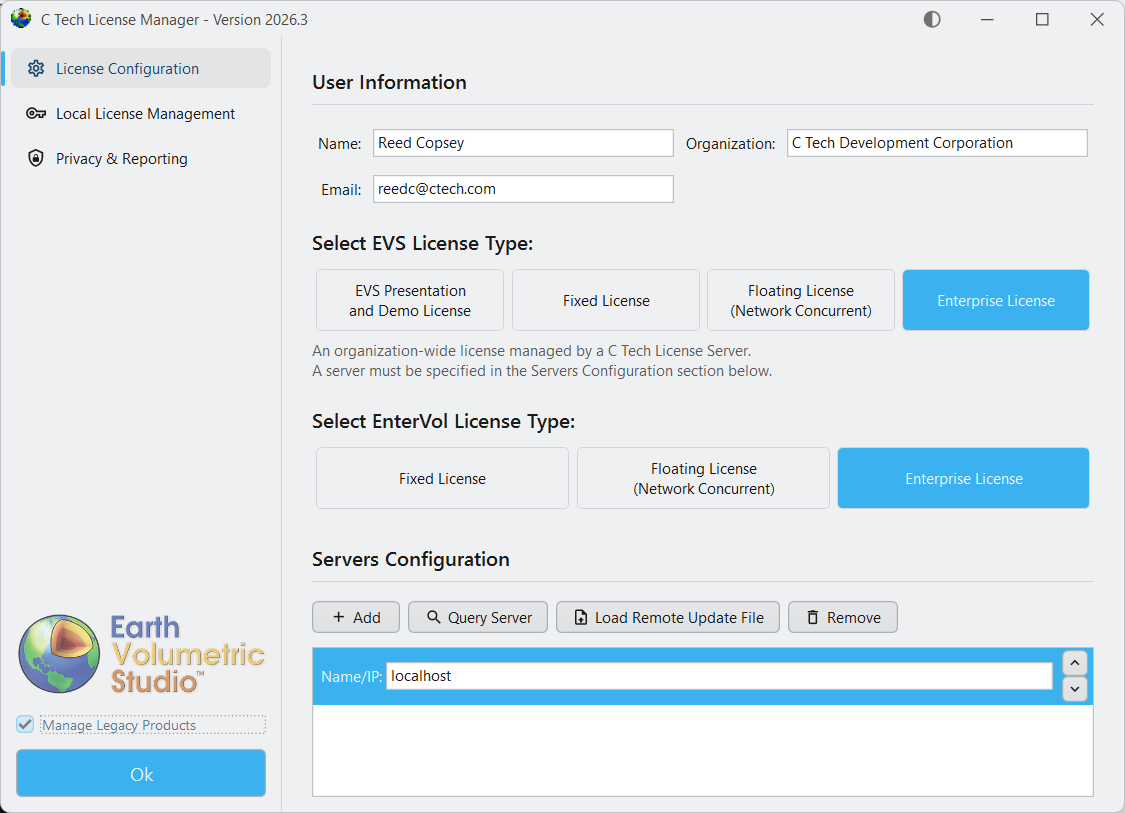
If your client computer can connect to a valid server, your licensing window should show something like the above.
The C Tech License Manager is used to configure licensing for EnterVol for ArcGIS. It comes bundled with the EnterVol installer and can also be downloaded separately from C Tech Development Corporation: Downloads.
Launching the License Manager
You can launch the C Tech License Manager from the Windows Start Menu, or from within EnterVol’s menus in ArcGIS (ArcScene):
Enabling EnterVol License Options
Warning
EnterVol for ArcGIS license options are hidden by default. You must check the “Manage Legacy Products” checkbox at the bottom of the left sidebar to reveal EnterVol license type options.
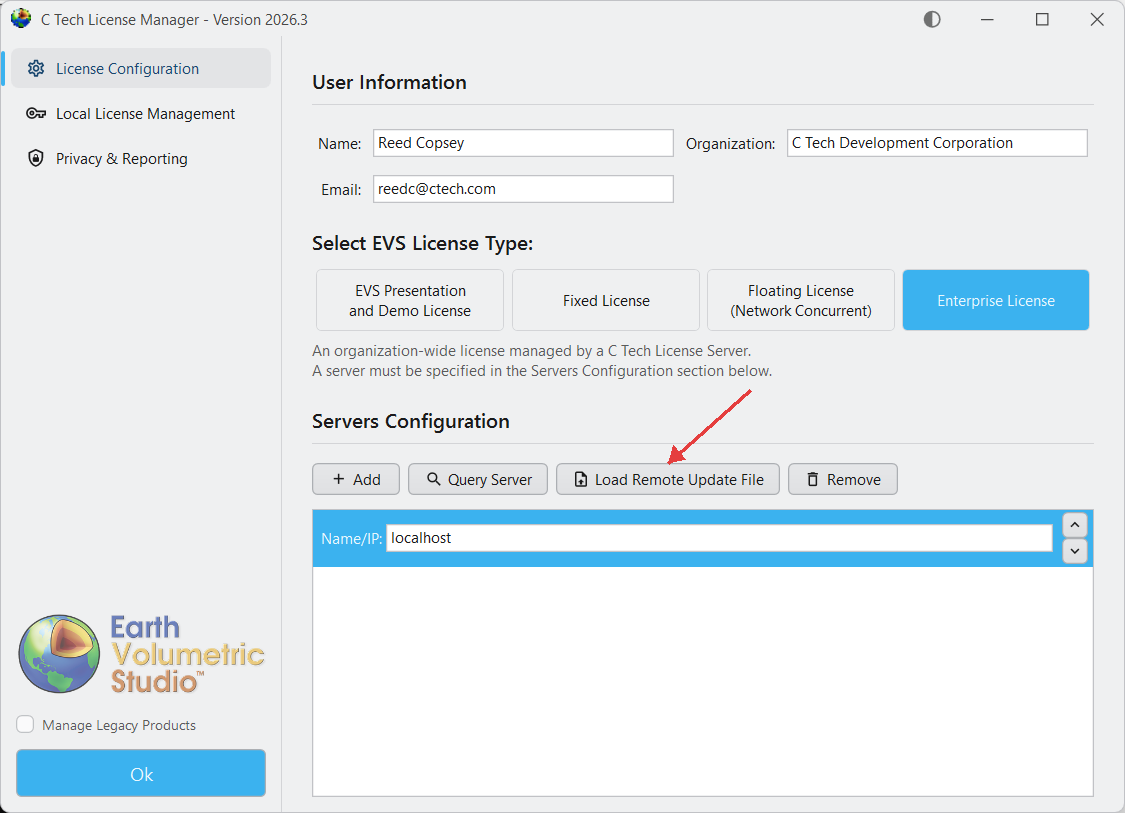
Once “Manage Legacy Products” is enabled, the License Configuration tab will display EnterVol license types alongside EVS options:
Configuring User Information
On the “License Configuration” tab, enter the following:
Name: The user name if on a client computer, or the IT Administrator name if on a server.
Organization: Your company name (e.g., ACME Geology, Inc.)
Select the appropriate EnterVol license type for the product you have purchased:
EnterVol Fixed License: For a single workstation, locked to the machine’s hardware.
EnterVol Floating License: For concurrent use via a network license server with USB dongle.
EnterVol Enterprise License: For concurrent use via a network license server with software-based licensing.
Choosing Floating or Enterprise licenses will activate the Servers Configuration section where you can add the hostname or IP address of your license server.
Configuring License Servers
If you have a remote license server, use the Servers Configuration section to specify the Name/IP for your license server. Multiple servers can be configured for redundancy.
Add / Remove: Add or remove IP number or hostname for your license server(s).
Query Server: Check the status of and confirm communication with the server.
Load Remote Update File: Apply a .ctupdate file to a remote server.
EnterVol for ArcGIS license options are hidden by default. To configure an EnterVol license, check the “Manage Legacy Products” checkbox at the bottom of the left sidebar in the C Tech License Manager.
C Tech License File Updates provide a way to install and update licenses on both local and remote machines. The main functions of C Tech License File Updates include upgrading and/or updating C Tech Software Licenses for EnterVol for ArcGIS.
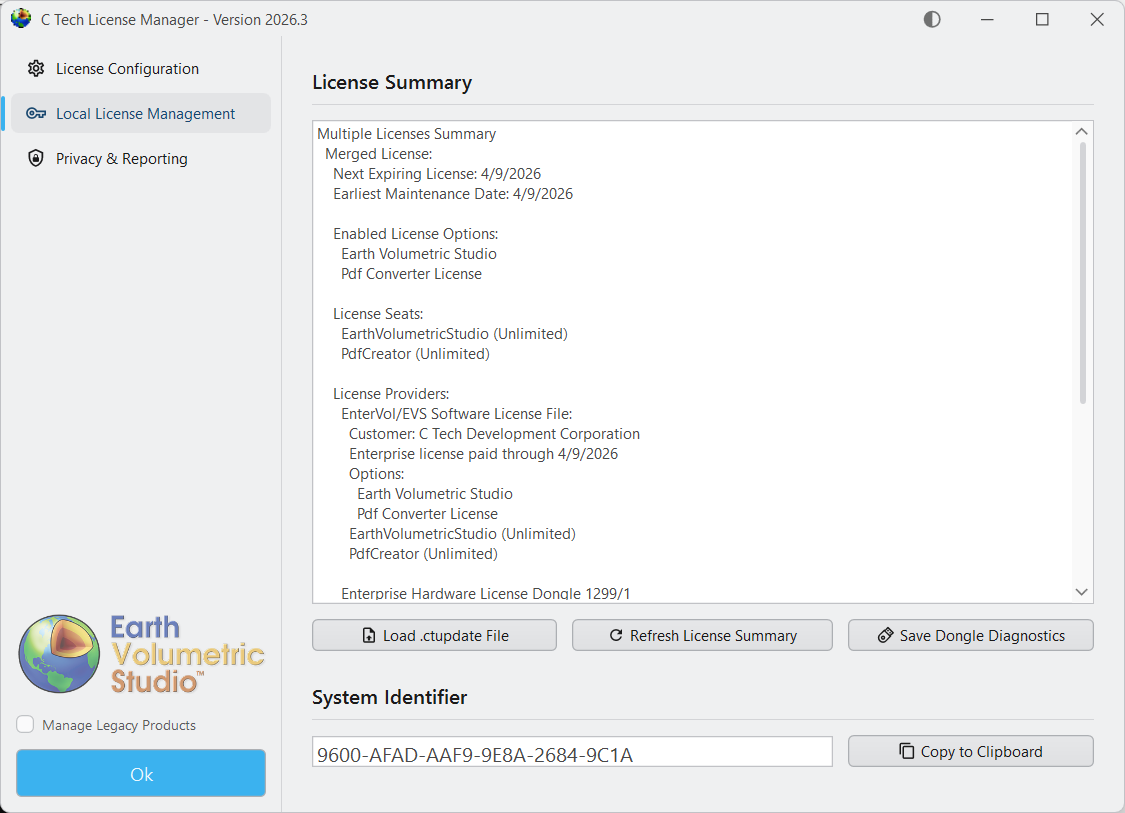
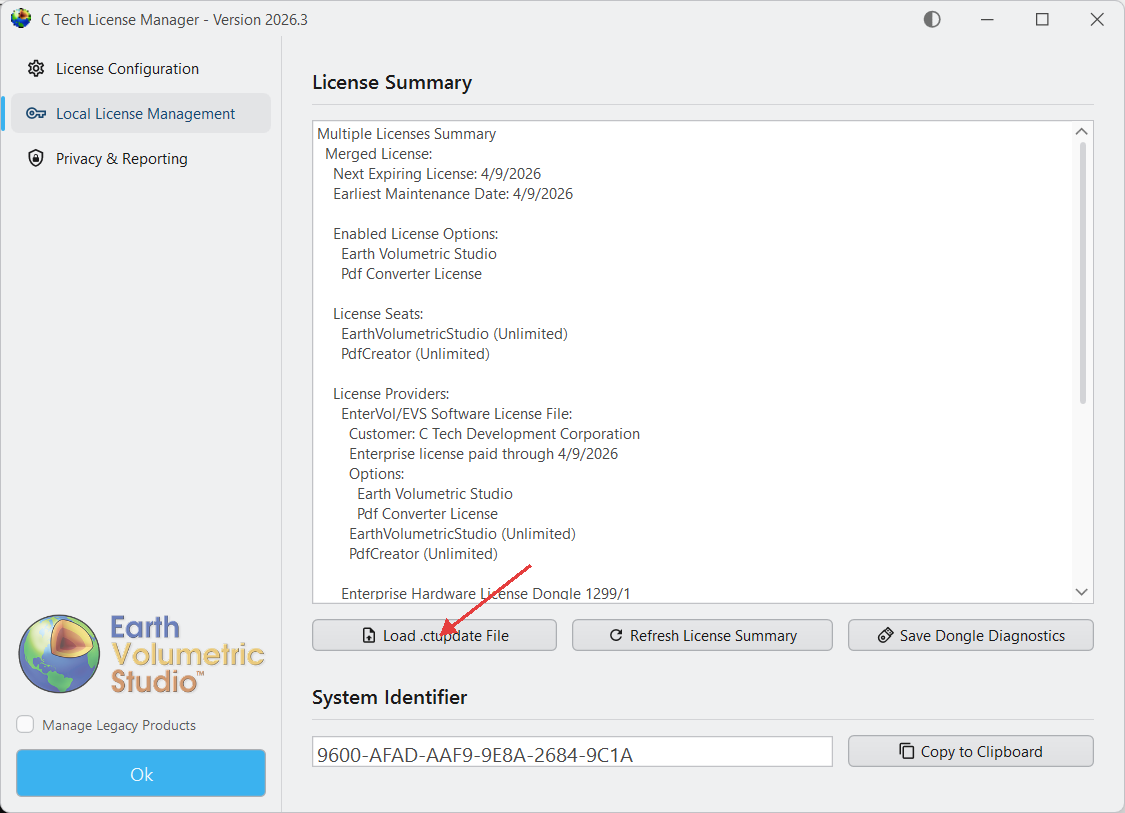
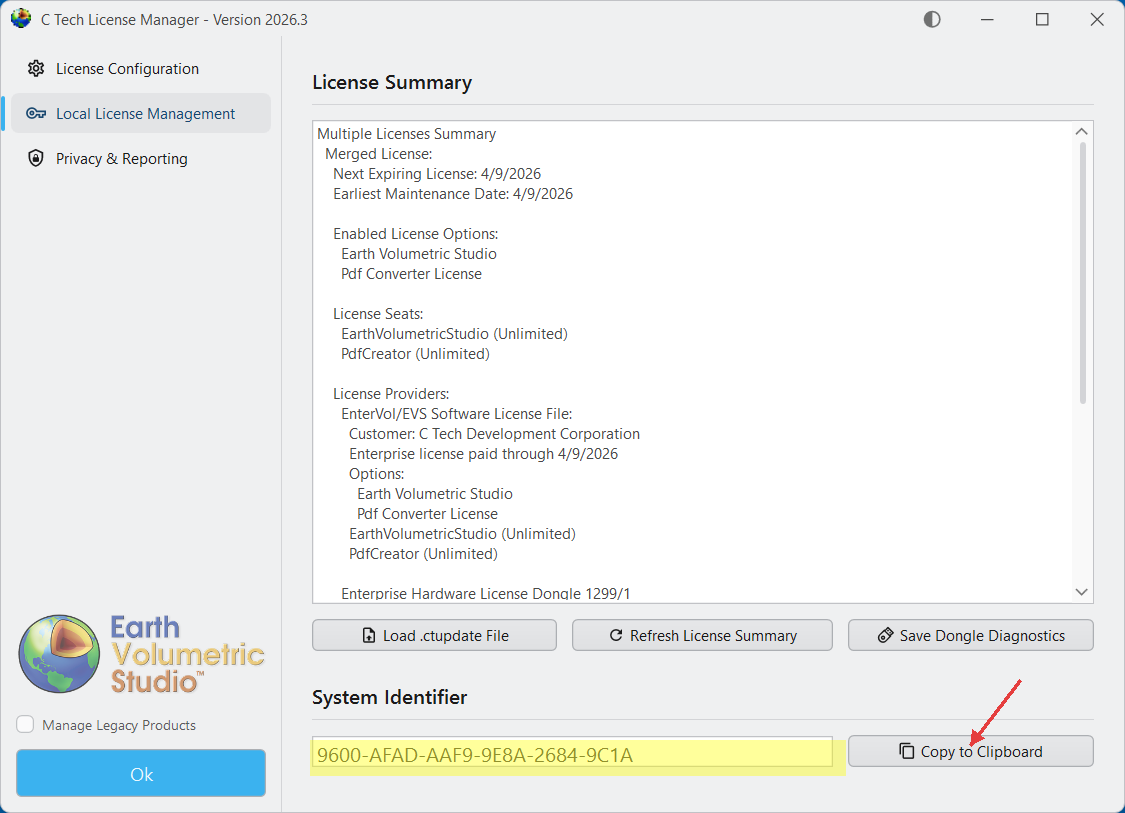
The Local License Management tab provides several important functions:
Load .ctupdate File: Allows you to apply a C Tech License Update File (.ctupdate) to install a new software license for supporting products or update existing licenses.
Refresh License Summary: Refreshes the License Summary display to reflect any changes.
License Summary: Provides a summary of licenses installed on the local machine, as well as (local) system information such as the System Identifier used by software based (vs dongle) licenses. Also shows information related to the license providers, whether they come from C Tech USB Dongles or from C Tech Software Licensing.
System Identifier: Unique Identifier that is unique to the local system. This is used for C Tech Software Licenses. Please refer to Requesting EnterVol Licenses for more info.
Save Dongle Diagnostics: In cases where the dongle needs troubleshooting, this will prompt you to select a destination folder and will then generate a file containing diagnostics of all installed C Tech USB Dongles. If requested by C Tech support, please include all generated files as attachments for subsequent support emails.
Local Updates
For both license updates and license installations, if they are to be performed on the local workstation, then select the “Local License Management” tab in the C Tech License Manager, and click on the “Load .ctupdate File” button.
Warning
If your C Tech License Manager does not match the images in this topic, you are likely running an old version and need to install the latest version from https://ctech.com/downloads/.
You will be prompted to select the .ctupdate file emailed to you. Select the .ctupdate and the license manager will report the result of the local update and also show the status of the updated licenses in the License Summary area.
Remote Updates
For both license updates and license installations, if they are to be performed on a remote server, then select the “License Configuration” tab in the C Tech License Manager. Ensure that you have configured a server by clicking on the “Add” button and then entering the Name or IP of the server. See EnterVol License Manager > Configuring License Servers for more information. Then you may click on the “Load Remote Update File” button.
You will be prompted to select the .ctupdate from the computer’s file system. Select the .ctupdate file emailed to you. After a brief moment, the license manager will report the result of the remote update. To view the status of the server, you may now click on the “Query Server” button on the same row.
Privacy & Reporting
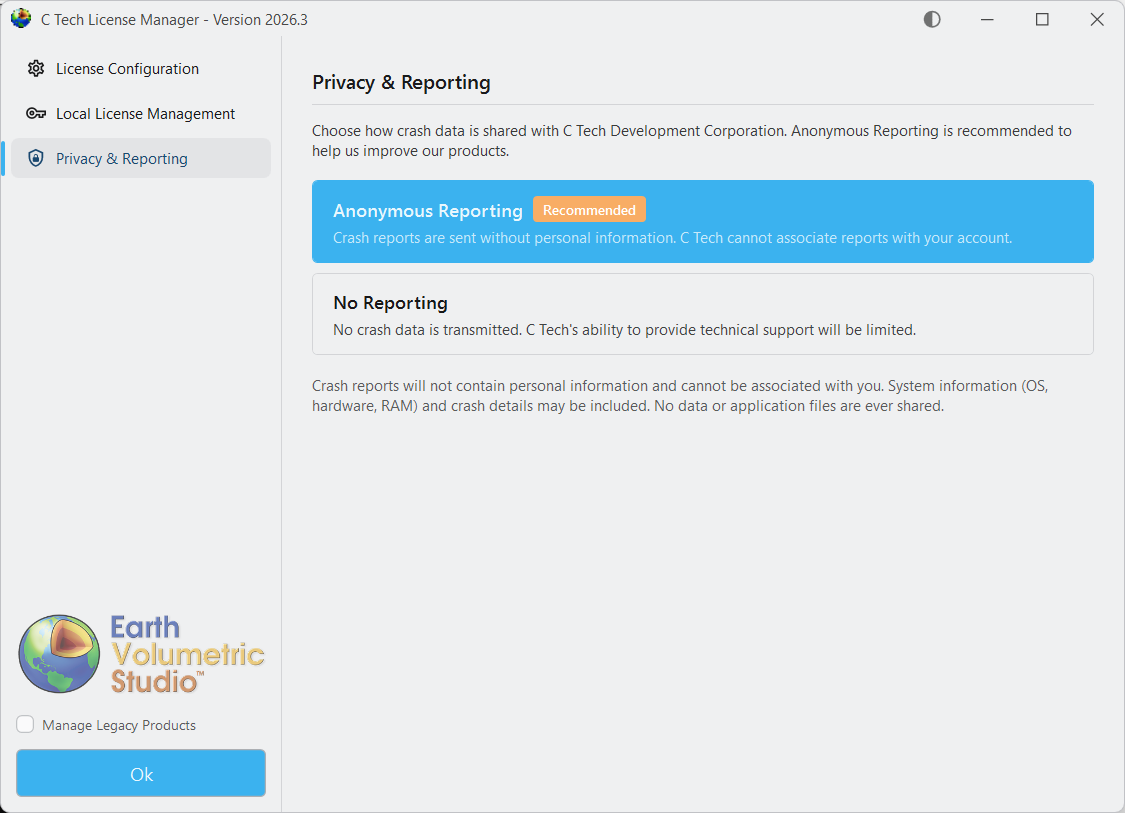
The “Privacy & Reporting” tab lets you choose how crash data is shared with C Tech Development Corporation. You may choose between “Anonymous Reporting” and “No Reporting”. Please read the provided descriptions for each option for more information.
Tip
It is recommended to select “Anonymous Reporting” since this can provide C Tech with information which may be crucial in debugging possible software errors or crashes. Crash reports will not contain personal information and cannot be associated with your account.
EnterVol for ArcGIS users can use the C Tech Software License installed with a C Tech Universal License Server to provide licensing to its users. Unlike the C Tech USB License Dongle for Earth Volumetric Studio, these software licenses are locked to the machine’s hardware where the license server is installed.
Info
Fixed EnterVol Licenses use a locally installed C Tech Universal License Server and the “System Identifier” we require is on your local computer.
Concurrent and Enterprise Licenses use a remotely installed C Tech Universal License Server and the “System Identifier” we require corresponds to the server.
You will need to provide a “System Identifier” as well as additional information in order to receive a license file for a license that has been purchased and paid for. To obtain the “System Identifier”, please use the following instructions depending on where you have the licensing server configured.
Local Installation
Select the “Local License Management” tab in the C Tech License Manager. There you will see at the bottom the System Identifier section. For your convenience you can click on the “Copy to Clipboard” button.
Remote Installation (On a different machine over the network)
From the “License Configuration” tab in the C Tech License Manager, ensure that a Server is properly configured.
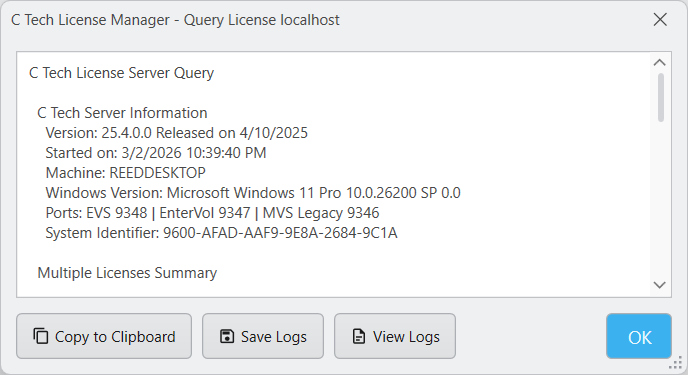
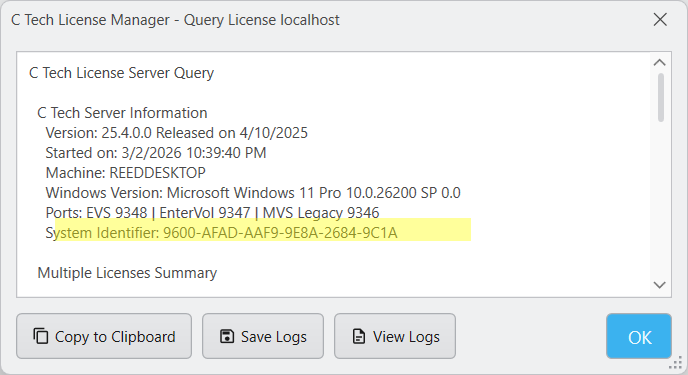
When the connection to the server is successful, you will see the following window when you click the “Query Server” button. The System Identifier for the remote server is displayed in the query results.
Licensing Procedure
For Fixed, Concurrent and Enterprise License Customers, the licensing procedure is below.
EnterVol Client-Server installations use the C Tech Universal License Server just as other licenses do, but the license is locked to the server CPU, not to the USB dongle (key).
To request a license that has been purchased and paid for, you must do the following:
This can be done on the server or any EnterVol Client computer
When this is done on a computer that is not the server, you must complete the Servers Configuration first.
Click the “Query Server” button
In the query results window, you will see the “System Identifier”
Click “Copy to Clipboard” to copy the full query results including the System Identifier
For Fixed EnterVol Licenses, run C Tech License Manager on the computer to be licensed and select the “Local License Management” tab:
Click on “Copy to Clipboard” next to the System Identifier
Info
Your System Identifier will be unique to your computer.
Then send that string to sales@ctech.com along with the required information below:
System Identifier: (your identifier string)
Company: (your company name)
User: (your name)
E-Mail: (your email address)
Phone: (your phone number)
C Tech’s Invoice number for your order (this is to ensure that you receive the proper licenses)
Upon verification of the information you provide, C Tech will generate a license file which will be sent to the e-mail address provided above.
Once you receive the .ctupdate file, you will perform the update using the C Tech License Manager and the instructions which will accompany the file.
The C Tech Universal License Server supports the following EnterVol license types:
EnterVol Enterprise Licenses
EnterVol Floating Licenses
EnterVol Fixed Licenses
Info
EnterVol uses TCP/IP Port 9347. This port must not be blocked by firewalls or other network security software. This port is not user configurable.
Installation
The C Tech Universal License Server installer is the same for both EVS and EnterVol products. Please follow the main C Tech Universal License Server Installation guide for installation instructions.
If you need a software-based license (Enterprise or Fixed), see Requesting EnterVol Licenses to obtain your license file.
Cloud Server Installation
Enterprise customers can install the C Tech Universal License Server on cloud platforms such as Azure and AWS. This requires USB dongles to be accessible via a USB port (e.g., using an AnywhereUSB device). Software-based licensing is also available for cloud installations. Contact C Tech support for more information.