The C Tech License Manager is used to configure licensing for EnterVol for ArcGIS. It comes bundled with the EnterVol installer and can also be downloaded separately from C Tech Development Corporation: Downloads.
Launching the License Manager
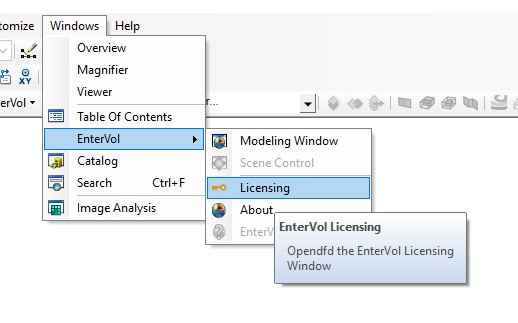
You can launch the C Tech License Manager from the Windows Start Menu, or from within EnterVol’s menus in ArcGIS (ArcScene):
Enabling EnterVol License Options
Warning
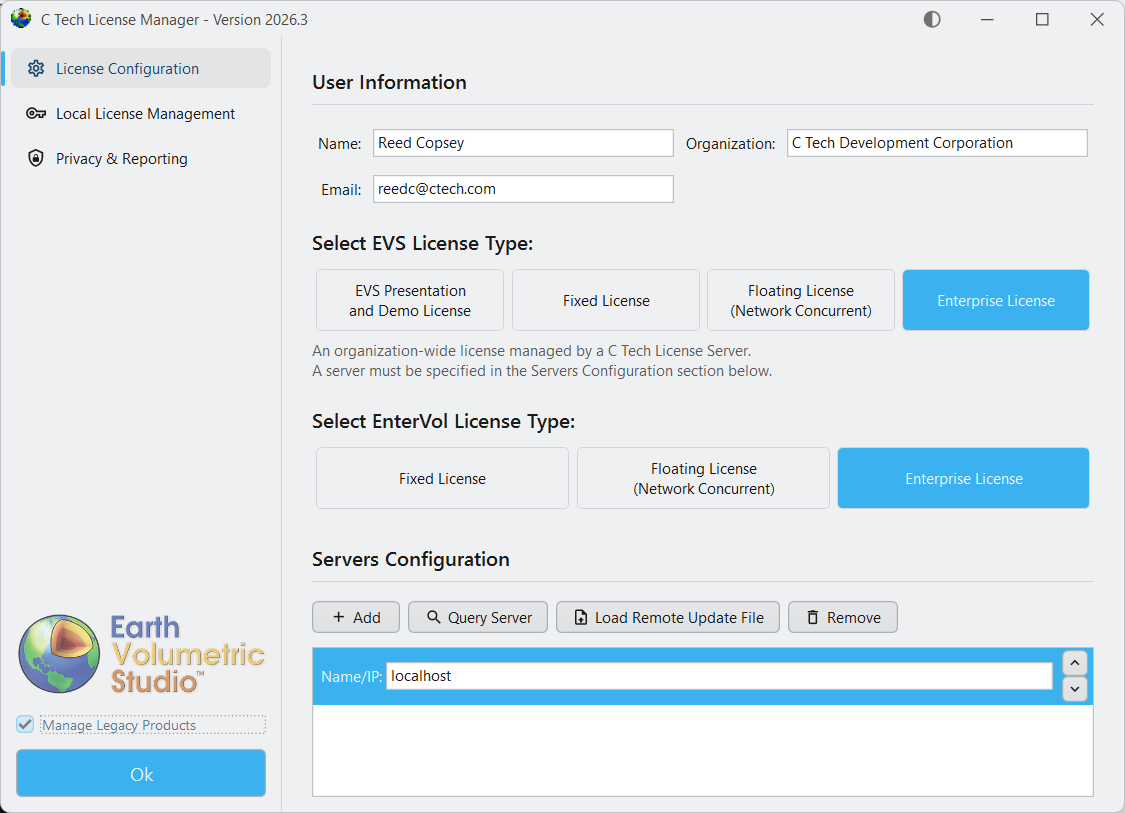
EnterVol for ArcGIS license options are hidden by default. You must check the “Manage Legacy Products” checkbox at the bottom of the left sidebar to reveal EnterVol license type options.
Once “Manage Legacy Products” is enabled, the License Configuration tab will display EnterVol license types alongside EVS options:
Configuring User Information
On the “License Configuration” tab, enter the following:
- Name: The user name if on a client computer, or the IT Administrator name if on a server.
- Organization: Your company name (e.g., ACME Geology, Inc.)
- Email: An official email address (e.g., john-smith@acmegeo.com)
Configuring License Types
Select the appropriate EnterVol license type for the product you have purchased:
- EnterVol Fixed License: For a single workstation, locked to the machine’s hardware.
- EnterVol Floating License: For concurrent use via a network license server with USB dongle.
- EnterVol Enterprise License: For concurrent use via a network license server with software-based licensing.
Choosing Floating or Enterprise licenses will activate the Servers Configuration section where you can add the hostname or IP address of your license server.
Configuring License Servers
If you have a remote license server, use the Servers Configuration section to specify the Name/IP for your license server. Multiple servers can be configured for redundancy.
- Add / Remove: Add or remove IP number or hostname for your license server(s).
- Query Server: Check the status of and confirm communication with the server.
- Load Remote Update File: Apply a .ctupdate file to a remote server.
For detailed license server installation instructions, see EnterVol License Server.