Each user should install the latest versions available from the download site:
Earth Volumetric Studio
Earth Volumetric Studio Sample Projects
Warning
You need Administrator rights to install EVS.
Run each executable and follow the instructions to set your preferred install folder and options.
After installing EVS, you must set up your license type using the C Tech License Manager. This tool also has many other features discussed in this topic.
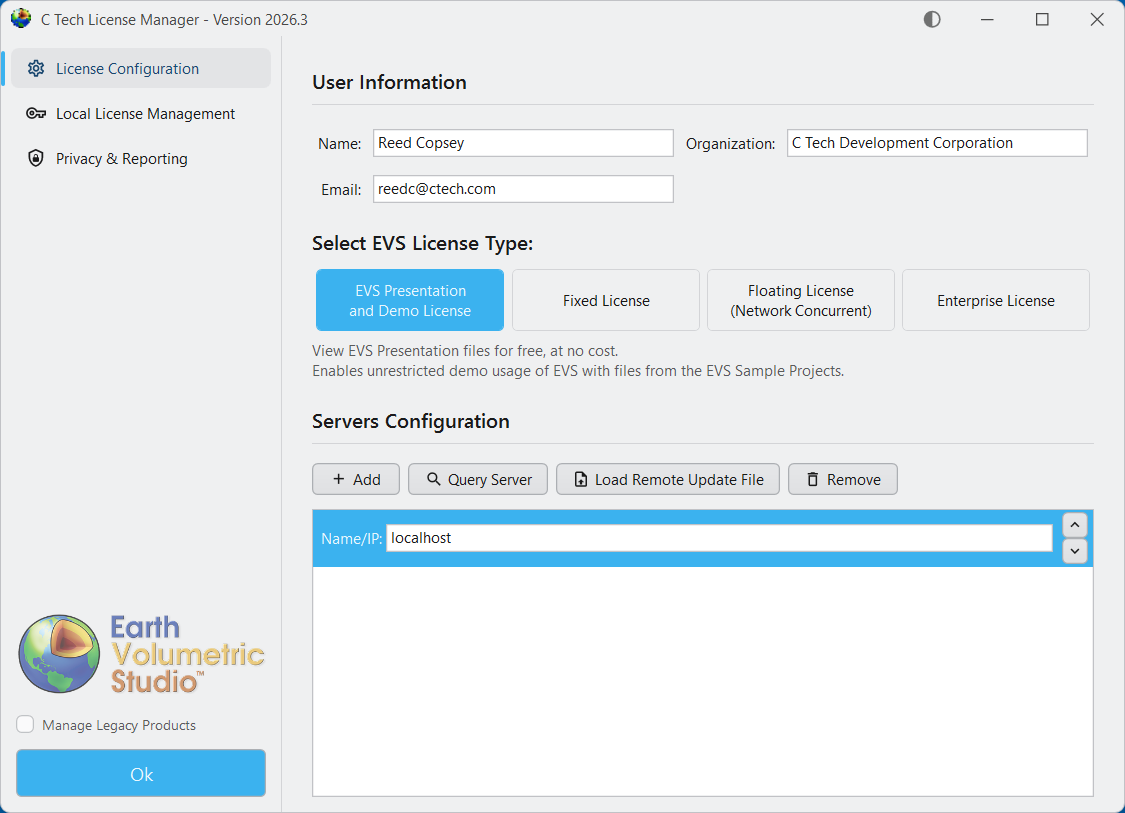
Below are the correct options for a Presentation and Demo License. Enter your name and company name correctly. This information helps C Tech support you if you have problems.
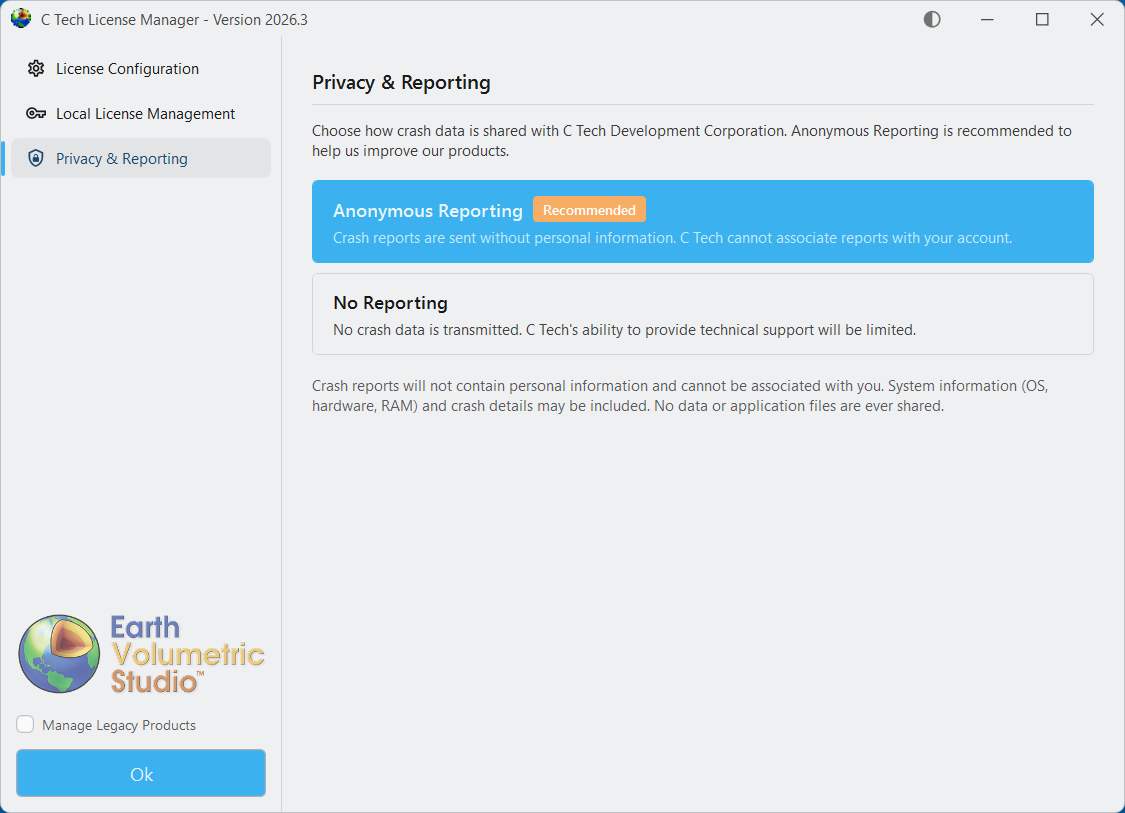
Before you close the C Tech License Manager, click the “Privacy & Reporting” tab on the left side to choose how crash data is sent to C Tech.
Tip
We recommend choosing “Anonymous Reporting” so C Tech can receive crash reports that help us find and fix software problems. These reports do not contain personal information and cannot be linked to your account.
When you click “Ok” to close the C Tech License Manager, it will not open again until you start it manually. Your settings will apply each time you run Earth Volumetric Studio.
Each user should install the latest versions available from the download site:
Earth Volumetric Studio
Earth Volumetric Studio Sample Projects
Warning
You need Administrator rights to install EVS.
Run each executable and follow the instructions to set your preferred install folder and options.
After installing EVS, you must set up your license type using the C Tech License Manager. This tool also has many other features discussed in this topic.
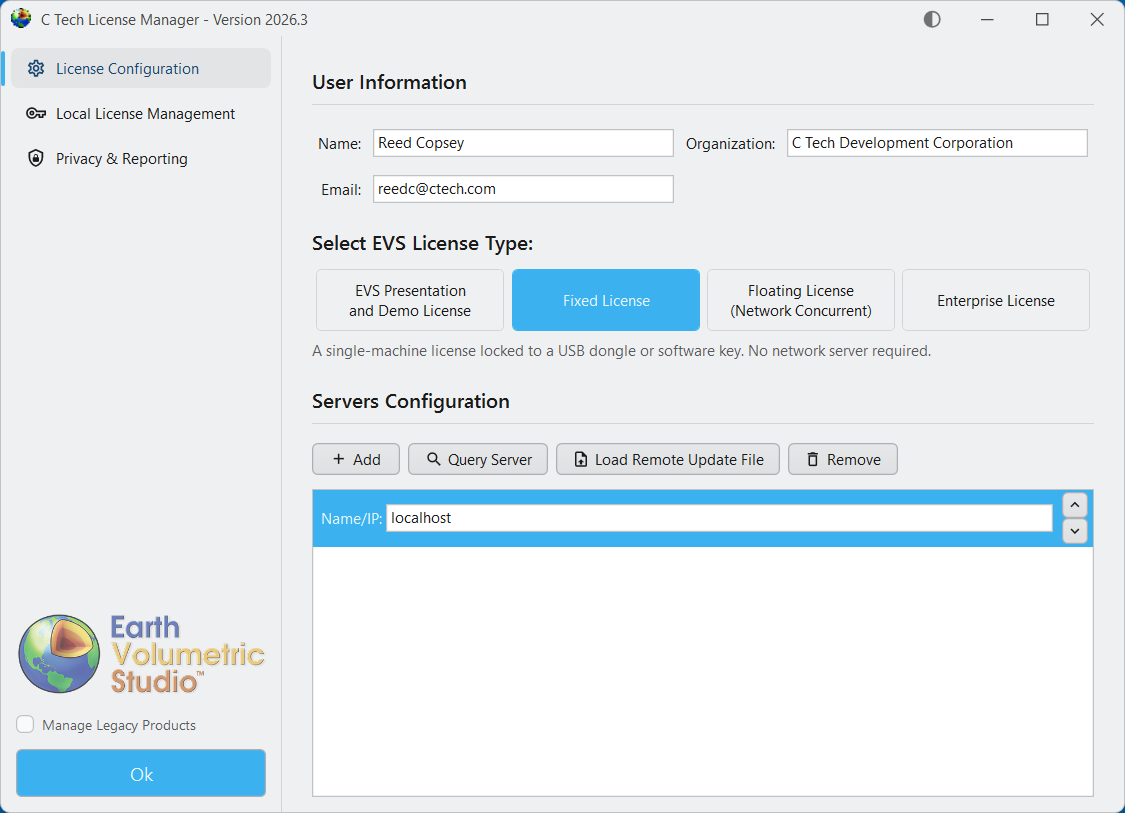
Below are the correct options for a Fixed (USB Dongle) License. Enter your name and company name correctly. This information helps C Tech support you if you have problems.
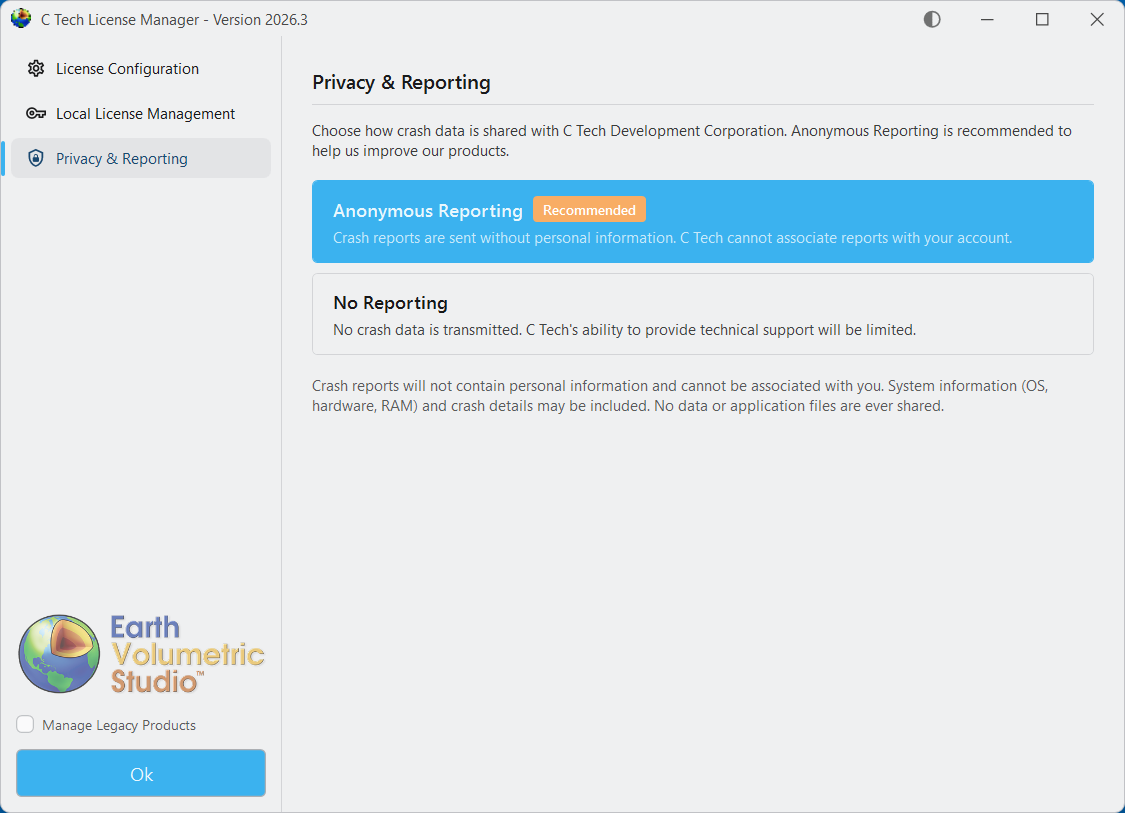
Before you close the C Tech License Manager, click the “Privacy & Reporting” tab on the left side to choose how crash data is sent to C Tech.
Tip
We recommend choosing “Anonymous Reporting” so C Tech can receive crash reports that help us find and fix software problems. These reports do not contain personal information and cannot be linked to your account.
When you click “Ok” to close the C Tech License Manager, it will not open again until you start it manually. Your settings will apply each time you run Earth Volumetric Studio.
Run each executable and follow the instructions to set your preferred install folder and options.
After installing EVS, you must set up your license type using the C Tech License Manager. This tool also has many other features discussed in this topic.
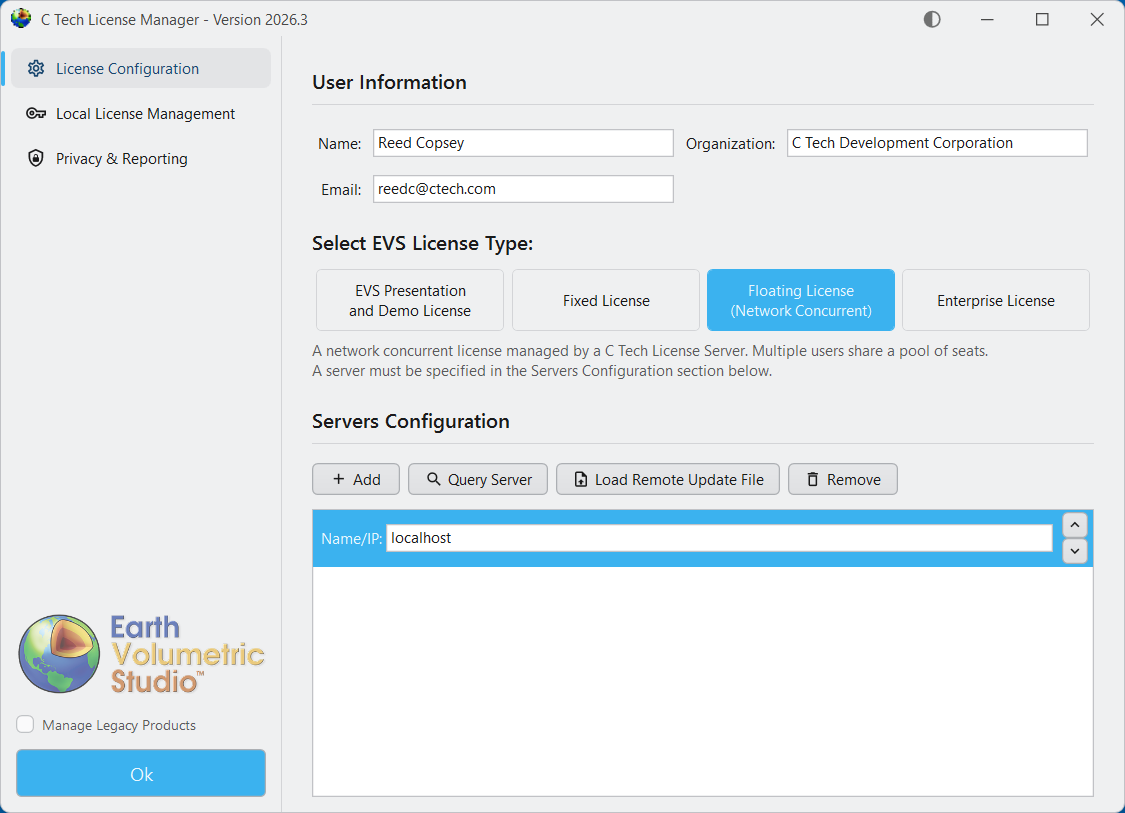
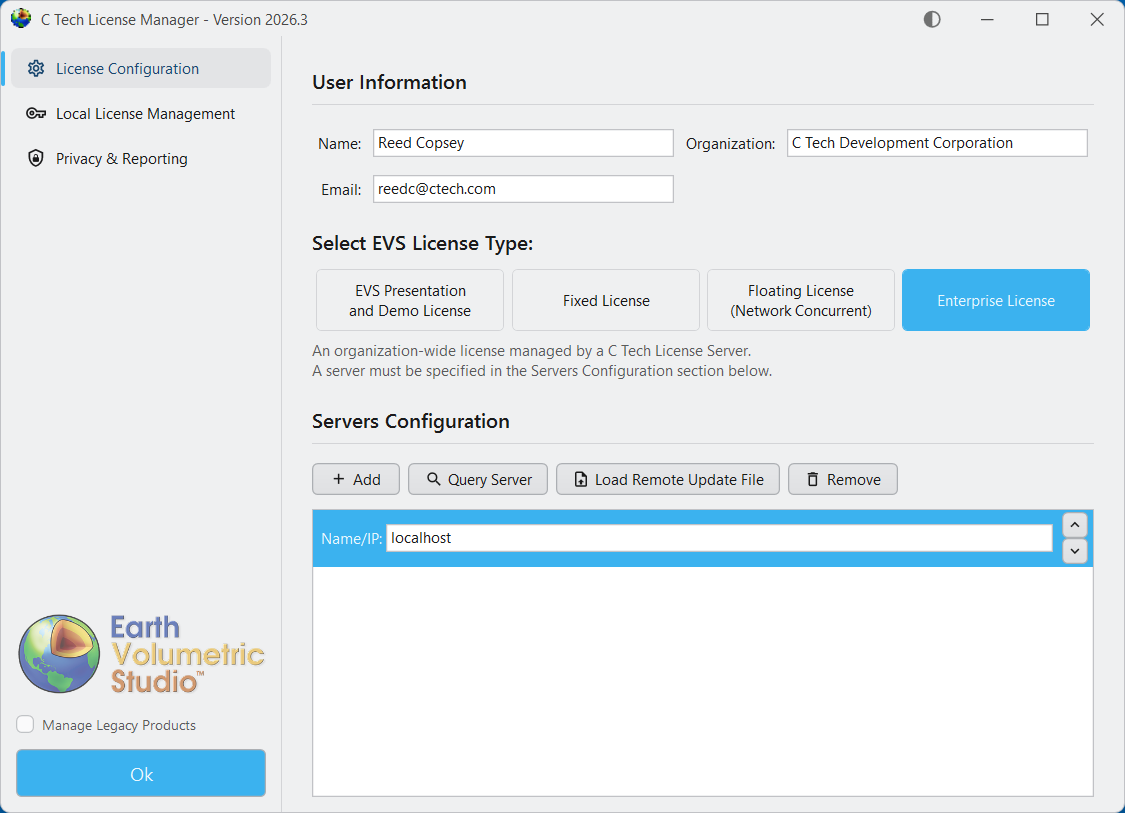
Below are the correct options for each license type.
Info
Enter your name, email, and company name. If you are setting this up on a server, enter the IT administrator’s information instead.
Server Configuration
For both Floating and Enterprise licenses, you must add one or more license servers in the “Servers” section of the License Configuration tab. Enter the name or address of each computer running the C Tech Universal License Server.
Tip
The example images below show “localhost” as the server address. This only works if EVS and the License Server are on the same computer. In most cases, replace “localhost” with the name or address of your organization’s license server.
For Floating Licenses
For Enterprise Licenses
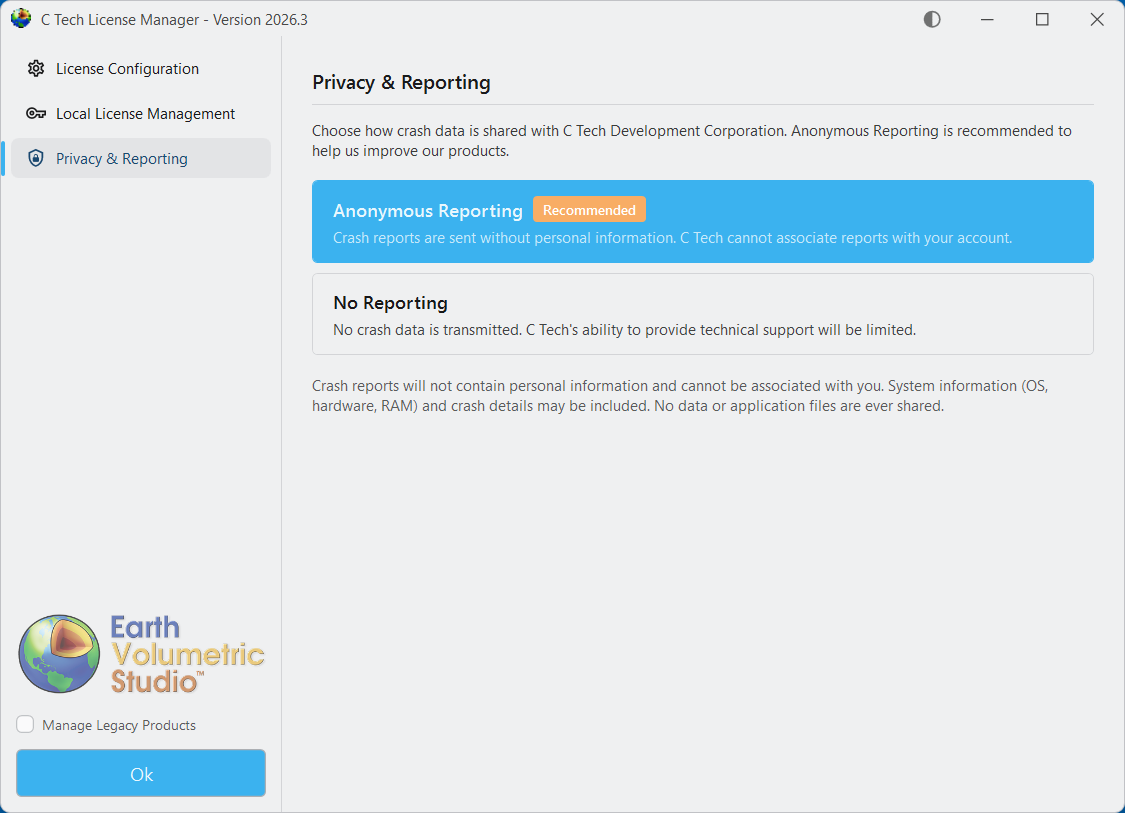
Before you close the C Tech License Manager, click the “Privacy & Reporting” tab on the left side to choose how crash data is sent to C Tech.
Tip
We recommend choosing “Anonymous Reporting” so C Tech can receive crash reports that help us find and fix software problems. These reports do not contain personal information and cannot be linked to your account.
When you click “Ok” to close the C Tech License Manager, it will not open again until you start it manually. Your settings will apply each time you run Earth Volumetric Studio.