EVS 2026.11.1 and later cannot use license servers. Move your Floating or Enterprise licenses to your C Tech company account before you upgrade. Fixed dongle users can move too
Connect your organization's identity provider (Microsoft Entra ID, Okta, Google Workspace) to C Tech accounts so your team signs in with their corporate credentials
Subsections of Manage My Company's Licensing
What is a company account?
Your company has an account with C Tech that holds all of your company’s licenses and the people who use them. You manage it on the C Tech account website, account.ctech.com.
Each person at your company signs in with their own individual C Tech account. That account is a member of your company, so the person can use your company’s licenses in the License Manager.
Each company has one or more administrators. Administrators sign in to account.ctech.com to do these things.
Invite other people at your company and manage pending invitations.
Assign licenses to users.
See how your company’s licenses are used.
Info
Start here. Setting up your company administrator is the first step in setting up your company’s Online licensing. Email support@ctech.com with your company name and the name and email address of the person who should be your administrator.
The Users and Assignments tabs show only for administrators.
Company
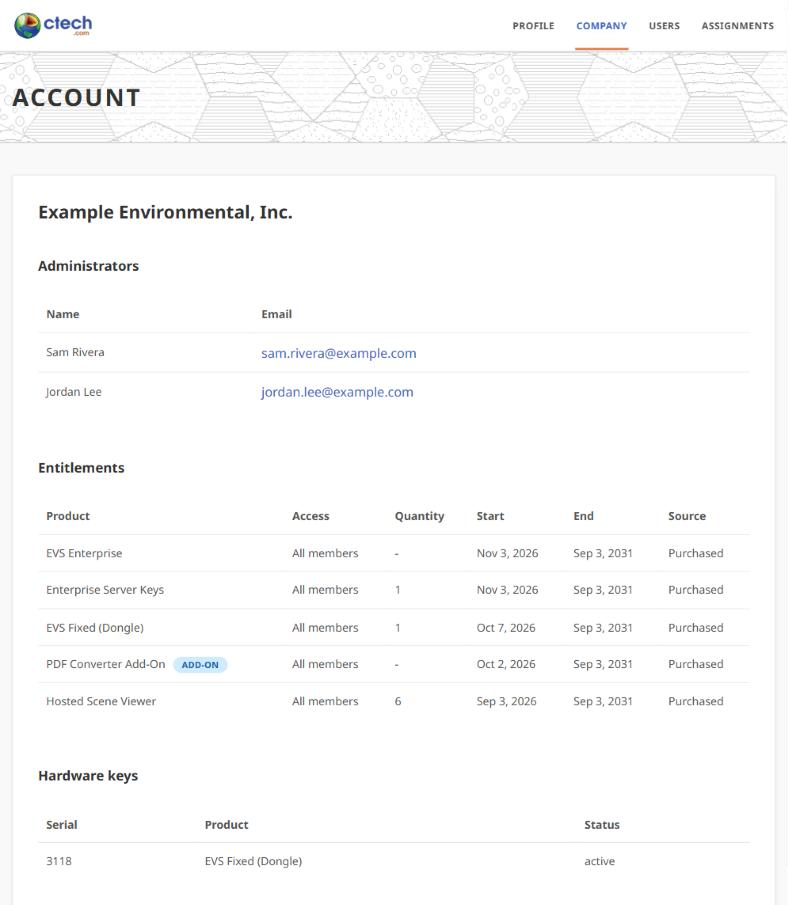
Every member can open the Company tab. It lists your company’s administrators and the licenses your company holds, with their quantity and the dates they run.
Adding users
Invitation. Your company admin invites each user from the Users tab. The user accepts the emailed invitation and signs in.
Single sign-on. If your company uses single sign-on, users sign in directly with their company account. No invitation is needed. Single sign-on is strongly recommended for Enterprise customers and for Floating customers with several seats.
No company admin. Email support@ctech.com for help adding users or making someone an admin.
Users
The Users tab lists the people in your company and the invitations you have sent, and sets sign-in security for your company.
Members
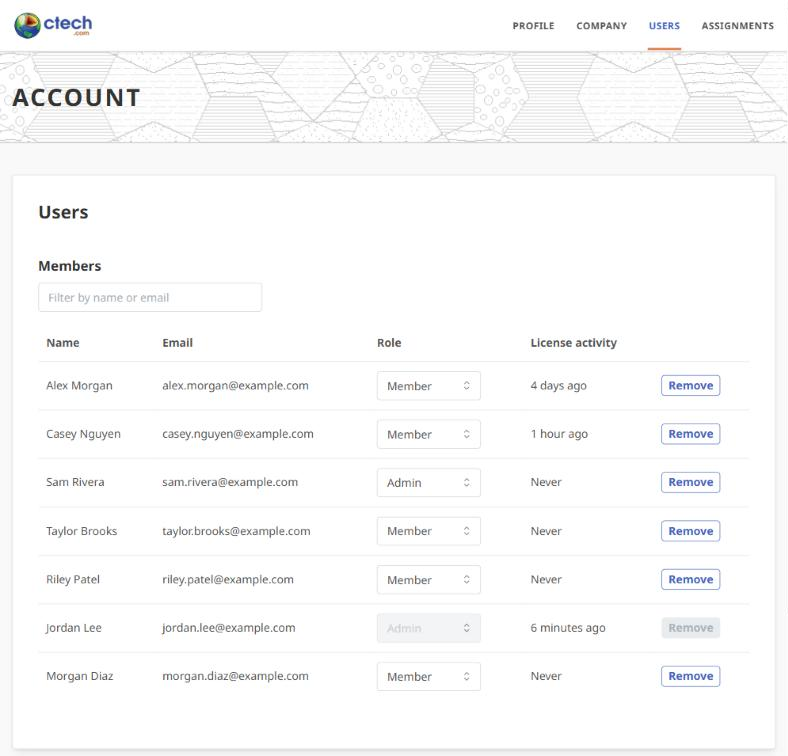
Each row shows a member’s Name, Email, Role and License activity. Type in Filter by name or email to find someone.
Role. Choose Admin to let the person manage users and licenses, or Member for everyone else. The change applies right away.
License activity. How the person uses your Enterprise and Floating licenses. See below.
Remove. Removes the person from your company after you confirm. They can no longer use your company’s licenses.
You cannot change your own role or remove yourself. Ask another admin, or email support@ctech.com.
The License activity column shows these.
Last check-in. For example “14 hours ago”, or “Never” if the person has not used a license yet. This is when the person’s EVS licensing last checked in with C Tech. It renews in the background, so it is not a record of each time EVS starts.
In use. The person holds a license right now.
Floating seat refused. The last time the person was turned away because every Floating seat was in use. It shows in orange when it is recent. Frequent refusals can mean your company needs more Floating seats.
Invitations
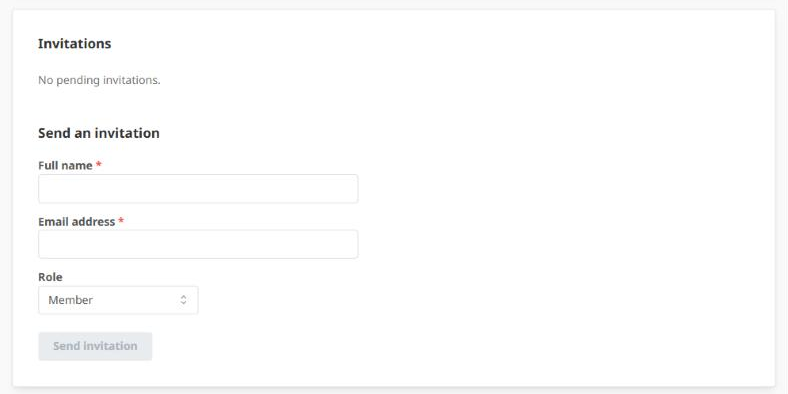
The Invitations list shows invitations that have not been accepted yet, with the email, role, when each was sent and when it expires. Select Revoke to cancel one.
To invite someone, fill in Send an invitation below the list.
Enter the person’s Full name and Email address.
Choose a Role. Member is the default.
Select Send invitation. The invitation is emailed to them.
Security
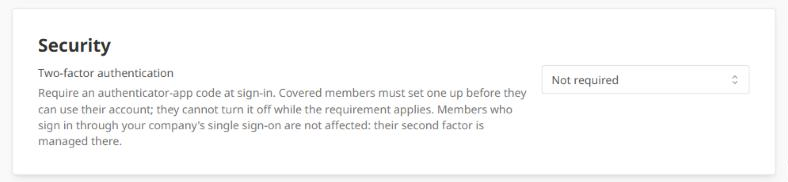
Use Two-factor authentication to require an authenticator-app code when members sign in. Choose Not required, Required for administrators or Required for everyone. Members it covers must set up an authenticator app before they can use their account, and they cannot turn it off while it is required. Members who sign in through your company’s single sign-on are not affected, because their second factor is managed by your identity provider.
Assignments
Floating, Enterprise and University licenses are available to every member of your organization. An EVS Fixed license must be assigned to one person.
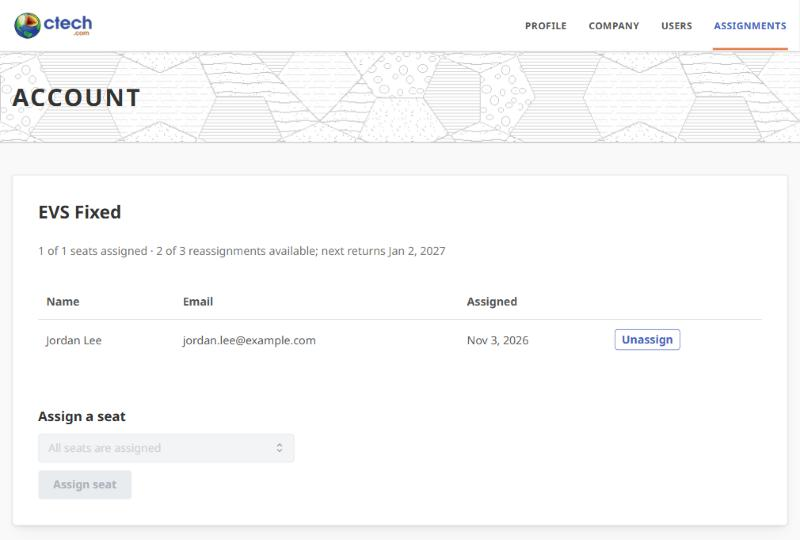
The Assignments tab shows how many EVS Fixed seats are assigned.
Assign a seat. Select a member and select Assign seat.
Unassign. Frees the seat so you can assign it to someone else.
Reassigning seats is limited. Each unassignment uses one of your company’s 3 reassignments for that product for 60 days. Once a seat has been reassigned, the page shows how many reassignments are available and when the next one returns. See Reassigning a Fixed license to another person.
After a change, the user selects Refresh on the License Manager’s Licenses page. See Online Licensing.
Devices
Each user manages their own computers for an EVS Fixed license on the License Manager’s Licenses and Devices page. See Fixed Seats and Devices.
To free a computer that was lost, stolen or replaced and can no longer be retired from the License Manager, contact support@ctech.com.
EVS 2026.11.1 and later license Floating and Enterprise licenses only through C Tech accounts. They cannot use the C Tech Universal License Server or the older C Tech license servers.
Each user signs in to the License Manager with their C Tech account, and your company’s licenses come from your company account. There is no server to run, no network ports to open and no license files to apply.
Info
Move your Floating or Enterprise licenses to Online licensing and retire your license server before you upgrade to EVS 2026.11.1 or later. Older EVS keeps working during the move through Legacy EVS Support.
Fixed dongles keep working with EVS 2026.11.1 and later. Moving a Fixed license to Online licensing is optional.
Optional. Move EVS Fixed licenses from fixed USB dongles to your C Tech company account
Subsections of Move to Online Licensing
With Online licensing, your Floating seats live on your C Tech company account instead of a license server. Any member of your company can use a seat while one is free.
Two weeks to complete the move
Both licensing methods work during a two-week transition. The two weeks start when C Tech turns on your Online licensing and emails you. That email includes the address for returning your floating dongles. In those two weeks, move your users to Online licensing and retire your license server. C Tech must receive the dongles within the two weeks, so use FedEx or another courier service. If they arrive late, the time-limited license expires. It is turned on again when C Tech receives the dongles. Plan the move before you contact C Tech.
How Floating licenses work online
Shared seats. Your company has a set number of Floating seats. Each person running EVS uses one. When every seat is in use, the next person is refused until a seat frees up.
Always connected. Floating licenses check in with C Tech the whole time EVS runs. They cannot run offline.
Usage. Admins see who is using a seat, and who was refused one, in the License activity column on account.ctech.com. See Company Accounts and Seats.
Steps
Set up your company administrator account. Email support@ctech.com with your company name, your invoice number, the serial number of your floating dongle, and the name and email address of the person who should be your administrator. C Tech sets up the administrator and adds your Floating seats to your company account with a time-limited license for the move. When Online licensing is ready, C Tech emails you the address for returning your floating dongles. The two weeks start then. Once all of your dongles are received, the license is changed to your full subscription period.
Add your users. Your administrator invites your users from account.ctech.com, or sets up single sign-on so users sign in with their company account. See Company Accounts and Seats.
Set up each user’s computer.
Remove a local license server. If the license server is installed on the user’s own computer, uninstall it first. It blocks Legacy EVS Support. See Remove Old License Servers.
Sign in as the user. The License Manager signs in each Windows user separately, so an administrator signing in does not license other users. See Online Licensing.
The user signs in to Windows as themselves.
The user opens the C Tech License Manager from the Windows Start Menu.
On the Home page, the user selects Online or Demo.
The user selects Login to C Tech and signs in with their own C Tech account.
On the Home page, the user turns on Enable Legacy EVS. EVS 2026.3.5 and earlier will then be licensed for the user through their company account instead of the server. See Legacy EVS Support.
On the Home page, the user turns on Run on Startup. This is highly recommended. Without it, the user must start the License Manager by hand before starting an older EVS. Once the user runs only EVS 2026.11.1 or later, Run on Startup can be turned off.
The user selects OK.
Retire the server and return the dongles. When every user licenses online, uninstall the license server. See Remove Old License Servers. Ship your floating dongles to the address in C Tech’s email by FedEx or another courier. C Tech must receive them within two weeks of that email.
Upgrade EVS. Install EVS 2026.11.1 or later on each computer. It uses the License Manager and sign-in you already set up.
With Online licensing, your Enterprise license lives on your C Tech company account instead of a license server. Every member of your company can use it.
How Enterprise licenses work online
Every member. Anyone in your company account can run EVS. There are no seats to assign.
Every EVS version. Your Enterprise license runs every version of EVS, including older versions that are no longer supported. EVS 2026.3.5 and earlier license through Legacy EVS Support.
Works offline. After licensing online, EVS can run without an internet connection for up to 30 days. The License Manager renews this time whenever the computer is online.
No software license files. Enterprise software licenses tied to a server’s System Identifier are no longer issued.
No dongles or on-premises servers. Enterprise licenses no longer use dongles or a license server on your network.
Determine whether to use single sign-on (SSO). SSO is highly recommended when your identity provider supports it. It simplifies managing users and gives IT better control over who is authorized and over removing users who leave. Ideally, set up SSO before you add any users, including your company administrator. See Enterprise Single Sign-On (SSO).
Set up your company administrator account. Email support@ctech.com with your company name, your invoice number, and the name and email address of the person who should be your administrator. C Tech sets up the administrator and moves your Enterprise license to your company account.
Add your users. With single sign-on, users sign in with their company account and no invitation is needed. Otherwise your administrator invites your users from account.ctech.com. See Company Accounts and Seats.
Set up each user’s computer.
Remove a local license server. If the license server is installed on the user’s own computer, uninstall it first. It blocks Legacy EVS Support. See Remove Old License Servers.
Sign in as the user. The License Manager signs in each Windows user separately, so an administrator signing in does not license other users. See Online Licensing.
The user signs in to Windows as themselves.
The user opens the C Tech License Manager from the Windows Start Menu.
On the Home page, the user selects Online or Demo.
The user selects Login to C Tech and signs in with their own C Tech account.
On the Home page, the user turns on Enable Legacy EVS. EVS 2026.3.5 and earlier will then be licensed for the user through their company account instead of the server. See Legacy EVS Support.
On the Home page, the user turns on Run on Startup. This is highly recommended. Without it, the user must start the License Manager by hand before starting an older EVS. Keep it on after the move as well. It keeps the user’s license renewed in the background, so EVS can still run offline for up to 30 days.
The user selects OK.
Retire all license servers. When every user licenses online, uninstall every license server. See Remove Old License Servers.
Enterprise dongles. You do not need to return them to C Tech. Once the move is complete and you have confirmed that every user licenses correctly, you can destroy them.
Upgrade EVS. Install EVS 2026.11.1 or later on each computer. It uses the License Manager and sign-in you already set up.
With Online licensing, your EVS Fixed licenses live on your C Tech company account instead of a USB dongle. Each Fixed license is assigned to one person, who can register up to 2 computers and use EVS on 1 at a time.
Two weeks to complete the move
Both licensing methods work during a two-week transition. The two weeks start when C Tech turns on your Online licensing and emails you. That email includes the address for returning your fixed dongles. In those two weeks, move your users to Online licensing. C Tech must receive the dongles within the two weeks, so use FedEx or another courier service. If they arrive late, the time-limited license expires. It is turned on again when C Tech receives the dongles. Plan the move before you contact C Tech.
How Fixed licenses work online
One person per license. Your administrator assigns each Fixed license to one person on account.ctech.com.
Two computers. The person can register 2 computers and use EVS on 1 at a time. See Fixed Seats and Devices.
Works offline. After licensing online, EVS can run without an internet connection for up to 7 days. The License Manager renews this time whenever the computer is online.
No dongles. Nothing to carry between computers, lose or renew by hand.
Online vs dongle Fixed licenses
Both are supported with EVS 2026.11.1 and later. Moving from a dongle to Online licensing is optional. See Dongle Licensing.
Online Fixed license
Advantages
No dongle to carry between computers, lose or break.
Register 2 computers and switch between them. Close EVS on one, then start it on the other.
Runs with no internet connection, including on computers that are never online.
Works with older EVS versions, including 2026.3.5.
Moves to any computer by moving the dongle.
Disadvantages
The dongle can be lost, stolen or damaged.
Does not work on virtual machines.
Renewals are written to the dongle only on a computer that is online and signed in to your C Tech account. See Dongle Renewals.
Info
Legacy EVS Support does not serve Fixed licenses. EVS 2026.3.5 and earlier run only from the dongle. Upgrade to EVS 2026.11.1 or later before you return the dongle.
Steps
Set up your company administrator account. Email support@ctech.com with your company name, your invoice number, the serial number of each fixed dongle, and the name and email address of the person who should be your administrator. C Tech sets up the administrator and adds your Fixed licenses to your company account with a time-limited license for the move. When Online licensing is ready, C Tech emails you the address for returning your fixed dongles. The two weeks start then. Once all of your dongles are received, the license is changed to your full subscription period.
Add your users and assign licenses. Your administrator invites each user from account.ctech.com, then assigns each one a Fixed license on the Assignments tab. The administrator can assign a license to themselves. See Company Accounts and Seats.
Sign in as the user. The License Manager signs in each Windows user separately, so an administrator signing in does not license other users. See Online Licensing.
The user signs in to Windows as themselves.
The user opens the C Tech License Manager from the Windows Start Menu.
On the Home page, the user selects Online or Demo instead of Dongle.
The user selects Login to C Tech and signs in with their own C Tech account.
On the Licenses and Devices page, the user selects Use on This Computer to register the computer.
On the Home page, the user turns on Run on Startup. This keeps the license renewed in the background, so EVS can run offline for up to 7 days.
The user selects OK.
Check EVS. The user starts EVS and confirms it licenses without the dongle attached.
Return the dongles. Ship your fixed dongles to the address in C Tech’s email by FedEx or another courier. C Tech must receive them within two weeks of that email.
C Tech accounts support enterprise single sign-on (SSO) through SAML 2.0. Once connected, everyone in your organization signs in to account.ctech.com with their existing corporate credentials. There are no separate C Tech passwords to create, distribute, or reset. Your IT department keeps full control of who has access.
Setup is a one-time exchange between your IT department and C Tech, typically 30 to 60 minutes end to end. There is no software to install.
How it works
Your IT department creates a SAML application in your identity provider (Microsoft Entra ID, Okta, Google Workspace, or any SAML 2.0 provider) using the two values below.
Your IT department assigns the employees or groups who should have access.
You send us your SAML metadata (a URL, or the metadata XML file for Google Workspace) and the email domain(s) your team signs in with.
We register your identity provider and verify your domains.
A pilot user from your team signs in to confirm; done.
After setup, anyone entering a company email address at the C Tech sign-in page is sent to your identity provider automatically. Accounts are created on first sign-in; there is nothing to pre-provision on our side.
Values for your SAML application
Your IT department needs exactly two values to create the SAML application:
Setting
Value
ACS URL (Reply URL / Single sign-on URL)
https://auth.ctech.com/saml2/idpresponse
Entity ID (Audience URI / Identifier)
urn:amazon:cognito:sp:us-east-2_L5KrqztvR
The SAML assertion must include the user’s work email address, and should include their name.
Microsoft Entra ID: keep the application’s default claims; there is nothing to add or rename. We read Entra’s standard email address, given name and surname claims. The one change is the Name ID, which must be the user’s email (see step 4 below).
Okta, Google Workspace and other providers: send these attributes, named exactly. The email attribute is required; send the name as name, or as given_name and family_name if your provider only has separate first and last names:
Attribute name
Value
email
The user’s work email address (required)
name
The user’s full display name
given_name, family_name
First and last name, used together when name is not sent
Users can edit their name in their C Tech profile afterwards.
Info
Name ID format: EmailAddress is recommended. Responses and assertions should be signed (RSA-SHA256); assertion encryption is not required.
Microsoft Entra ID (Azure AD)
In the Entra admin center, go to Applications > Enterprise applications > New application > Create your own application, choose Integrate any other application you don’t find in the gallery, and name it (for example, “C Tech Account”).
On the application’s Single sign-on page, choose SAML.
In Attributes & Claims, change one setting: edit Unique User Identifier (Name ID) and set its source attribute to user.mail (the default is user.userprincipalname). Leave every other claim at its default: do not remove or rename the email address, given name or surname claims. Both the Name ID and the email claim now come from each user’s Mail attribute, so make sure it is set for everyone who needs access.
In Users and groups, assign the employees or groups who should have access.
From the SAML Certificates section, copy the App Federation Metadata Url.
Okta
In the Okta admin console, go to Applications > Applications > Create App Integration, choose SAML 2.0, and name it (for example, “C Tech Account”).
On the Configure SAML step, set:
Single sign-on URL: https://auth.ctech.com/saml2/idpresponse
Audience URI (SP Entity ID): urn:amazon:cognito:sp:us-east-2_L5KrqztvR
Leave Name ID format as EmailAddress and Application username as Okta username.
In Attribute statements, add three rows (Name format: Unspecified):
email = user.email
given_name = user.firstName
family_name = user.lastName
On the Assignments tab, assign the employees or groups who should have access.
On the Sign On tab, under SAML Signing Certificates, use the SHA-2 certificate’s Actions > View IdP metadata and copy that URL.
Google Workspace
Google Workspace can act as the SAML identity provider through a custom SAML app. Google provides the metadata as a downloadable XML file rather than a URL, so you will send us that file.
In the Google Admin console, go to Apps > Web and mobile apps, then Add app > Add custom SAML app, and name it (for example, “C Tech Account”).
On the Google Identity Provider details step, choose Download metadata and keep the downloaded GoogleIDPMetadata.xml file; this is what you send us.
On the Attribute mapping step, add three mappings:
Basic Information > Primary email to app attribute email
Basic Information > First name to app attribute given_name
Basic Information > Last name to app attribute family_name
Finish, then open the app and under User access turn it ON for everyone, or for the organizational units or groups who should have access.
Info
Google’s signing certificate has a fixed expiry (shown on the app’s page, typically five years out). Because Google publishes no metadata URL, a certificate renewal is not picked up automatically: when you rotate it, download the new metadata file and send it to us so we can update your registration before the old certificate expires.
Your SAML metadata: the metadata URL for Entra ID or Okta (certificate renewals then apply automatically), or the downloaded metadata XML file for Google Workspace.
Every email domain your team signs in with (for example, example.com and example.co.uk). Sign-in routing and account creation are limited to the domains we verify for your organization, so the list must be complete.
A pilot user willing to test sign-in once we confirm setup.
We will confirm when your identity provider is registered, usually within one business day. Your pilot user then signs in at account.ctech.com with their company email to complete the verification.
Frequently asked questions
Who controls access? Your IT department. Only users assigned to the SAML application in your identity provider can sign in; removing a user there removes their access to C Tech accounts.
Do SSO users have C Tech passwords? No. Their credentials live entirely with your identity provider, including any multi-factor authentication policies you enforce there.
What about employees who already have C Tech accounts? Existing password-based accounts with a verified company email are linked automatically on their first SSO sign-in; entitlements and history carry over.
Does this cover multiple email domains? Yes. We verify each domain you send us; large organizations commonly register several.
Is OpenID Connect (OIDC) supported? SAML 2.0 is the supported protocol for enterprise SSO, and every major identity provider (Entra ID, Okta, Google Workspace, Ping, OneLogin) supports it. Contact us if your provider is OIDC-only.
We use Google Workspace. Can our team just use “Sign in with Google”? Not as a consumer-style button; C Tech accounts do not offer social sign-in. Set up the Google Workspace SAML app above instead: the result is the same for your team (they enter their work email and land on Google’s sign-in), and your admins keep control of access.