What is a company account?
Your company has an account with C Tech that holds all of your company’s licenses and the people who use them. You manage it on the C Tech account website, account.ctech.com.
Each person at your company signs in with their own individual C Tech account. That account is a member of your company, so the person can use your company’s licenses in the License Manager.
Each company has one or more administrators. Administrators sign in to account.ctech.com to do these things.
- Invite other people at your company and manage pending invitations.
- Assign licenses to users.
- See how your company’s licenses are used.
Info
Start here. Setting up your company administrator is the first step in setting up your company’s Online licensing. Email support@ctech.com with your company name and the name and email address of the person who should be your administrator.
The Users and Assignments tabs show only for administrators.
Company
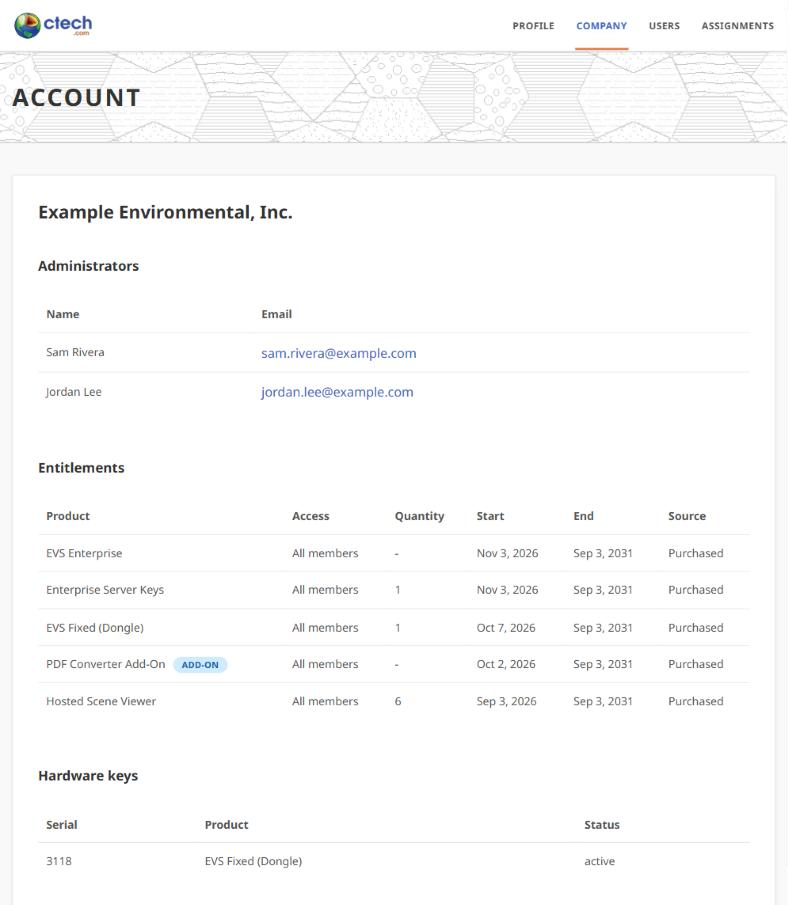
Every member can open the Company tab. It lists your company’s administrators and the licenses your company holds, with their quantity and the dates they run.
Adding users
- Invitation. Your company admin invites each user from the Users tab. The user accepts the emailed invitation and signs in.
- Single sign-on. If your company uses single sign-on, users sign in directly with their company account. No invitation is needed. Single sign-on is strongly recommended for Enterprise customers and for Floating customers with several seats.
- No company admin. Email support@ctech.com for help adding users or making someone an admin.
Users
The Users tab lists the people in your company and the invitations you have sent, and sets sign-in security for your company.
Members
Each row shows a member’s Name, Email, Role and License activity. Type in Filter by name or email to find someone.
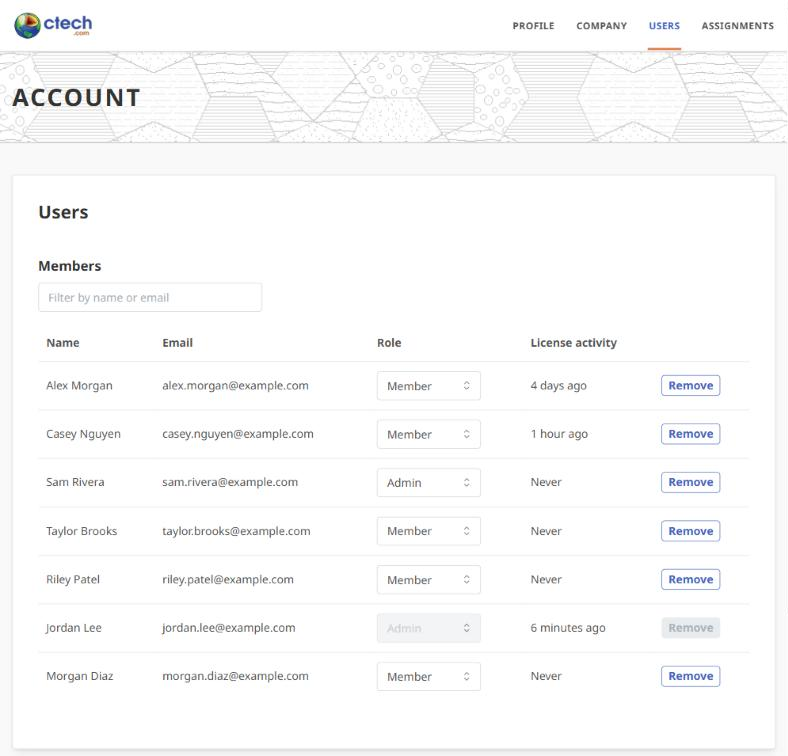
- Role. Choose Admin to let the person manage users and licenses, or Member for everyone else. The change applies right away.
- License activity. How the person uses your Enterprise and Floating licenses. See below.
- Remove. Removes the person from your company after you confirm. They can no longer use your company’s licenses.
You cannot change your own role or remove yourself. Ask another admin, or email support@ctech.com.
The License activity column shows these.
- Last check-in. For example “14 hours ago”, or “Never” if the person has not used a license yet. This is when the person’s EVS licensing last checked in with C Tech. It renews in the background, so it is not a record of each time EVS starts.
- In use. The person holds a license right now.
- Floating seat refused. The last time the person was turned away because every Floating seat was in use. It shows in orange when it is recent. Frequent refusals can mean your company needs more Floating seats.
Invitations
The Invitations list shows invitations that have not been accepted yet, with the email, role, when each was sent and when it expires. Select Revoke to cancel one.
To invite someone, fill in Send an invitation below the list.
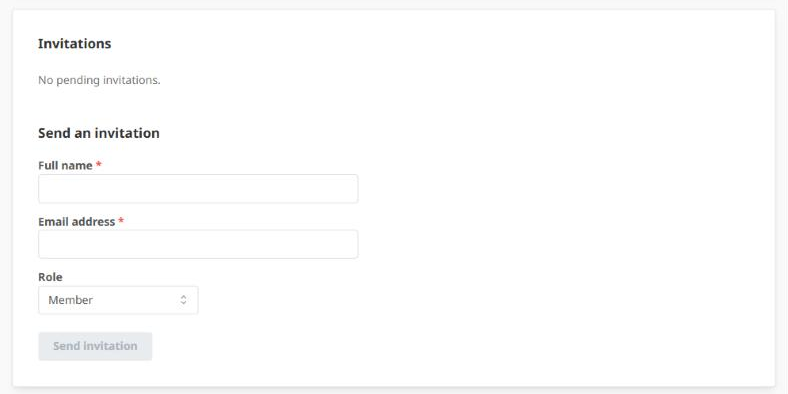
- Enter the person’s Full name and Email address.
- Choose a Role. Member is the default.
- Select Send invitation. The invitation is emailed to them.
Security
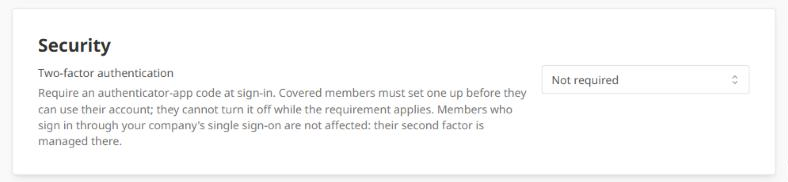
Use Two-factor authentication to require an authenticator-app code when members sign in. Choose Not required, Required for administrators or Required for everyone. Members it covers must set up an authenticator app before they can use their account, and they cannot turn it off while it is required. Members who sign in through your company’s single sign-on are not affected, because their second factor is managed by your identity provider.
Assignments
Floating, Enterprise and University licenses are available to every member of your organization. An EVS Fixed license must be assigned to one person.
The Assignments tab shows how many EVS Fixed seats are assigned.
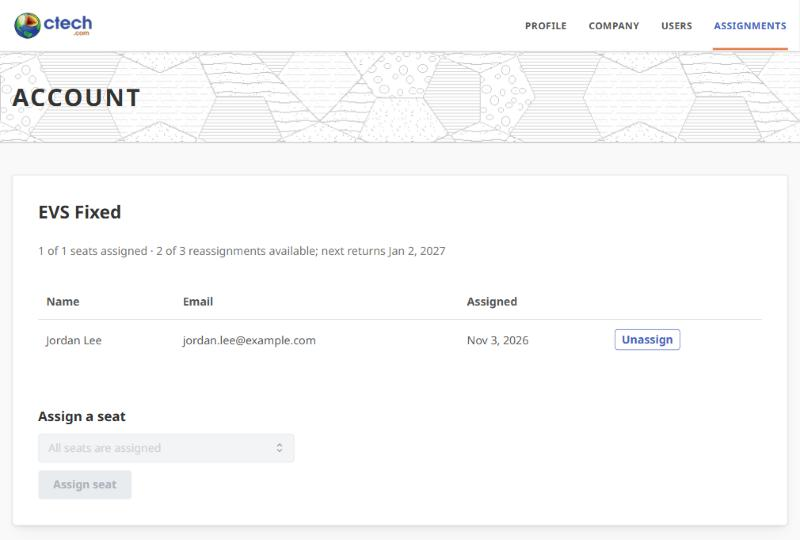
- Assign a seat. Select a member and select Assign seat.
- Unassign. Frees the seat so you can assign it to someone else.
Reassigning seats is limited. Each unassignment uses one of your company’s 3 reassignments for that product for 60 days. Once a seat has been reassigned, the page shows how many reassignments are available and when the next one returns. See Reassigning a Fixed license to another person.
After a change, the user selects Refresh on the License Manager’s Licenses page. See Online Licensing.
Devices
Each user manages their own computers for an EVS Fixed license on the License Manager’s Licenses and Devices page. See Fixed Seats and Devices.
To free a computer that was lost, stolen or replaced and can no longer be retired from the License Manager, contact support@ctech.com.